Sometimes, when filling out a form, the browser’s autofill feature may suggest options that appear to be correct but aren’t.
This can cause issues where the wrong asset is selected, leading to incorrect connections in the resulting ticket. Below is a simple guide to avoid this problem and ensure that the correct asset is selected every time.
Browsers like Chrome may automatically suggest autofill options in form fields.
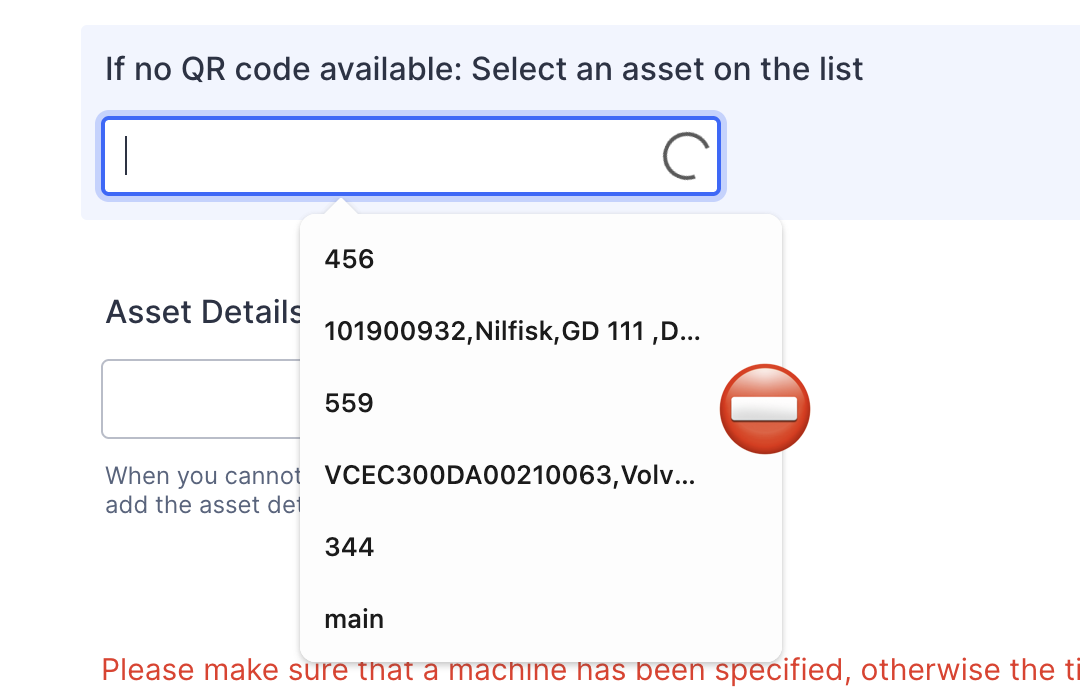
When a user selects one of these suggestions, it might seem that the correct asset has been chosen, but in reality, it hasn’t been.
This is especially common when assets are manually selected while filling out a form.
1. Avoid Using the Search Field (If Possible)
The easiest way to ensure the correct asset is selected is to avoid using the search field altogether. Instead, create the ticket directly from the Asset Overview page, where the asset is automatically linked correctly.
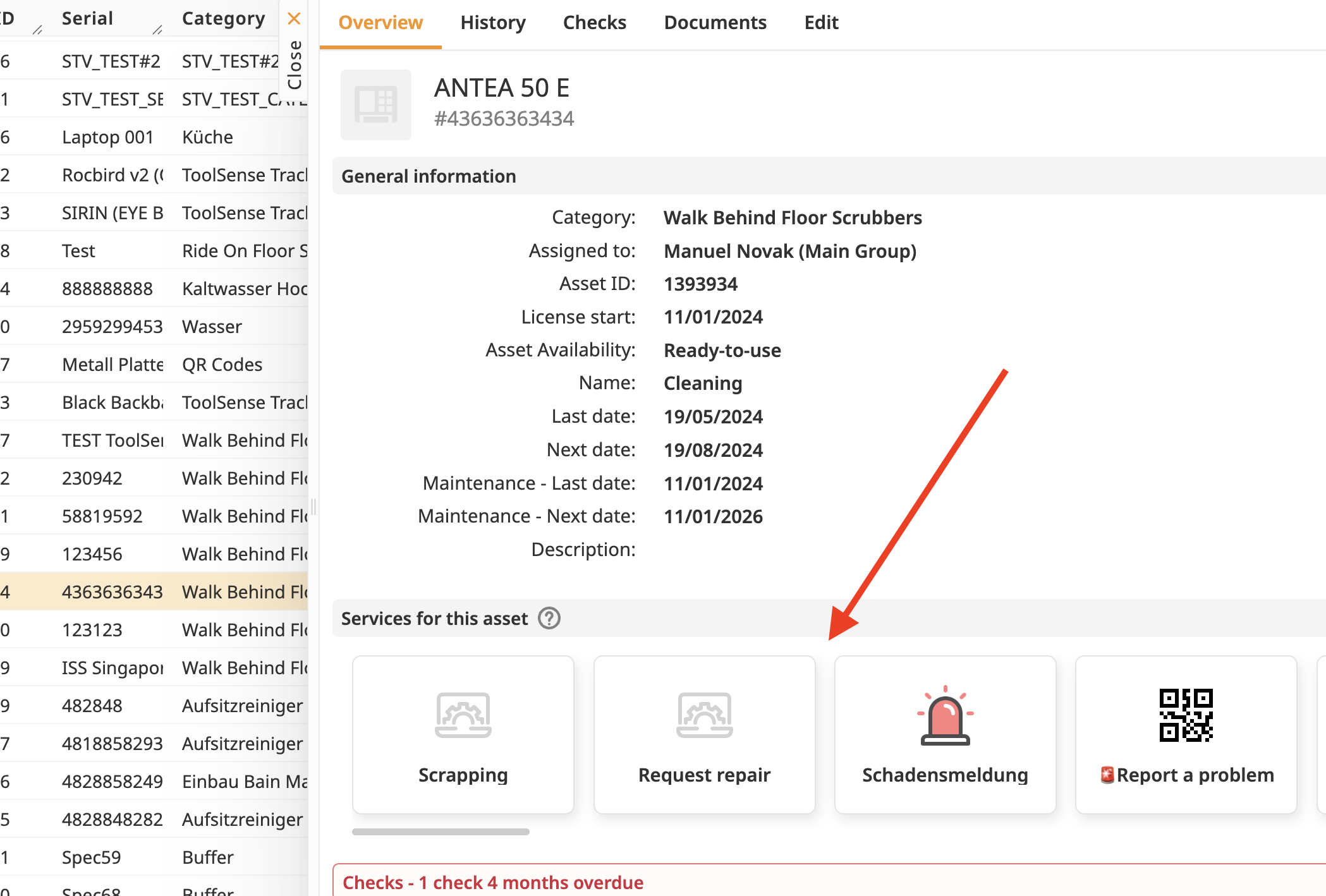
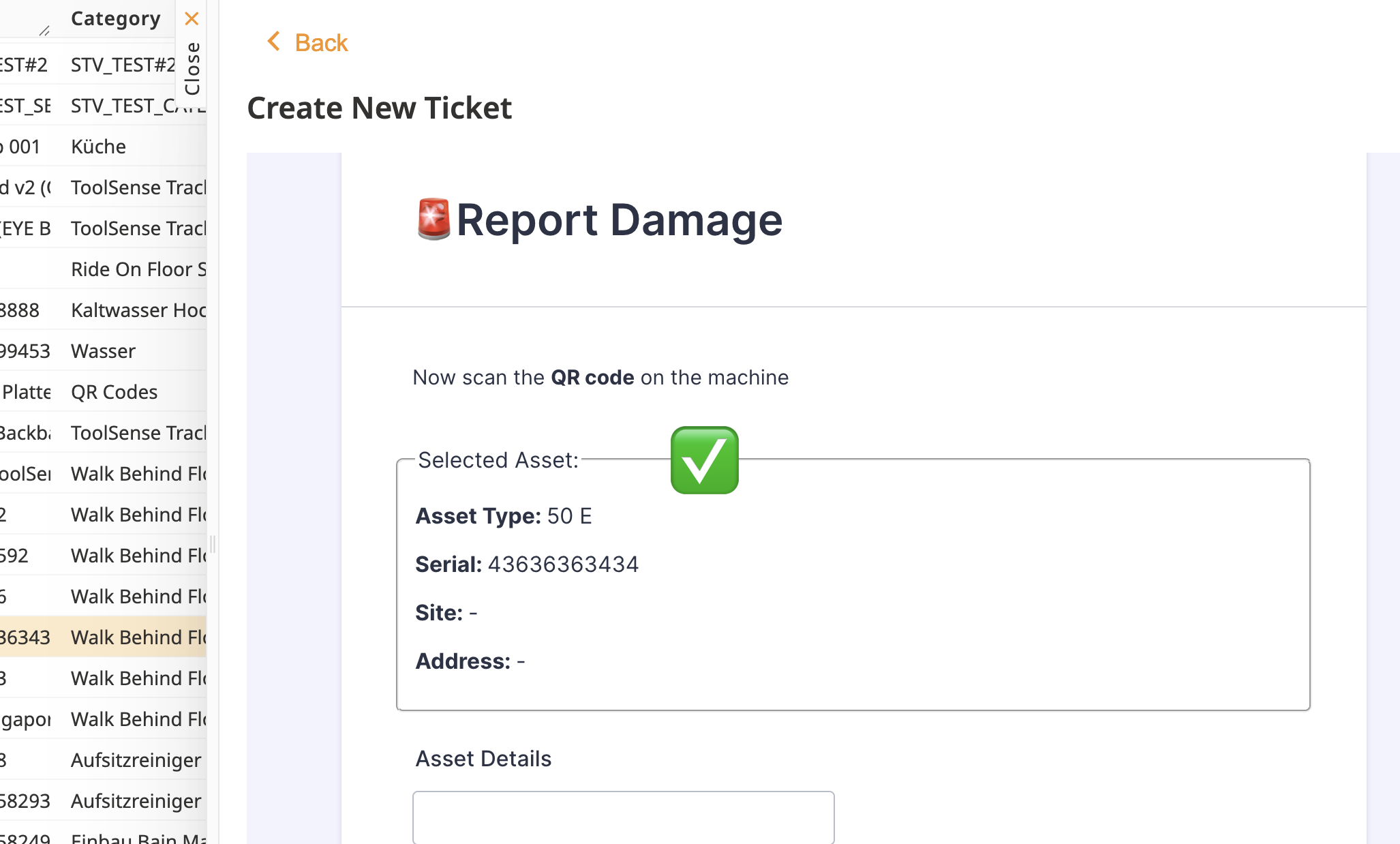
2. Manually Select the Asset
If you must use the search field, be sure to carefully select the asset from the search results. Double-check that the asset listed is the one you intend to connect to the ticket.
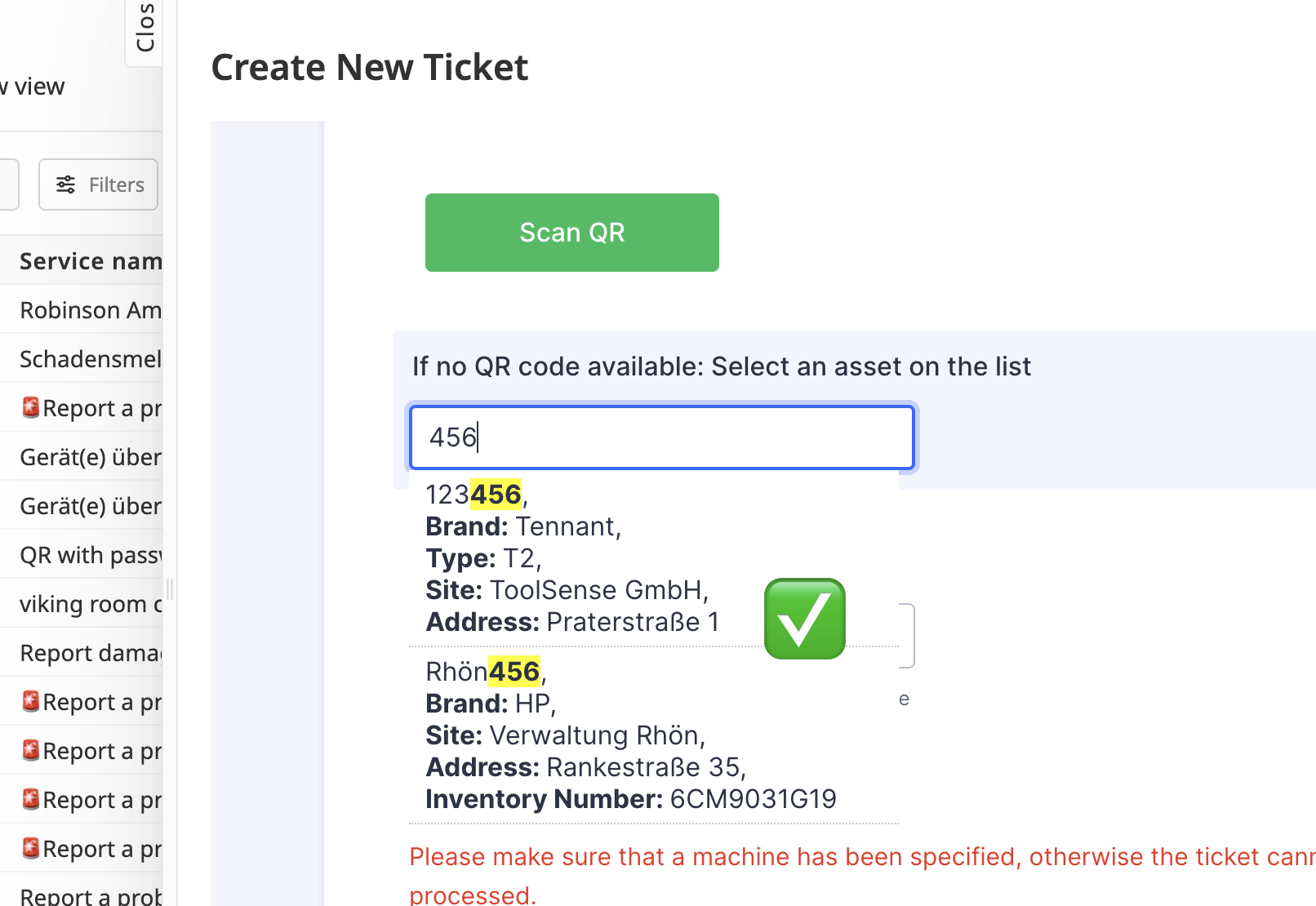
3. Identify Autofill Issues
If you notice that the wrong asset has been selected after autofill suggestions pop up, correct it by manually selecting the right asset. Look out for the browser’s autofill prompts to avoid confusion.
Whenever possible, create tickets directly from the Asset Overview page. This ensures the asset is automatically linked, eliminating the need to search or select from a list. This method is 100% accurate in linking the correct asset.
By following these steps, you can ensure that your tickets are always connected to the correct assets and avoid issues caused by browser autofill.
If you continue to experience problems or need further assistance, feel free to reach out to our support team.
