When delivering new machines:
Get QR codes from ToolSense or your customer.
Stick the QR code onto the machine.
In the ToolSense app, tap the QR code icon (top right corner).
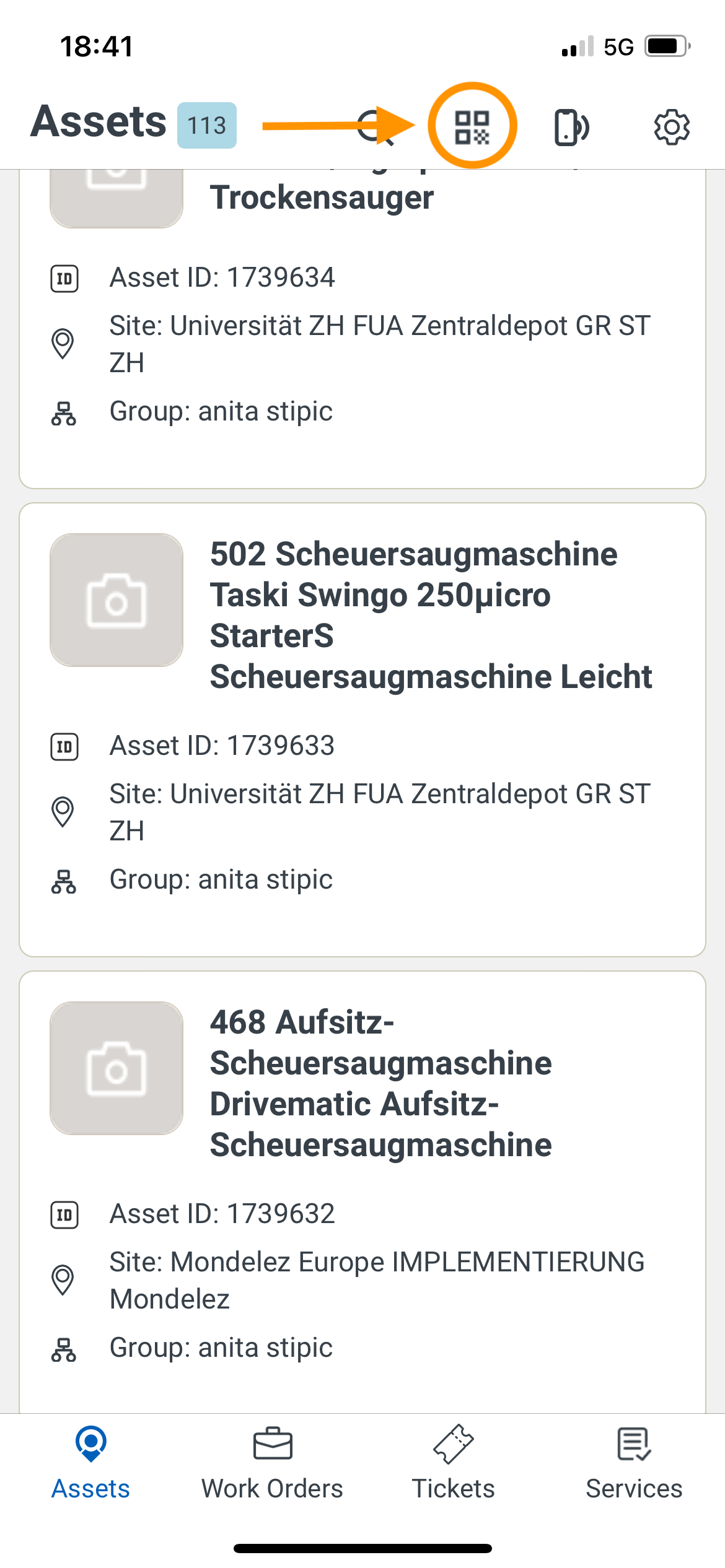
Scan the QR code with your smartphone.
Fill in asset details:
Serial number
Machine type
Location
IMEI (if IoT is installed)
Photo of the asset
 Video Walkthrough: QR Code Setup
There are two ways you might handle service tickets:
 Option A – Email Workflow (No Login Needed)
Customer reports a machine issue via ToolSense.
You receive a ticket-email with:
Machine info
Issue details
Location
Reply directly to the email:
Your reply appears automatically in ToolSense.
Optional:
Forward ticket emails into your own system (e.g. Salesforce).
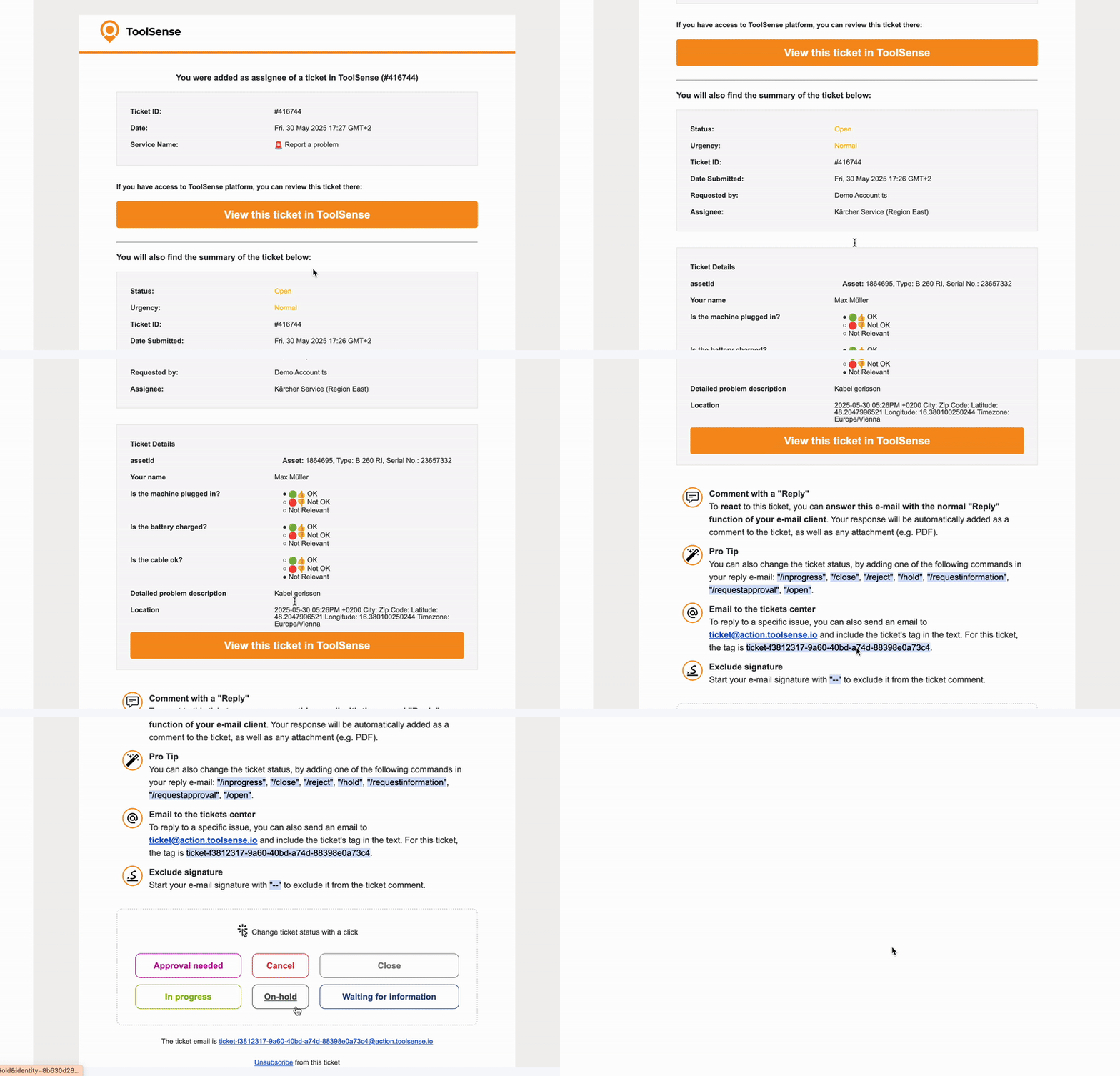
Pro Tip
You can change the ticket status by adding one of these commands in your reply email:/inprogress | /close | /reject | /hold | /requestinformation | /requestapproval | /open
Exclude signature
Start your email signature with -- to exclude it from the ticket comment.
 Option B – ToolSense Account
Log in at: my.toolsense.io
Go to:
Tickets → manage your assigned tickets
Assets → view machine details
Add comments, upload files, or close tickets.
Alternatively, you can also interact with tickets via email as shown above.
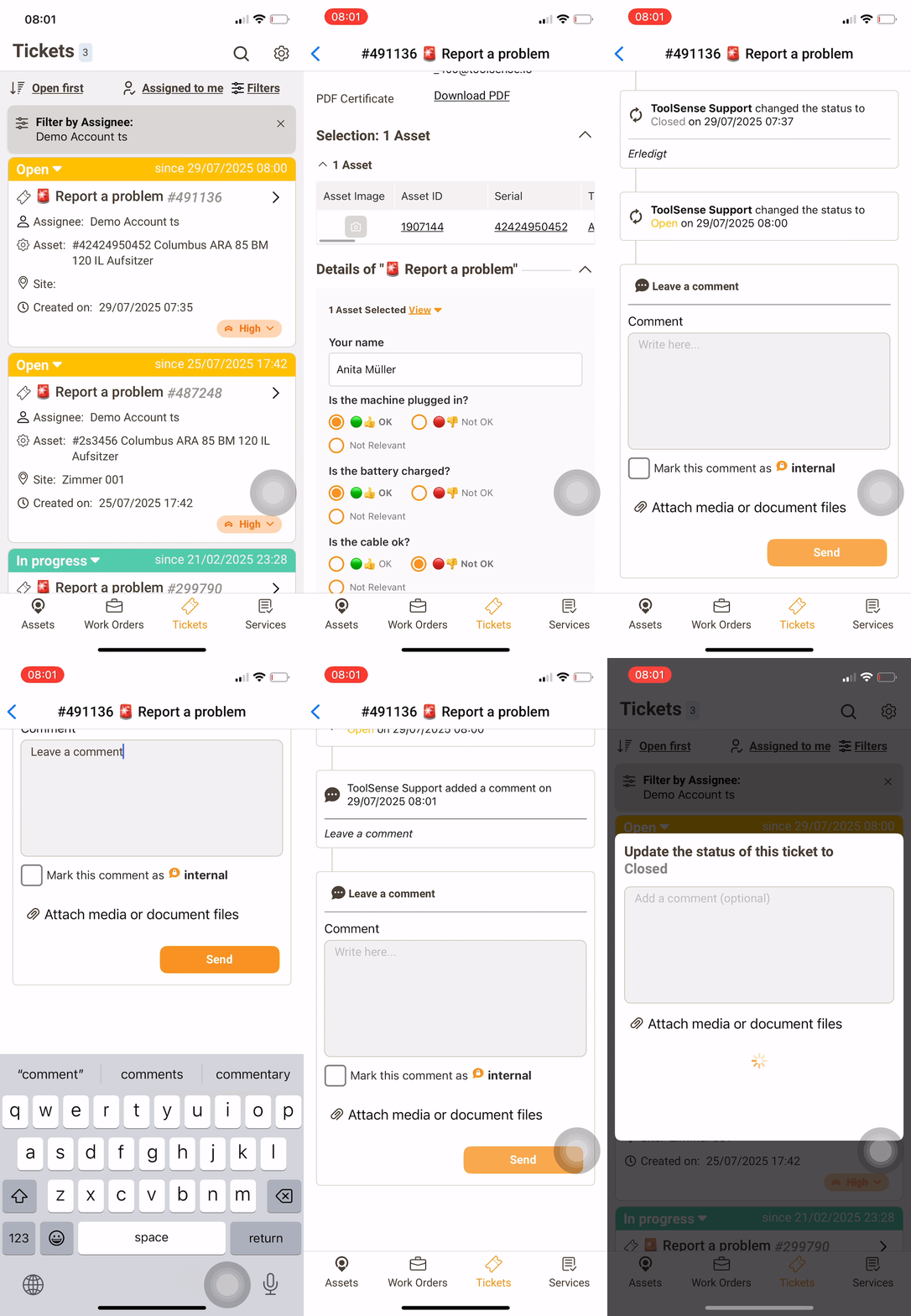
Video Walkthrough: Ticket Management and Communication
When a machine requires IoT:
Order IoT units from ToolSense or your OEM.
Install the IoT hardware according to the installation manual.
Register the machine in ToolSense:
Add serial number, type, and location.
Enter the IMEI number of the IoT unit.
If the machine already exists in ToolSense:
Simply add the IMEI number to the existing asset.
Video Walkthrough: IoT Installation Guide
Contact your customer for:
Access questions
QR codes
Ticket routing
ToolSense Support:
 Use the chat icon in ToolSense

