This guide is intended for service partners, maintenance providers, and OEMs working with customers who use ToolSense for asset and service management.
ToolSense is the system your customer uses to manage machines, service tickets, and technical documentation. As an external partner, you may interact with ToolSense to register machines, handle service tickets, and carry out or document checks - either with or without your own ToolSense login, depending on the setup agreed with your customer.
As a service partner or OEM, you may be involved in the following activities:
Registering new machines using QR codes
Receiving and handling service tickets (via email or directly in ToolSense)
Installing and registering IoT devices on machines
Completing and documenting checks assigned by the customer
This guide walks you through the most common workflows step by step and shows you how to work efficiently with ToolSense in day-to-day operations.
If anything in this guide is unclear or access is missing, your primary contact is always your customer. ToolSense Support is available for technical assistance if needed.
Before working with ToolSense, please make sure you have the following from your customer:
QR codes for the machines (or confirmation that QR codes are already attached)
Your service email address registered for ticket communication
Access details (only if you will log in to ToolSense)
Clarity on responsibilities, e.g.:
Which machines you are responsible for
Whether you are expected to create assets yourself
Whether you should close tickets or only provide feedback
If any of these are missing, please contact your customer before starting.
Use this process when delivering or commissioning new machines that are not yet registered in ToolSense.
Get QR codes from ToolSense or your customer.
Stick the QR code onto the machine.
In the ToolSense app, tap the QR code icon (top right corner).
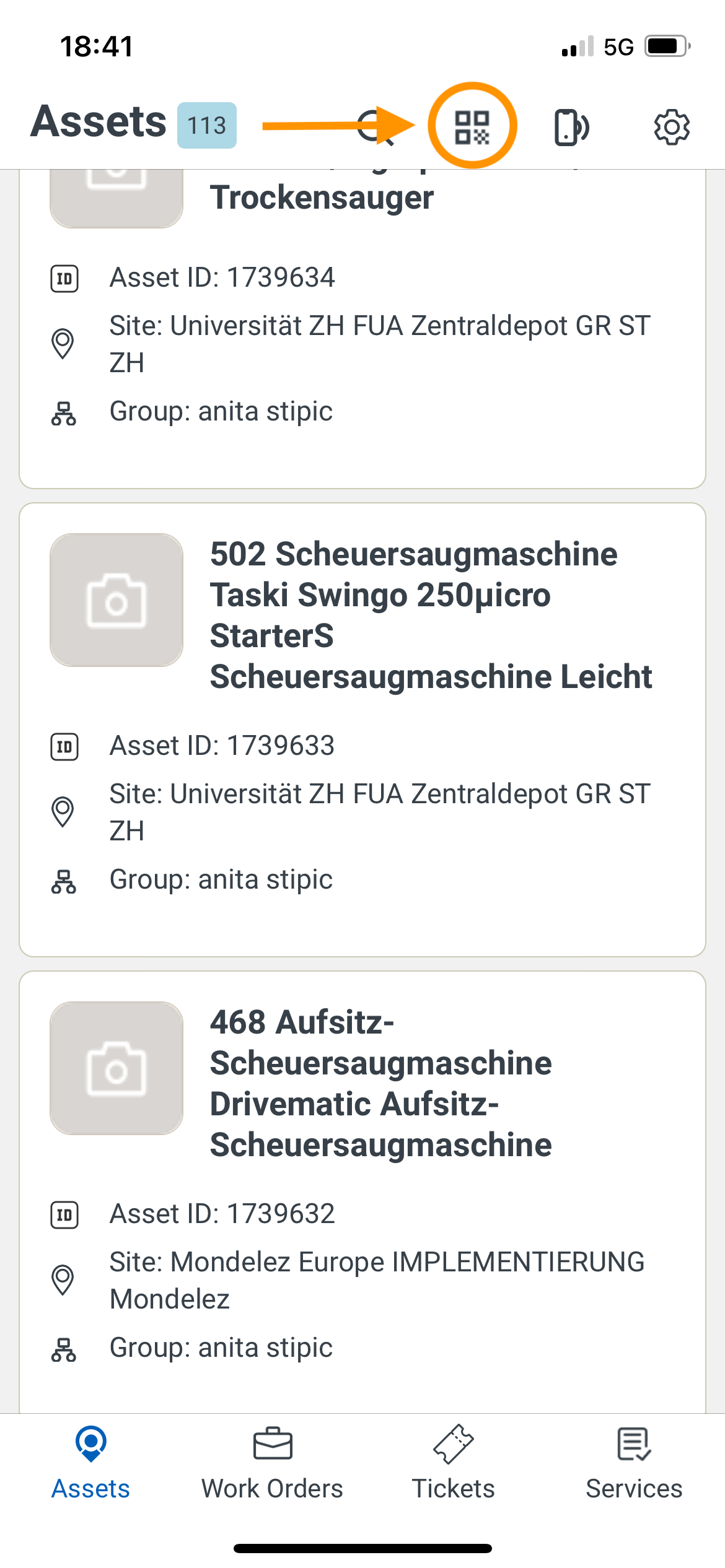
Scan the QR code with your smartphone.
Fill in asset details:
Serial number
Machine type
Location
IMEI (if IoT is installed)
Photo of the asset
 Video Walkthrough: QR Code Setup
Service tickets are used to report, track, and resolve machine issues. Depending on your setup, you can work with tickets via email or directly in ToolSense.
 Option A – Email Workflow (No Login Needed)
Customer reports a machine issue via ToolSense.
You receive a ticket-email with:
Machine info
Issue details
Location
Reply directly to the email:
Your reply appears automatically in ToolSense.
Optional:
Forward ticket emails into your own system (e.g. Salesforce).
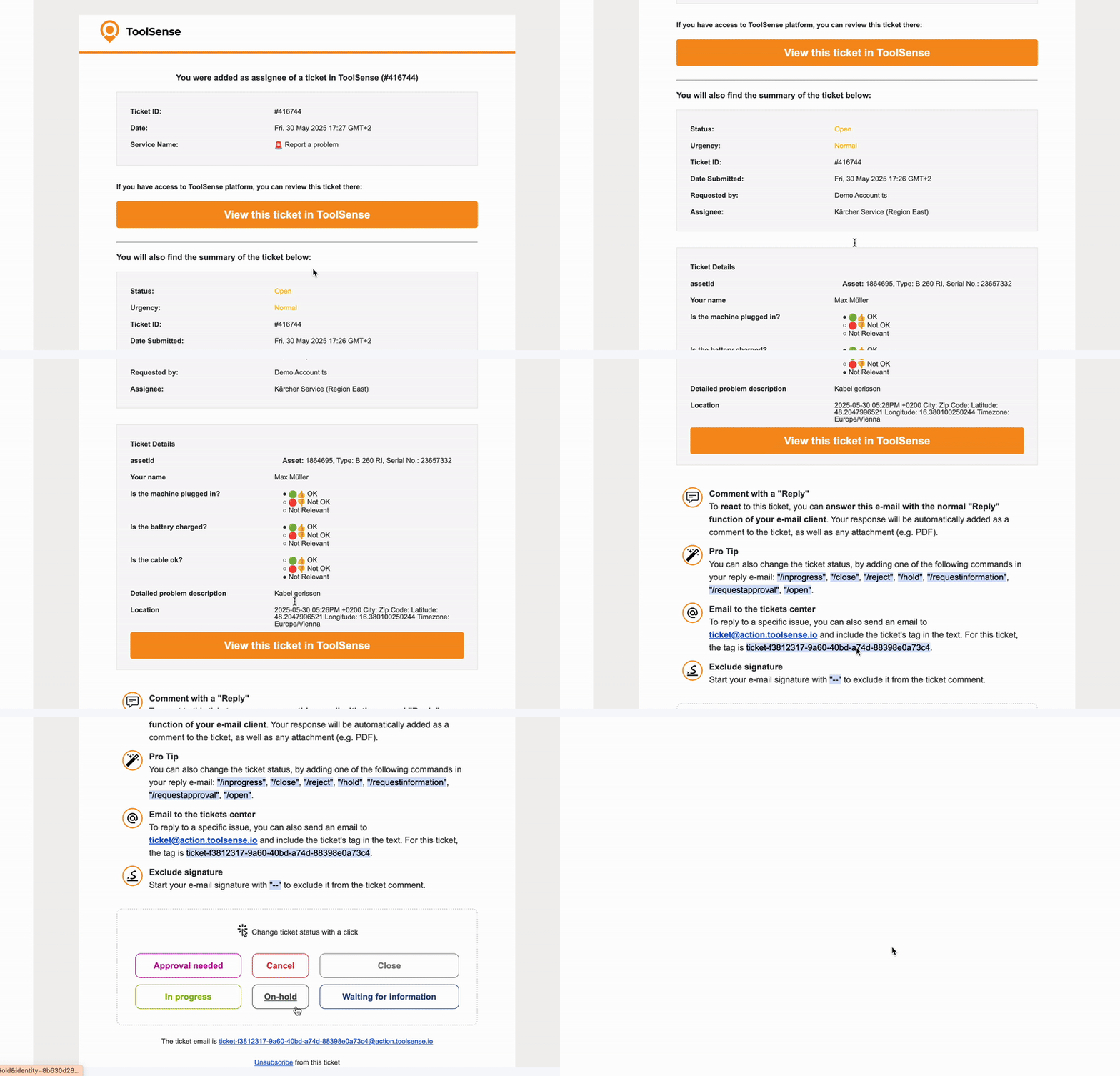
Pro Tip
You can change the ticket status by adding one of these commands in your reply email:/inprogress | /close | /reject | /hold | /requestinformation | /requestapproval | /open
Exclude signature
Start your email signature with -- to exclude it from the ticket comment.
 Option B – ToolSense Account
Log in at: my.toolsense.io
Go to:
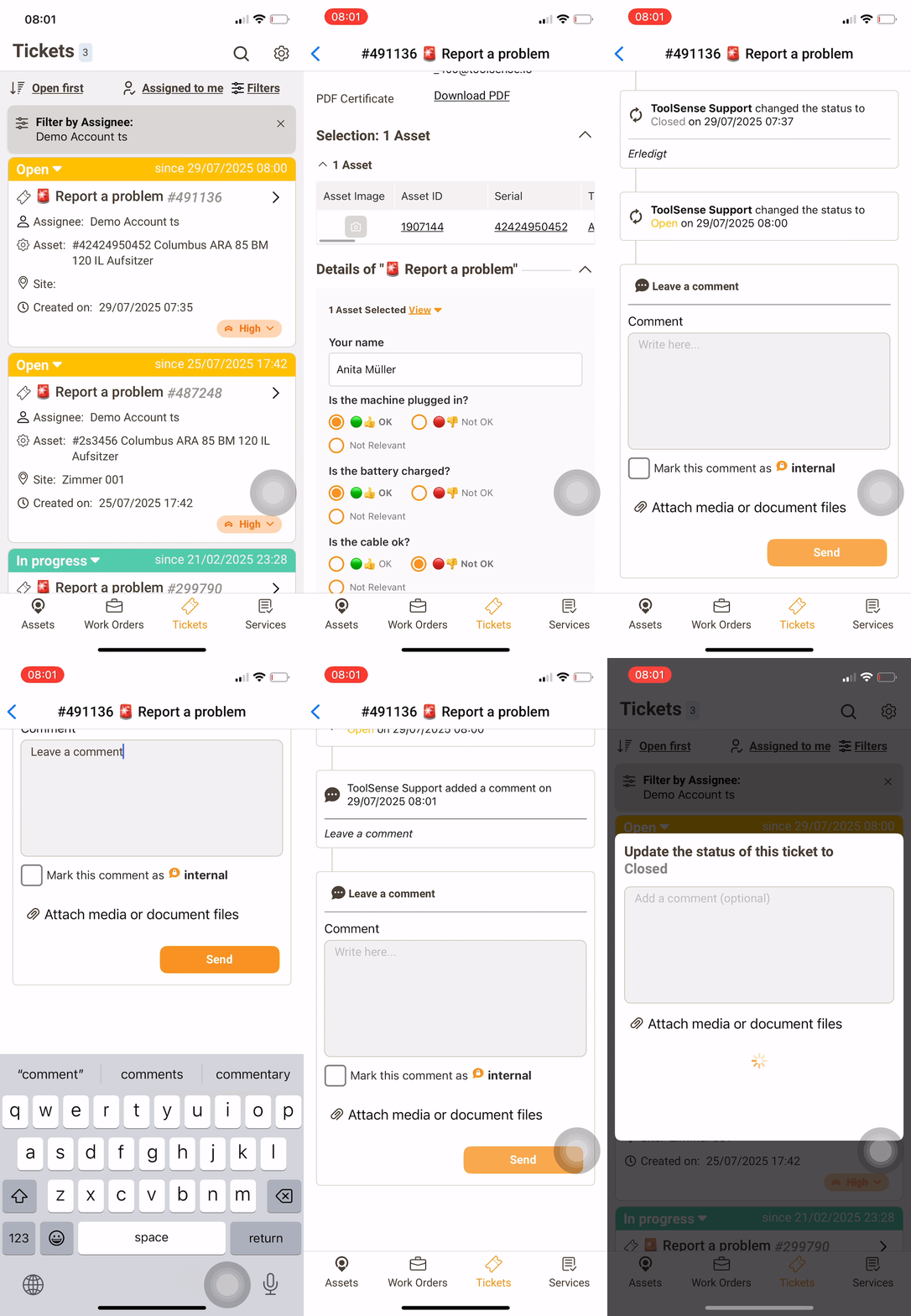
Tickets → manage your assigned tickets
Assets → view machine details
Add comments, upload files, or close tickets.
Alternatively, you can also interact with tickets via email as shown above.
Video Walkthrough: Ticket Management and Communication
Follow these steps when a machine is equipped with a ToolSense IoT device for tracking or data collection.
Order IoT units from ToolSense or your OEM.
Install the IoT hardware according to the installation manual.
Register the machine in ToolSense:
Add serial number, type, and location.
Enter the IMEI number of the IoT unit.
If the machine already exists in ToolSense:
Simply add the IMEI number to the existing asset.
Video Walkthrough: IoT Installation Guide
Process questions (tickets, responsibilities, access): contact your customer
Technical issues with ToolSense: ToolSense Support
 Chat icon in ToolSense

