Go to the Google Play Store or the Apple App Store.
Search for ToolSense.
Log in using your credentials.
If you do not yet have login credentials, please contact your internal ToolSense administrator.
Go to the login page: https://my.toolsense.io
Click on "Forgot password?"
Enter your registered email address.
You will receive an email with a link to reset your password.
Click the link and follow the instructions to create a new password.
Open the ToolSense app on your smartphone.
Tap the QR Code/NFC scanner icon in the top right corner.
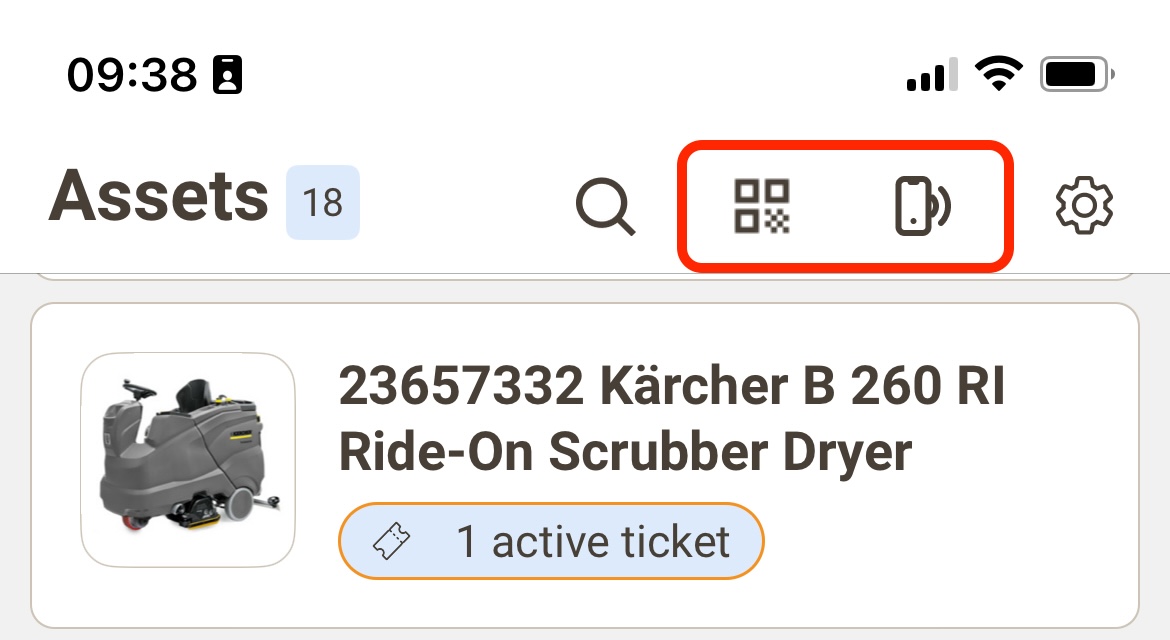
Scan an unassigned QR Code/NFC tag.
Tap "Assign QR Code/NFC".
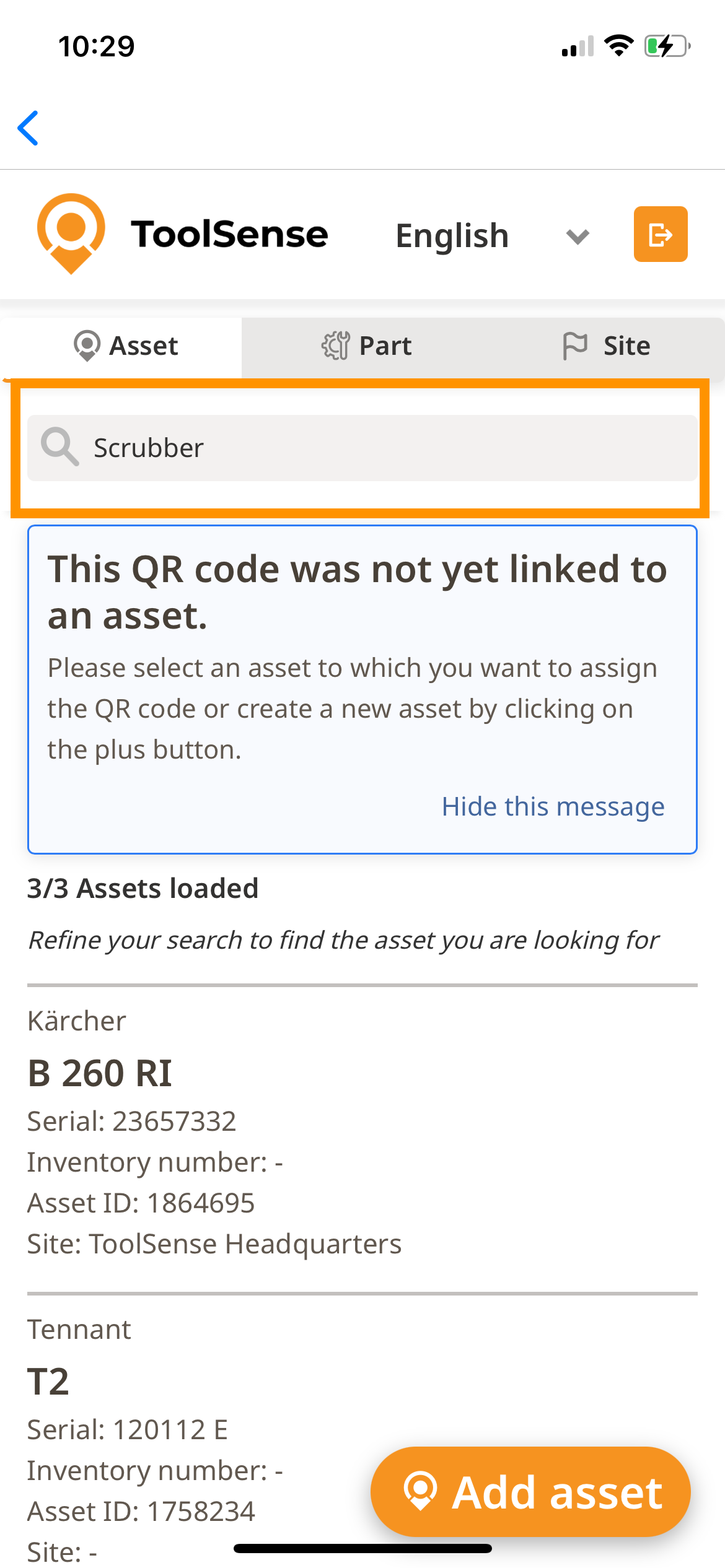
Select the asset using the search function
Open the ToolSense app on your smartphone.
Tap the QR Code/NFC scanner icon in the top right corner.
Scan an unassigned QR Code/NFC tag.
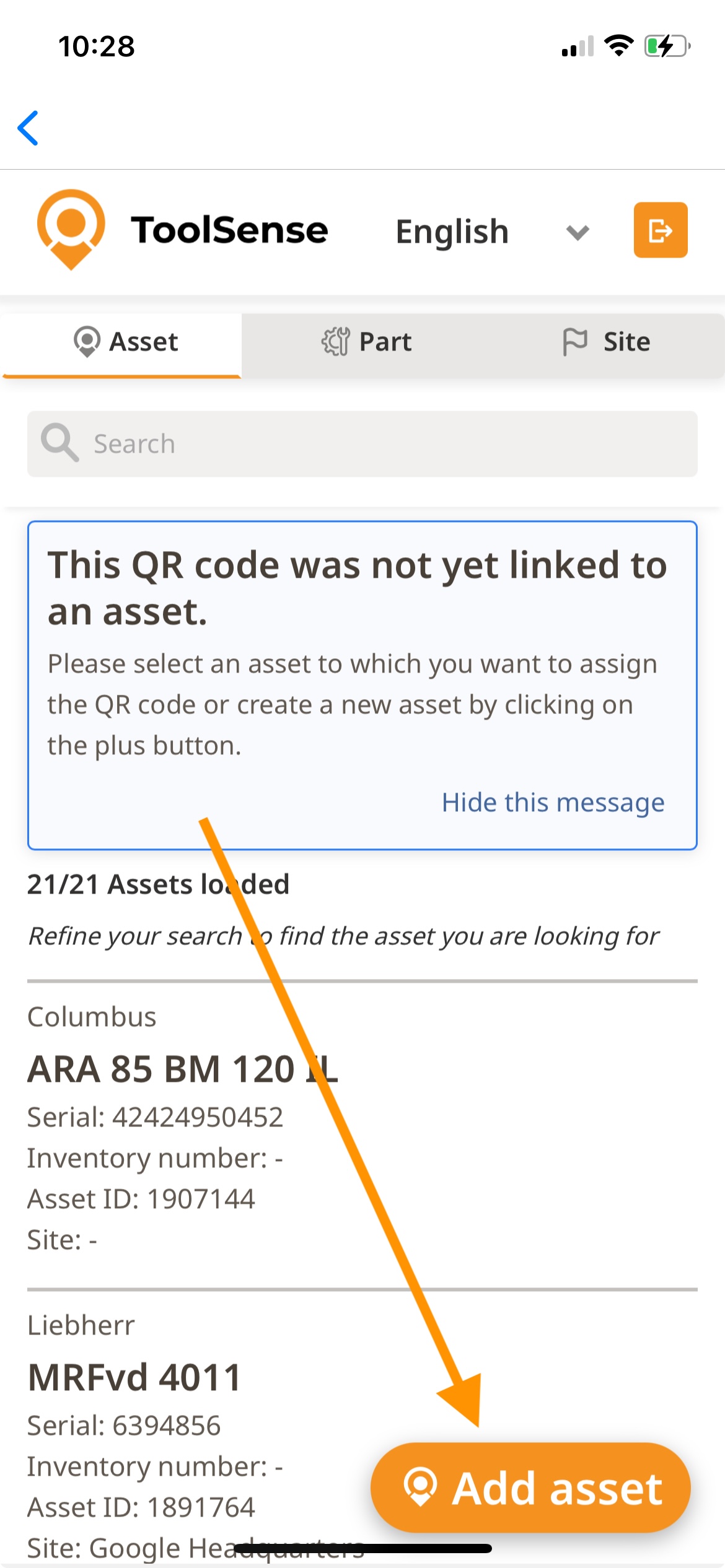
Tap "Assign QR Code/NFC".
Tap "Add Asset" in the bottom right corner.
Fill in at least all required fields.
Tap "Add Asset" at the end of the form.
Services allow you to automate and document processes in the ToolSense app (e.g. asset relocation, asset disposal).
You can perform a service in two ways – via an asset (with QR Code/NFC) or via the Tickets tab in the ToolSense app.
Open the ToolSense app on your smartphone.
Tap the QR Code/NFC scanner icon in the top right corner:
Scan the QR Code/NFC tag – the asset page will open.
If no tag is attached: Use the search function to find the correct machine.
In the asset overview, under Services, select the desired service.
Fill out the form and tap Submit.
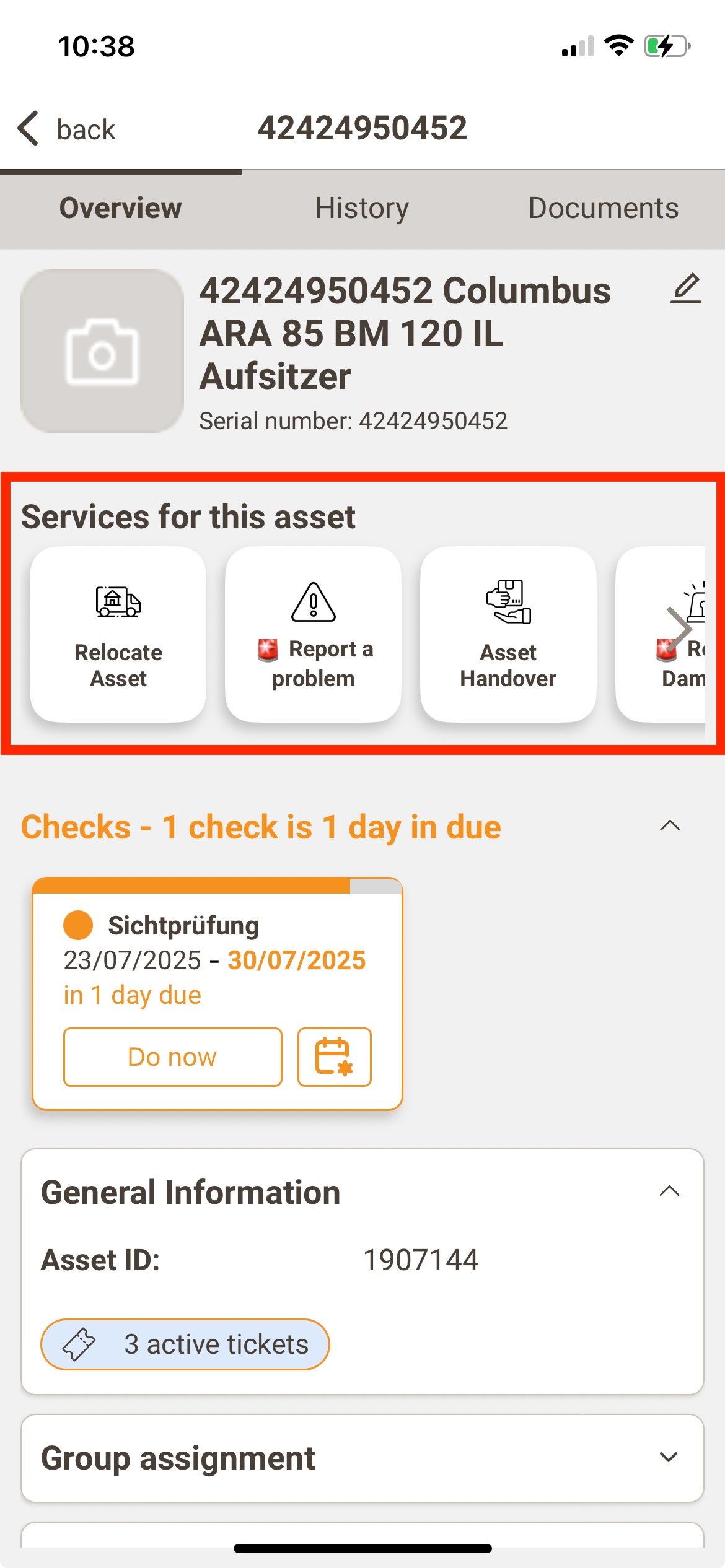
Open the ToolSense app on your smartphone.
Tap "Tickets" in the bottom navigation bar.
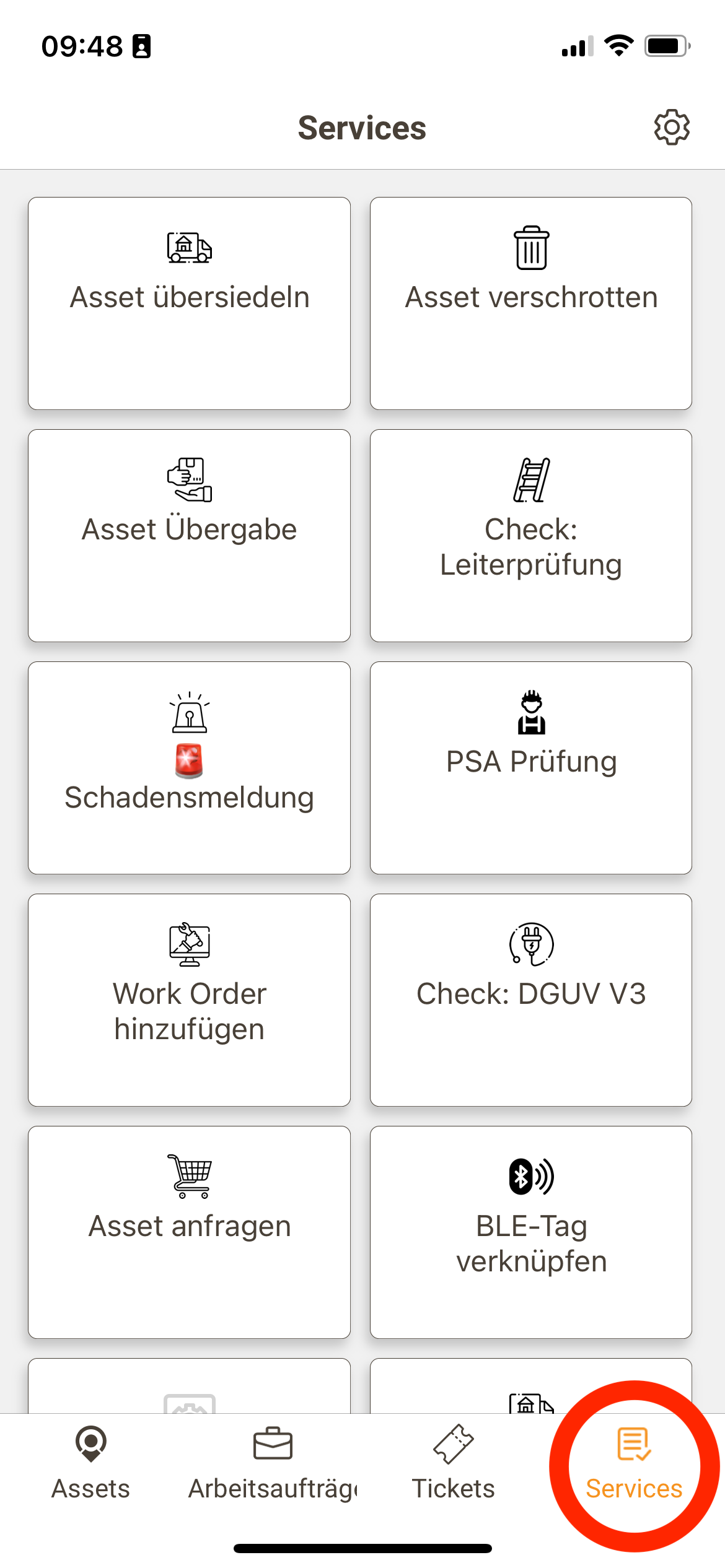
Select the service you want to perform.
Add an asset:
Select an asset using the search bar.
Or add assets via the QR Code/NFC scanner.
Fill out the form.
Tap Submit.
Open the asset by scanning the QR Code/NFC tag or using the search function.
Under the Inspections tab, tap "Do Now" for the relevant inspection.
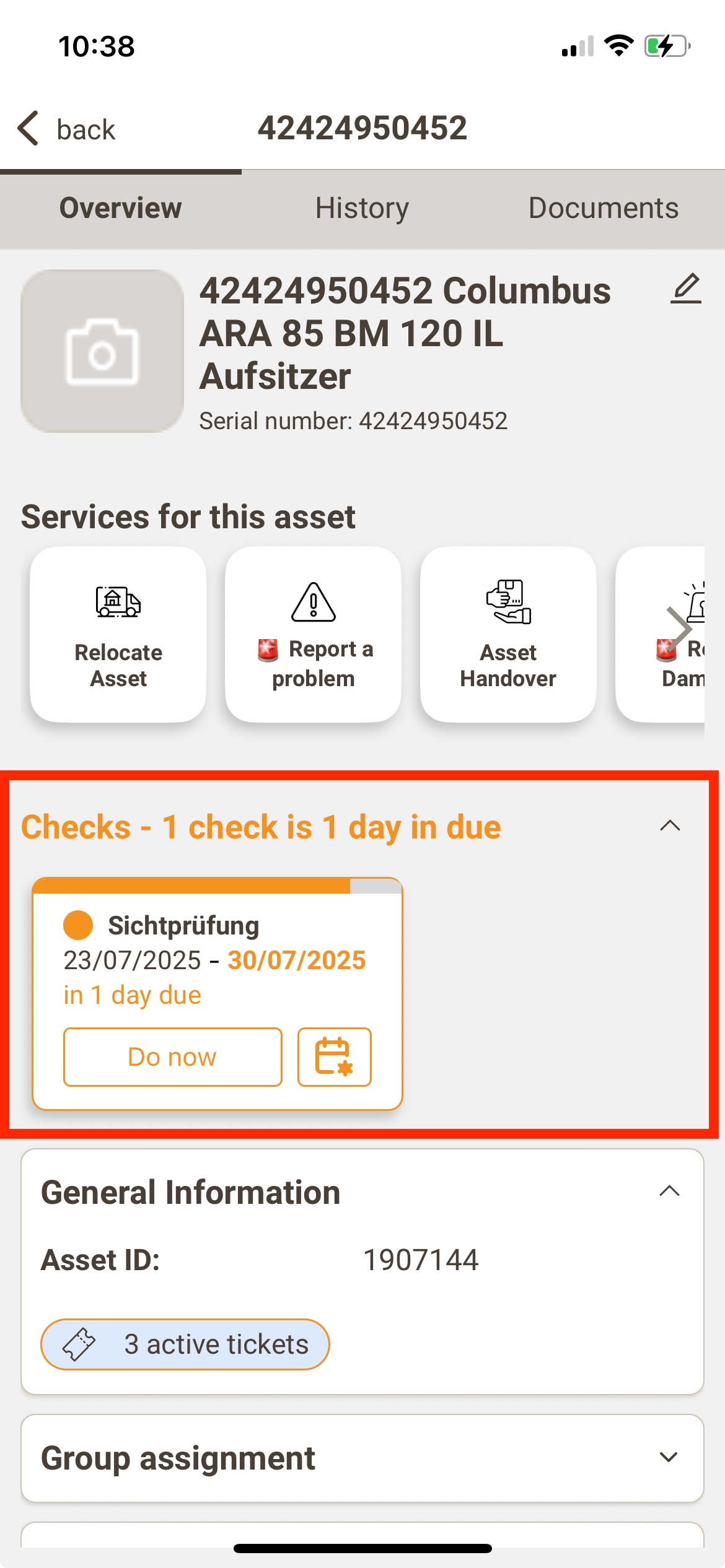
Fill out the form.
Tap Submit.
For more articles and information, visit our Help Center at help.toolsense.io.
