In some cases, you may need to add assets to ToolSense in an area without internet connection (for example, basements or technical rooms). If the asset cannot be moved to a location with internet connection (e.g. washing machines), you can still register it with a simple workaround.
Follow these steps:
For every asset in the area without internet connection, take the following photos:
The QR code (blank QR you placed on the machine)
The asset itself (to recognize it later)
The nameplate (with serial number and technical data)
The check sticker (if available)
Repeat this for all assets in the area.
Once you have documented all assets, go to a location where you have a stable internet connection.
Open the first QR code photo you took.
You can use the camera app, Google Photos, or any app that allows you to scan a QR code from an image.
Scan the QR code from the picture and open the link.
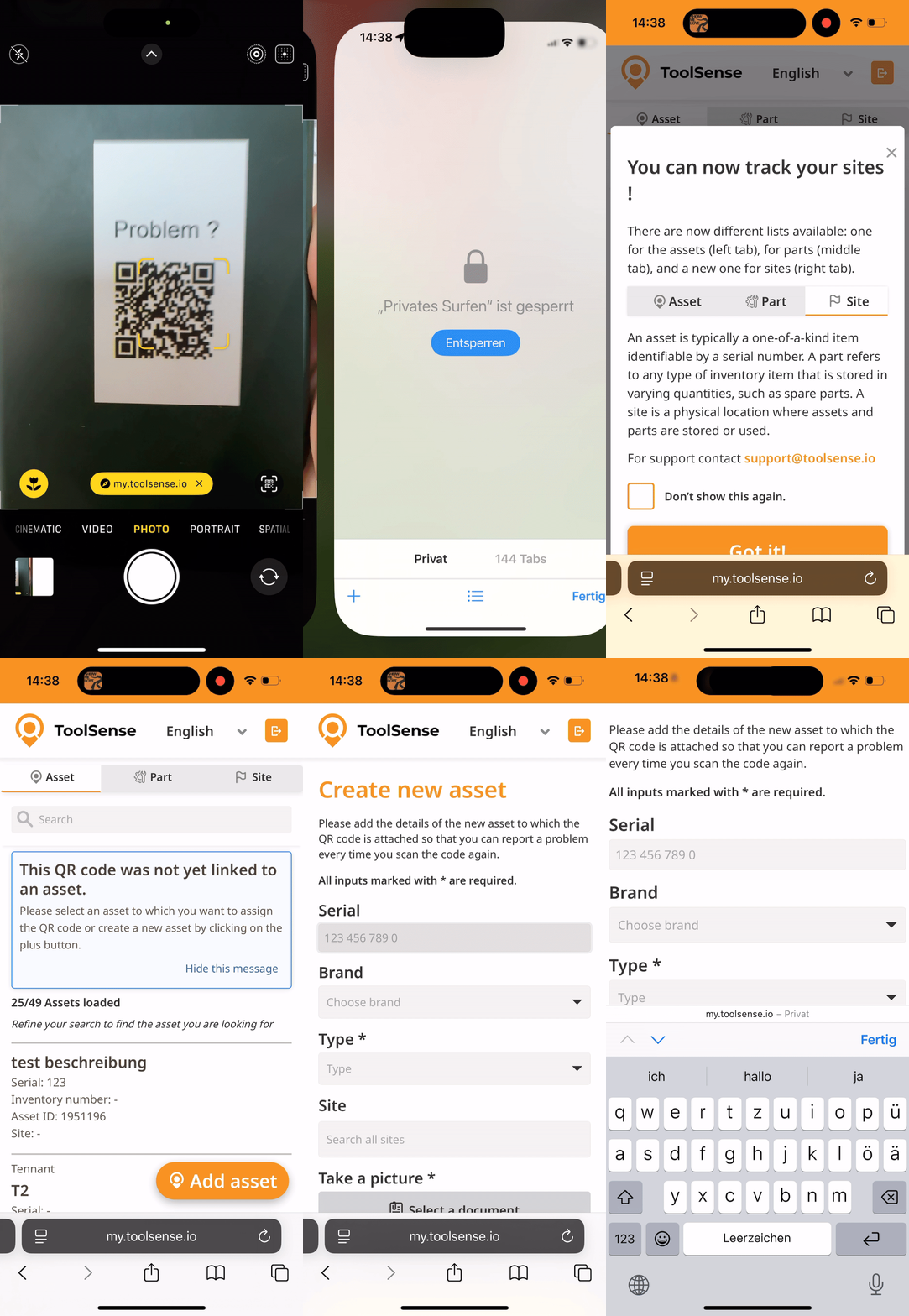
Login to ToolSense if required (you only need to log in once).
Follow the steps in this article: How To Add an Asset - ToolSense Mobile App
Upload the photos you took (asset, nameplate, check sticker) to complete the asset profile.
Continue the same process for every asset you documented without internet connection until all assets are registered in ToolSense.
 That’s it! Even in areas without internet, you can easily add assets by preparing photos first and finalizing the registration later.

