Once a check has been added in the asset overview, a small tab called "Checks" will appear with all scheduled checks for this equipment in the dropdown.
To perform the check via our mobile app:
Open the ToolSense Mobile App:
Launch the ToolSense App and tap the QR Code icon.
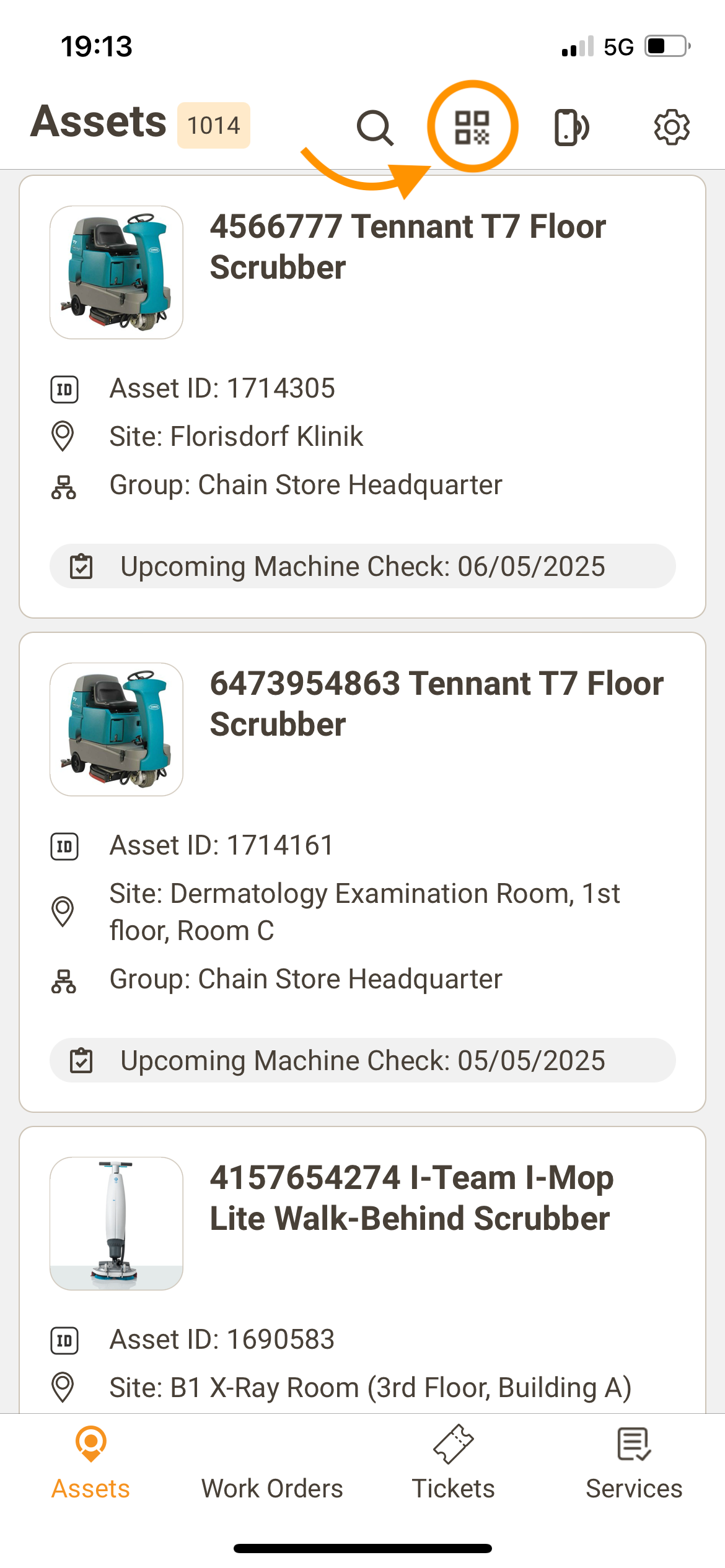
Scan the Asset's QR Code:
Your camera will open automatically. Position the asset's QR Code inside the orange square to scan it. This will take you to the asset's overview.
Access Scheduled Checks:
Tap the "Check" dropdown to view all scheduled checks for the asset.
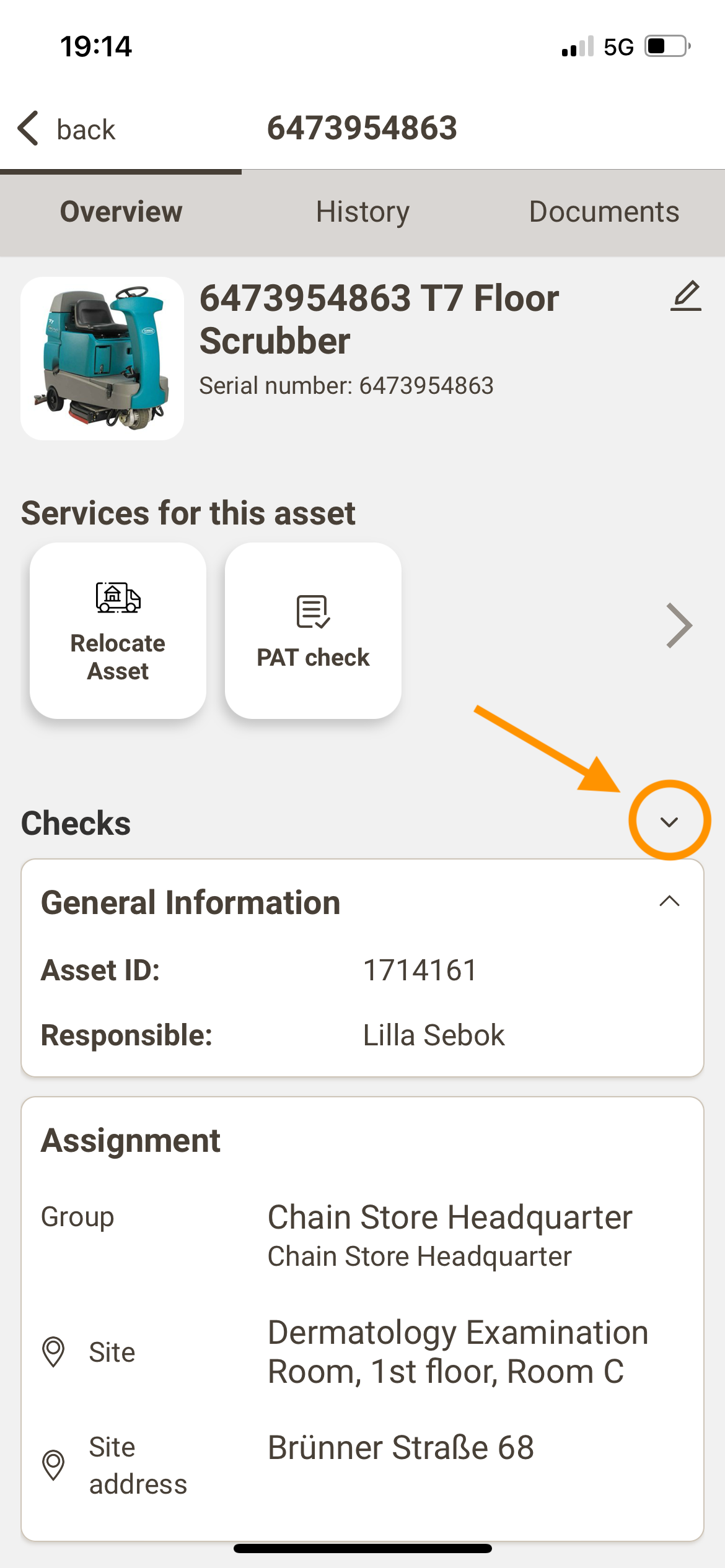
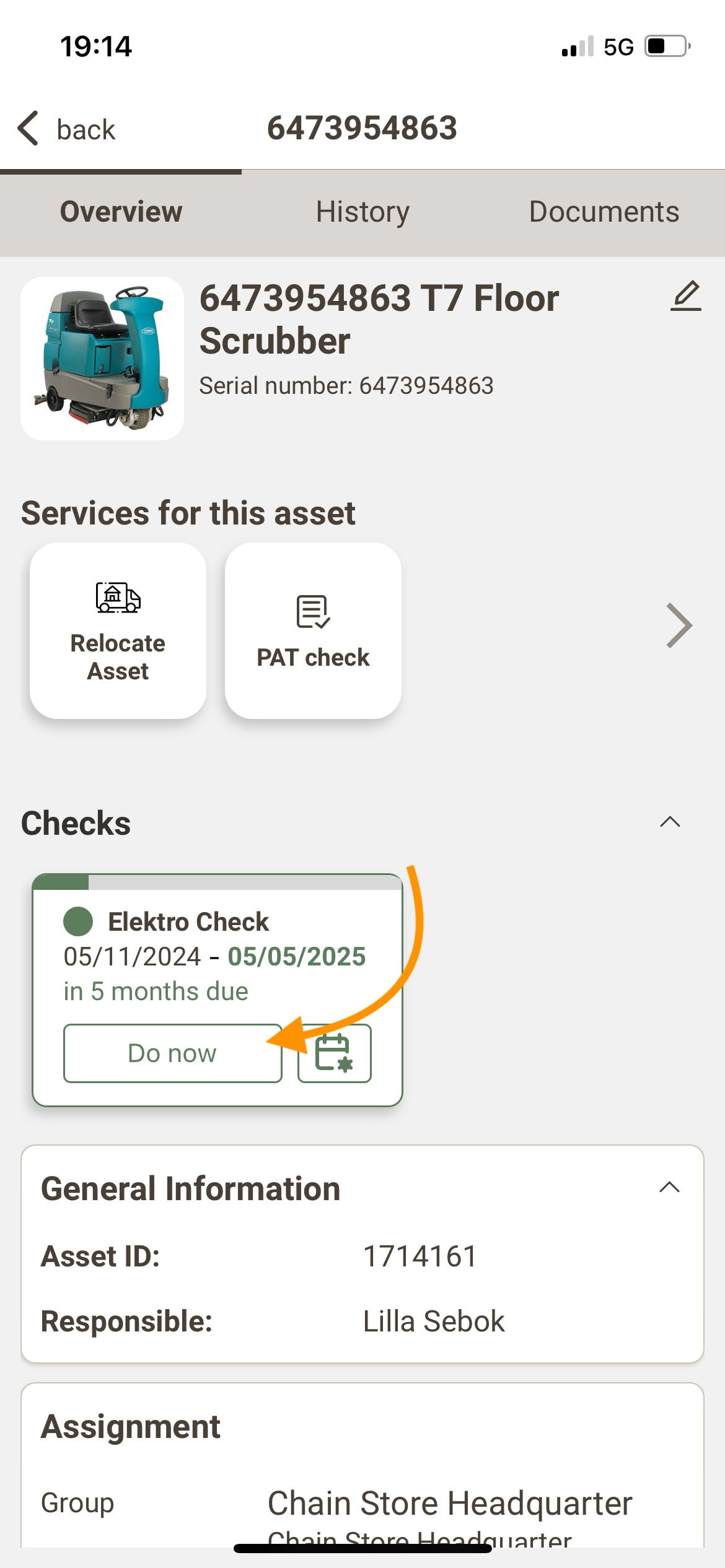
Select a Check:
Click on the corresponding "Do Now" button for the check you want to perform.
Select the Check’s Form:
Select the check’s form and fill out all the details.
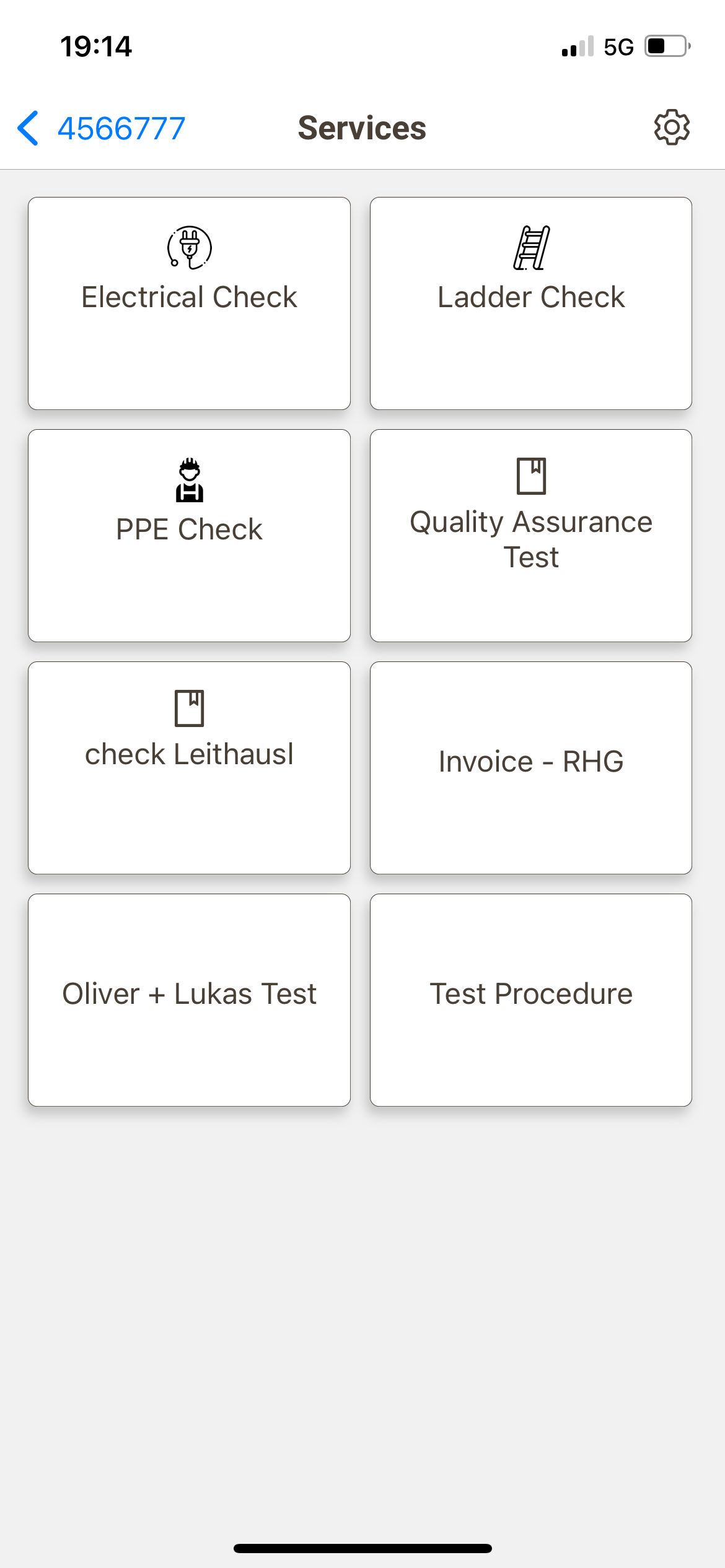
Trouble Finding the Right Form?
Ensure the service's visibility is set up correctly, as explained in the article below.
How to configure Services & Tickets ?
Find below the answer to all your questions related to Services, Service packages & Tickets.
Still having issues? Contact your CSM or our support team to request the service to be added.
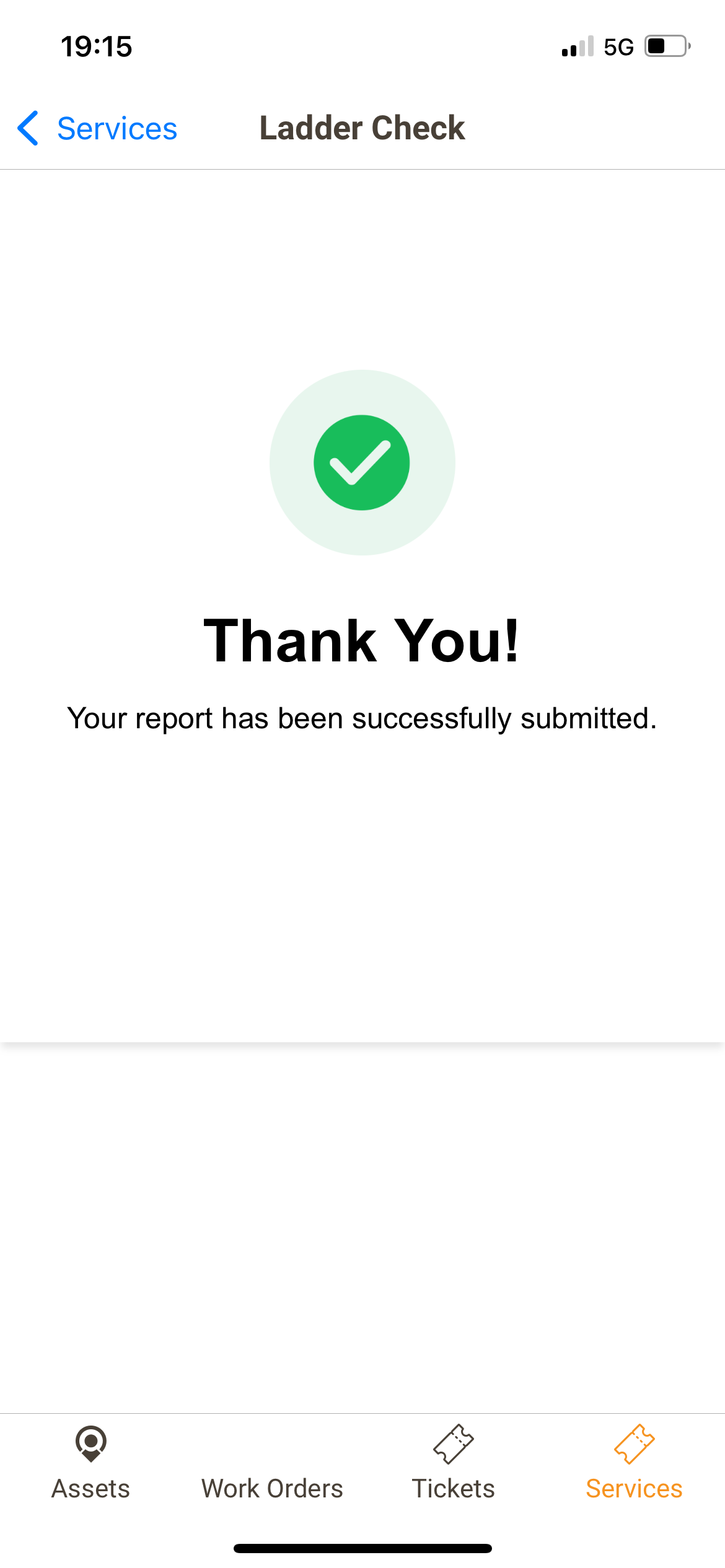
Congratulations, you successfully performed your check!

