Verify Admin Role: Your user must have the role of Admin.
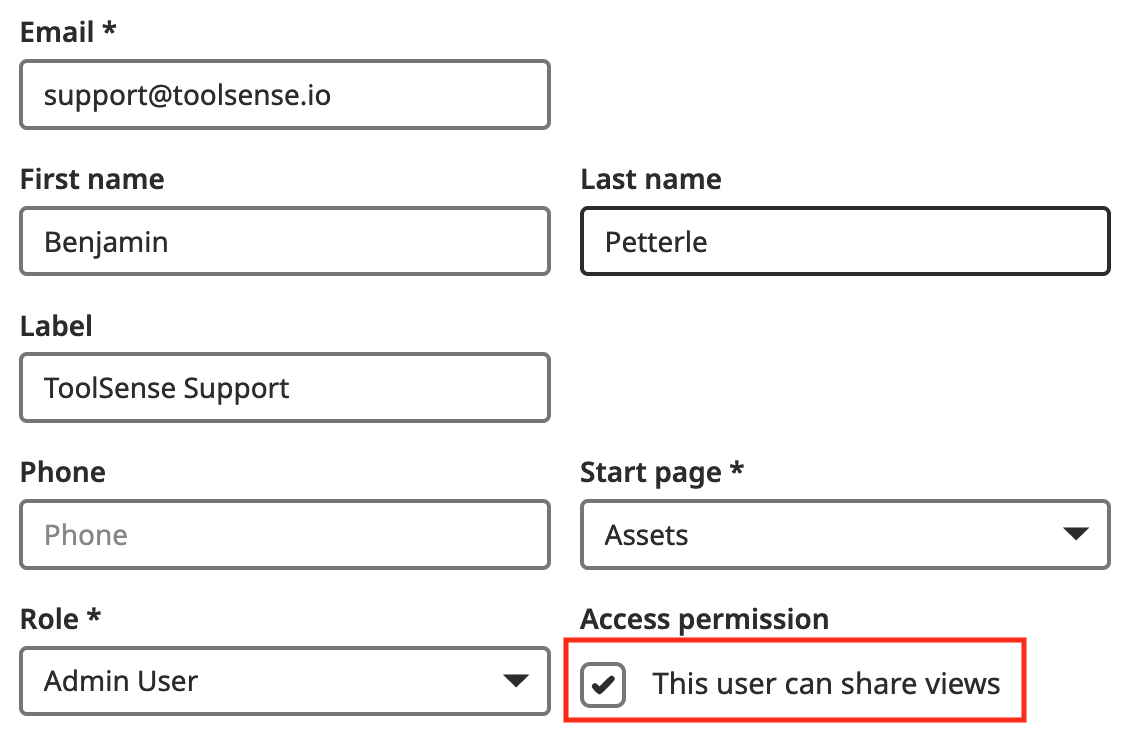
Enable "Can Share Views": Ensure that the checkbox "This user can share views" is enabled on your user profile.
Any Admin can enable this checkbox on the user editing page, including for their own account.
To enable the checkbox:
Go to the user editing page.
Locate the "This user can share views" option.
Enable the checkbox and save changes.

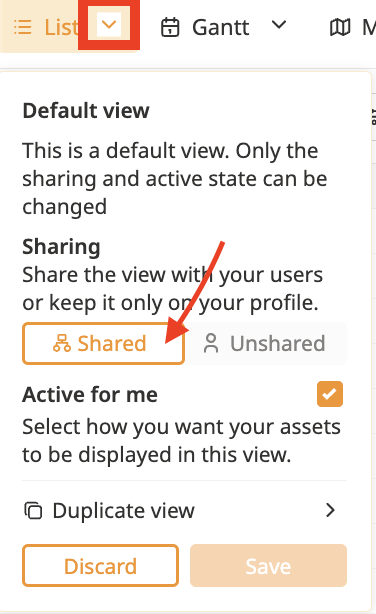
Create or Edit a View: Open the creation or editing pop-up for the view you want to share.
Select Sharing Option: Use the toggle to choose whether to share or not share the view.
Save Changes: Once you click share and save, the view will be shared with users in your current group and all groups below your current group in the hierarchy.
Here you can see a fictional hierarchy of ToolSense and an explanation of how the Hierarchy takes effect.

Top-Level Sharing:
If you share a view from the ToolSense level, every user in every group below and including ToolSense will see the shared view.
Group-Level Sharing:
If a user in Region West shares a view, every user in and below Region West will see the view. Groups above Region West (e.g., ToolSense or Region East) will not see the view.
Override Sharing:
If a view shared by ToolSense is not required in a specific group (e.g., Region West), an Admin from that group (Region West) can select "Do Not Share," and the view will no longer be visible to users in Region West and its subgroups.
