In Last Location Mode, you can view the current location of all your vehicles on the map. Additionally, you can use filters to customize your view.

Site Filters
To filter by site, click the Site Filter button to open a dropdown menu.
Select the desired filter to refine the map view.

Vehicle Filters
To filter by vehicle, click the Vehicle Filter button to open a dropdown menu.
Choose the filter that suits your needs.

On the Trips Map, there is a specific logic for displaying the time and date of a trip, stop duration, or trip segment:
Time — the time is displayed by itself, when the trip occurred today
Time and date (day and month) — shown when the trip occurred earlier this year
Time, date, and year — shown when the trip occurred in a previous year
Live Vehicle: Vehicles currently driving are displayed as a vehicle icon with a green frame.

Paused Vehicle: Vehicles with a trip that ended less than 2 hours ago appear as a vehicle icon with a blue frame.
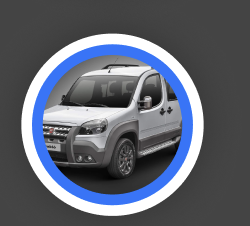
Parked Vehicle: Vehicles with a trip that ended between 2 hours and 7 days ago appear as a vehicle icon with a gray frame.
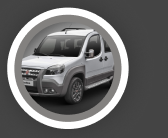
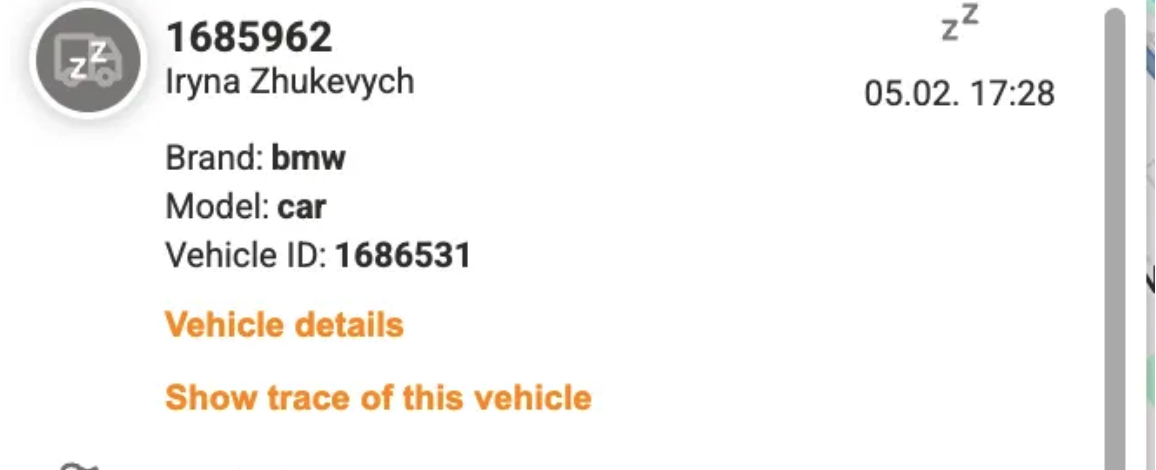
Inactive Vehicle: Vehicles with a trip that ended over 7 days ago are displayed with a vehicle icon, gray overlay, and a “zz” icon.
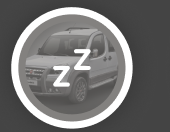
Clusters
Vehicles close together appear as clusters with a center circle showing the number of vehicles (e.g., “99+”).
Clicking or hovering over the cluster opens a popup with a dropdown with the grouped vehicles.
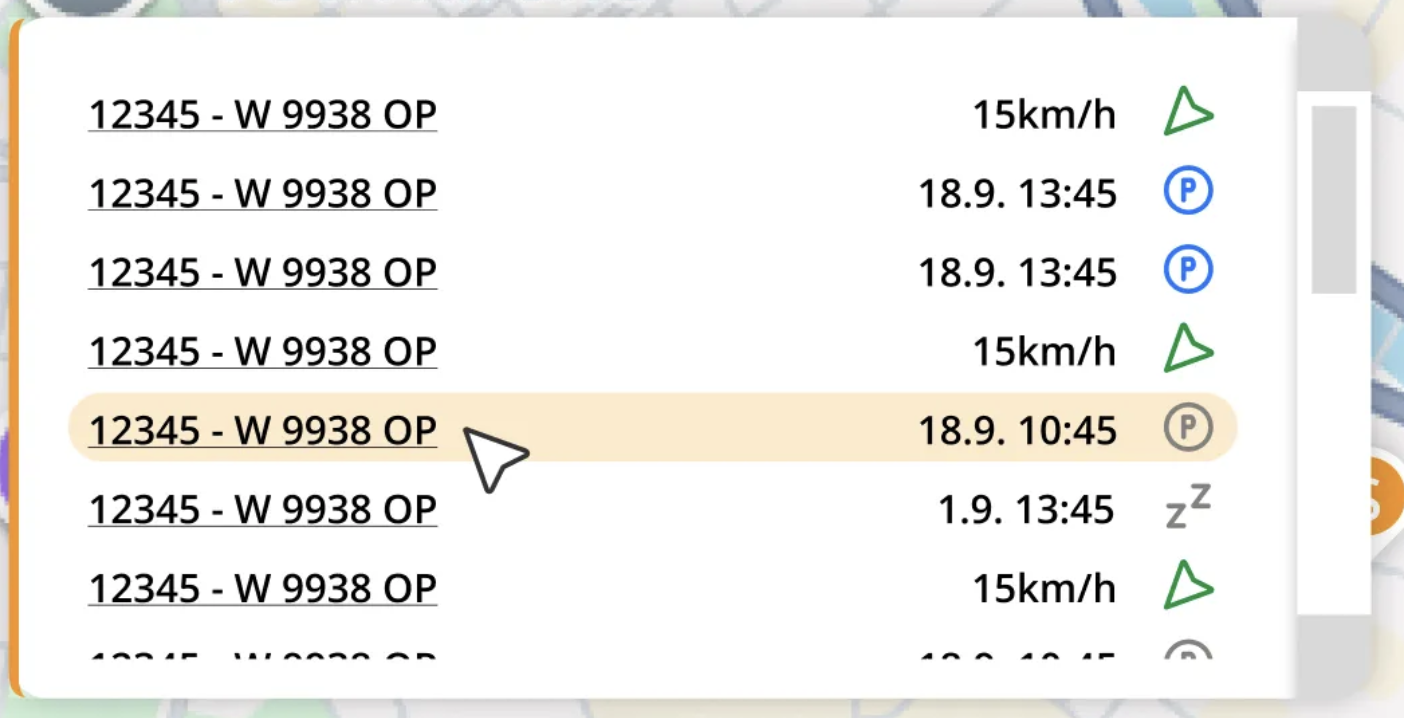
The status column on the right shows the current state of the vehicle, such as live, paused, parked, or inactive.
The column to the left of it displays either the vehicle’s current speed (live trips) or the time it stopped, depending on its status.
Clicking on any row in the modal opens a detailed view of the selected vehicle in an overlay modal called vehicle information modal.
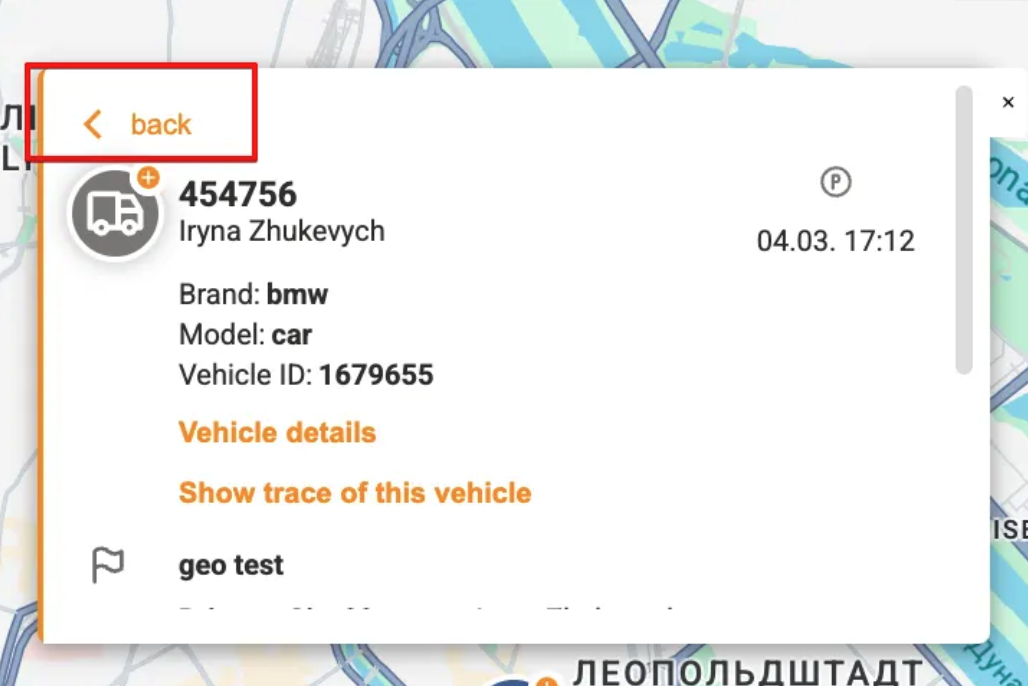
A Back button is available in the modal, allowing users to navigate back to the cluster dropdown.
Site is an a single instance of a location, building, or other clearly identifiable physical place.

Site Icon with “+” Symbol: Indicates multiple sites grouped together.

Vehicle Near a Site: Displays as a vehicle icon with an orange bubble.

When the vehicle has the orange bubble, in the vehicle modal it displays as a clustering with one site.
Vehicle Near Multiple Sites: Displays as a vehicle icon with an orange bubble and “+” symbol.

When the vehicle has an orange bubble with the “+” symbol, in the vehicle modal it displays as a clustering with multiple sites.
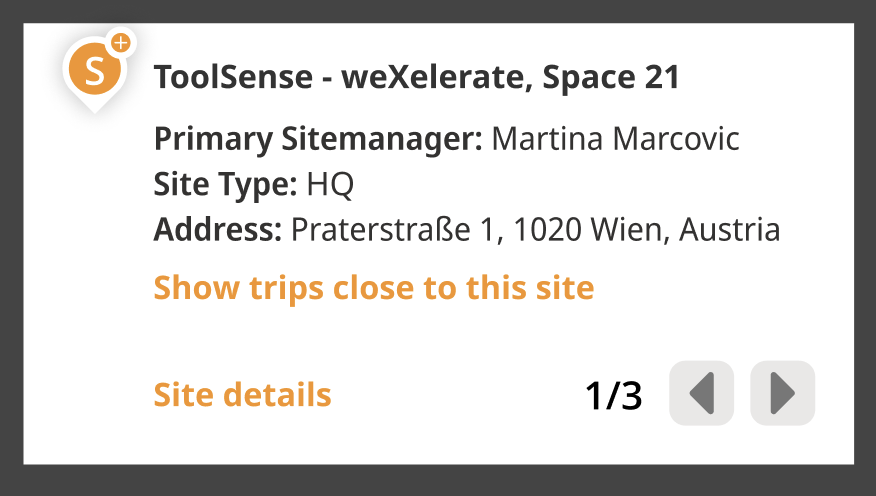
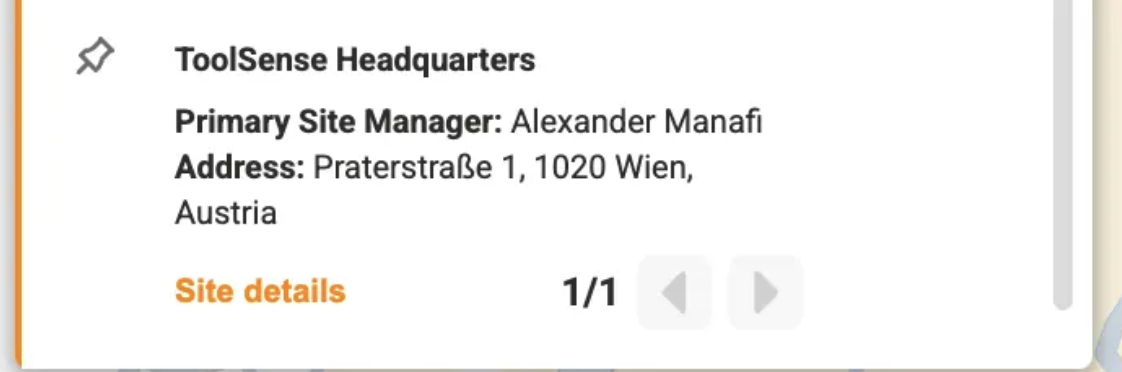
Users can click on a site icon to open a modal window with more details about that site.
Site Information:
Site name — taken from the Site
Primary Site Manager — shown as in the Site
Site type — as listed in the Site
Address — pulled from the Site
Actions in the Modal Window:
Show trips close to this site: Switches to Trips by Location mode and displays trips near the selected site for the current day (in development)
Site Details Button: Opens the Site Pane with full site details.
Grouped Sites:
If multiple sites are grouped, the modal will show two numbers on the bottom right (e.g., 1/3):
The first number indicates the currently viewed site.
The second number shows the total number of grouped sites.
Use the arrows to navigate between grouped sites.
The vehicle modal contains three sections:
Vehicle information section — always displayed
Assigned site section — displayed only if the vehicle is assigned to a site
Site nearby section — displayed only if the vehicle is clustered with sites nearby
Vehicle information section:
Click on a vehicle icon or select a vehicle in a cluster modal to open a modal window with additional details on the top right corner:
Live Trip: Displays the vehicle’s current speed and an arrow.
Non-Live Trip: Displays the time the vehicle stopped and the according status icon (paused, parked or inactive)
Information about the vehicle:
Serial Number — from the Asset
Responsible — from the Asset
Brand — from the Asset Type of the Asset
Model — Asset Type from the Asset
Vehicle ID — Asset ID from the Asset
Actions in the Vehicle information section:
Vehicle details button: Opens the Asset Pane with detailed vehicle information.
Show trace of the vehicle button: Switches to Vehicle traces mode, displaying traces from the last day the vehicle was active.
Assigned site section is displayed below the vehicle information.
It contains:
Site name — from the Site
Primary Site Manager — Site manager from the Site
Site type — Site type from the Site
Address — Site address from the Site
Assigned site details button — opens Site pane.
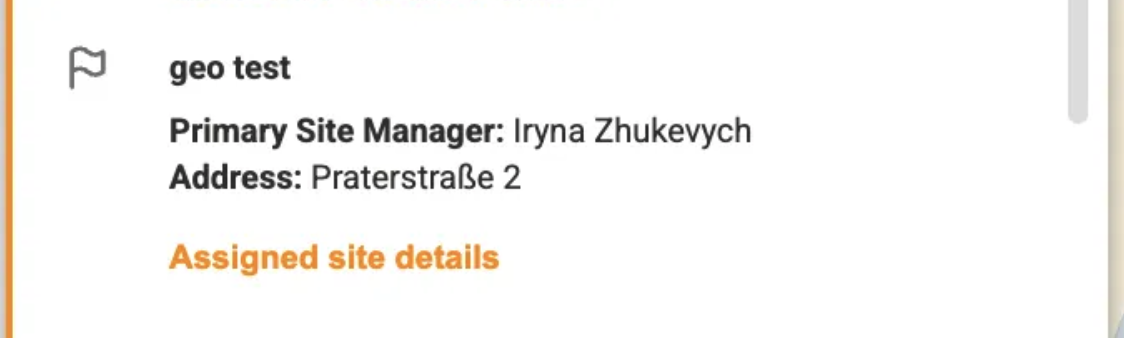
Below the Assigned site section there is a Site nearby section.
On the Site nearby section of the vehicle modal the same information as on the Site information modal is displayed.
For more details, visit the ToolSense Help Center.
