ToolSense now offers enhanced filtering options for dates and numbers, making it easier to search for assets, tickets, or events based on specific criteria. Instead of being limited to exact values, users can now filter within a range, relative to today, or between two values. These filters become even more powerful when combined with views, allowing users to create saved lists for procurement, maintenance tracking, and compliance checks.
 Date Filters
The new Date Filters provide three main options to help refine searches:
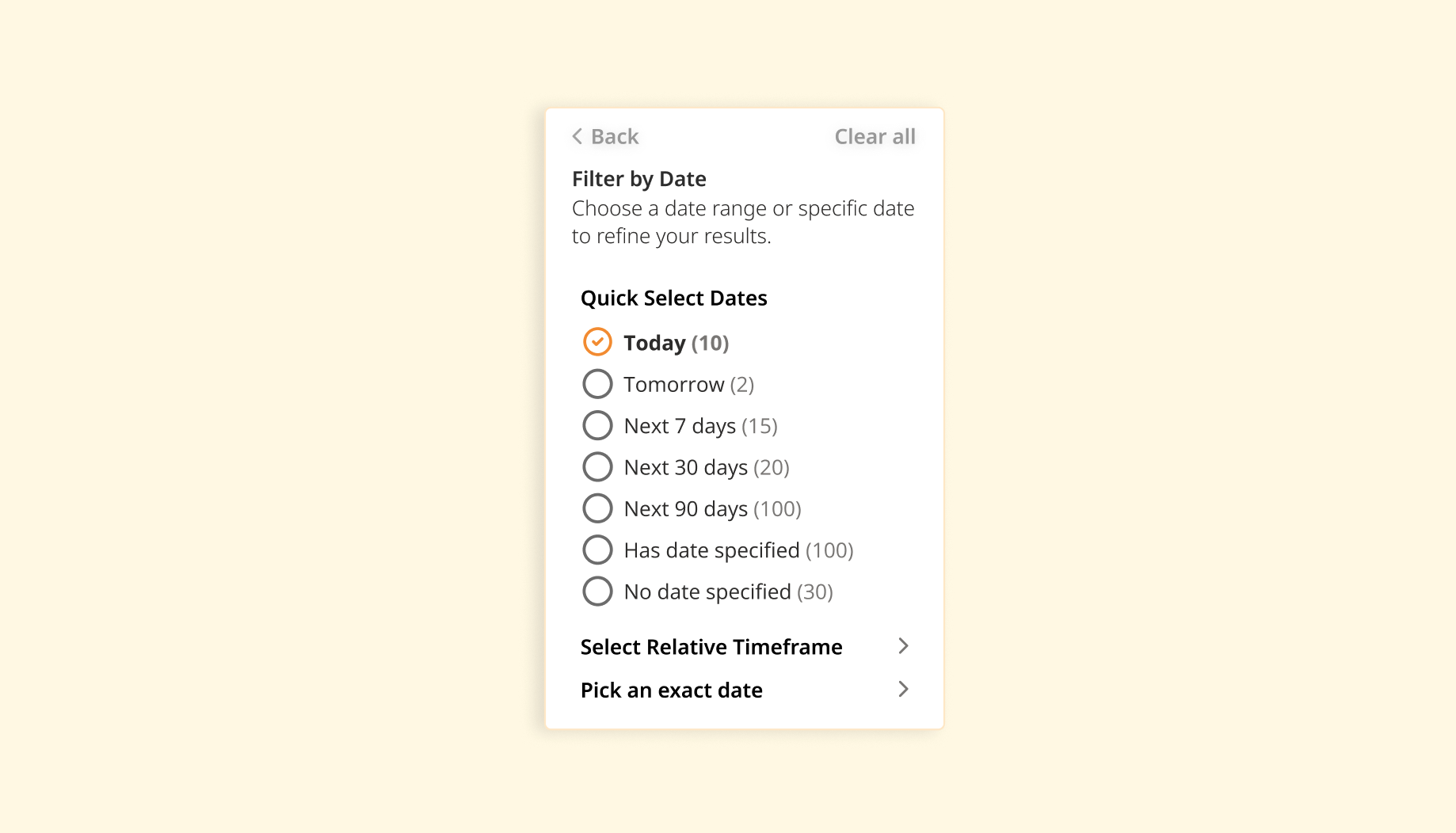
Predefined options for selecting common timeframes:
Today – Filters results for the current day (00:00 - 23:59).
Tomorrow – Filters results for the next day.
Next 7, 30, 90 days – Shows results occurring within the selected timeframe.
Has date specified – Filters results that have a date assigned.
No date specified – Filters results without a date.
 Example Use Cases:
Need to check which assets require maintenance this week? Use “Next 7 days” on Check - Next Date Filter to see upcoming tasks.
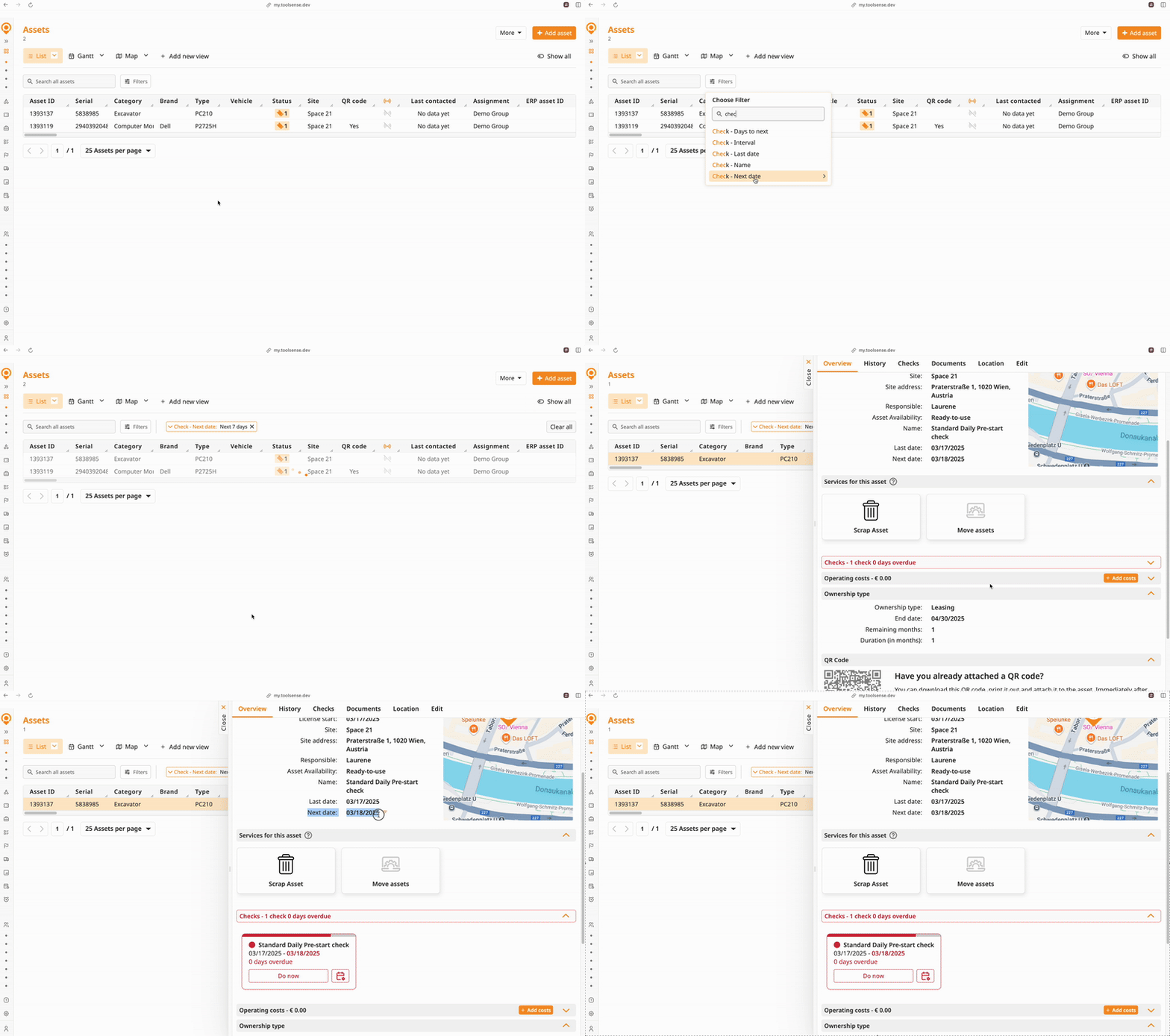
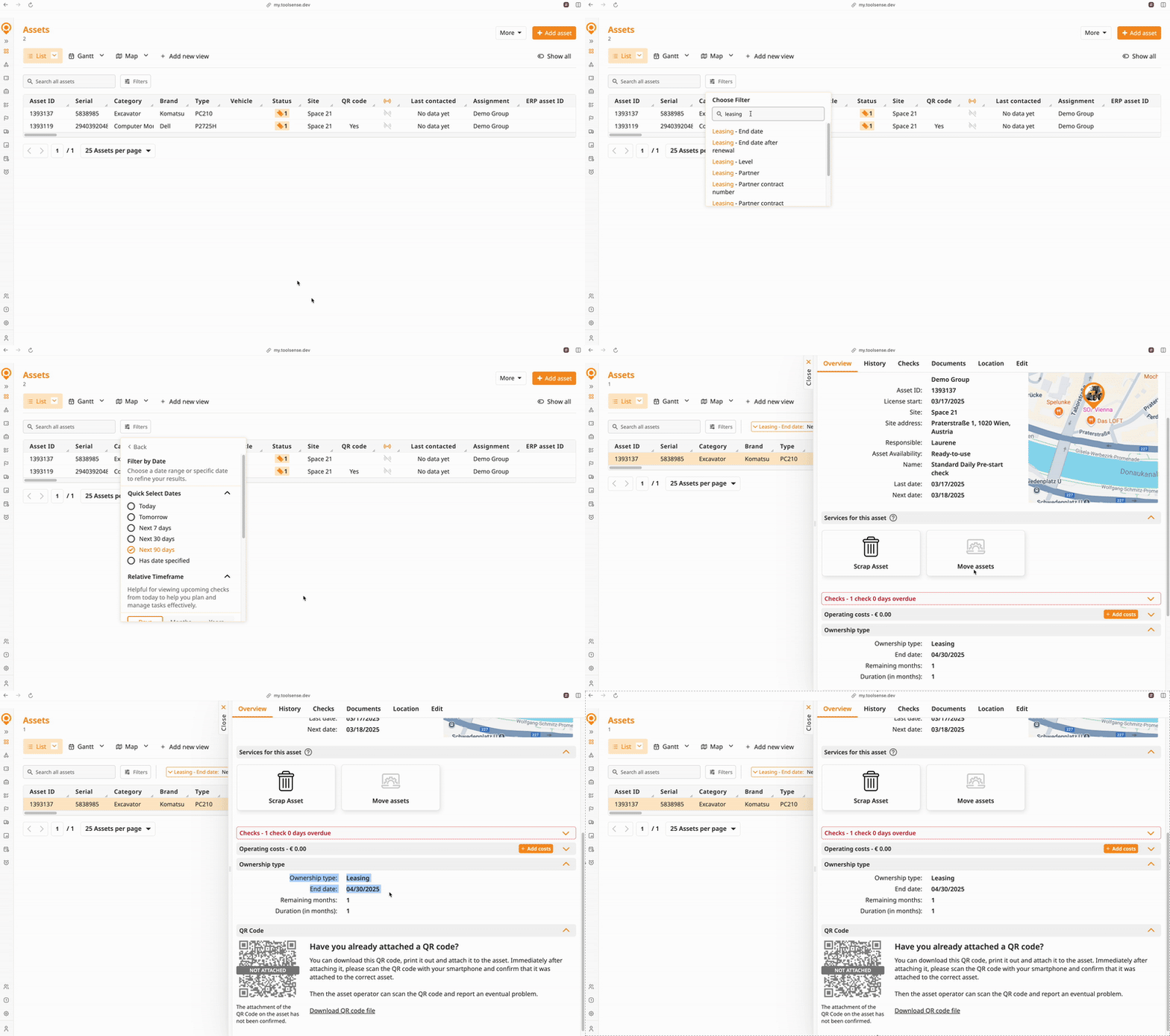
Looking for lease contracts expiring soon? Select “Next 90 days” on Leasing End Date to find assets requiring renewal.
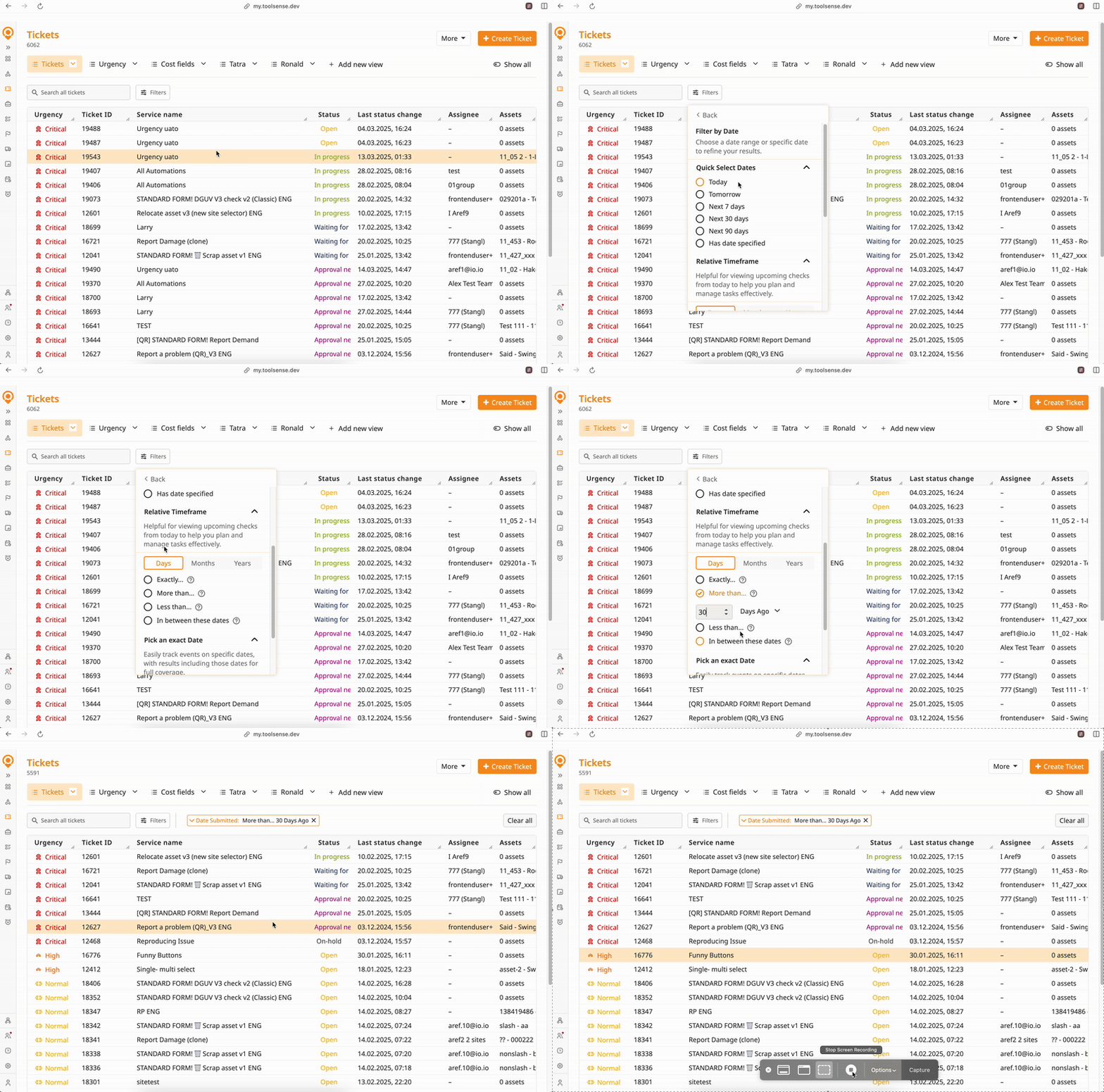
This option allows filtering based on dates relative to today. Users can select days, months, or years and refine results using:
Exactly X days ago/from now – Filters results occurring exactly X days in the past or future.
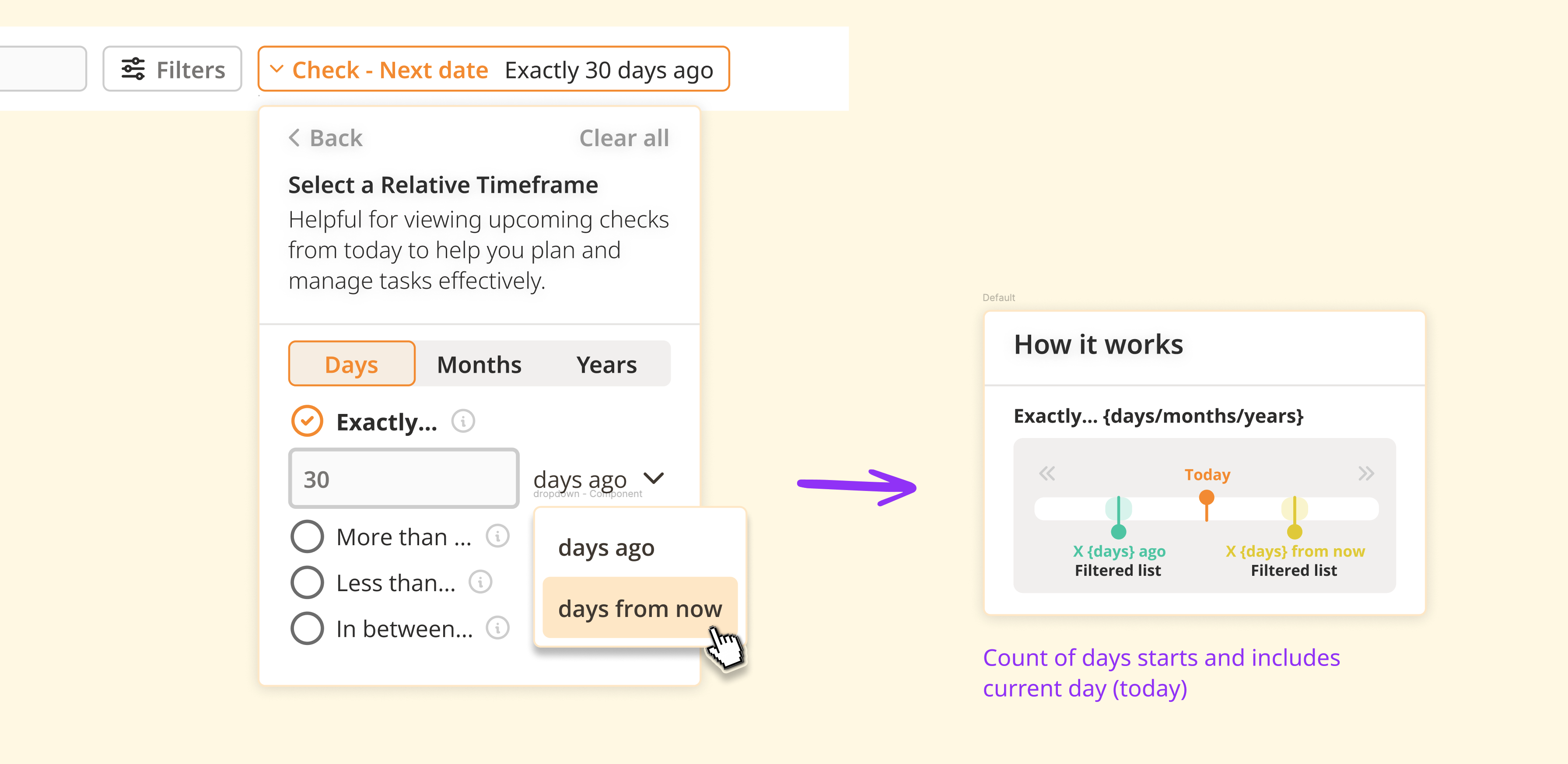
More than X days ago/from now – Shows results older or newer than the selected time period.
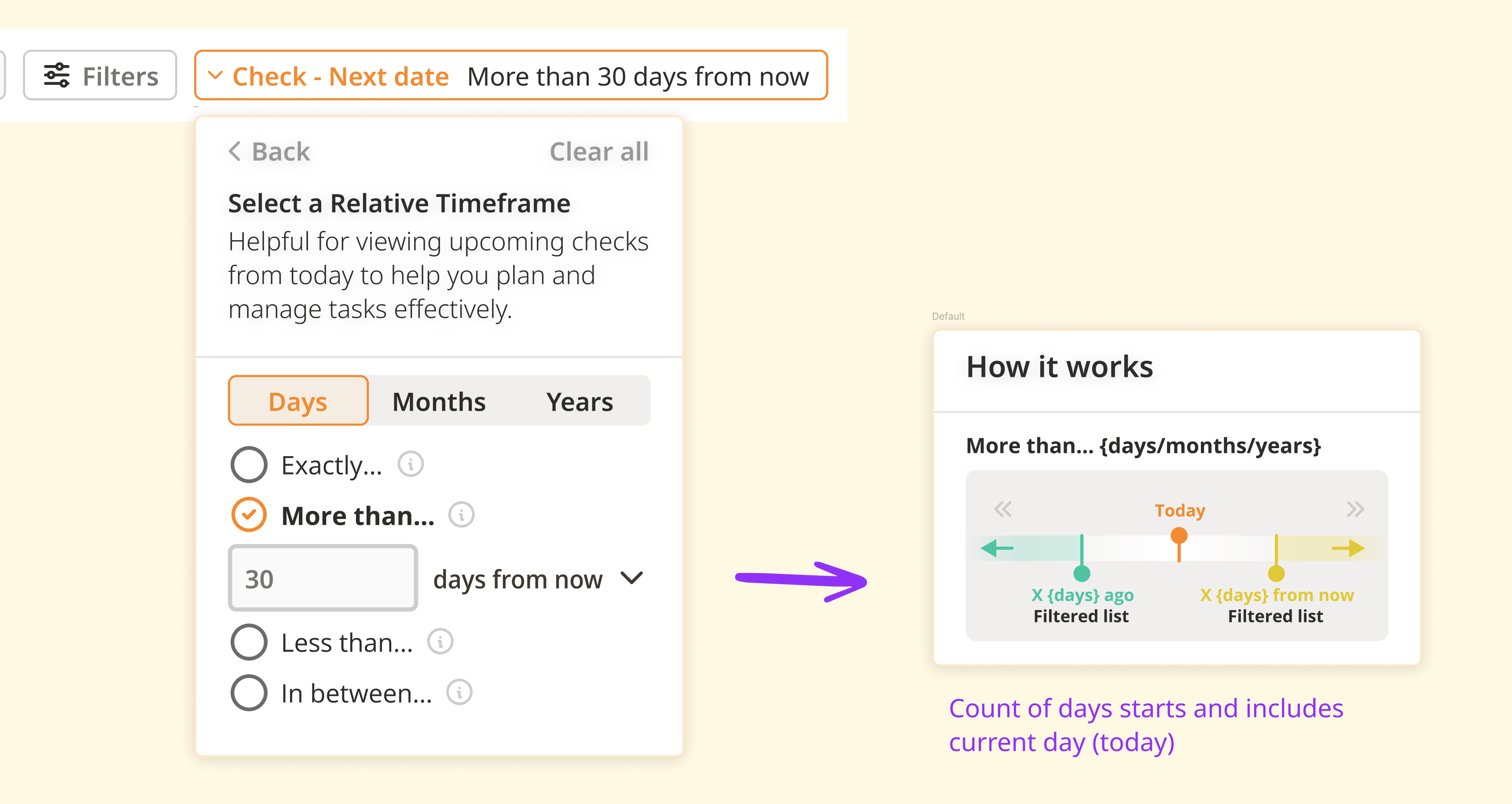
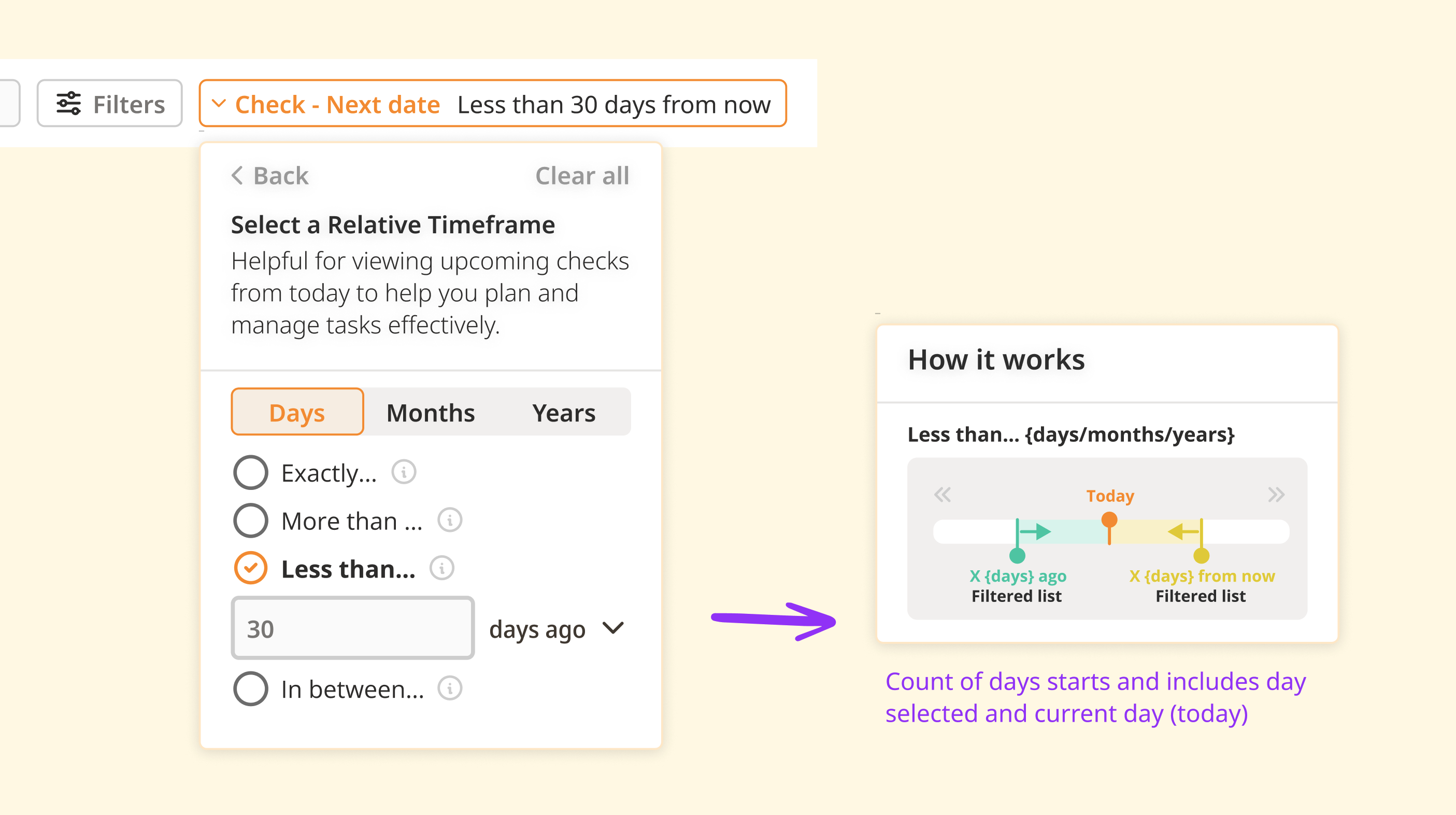
Less than X days ago/from now – Displays results within the past or upcoming X days.
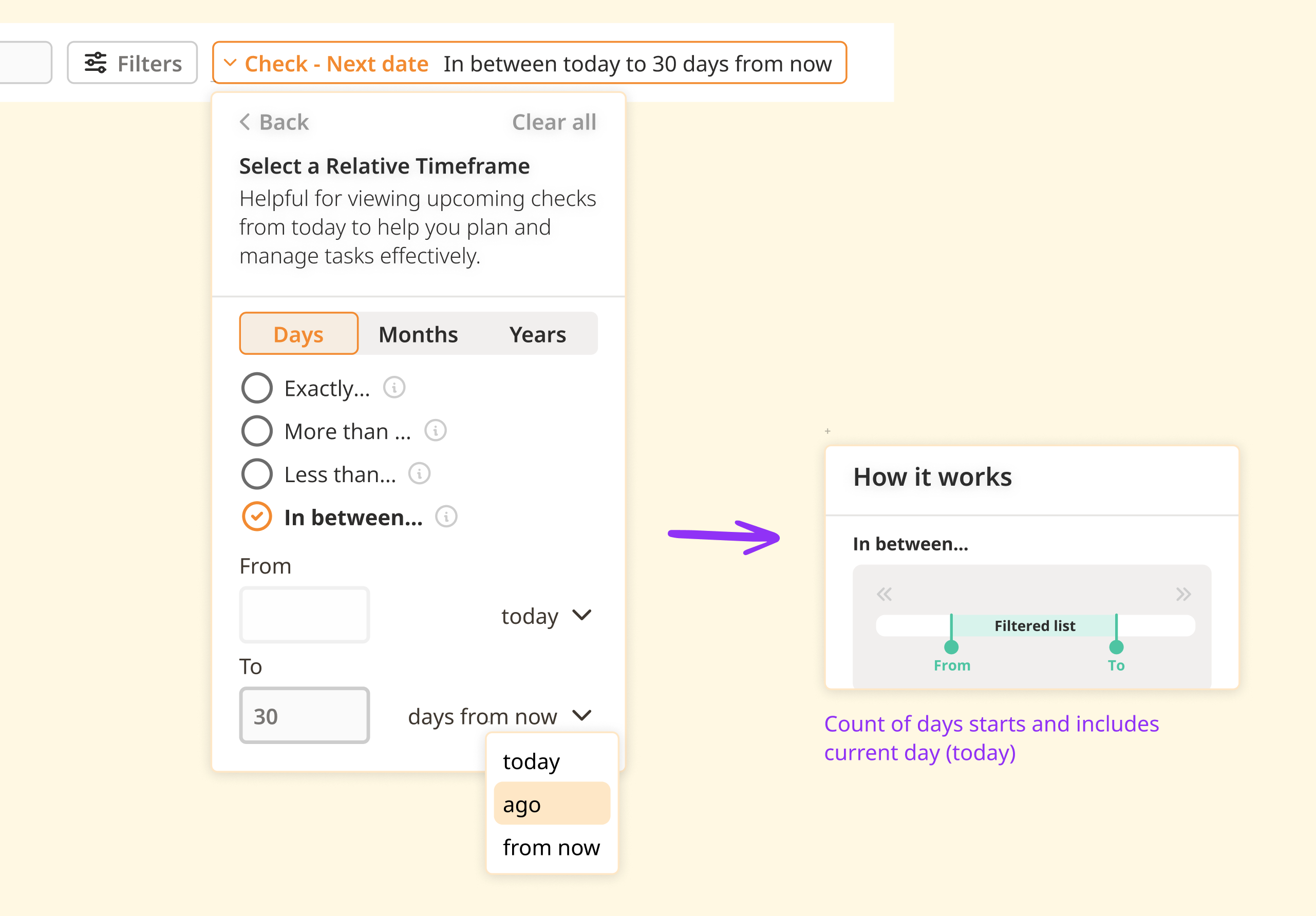
In between X and Y days ago/from now – Filters results within a custom date range.
Example Use Cases:
Need to review all tickets created more than 30 days ago? Use Date Submitted > Relative Timeframe > “More than 30 days ago” to find them.
Want to track vehicle inspections scheduled in the next 15 to 45 days? Use Check - Next Date > Relative Timeframe > "In between 15 and 45 days from now" to plan ahead.
Want to track overdue checks? Use Check - Next Date > Relative Timeframe > “More than 1 day ago” to find assets with mid-term rental periods.
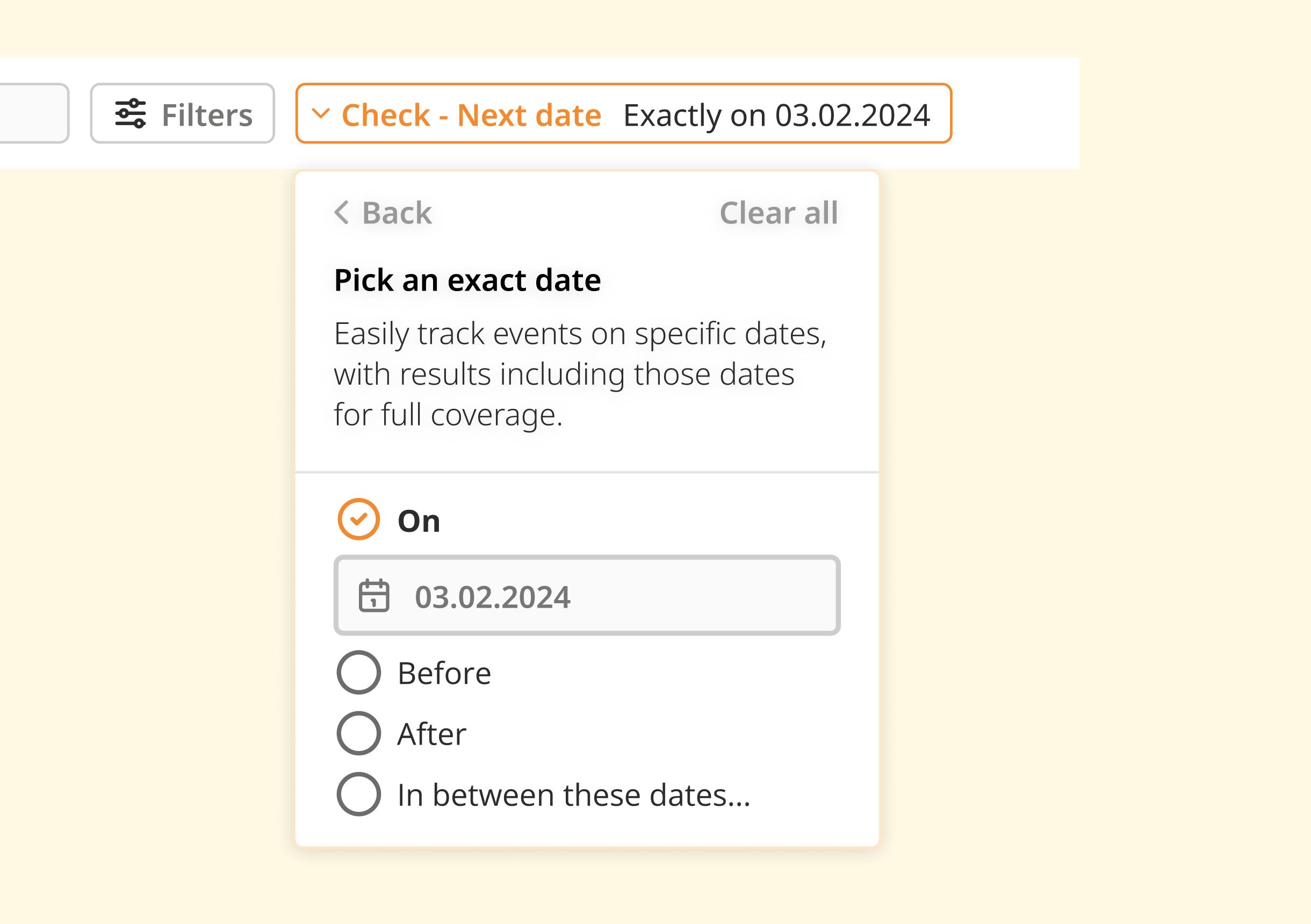
Filters results based on specific dates with these options:
On – Filters results for a single exact date.
Before – Shows results before a specific date.
After – Displays results after a selected date.
In between – Filters results between two specific dates.
Example Use Cases:
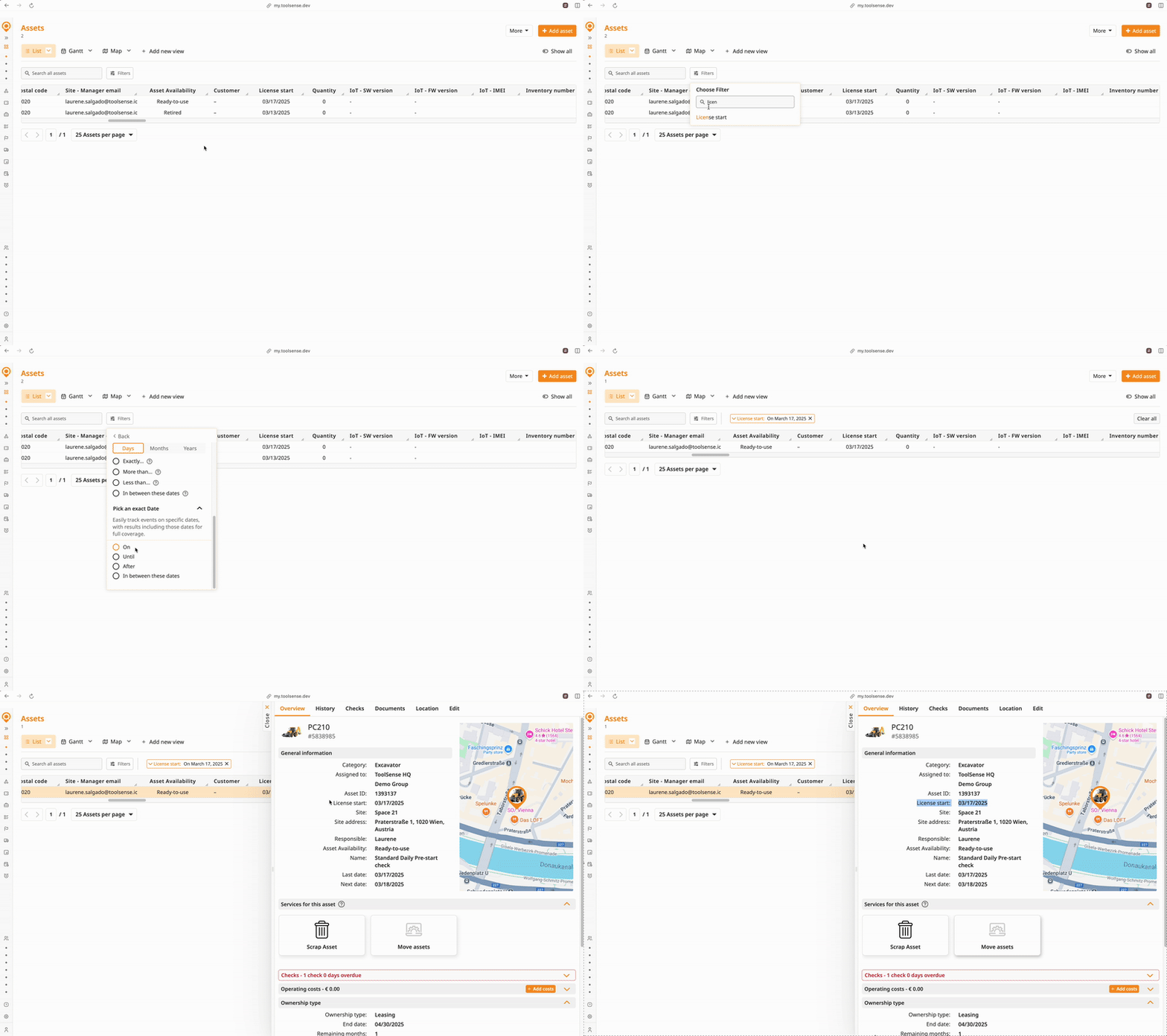
Want to check which machines were created on a specific date? Use “License Start Date > Pick an exact date = 01.04.2025” to find them.
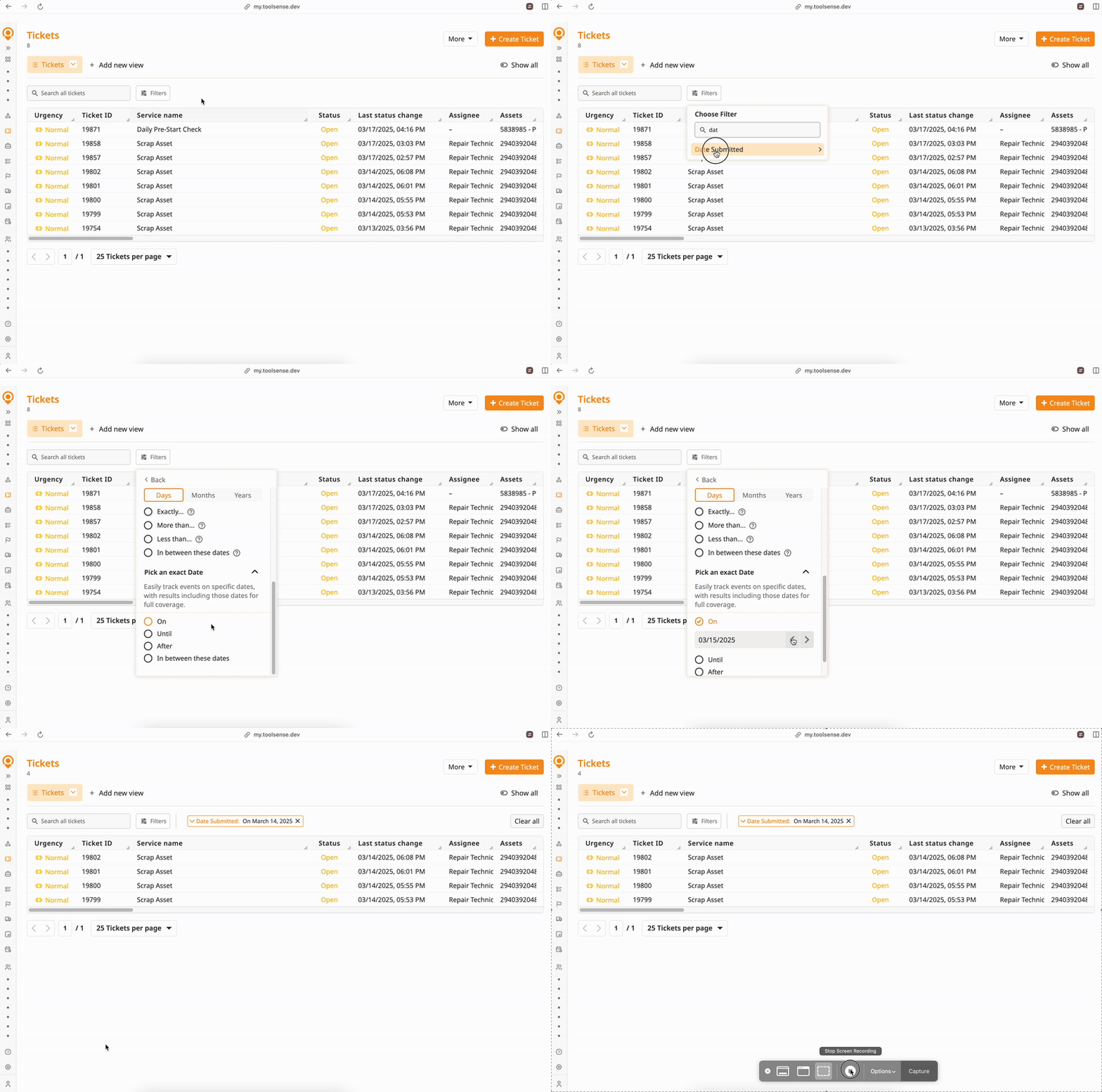
Need to track tickets submitted on March 14th? Select “Date submitted > Pick an exact date = 14.03.2025”.
The Number Filters allow users to filter by specific values or within a numerical range.
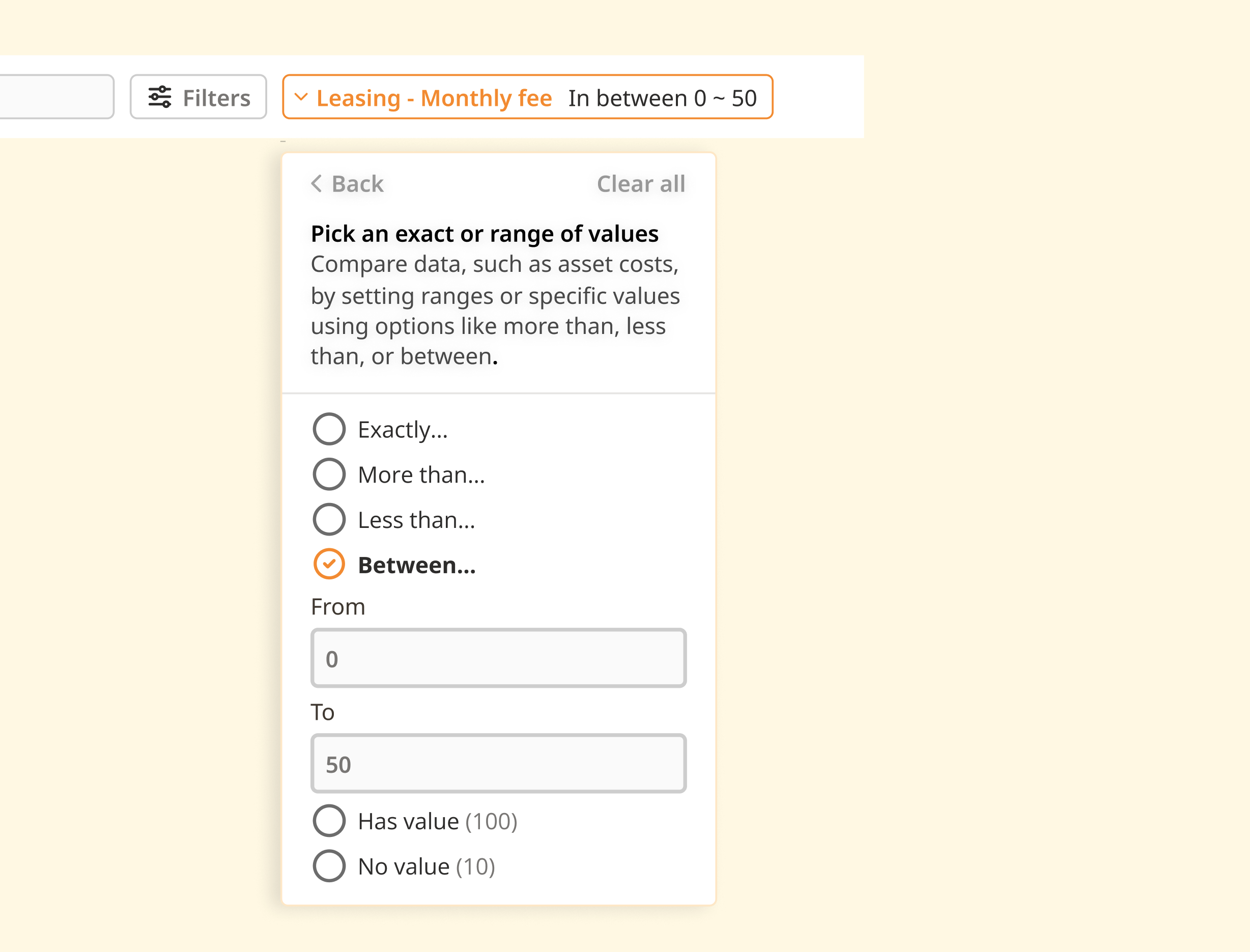
Exactly X – Filters results for an exact number.
More than X – Displays results where values are greater than or equal to X.
Less than X – Shows results where values are less than or equal to X.
Between X and Y – Filters results within a specified numerical range.
Has value – Displays results that have any numerical value.
No value – Shows results with missing numerical data.
Example Use Case:
Need to find lease contracts expiring soon? Use “Less than 6” on Leasing - Remaining Months to find assets with fewer than 6 months left
Open the Filters panel in ToolSense.
Select Date Filters or Number Filters depending on your search / filter criteria.
Choose the appropriate filter type (Quick Select, Relative Timeframe, or Exact Date for dates; Exact or Range for numbers).
Input values and confirm to apply the filter.
The filtered results will update instantly.
Filters become even more effective when used together in views, allowing users to create dynamic lists for ongoing monitoring.
By saving a combination of filters as a view, users can create customized dashboards to track critical assets, procurement needs, or compliance-related deadlines.
Example View Use Cases:
Procurement Tracking – Want to see all leasing assets that expire in less than 3 months? Create a view with assets that have Leasing End Date < 3 months.
Safety Compliance – Need to check all ladders that require inspection within the next month? Use Filter for Category = Ladder and Next Check Date < 1 month to track necessary inspections.
Cost Monitoring – Looking for high-expense assets? Use Operating Costs > €10,000 and save the view to monitor cost-intensive equipment.  Note: Filtering for costs will be available soon in the next version
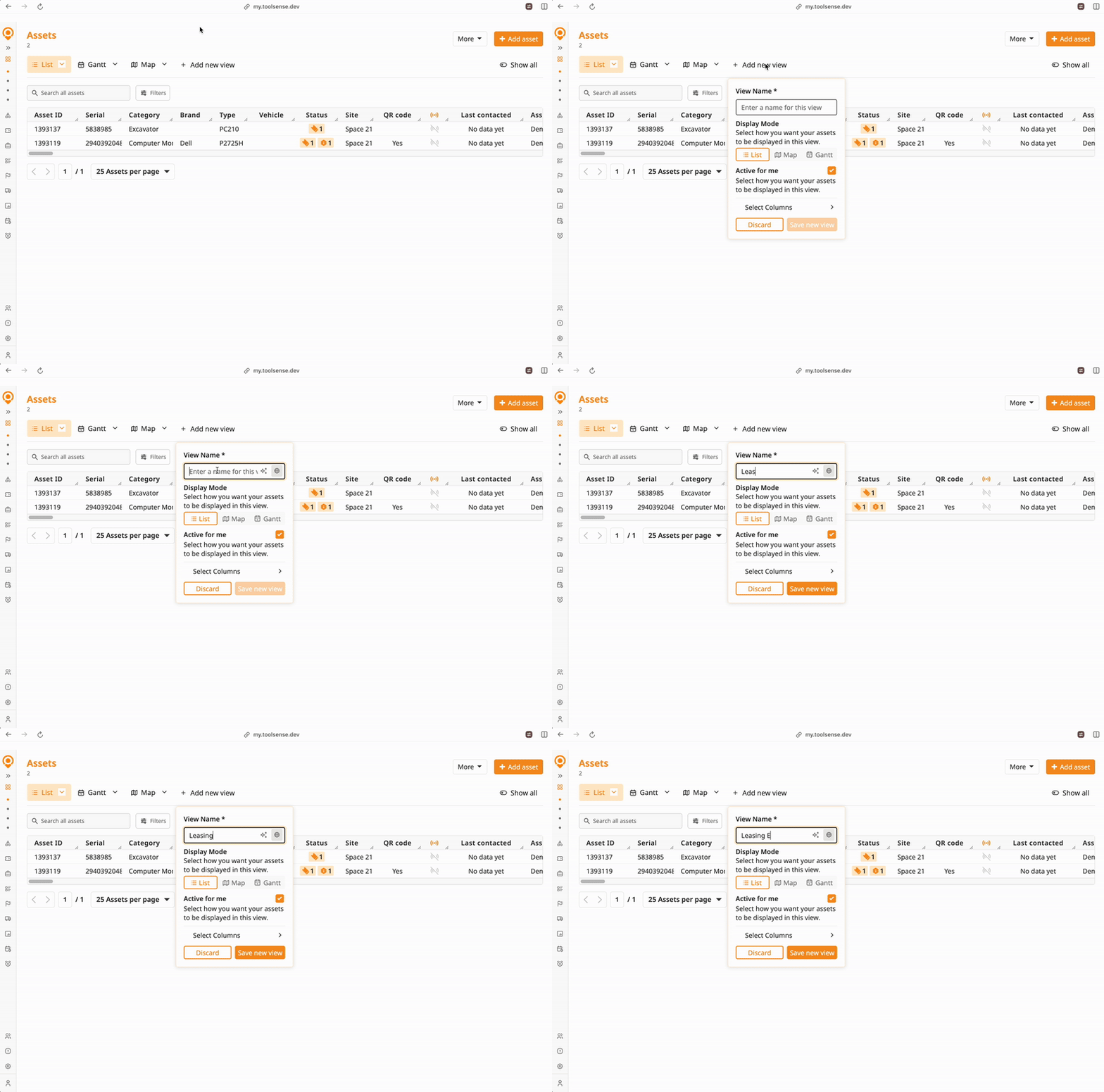
On the assets list, Click + Add new view , name your view and Save new view
Apply the necessary filters for Date or Number in the Filters Panel.
Access the view anytime under the Saved Views section.
Watch a 28-second demo video here
These new Date and Number Filters improve search flexibility in ToolSense, making it easier to manage assets, track tickets, and analyze costs efficiently. Whether looking for upcoming maintenance, tracking past service records, or filtering assets by cost, these options streamline workflows and enhance data accessibility.
