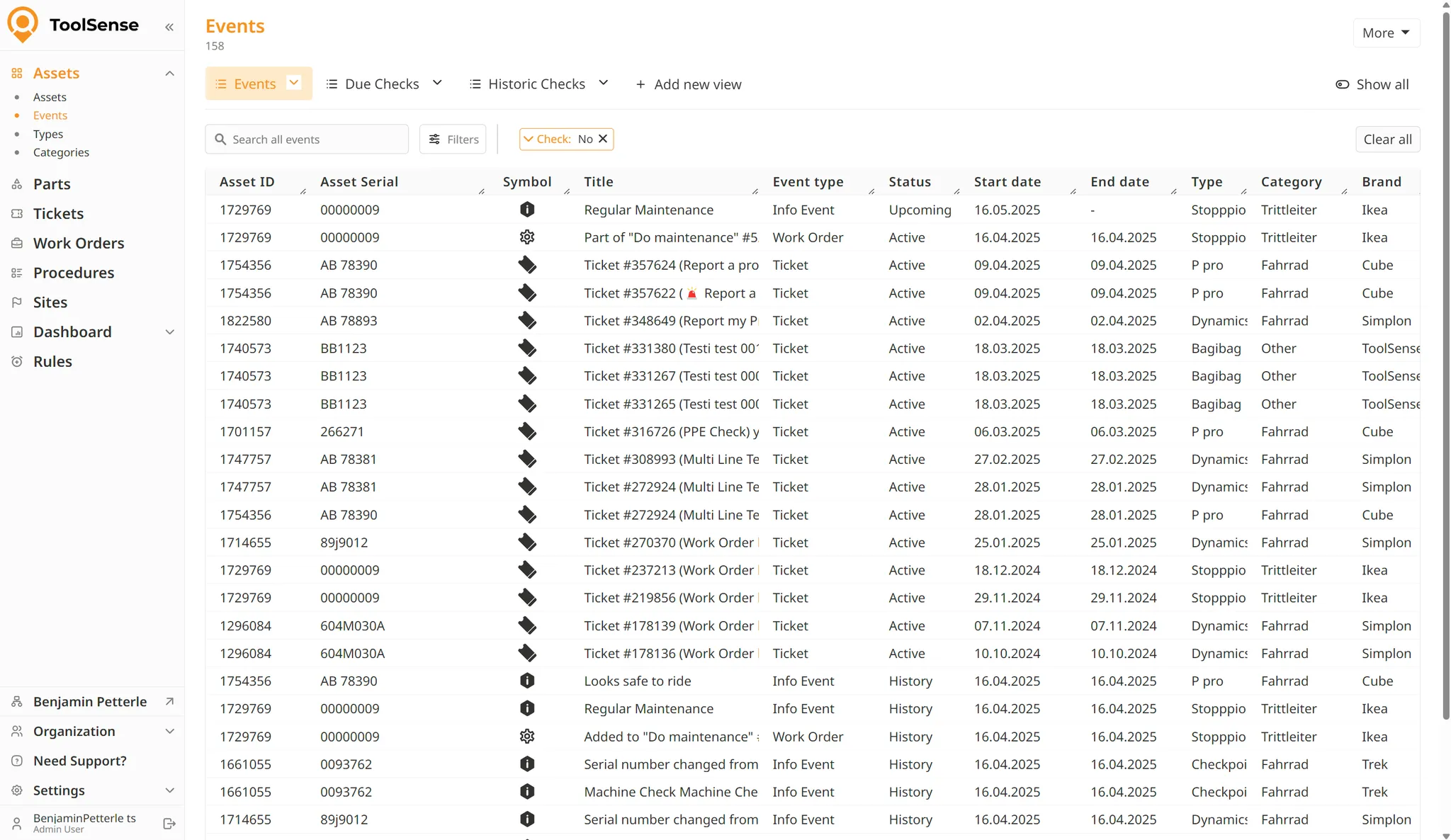
The Asset Event Table consolidates information from all asset histories across all assets. It provides a centralised view to review completed and upcoming checks, open rule events, maintenance records (both scheduled and completed), and more.
Custom views can be created to tailor the table to specific workflows or areas of focus, ensuring maximum relevance and efficiency.
The Asset Event Table is accessible via the site navigation under Assets.
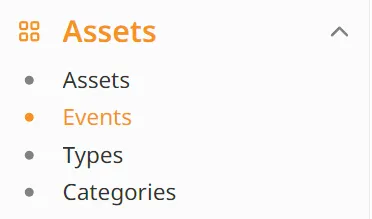
The Asset Event Table can be accessed by every user. Users only see the events of assets that they have access to. To know more about Asset Access Rules, check out the Asset documentation.
If the Asset Event Table is not wanted, it can be hidden with the setting “showAssetEventsList” by a ToolSense Admin.

The Asset Event Table is structured around customisable views. By default, the following three views are provided:
Events
Due Checks
Historic Checks
To learn more about how to manage and share Views, check out the Views documentation.
The table includes the following columns:
Asset ID – Unique identifier of the asset.
Asset Serial – Serial number of the asset.
Symbol – Icon based on the event type.
Title – Title of the event. Titles may originate from different sources depending on the event type:
User-defined (e.g., Checks, Rules, Custom Events)
System-defined (e.g., Asset changes)
Event Type – The category of the event. The system supports the following types:
Machine Check – Derived from check rules or asset edit checks.
Machine Maintenance – Derived from scheduled rules or asset edit maintenance.

Info Event – Typically system-generated (e.g., rule triggers, asset changes).
Ticket – Linked to ticket-related activities involving the asset.
Work Order – Linked to work orders involving the asset.
Cost – Cost-related events.
Error Event – Triggered by scheduled or IoT rules.
Warning Event – Triggered by scheduled or IoT rules.
Geofence – Generated by geofence rules.
Status – Current lifecycle stage of the event:
Upcoming – Not yet due.
Active – Due but not yet completed.
History – Completed.
Start Date – Applicable to events not classified as checks.
End Date – Applicable to events not classified as checks.
Check – Hidden by default. Indicates whether the event is a check, based on the event type “Machine check” and “Machine maintenance”.
Due On – Relevant for check events. Indicates when the check is due.
Completed Date – Relevant for check events. Indicates when the check was completed.
Last Date – Relevant for check events. Indicates when the previous check was completed.
Type – Asset type.
Category – Asset category.
Brand – Asset brand.
Inventory Number – Asset inventory number.
Optional Asset ID – Optional ID used for additional tracking.
Fixed Asset Number – Fixed identifier of the asset.
Site Name – Name of the site where the asset is located.
Site ID – Identifier of the site where the asset is located.

Displays all non-check-related events across all accessible assets.
Purpose:
To monitor current activities and changes associated with assets.
Default Settings:
Visible Columns:
All columns except: Check, Due On, Completed Date, Last Date.
Sort Order:
Start Date
Status (Upcoming → Active)
Filters:
Check: No
Excludes check-related events as their start and end dates are not applicable.
Displays all upcoming checks.
Purpose:
To identify checks that need to be scheduled.
Default Settings:
Visible Columns:
All columns except: Check, Start Date, Completed Date, End Date.
Sort Order:
Start Date (hidden)
Status (Upcoming → Active)
Filters:
Check: Yes
Status: Active
Status: Upcoming
Displays all completed checks.
Purpose:
To review check history and ensure compliance or trend analysis.
Default Settings:
Visible Columns:
All columns except: Check, Start Date, End Date.
Sort Order:
Start Date (hidden)
Status (Upcoming → Active)
Filters:
Check: Yes
Status: History
Each event opens in a detailed pane with three main sections:
Title
General Asset Information
Event Details

Displays key visual and textual information about the asset, including brand, type, and serial number. The Navigate To icon appears when hovering over the asset type name, linking directly to the asset type page.
This can be super useful to get more information about the events asset, type, category or assigned site.
The Filter icon appears to the left of the Navigate To icon, clicking it results in filtering the list for events of assets of this type.
With the filter the Asset Event Table can be filtered for e.g. only assets with the same type, or for all events of this specific asset (using the asset id).

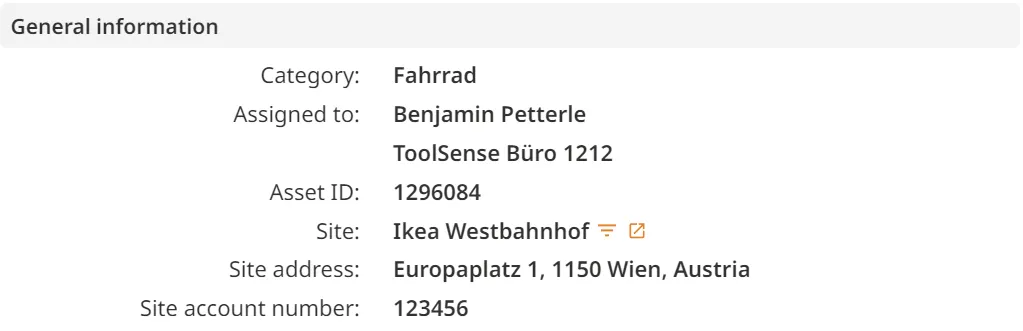
This section mirrors the asset's detailed information and includes navigational and filter links to related pages such as the Asset ID.
The content and available actions depend on the status and type of the event:
Displays all stored event information. Most cannot be edited or deleted, with the exception of Cost events.
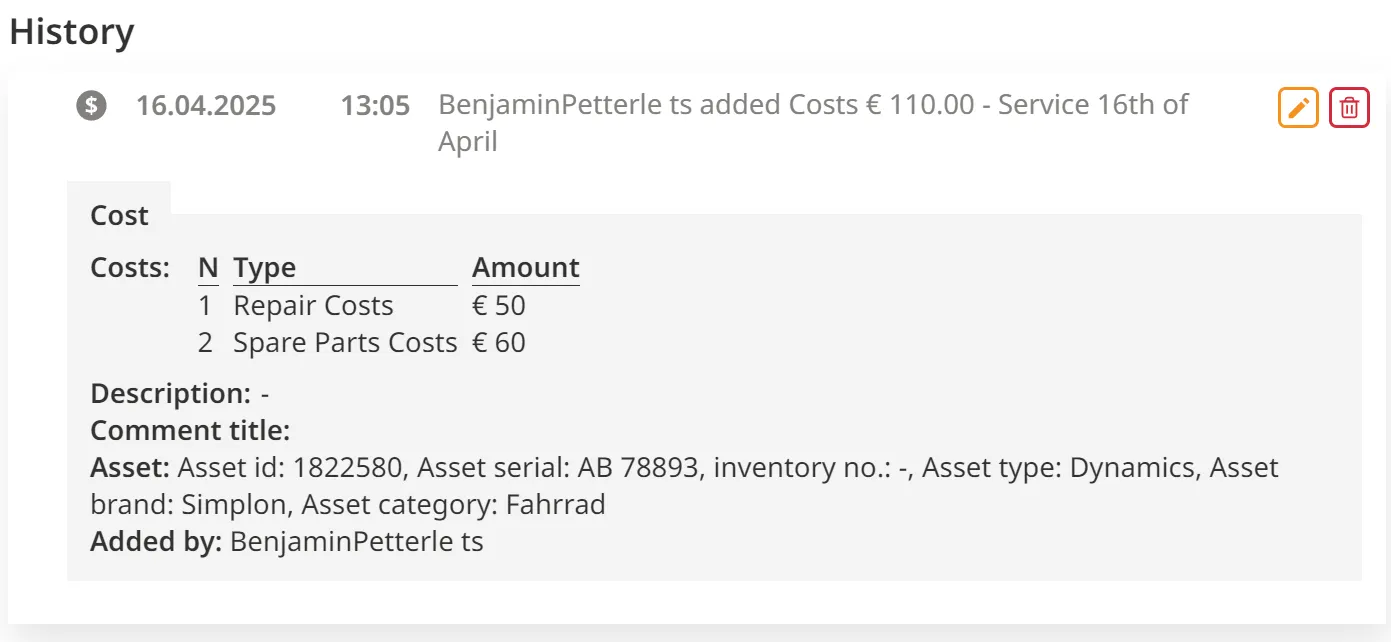
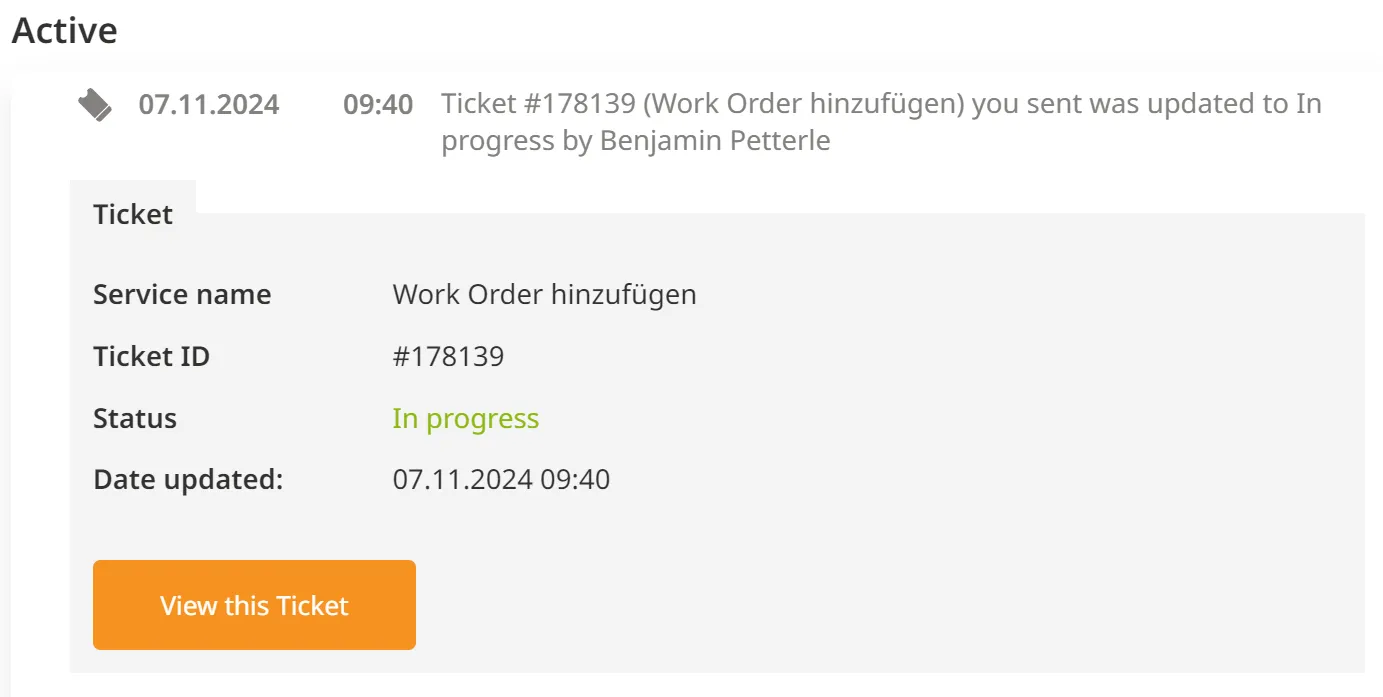
Ticket-related events include a "View this Ticket" button for direct access.
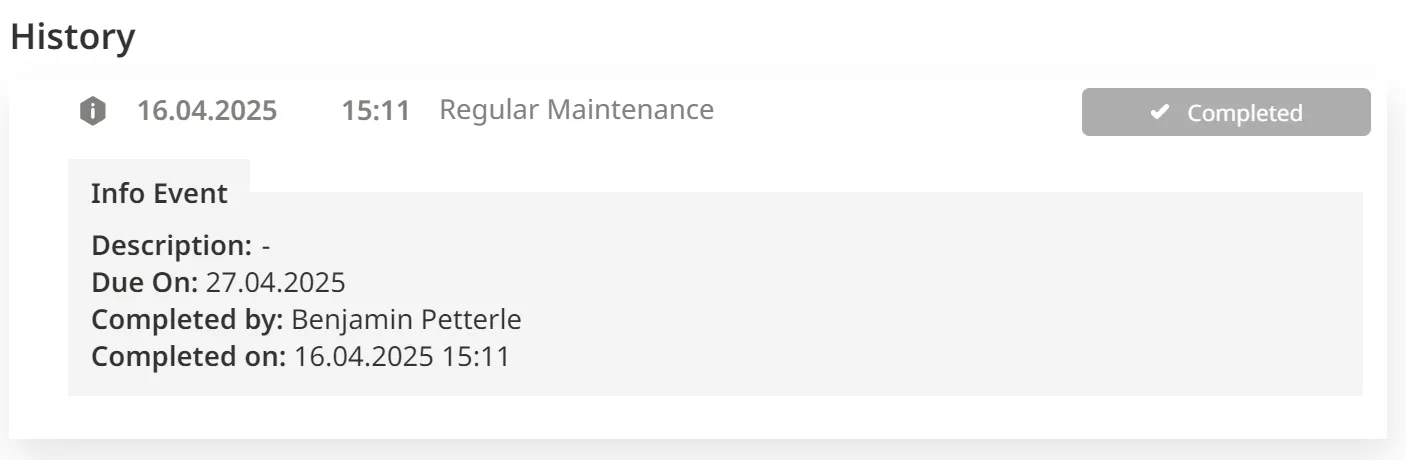
If an event was manually completed, a greyed-out "Completed" indicator is displayed.
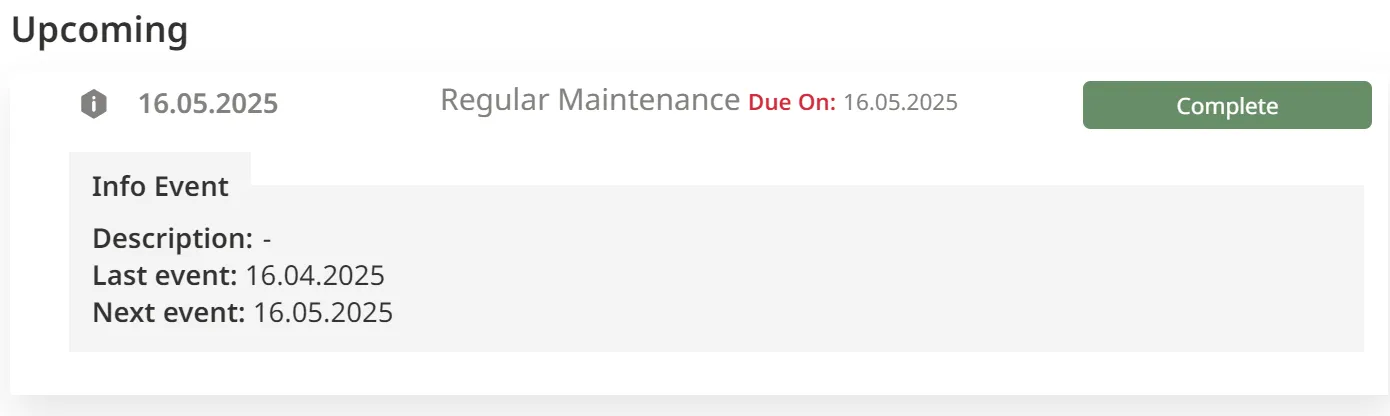
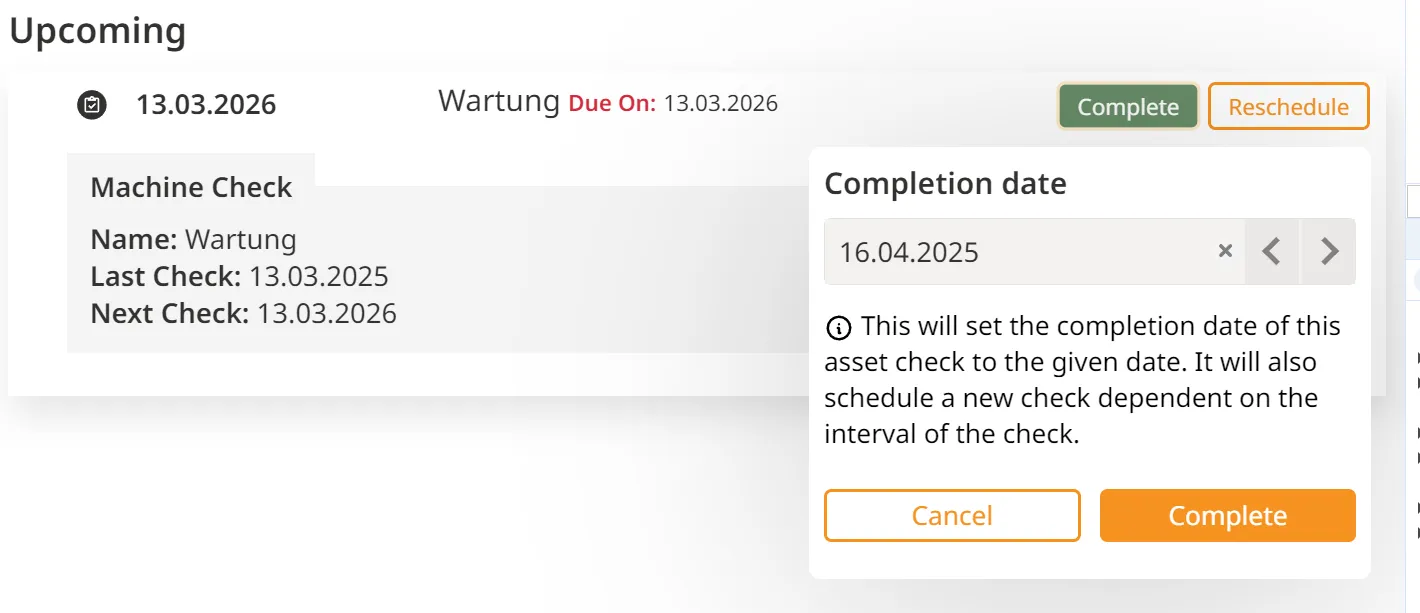
Features a green "Complete" button in the top-right corner. Clicking it completes the event and refreshes the page. If recurrence is defined in the rule, a new event will be scheduled automatically.
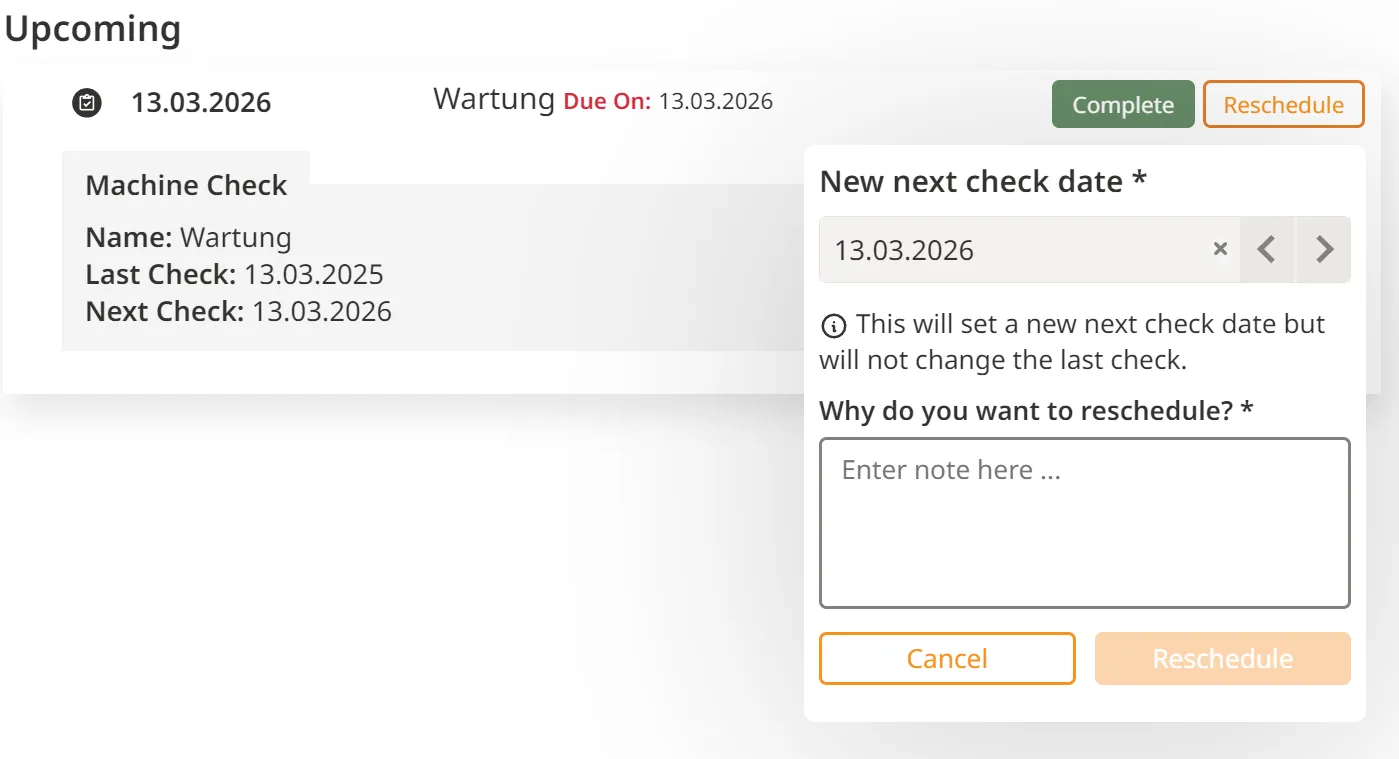
These events support two actions: Complete and Reschedule.
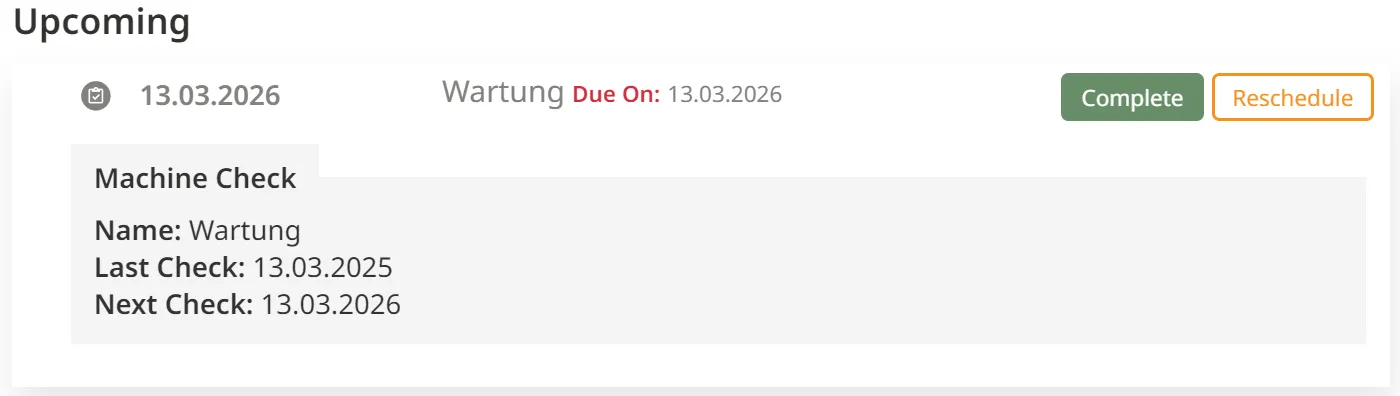
Complete:
Opens a pop-over to select the actual completion date. A note is automatically added if the date differs from the original schedule.
Reschedule:
Opens a pop-over requiring a new date and a mandatory note explaining the reason for the rescheduling. This note is critical for auditability and transparency, especially where legal requirements apply.
The events table has no import capability as it builds up over time.
To import assets, use the Asset List, to import checks please talk to your customer success manager.
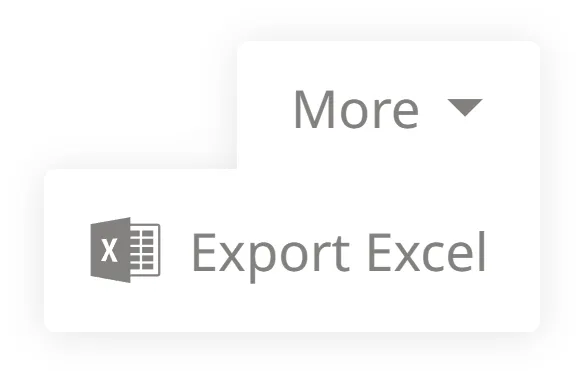
The list can be exported. In order to do an export of the list, on the top right of the screen we have a button called more. Clicking this button leads to a pop-over windows with one option only called Export Excel
In the exported excel file, you find all rows resulting from your filter settings. The columns are based on your view settings.
