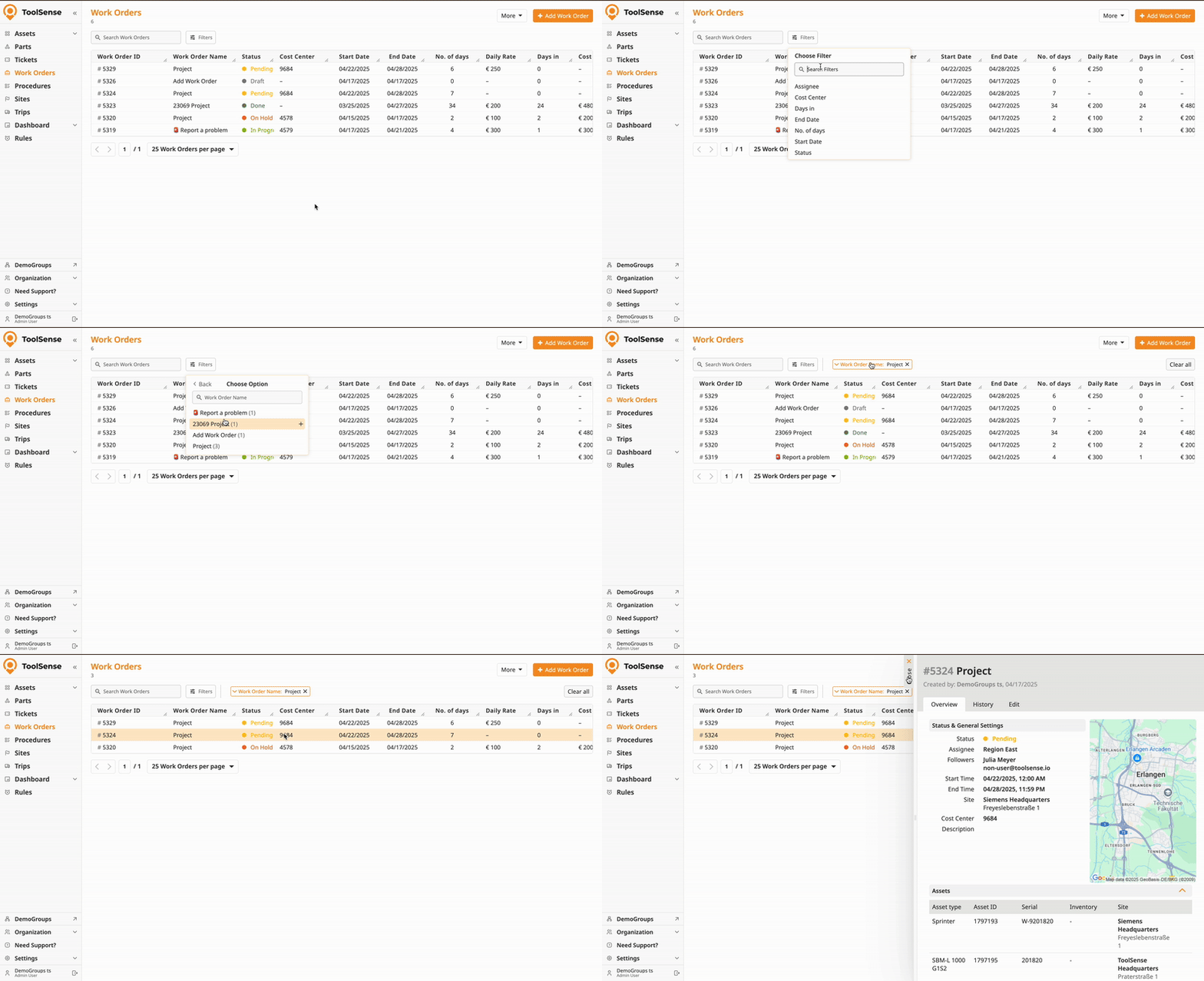
Work orders in ToolSense allow you to reserve assets and plan their location and usage. They help manage the scheduling of tasks, planning asset utilization, and ensure proper allocation for different projects. Work orders also let you assign responsibilities and set deadlines, providing an organized way to plan and manage asset use over time.
You can create work orders from various parts of the application. Here's a quick overview of the options:
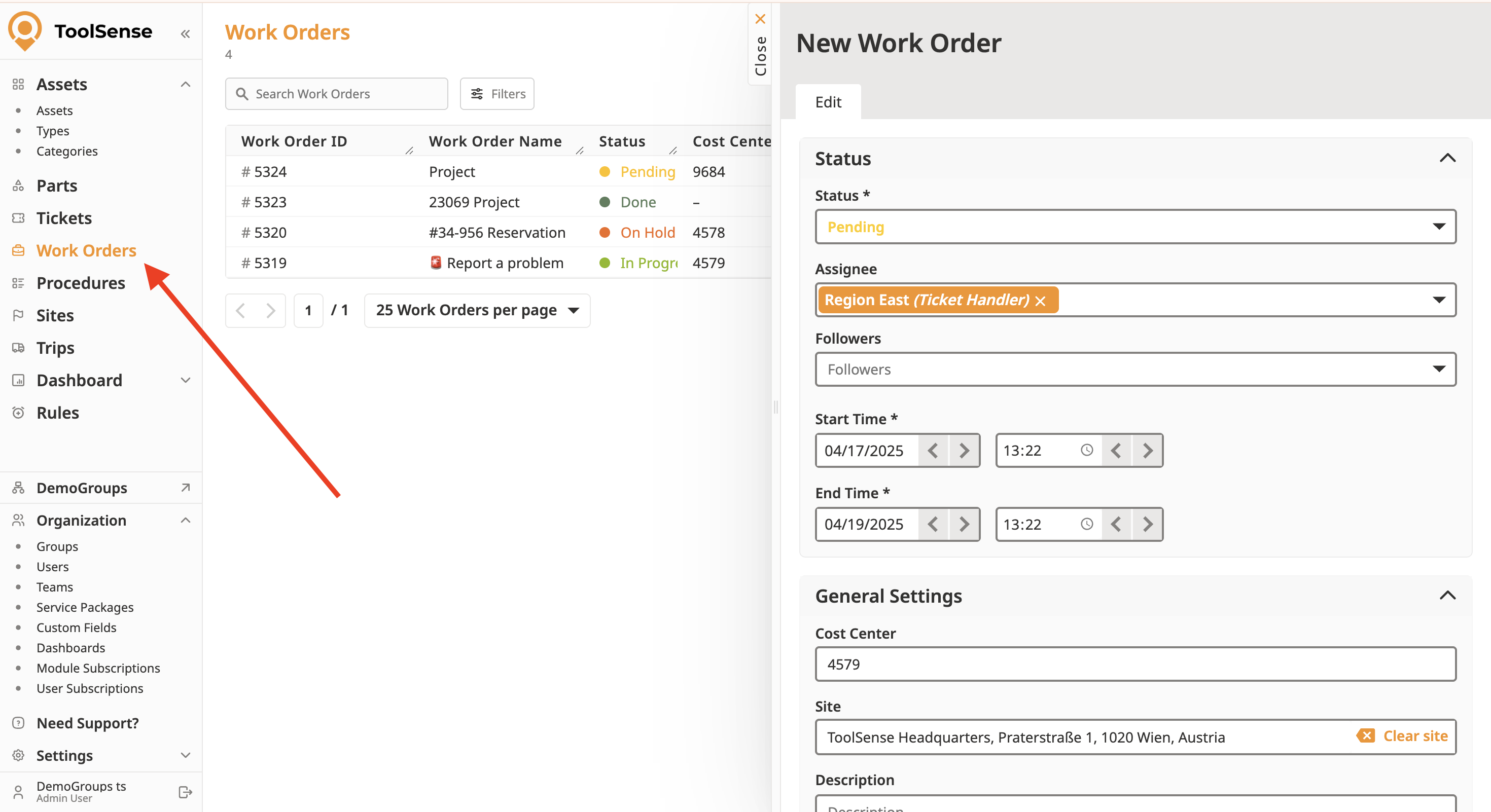
Directly from the Work Orders Tab:
Navigate to the Work Orders tab from the main menu.
View all existing work orders listed by priority, ticket ID, and service name.
To create a new work order, click the Create Work Order button. This opens a form with all necessary details like the status, priority, assignee, and date.
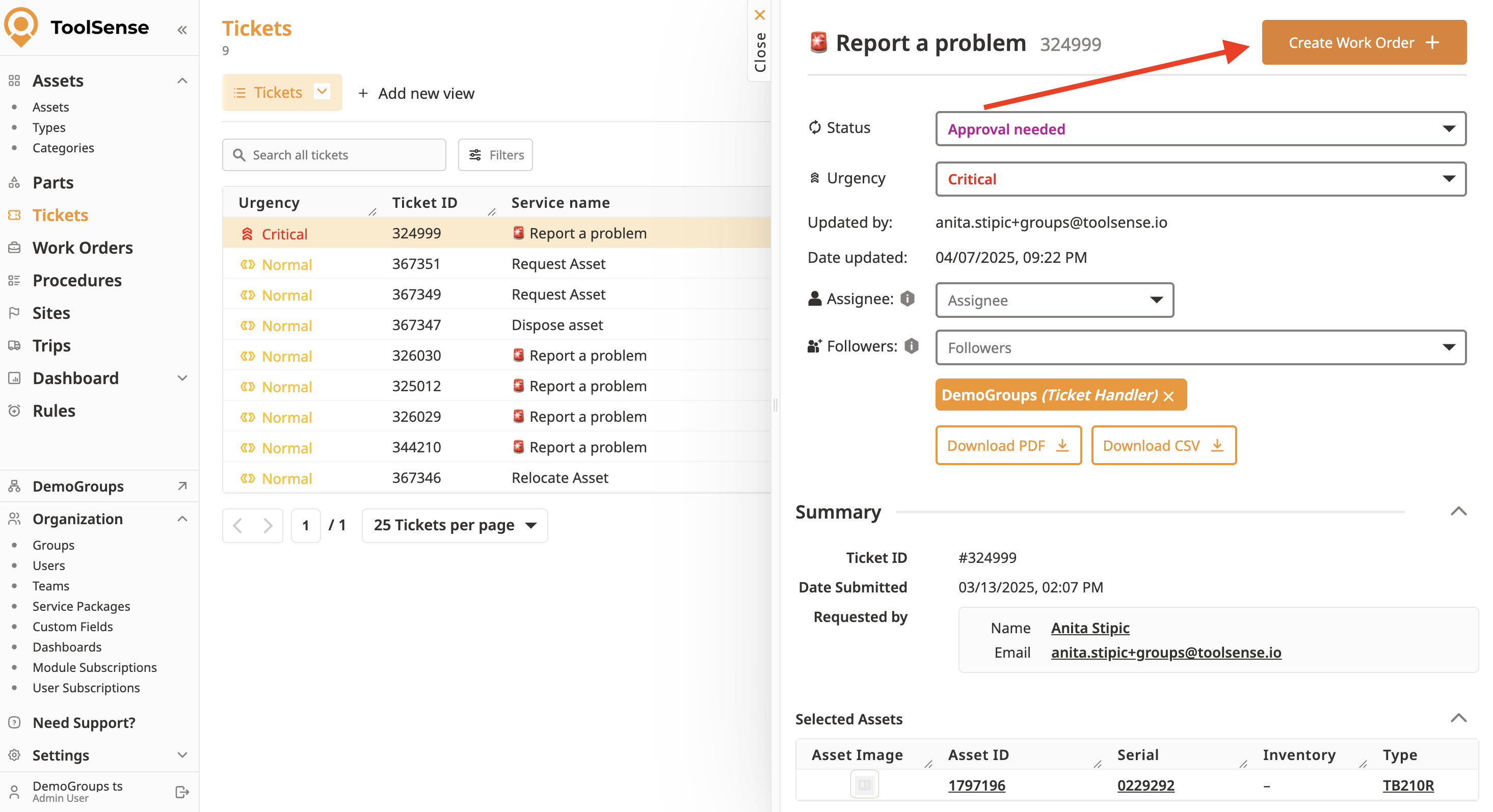
Through Tickets:
Navigate to the Tickets tab and find the relevant ticket.
Click on the ticket to create a work order from it. Many ticket details (e.g., assignee, date) will be carried over, but the work order will be a separate entity with its own tracking system.
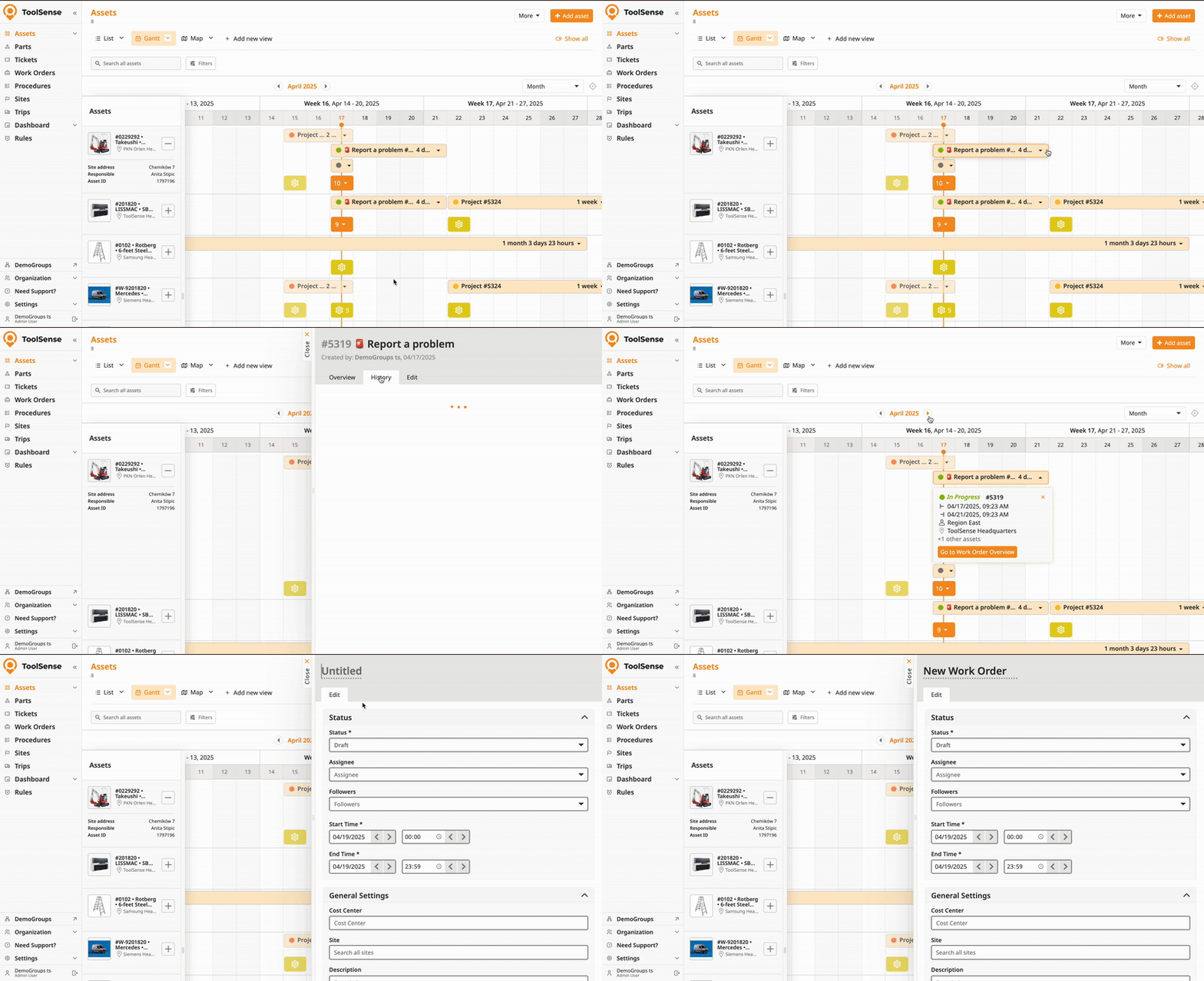
Via Asset Gantt Chart:
In the Assets section, access the Gantt Chart view, which shows assets on a timeline.
This view helps you visually manage scheduling and work orders related to assets. You can filter assets and create work orders by clicking directly in the corresponding field.
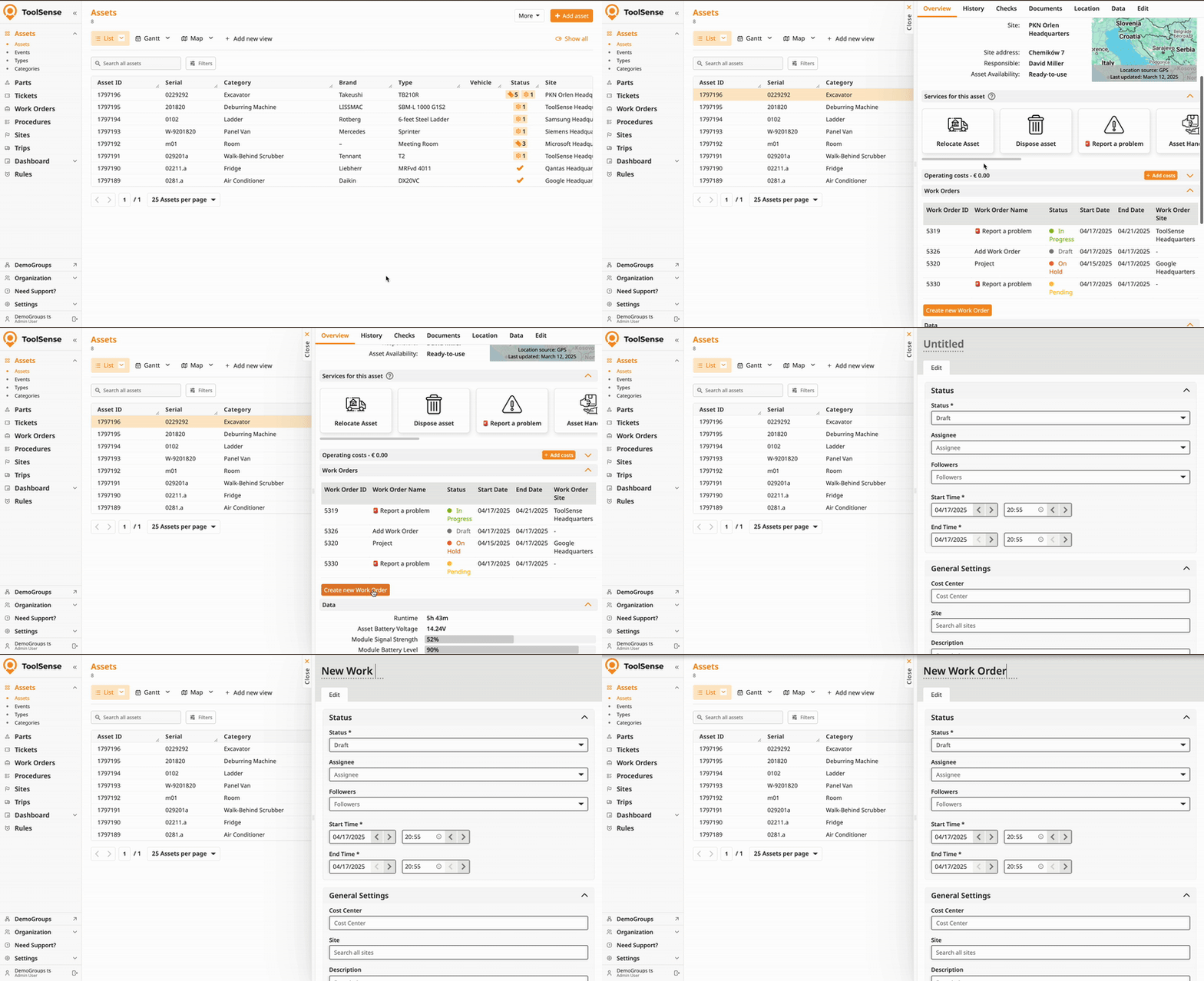
Creating Work Orders from the Asset Overview:
Work orders can also be created directly from an assets overview. Once you select an asset locate the work orders tab to quickly create and manage tasks.
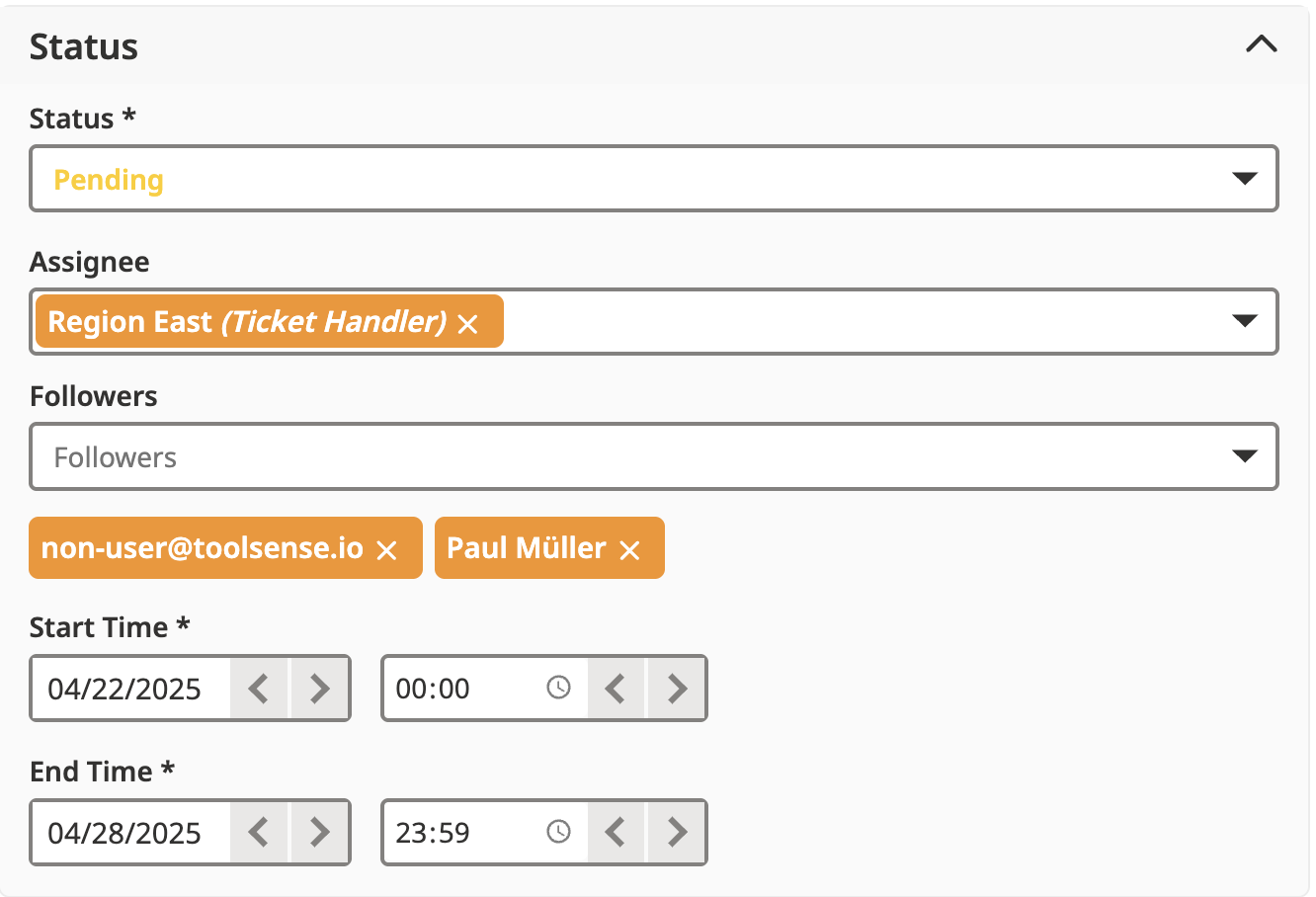
Status: Manage notifications, responsibility and timeframe
Responsible Person: Assign a specific user, team or ticket handler to oversee and ensure completion of the work order. You can assign them from a dropdown list.
Follower: Assign followers who will stay informed about the progress without being directly responsible for the task. You can also add external email recipients.
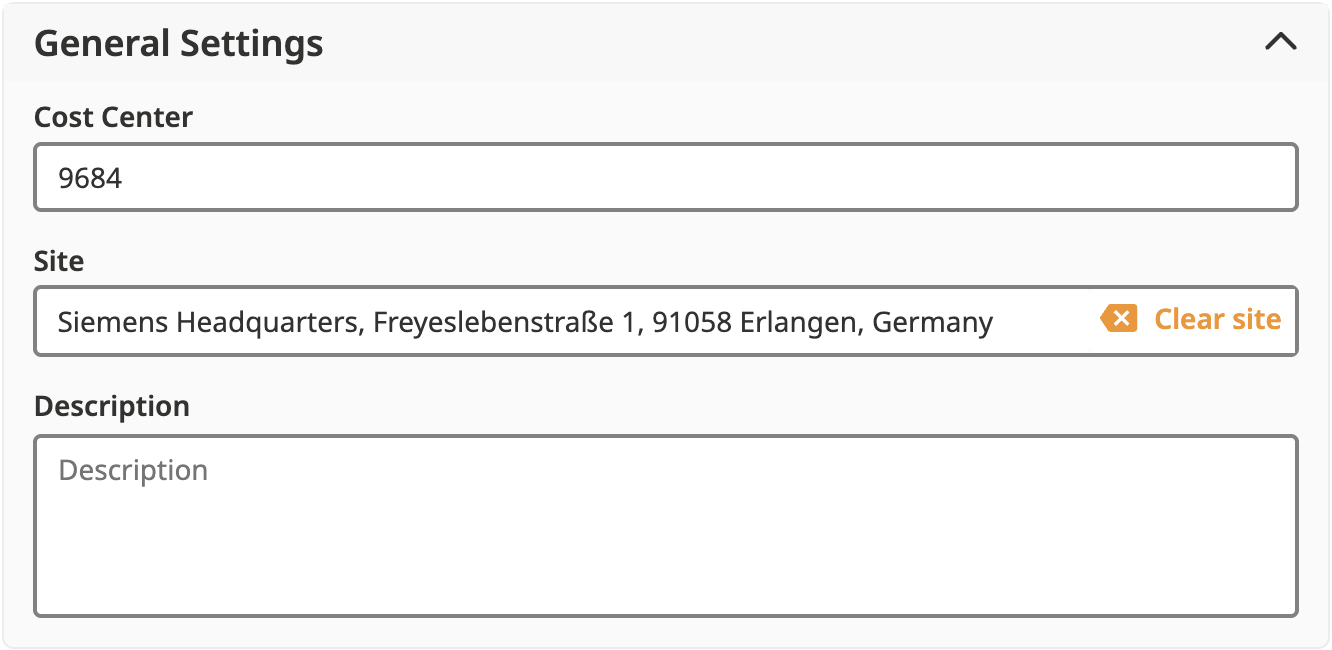
General Settings:
Cost Center & Site: Define the cost center and site, and add descriptions to provide additional context for the work order.
Note: After connecting a site to a work order in the general settings, the assigned site will receive a history entry about the creation of the work order.
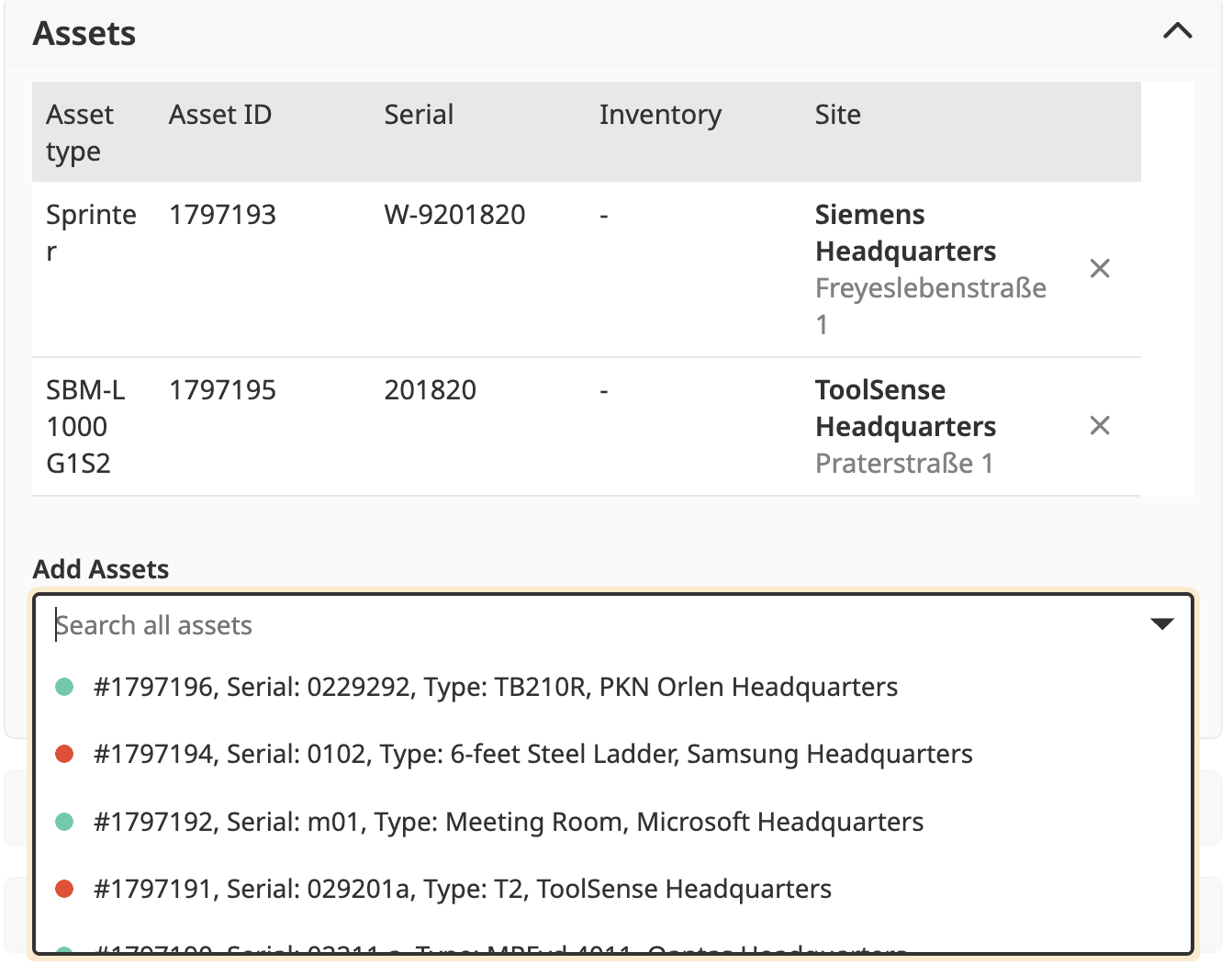
Assets:
You can add one or multiple assets to the work order. The asset dropdown will indicate whether an asset is in use or available.
Daily Rate
Set a daily rate for the work order. This allows you to calculate the total cost based on the rate and time allocated for the task.


Thus, in order to track daily rates for each asset, please create separate work orders. You can afterwards filter by the work order name for a complete overview.
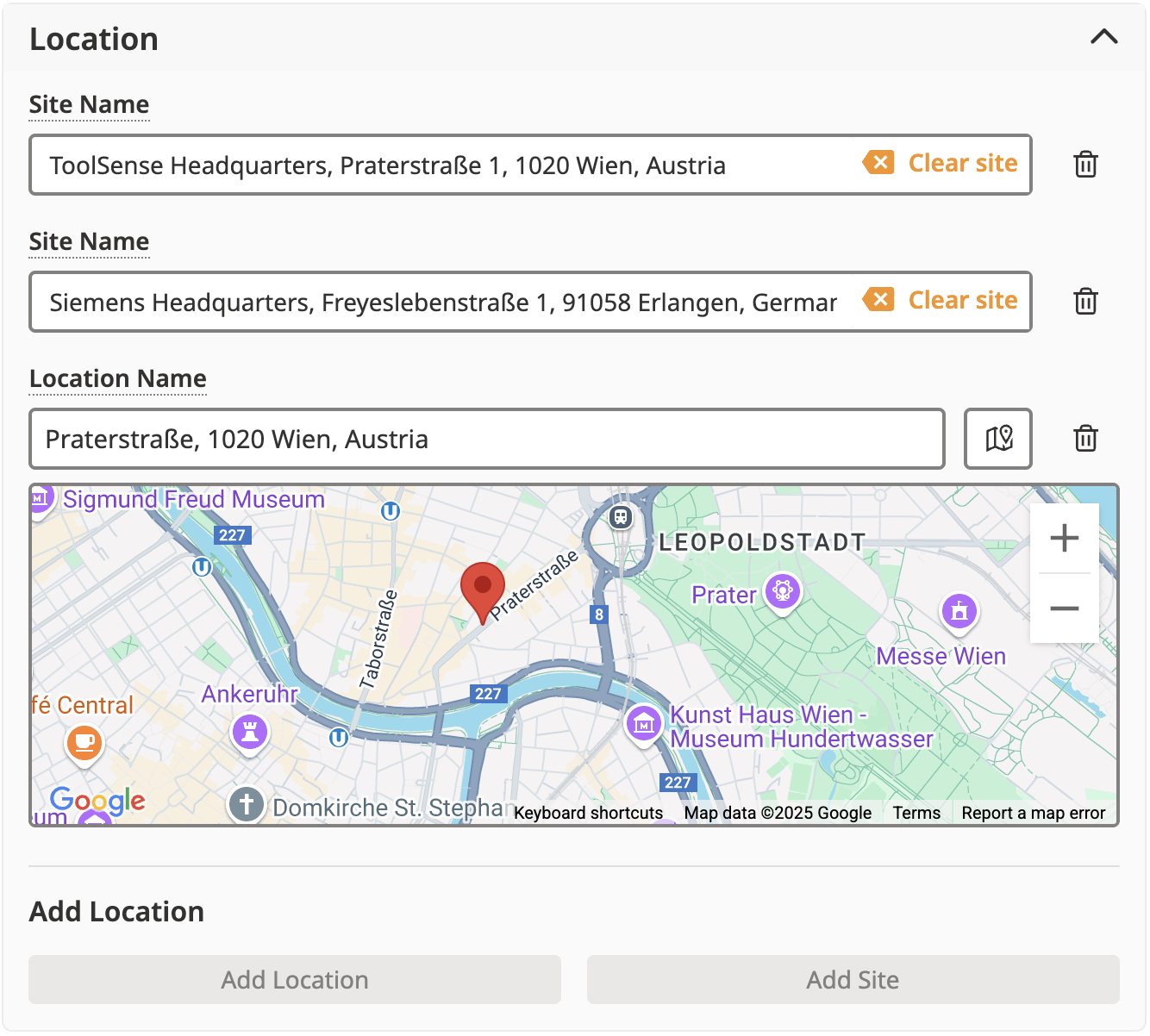
Location:
Add locations or addresses for the work order. You can create multiple site and location entries for comprehensive tracking.
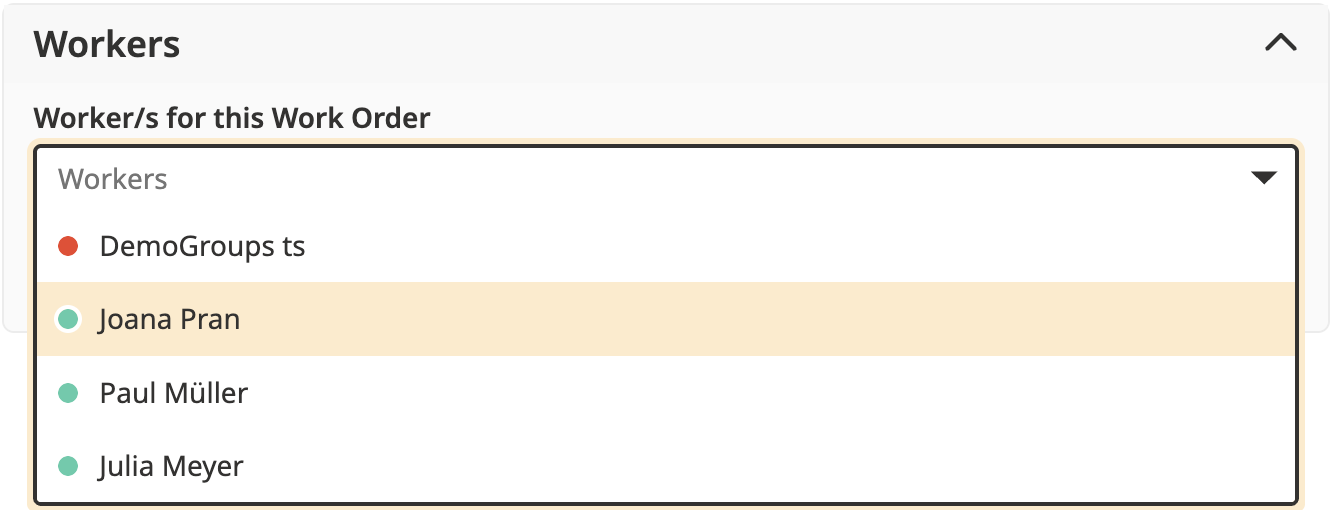
Workers
Assign workers to specific tasks within the work order to ensure clear accountability for each task. This allows you to manage who is responsible for each step of the work.
Note: The Workers section helps you designate team members for tasks but does not send out automatic notifications. If you wish to notify your workers, make sure to add them to the Assignee or Follower fields.
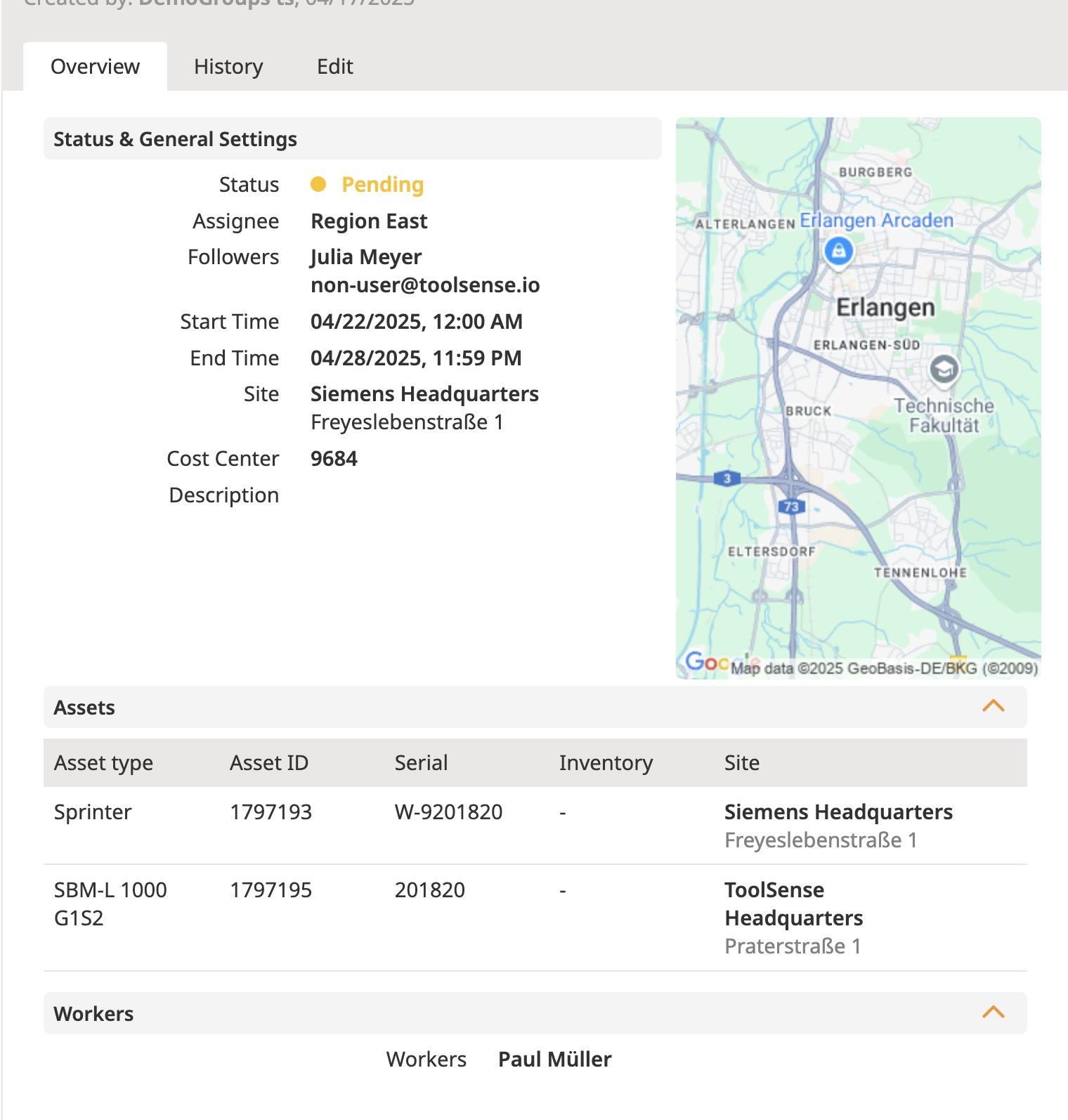
The Overview Tab provides a summary of your work order, allowing you to quickly access important information such as the status, assignee, and key dates. It serves as a central point for reviewing the overall progress and key details of the work order.
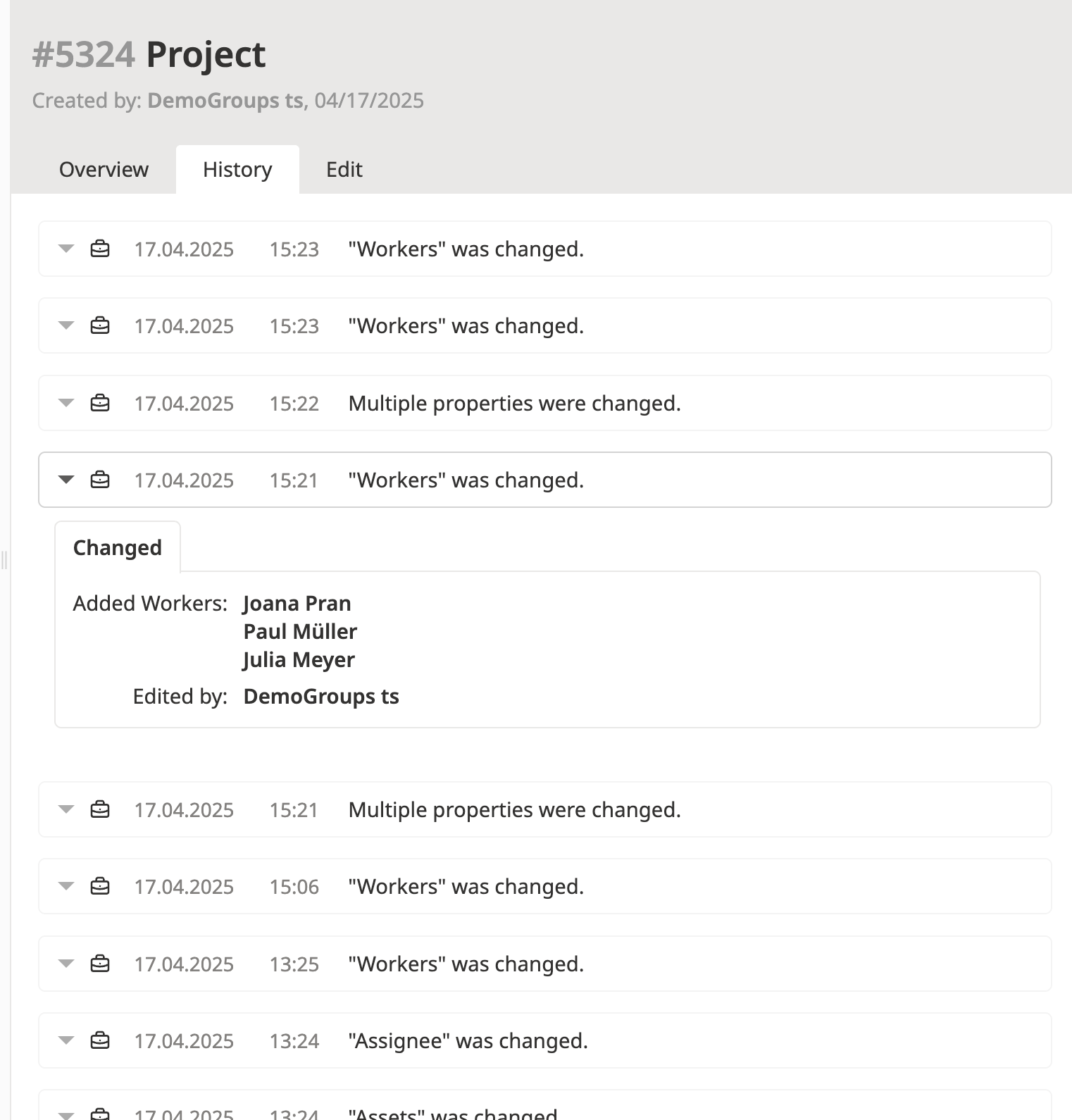
The History Tab enables you to track all actions taken on the work order. This includes updates on status changes, assignment adjustments, and any edits made. It's an essential tool for maintaining transparency and understanding the evolution of the work order over time.
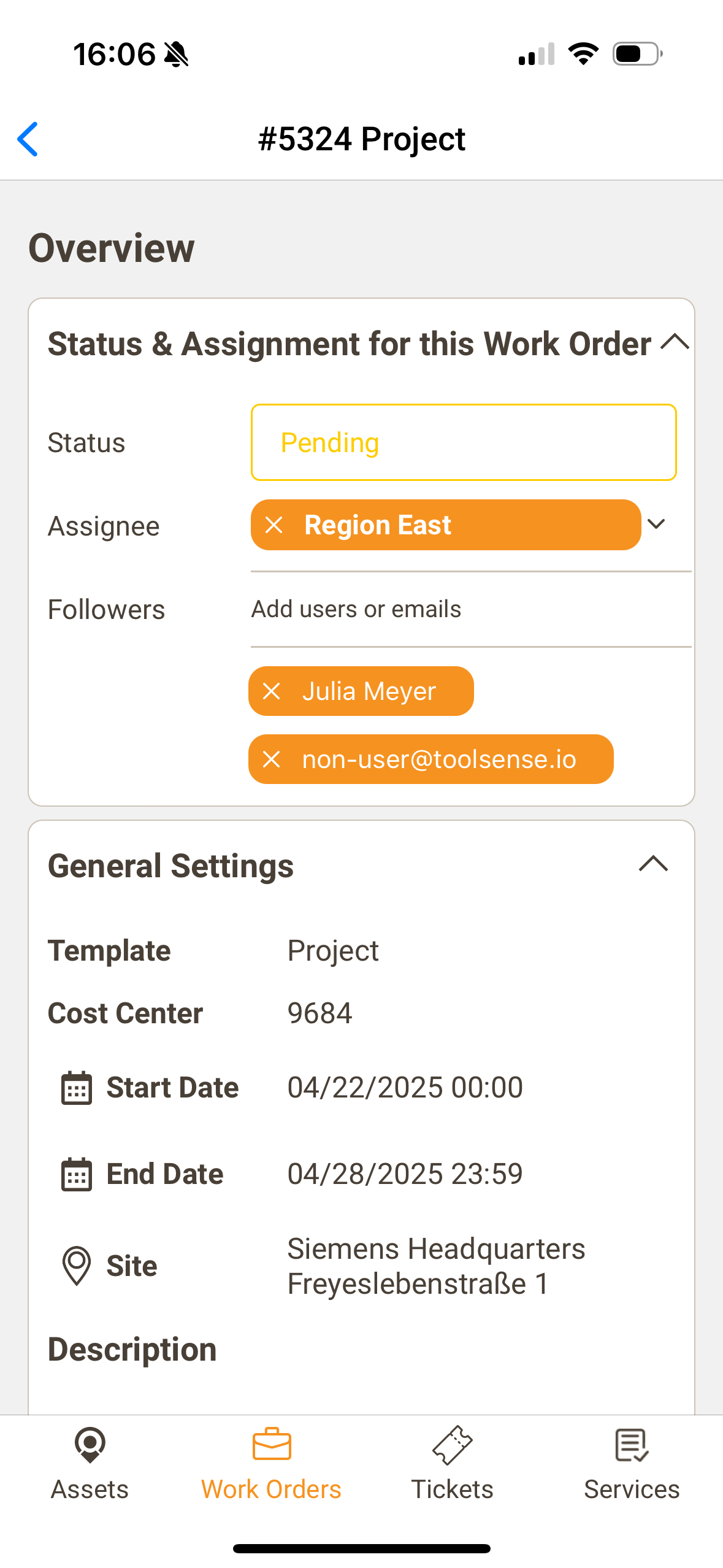
The mobile app enables you to conveniently view and manage your work orders on the go. You can easily adjust the status and add or remove a assignees as well as followers - ensuring that you stay in control of your tasks, even when you're away from your desktop.
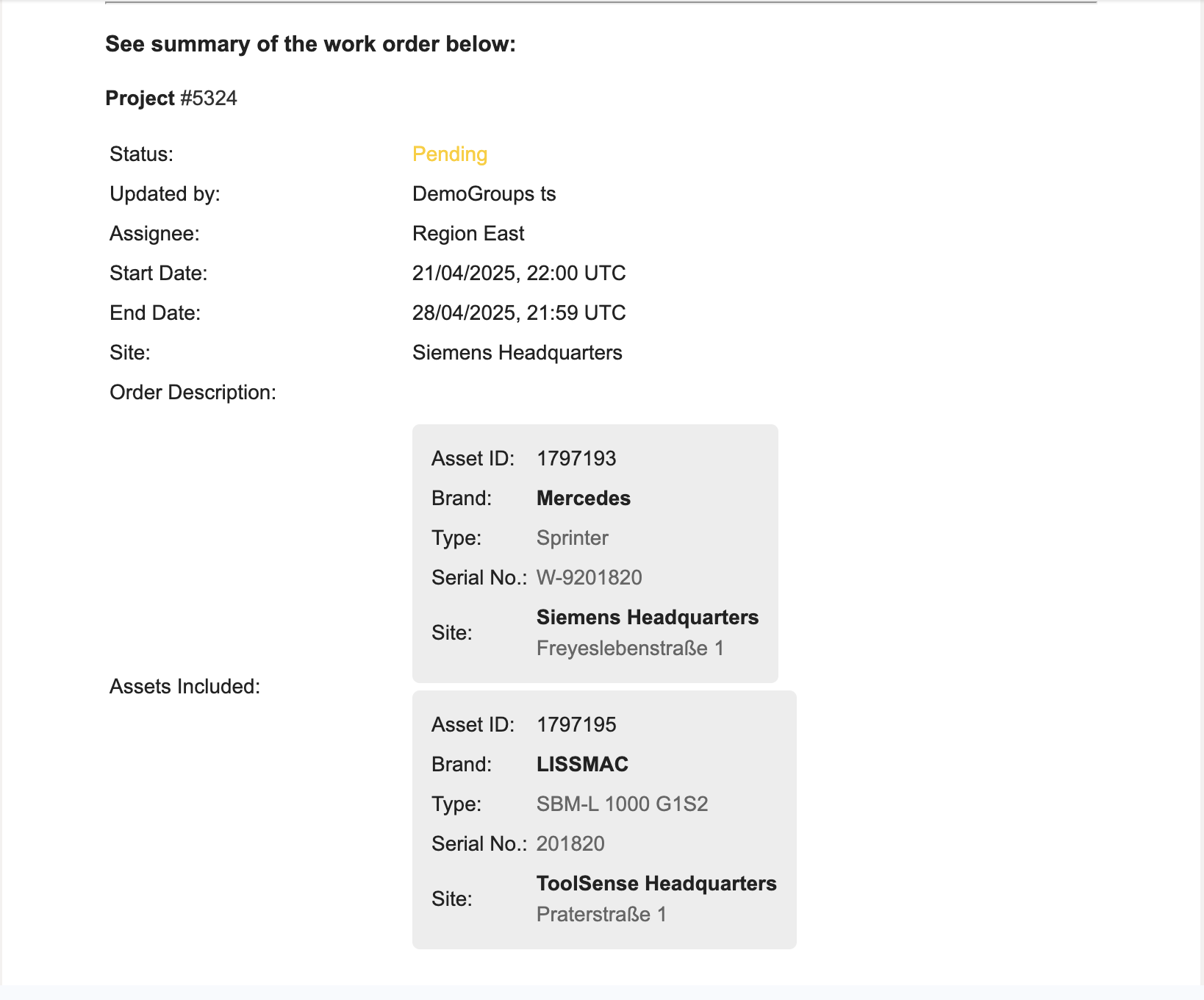
The email notification will provide a detailed summary of the work order, ensuring that all essential information, such as status, assignee, dates, and assets involved, is clearly communicated to the recipients.