 Ticket Handling Overview
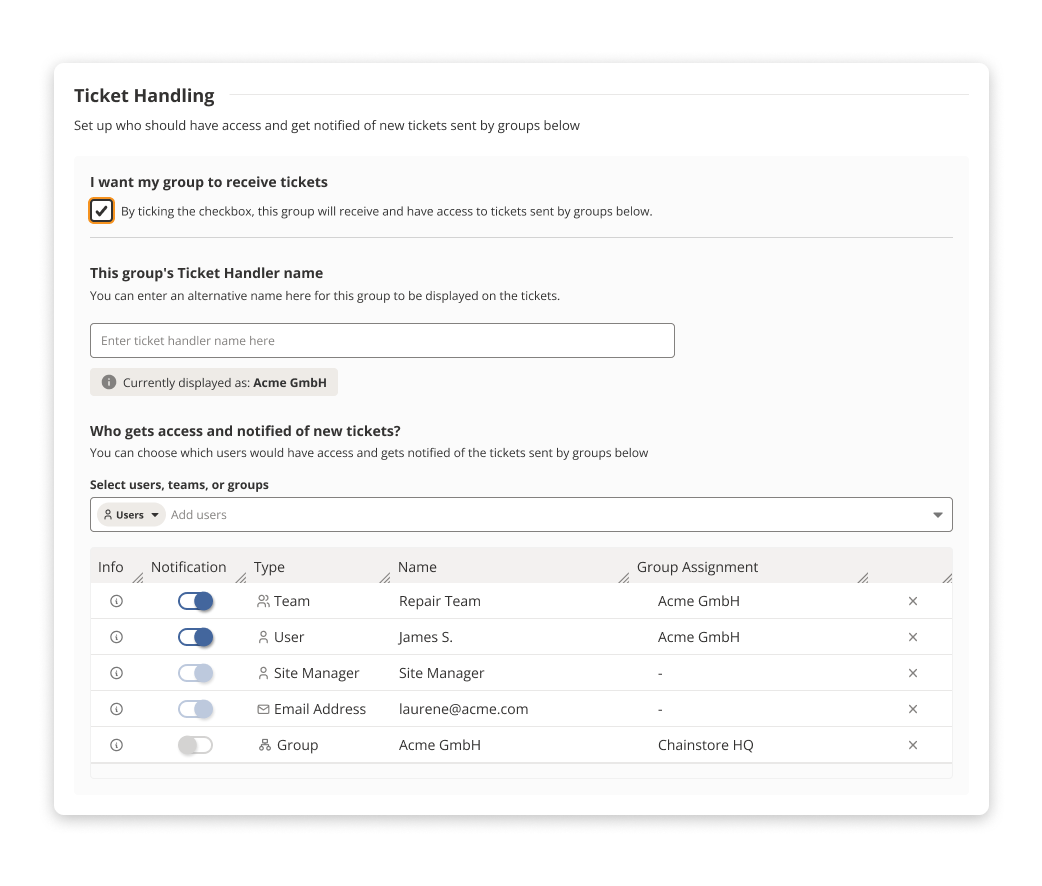
The Ticket Handling section allows administrators to configure who should have access to and receive notifications for new tickets sent by groups positioned below in the group hierarchy.
With the new update, a new user interface clearly separates visibility/access and notifications.
Users, site managers, email addresses, groups, or teams can be individually selected as ticket handlers.
Notification settings for handlers can now be toggled individually.
We’ve maintained some legacy group-based logic to ensure existing workflows and integrations continue smoothly, particularly important for those relying on older setups or API integrations.
To allow a group to receive tickets:
 Activate the checkbox labelled "I want my group to receive tickets". Once enabled, the selected group will start receiving and gaining access to tickets submitted by subordinate groups.
Ticket Handler Name:
 An alternative name for the group can be defined in the field "This group's Ticket Handler name".
 Currently, this appears as the current organization’s name
 Access and Notification for New Tickets
The configuration allows specification of which users, teams, groups, or even site managers of assets involved in new ticket as well as emails (people who have no log in access to ToolSense) will have access to and receive notifications about tickets submitted by groups below.
The interface offers a "Select users, teams, groups, email" option.
They can be added using the provided dropdown menu.
 List of Entities
The following types of entities can be added as Ticket Handlers:
Site Manager: Can include a Primary Manager and Additional Managers of the assets involved in the ticket
Teams: May consist of multiple people, defined either as Users or Emails.
Users - users that have log in access to ToolSense
Emails
Groups:  Introduced as a new dropdown option.
The list of groups follows the system's current group visibility logic: all subordinate groups are displayed.
When a group is selected as a Ticket Handler, all members of that group gain visibility for tickets to which this Ticket Handler has been added.
Each selected entity—whether Site Manager, Team, User, Email, or Group—will appear as a separate line on the Ticket Handler list.
 The primary Ticket Handler group will be preselected by default.
 Group Visibility Logic
 Previous Logic:
All groups added to a ticket handler automatically received visibility for every ticket where the handler was present.
 Updated Logic:
Visibility for Users and their groups is now treated separately.
Only the group explicitly selected as the Ticket Handler automatically receives ticket visibility.
Only Users added directly to the ticket handler receive visibility.
 To grant access to other groups, those groups must be manually selected from the dropdown in the Ticket Handler section.
Ticket Handler Feature MigrationNo automatic changes are applied to existing Ticket Handlers in the system.
All groups previously added to a Ticket Handler will continue to be displayed in the list.
After deployment, administrators may choose to manually remove specific groups from the visibility list, if necessary.
 Deleting Members from the Ticket Handler
Entities such as Site Managers, Teams, Users, Emails, and Groups can be removed from the Ticket Handler list using the [x] icon.
The group defined as the primary Ticket Handler cannot be removed using this method.
A confirmation message appears when the [x] icon is clicked.
 Ticket-Related Notifications
Ticket notifications can be managed using toggles in the UI.
Teams / Users:
A toggle is provided to control whether notifications are received.
This toggle defaults to ON.
Shown in the "Notification" column of the interface.
Site Managers / Emails:
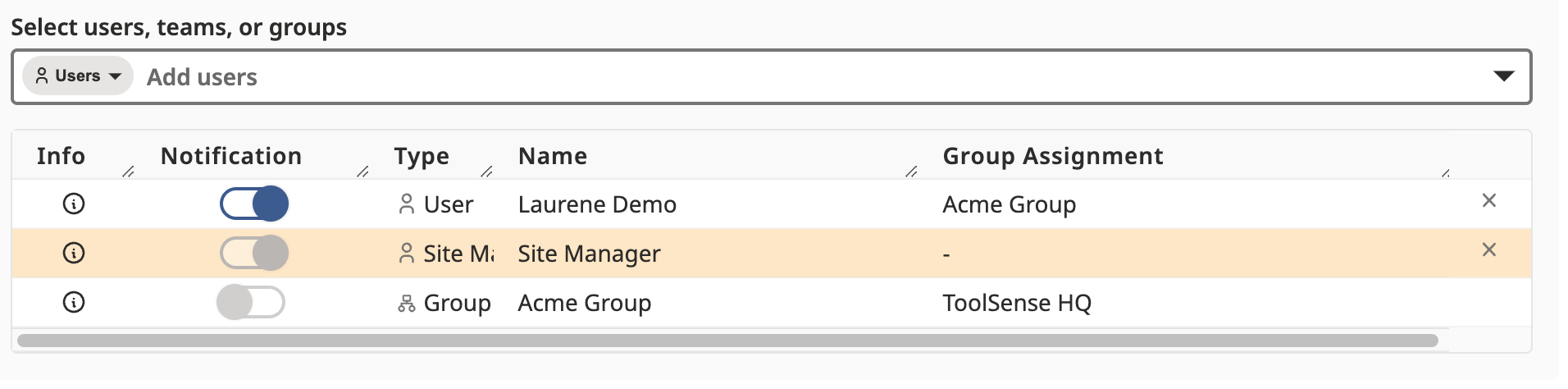
Notification toggle defaults to ON and is presented in read-only mode, as notifications are always required for these entities.
The UI reflects this setup, although the read-only status is not visually confirmed in the screenshot.
Groups:
The toggle defaults to OFF and is displayed in read-only mode.
The screenshot above shows this behavior, though read-only status is not explicitly labelled.
 Restricted Groups
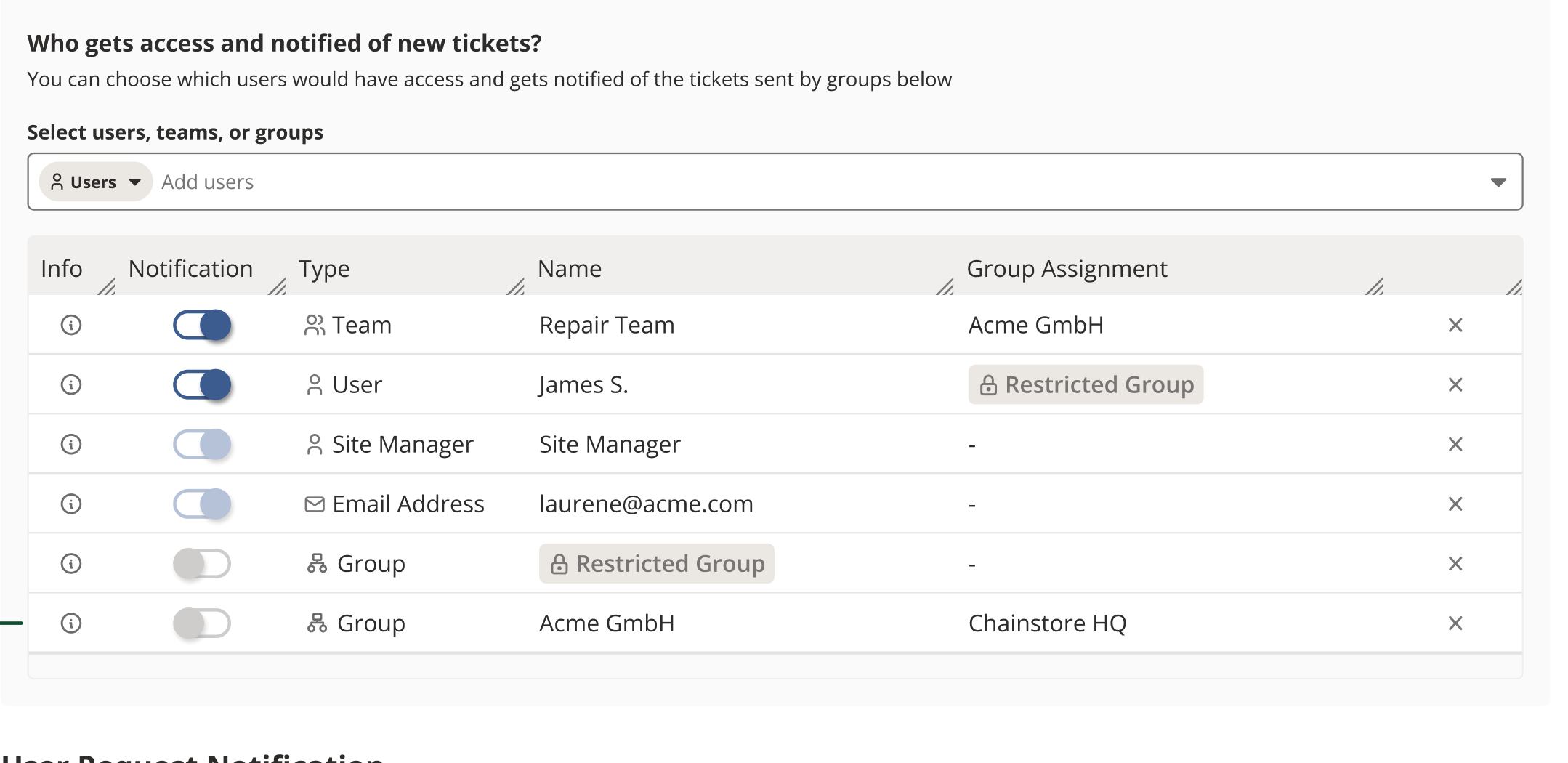
In cases where multiple groups appear, administrators are unable to view groups that are hierarchically above their own.
These groups are displayed as "Restricted Group".
The UI example shows "Restricted Group" in the "Name" column for a Group entity.
Removal of restricted groups is still permitted via the [x] icon, even if the name is not visible.
 Deleting a Ticket Handler OR the Organisation It Belongs To CASE 1: A Ticket Handler is Assigned to Tickets and Later Removed from the App
Existing behaviour remains:
A confirmation message is shown.
Assigned tickets remain visible and can still be completed.
 The assignment remains visible on the ticket and in the ticket list under the Assignee column.
 The Ticket Handler stops receiving notifications for tickets it was previously assigned to.
 The deleted ticket handler will no longer appear in:
Ticket Handler dropdown
Ticket assignee/followers
auto-assignee selectors
CASE 2: A Ticket Handler is Added to a Ticket and the Organisation It Belongs To Is Then RemovedExisting behaviour remains:
A validation message appears: "This group cannot be removed as it is currently involved with a ticket."
