 Introduction
A new “GPS location” field type is now available when building procedure forms. This element is designed to capture location data, providing valuable context for various workflows:
Automatically record locations of users requesting service
Log locations during an equipment check
Provide location data for documentation like agreements or contracts
The system is designed to be flexible, allowing form builders to customise the behaviour and visibility of this element.
 For Form Builders (Creating and Editing Procedures)
When creating or editing a procedure, the “GPS location” option appears in the field type selector. Selecting this option brings up several configuration possibilities:
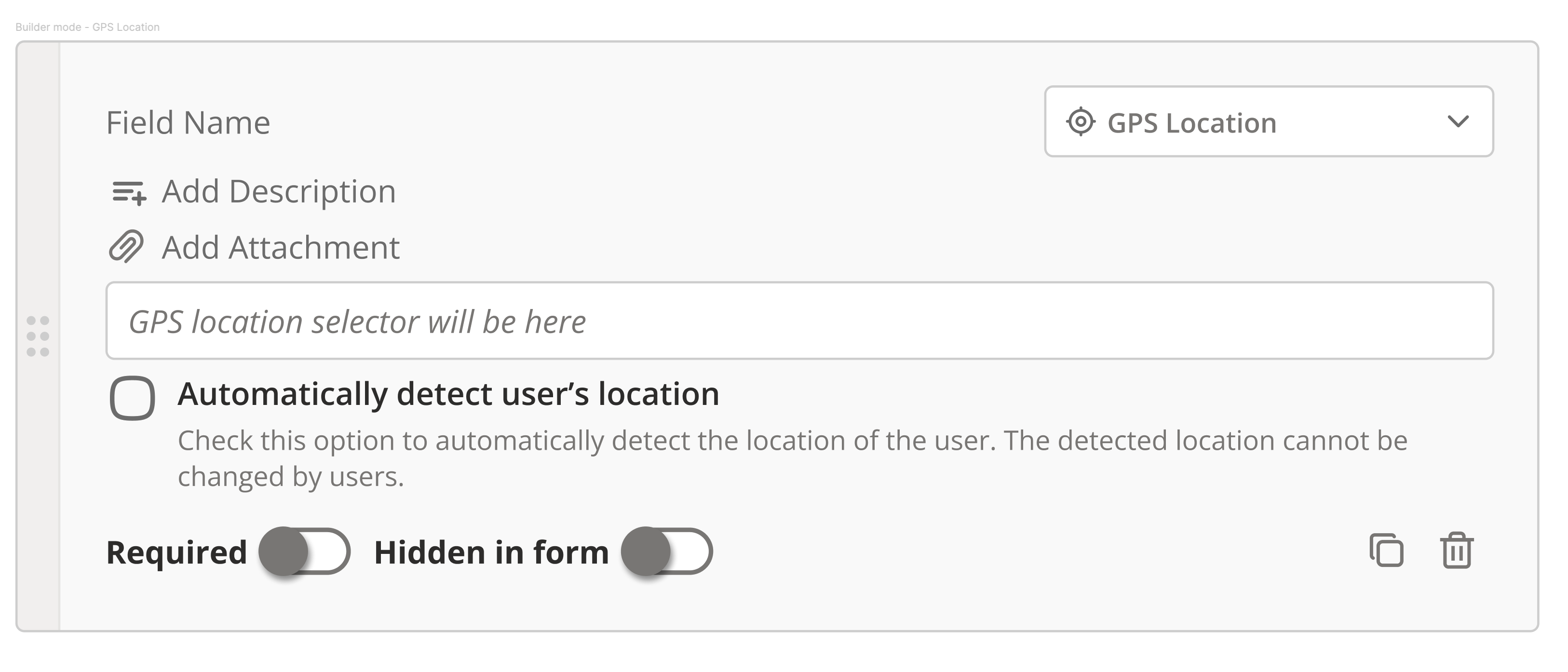
 Adding the GPS Location Field
Selecting "GPS location" adds a field labelled “Enter a location” to the form. It works similarly to the “Add location” part in work orders.
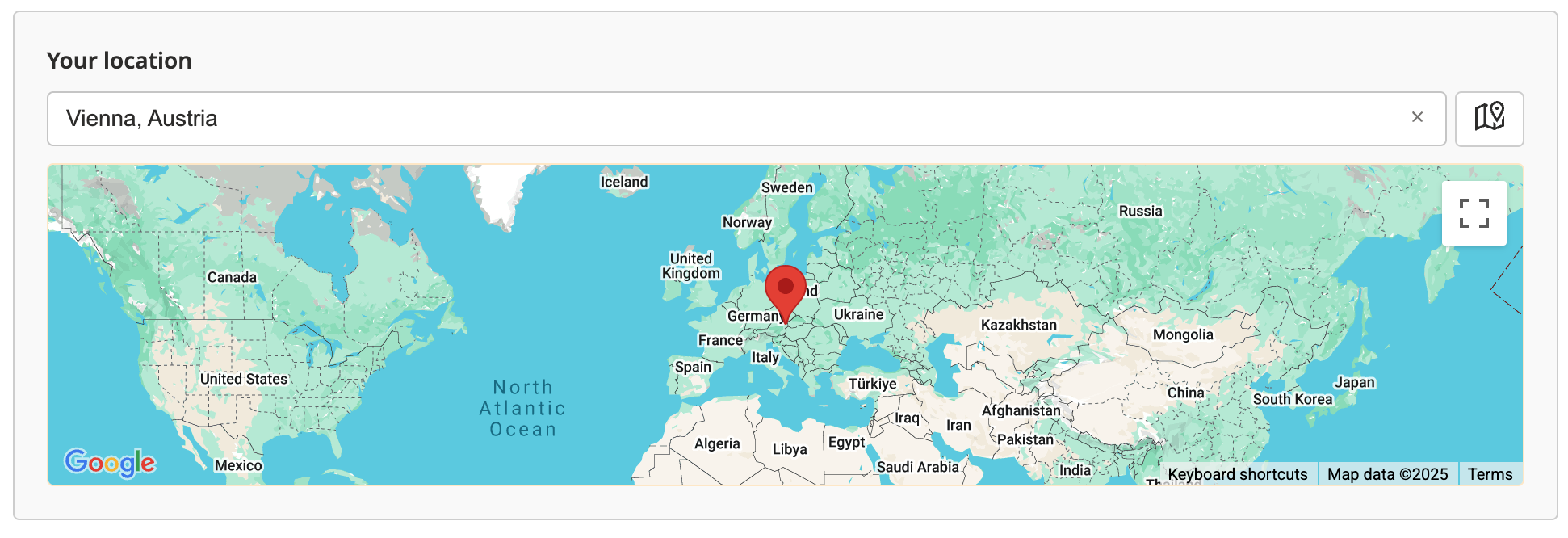
 Searching for a Location
Users can type an address into this field. A dropdown with related options will appear for selection. Alternatively, tapping a spot on the map automatically populates the field with coordinates.
 "Use users current location" Checkbox
When checked during form creation, the system will try to automatically determine the location of the person filling out the form.
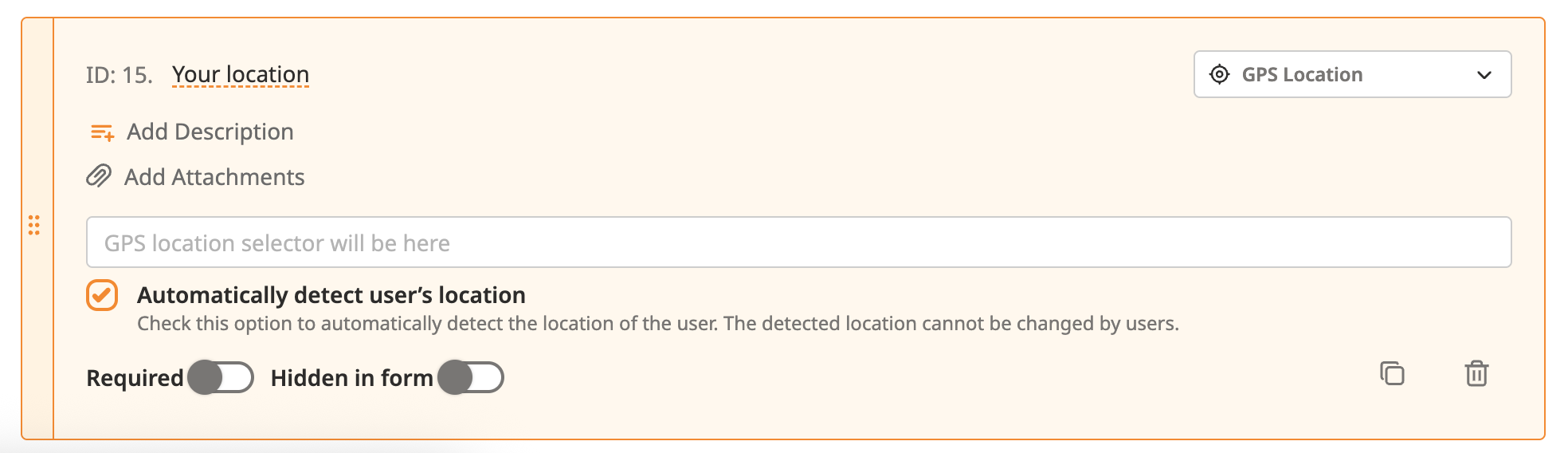
 Hiding the Location Field
A toggle allows hiding the GPS field from the form. If the checkbox for current location detection is still marked, the system will still attempt to retrieve the location in the background. Ideally, hidden fields should not be marked as required.
 Making the Field Required
If the field is marked as required but no value is entered, an asterisk appears to indicate missing information when attempting to save the form.
 For Users Filling Out Procedures
When encountering a GPS location field in a form, the following behaviours apply:
 Initial View
The field appears with the placeholder “Enter a location”.
 Manual Input
Typing an address or keywords brings up suggestions. Selecting an option populates the field.
 Automatic Location Detection
If enabled by the form builder:
 If GPS access is granted:
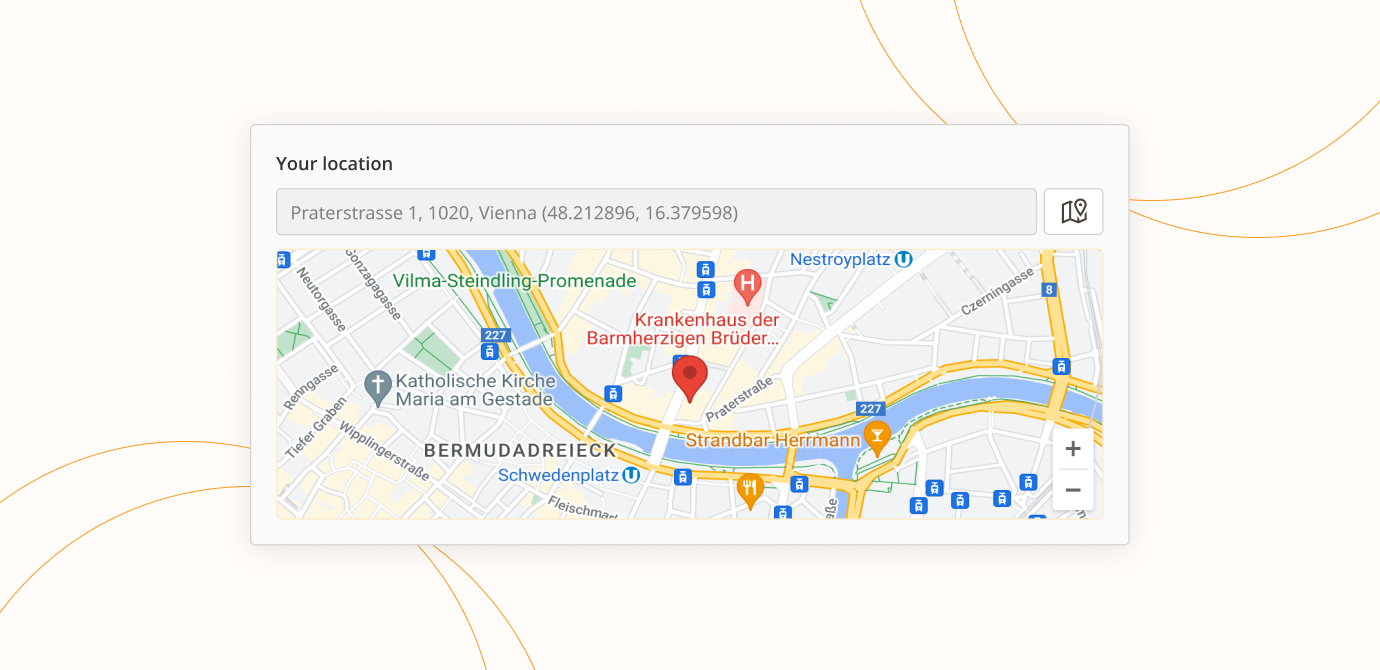
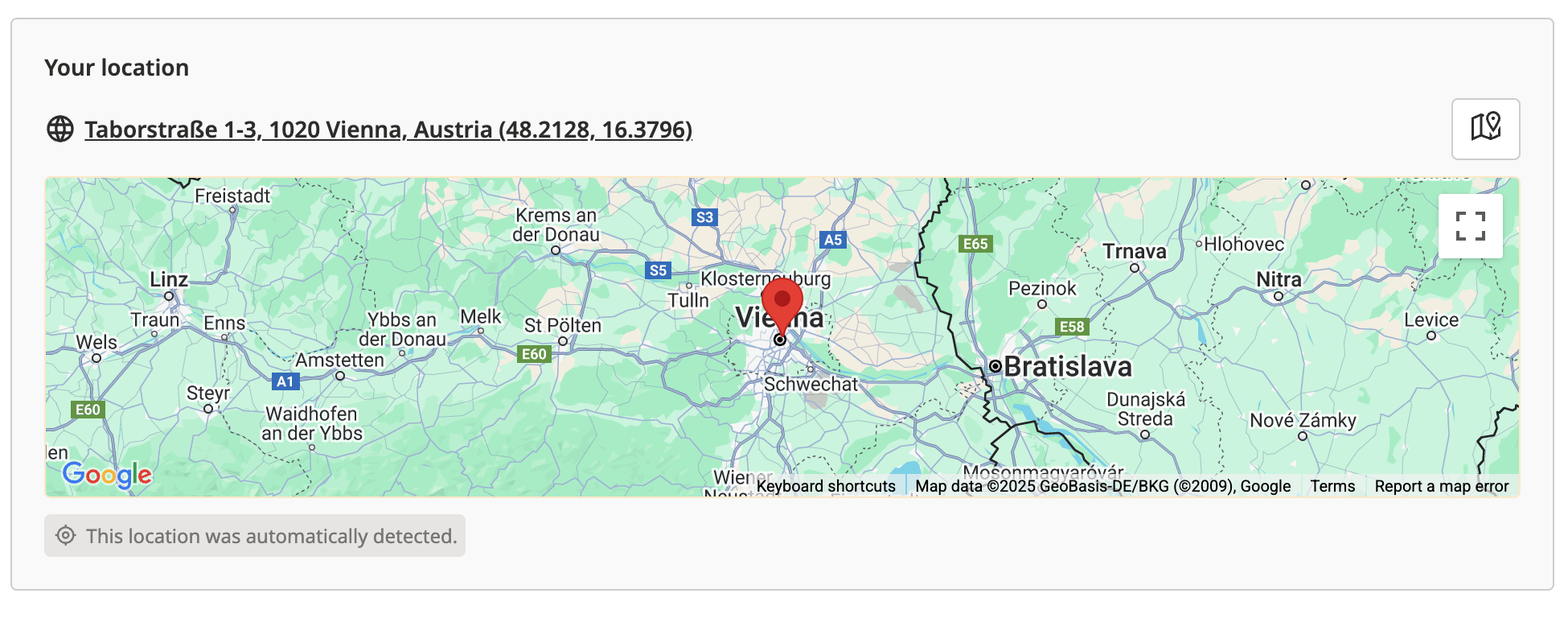
The field displays the detected coordinates and a map button. The user may edit the auto-filled location.
 If GPS access is denied:
Even with automatic detection enabled, the input field will still be shown unless explicitly hidden.
 Map Functionality
Execute Mode:
- Clicking the input opens the map, which remains open until the map button is clicked again.
- Users can tap on the map to adjust or confirm a location — coordinates update automatically.
View Mode:
- A “Map” button is available to open the map with the selected location.
- If automatically detected, the info label “This location was automatically detected” is displayed
 Required Field Handling
If the field is required and left empty, an asterisk is shown when trying to save the form.
 Key Features Summary
Captures location using device GPS or IP-based services
Provides latitude and longitude coordinates
Integrated map view for selection and confirmation
Option to auto-record current location
Manual input with live search suggestions
Field visibility control for form builders
Option to mark the field as required
Visual indication for missing required input
Graceful fallback if GPS permission is denied
