 What changed?
When creating assets by scanning QR codes, there is now an enhancement regarding the handling of uploaded images.
Previously:
If a user added a picture during the asset creation process via a QR code, this image would be stored within the Documents tab.
Now:
When an asset is created through this method and a picture is added, the first uploaded image will be automatically used as the asset's picture  .
.
This only applies if there is no existing image set for:
the asset itself
the asset type
or the asset category

 Image logic hierarchy:
When determining the asset's picture, the system follows this order:
 Check if a profile picture is added in the Asset > Edit tab
If none, use the image from the Asset Type
If none, use the image from the Asset Category
If none of the above have an image, and an image was uploaded during QR code asset creation, that image becomes the picture
 If no image is found anywhere, a default blank icon is displayed
 Deleting images from documents
If the QR-uploaded image is deleted from the Documents tab, the picture will not change automatically.
The image remains as the picture unless manually removed or changed from the profile settings.
 Overwriting logic
If an image was first added via QR code and then a new image is added via:
Asset > Edit tab
Asset Type
Asset Category
 The new image will overwrite the QR code image as the asset picture.
 Remove Image functionality
A new "Remove Image" feature is available 
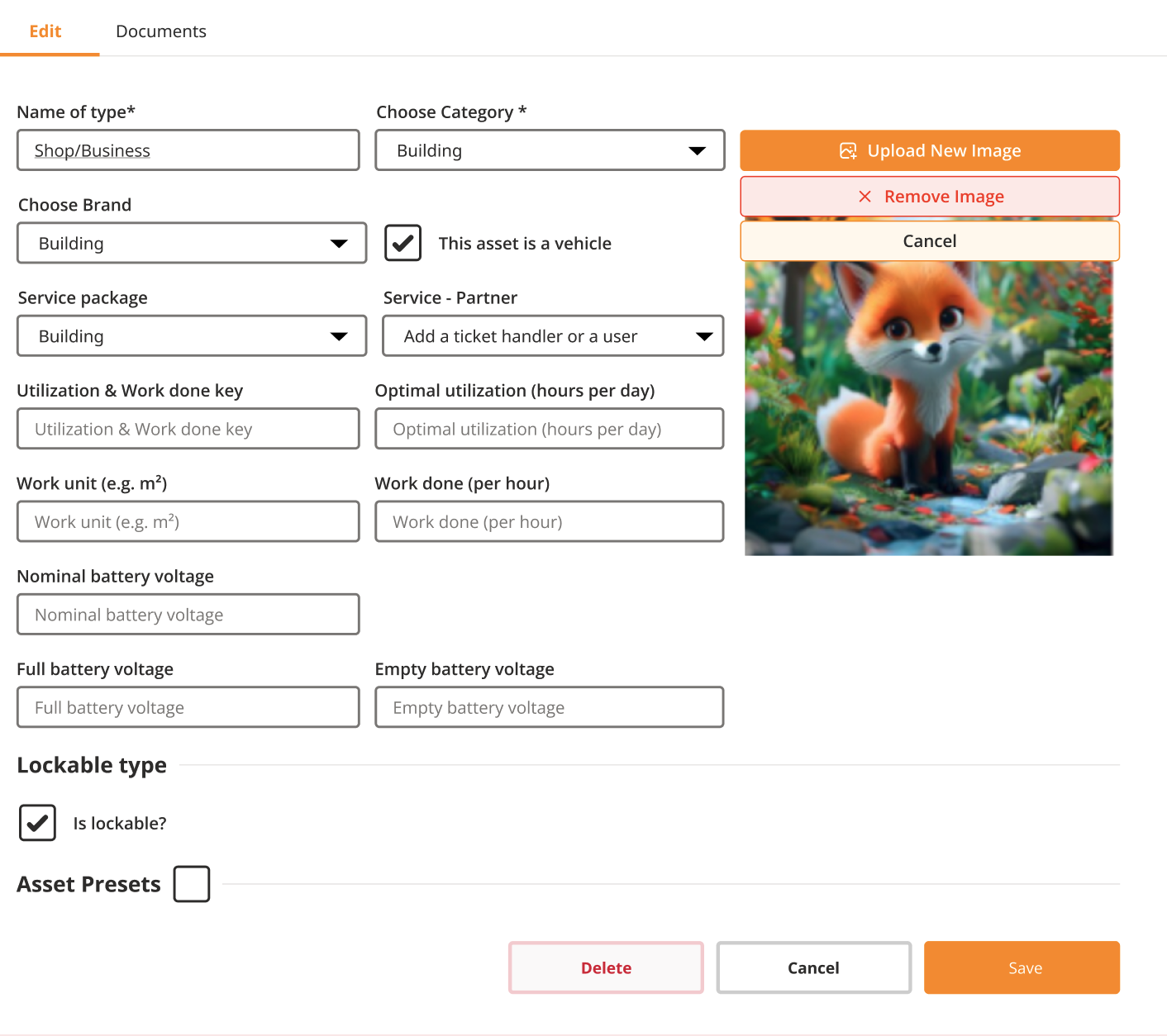
Users can now remove an image directly from:
the asset edit pane
the asset type level
the asset category level
Previously, only image replacement was possible.
 What happens when an image is removed?
If removed from Asset > Edit tab: the asset inherits the image from Asset Type (if one exists)
If removed from Asset Type: the asset inherits the image from Asset Category (if available)
