ToolSense makes it easy to collaborate with your external suppliers and service partners -whether you want to fully onboard them into the system or simply keep them informed via email. As an admin user, you have several ways to include them, depending on the level of access you’d like to provide.
If your supplier or service partner needs access to ToolSense - such as to view assets, manage tickets, or update statuses:
How to add a User
Invite your colleagues to ToolSense
Create a new user with an Editor Role.
Assign them to a group that includes only the relevant assets.
Alternatively, you can assign them to the root group or groups higher in hierarchy and restrict their access to specific asset brands (e.g., only assets of brand Kärcher). To do so, review the brand names associated with the service partner's machines and provide the list of all necessary brand name variations to your CSM. For example, for "Diversey," the list might include:
TASKI
Taski
DIVERSEY
Diversey
Your CSM will configure the brand settings in ToolSense for the service partner group.
Enable automated notifications and assignments using ticket handlers or service automations. (Refer to the section below)
 This setup provides your partner with full access to the system and its functionalities.
Making it much easier to collaborate - partners can view and manage assets as well as tickets directly in ToolSense, with in-app features like timelines, comments, and attachments.
If your partner doesn’t need full ToolSense access but should receive service ticket updates:
Create a team (e.g., “Kärcher Service Team”).
Add their email address to the team.
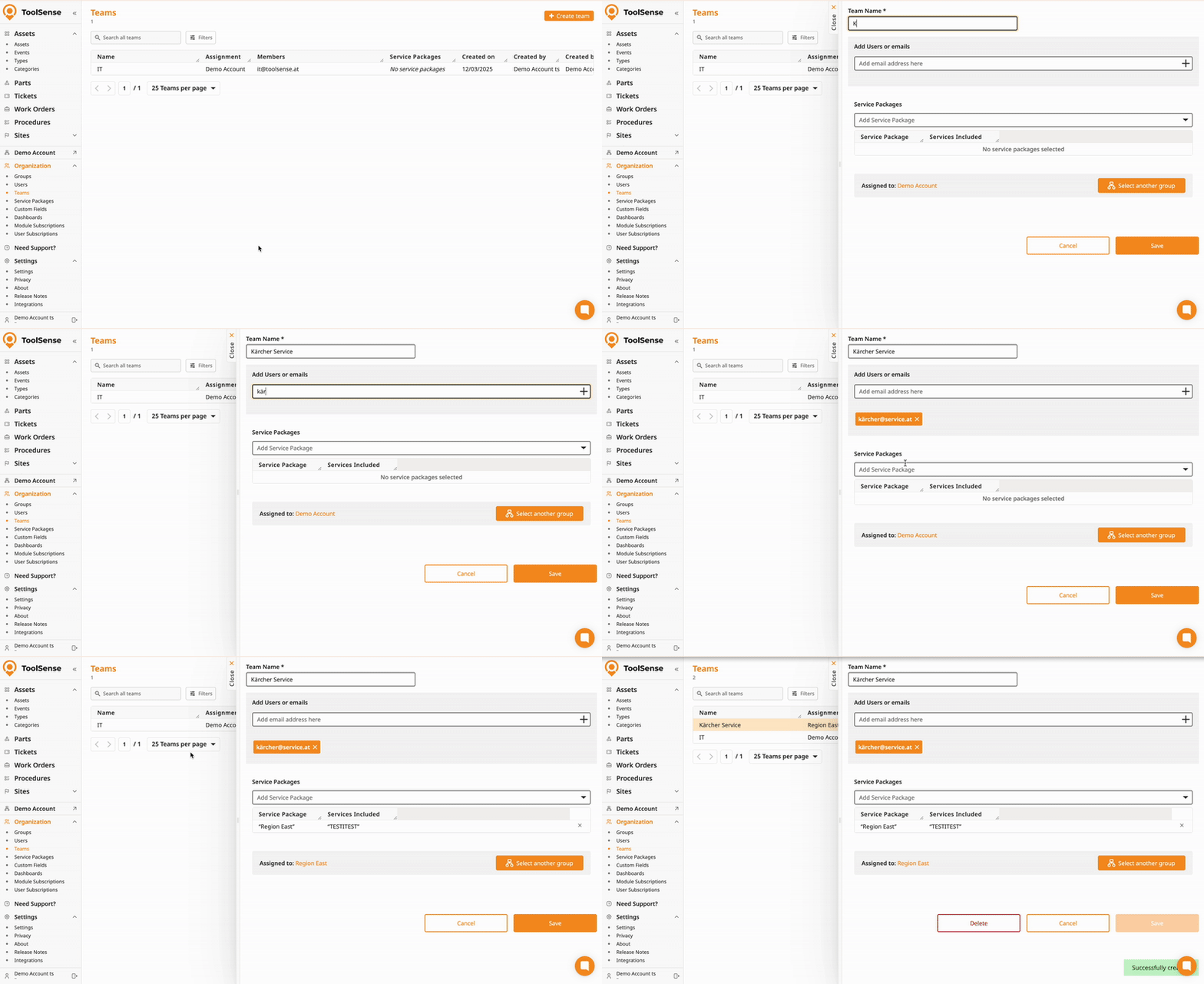
Once you have created your team, you can already add them to your tickets - either manually or automatically.
The most common use case: add the service partner team to a ticket as it progresses.
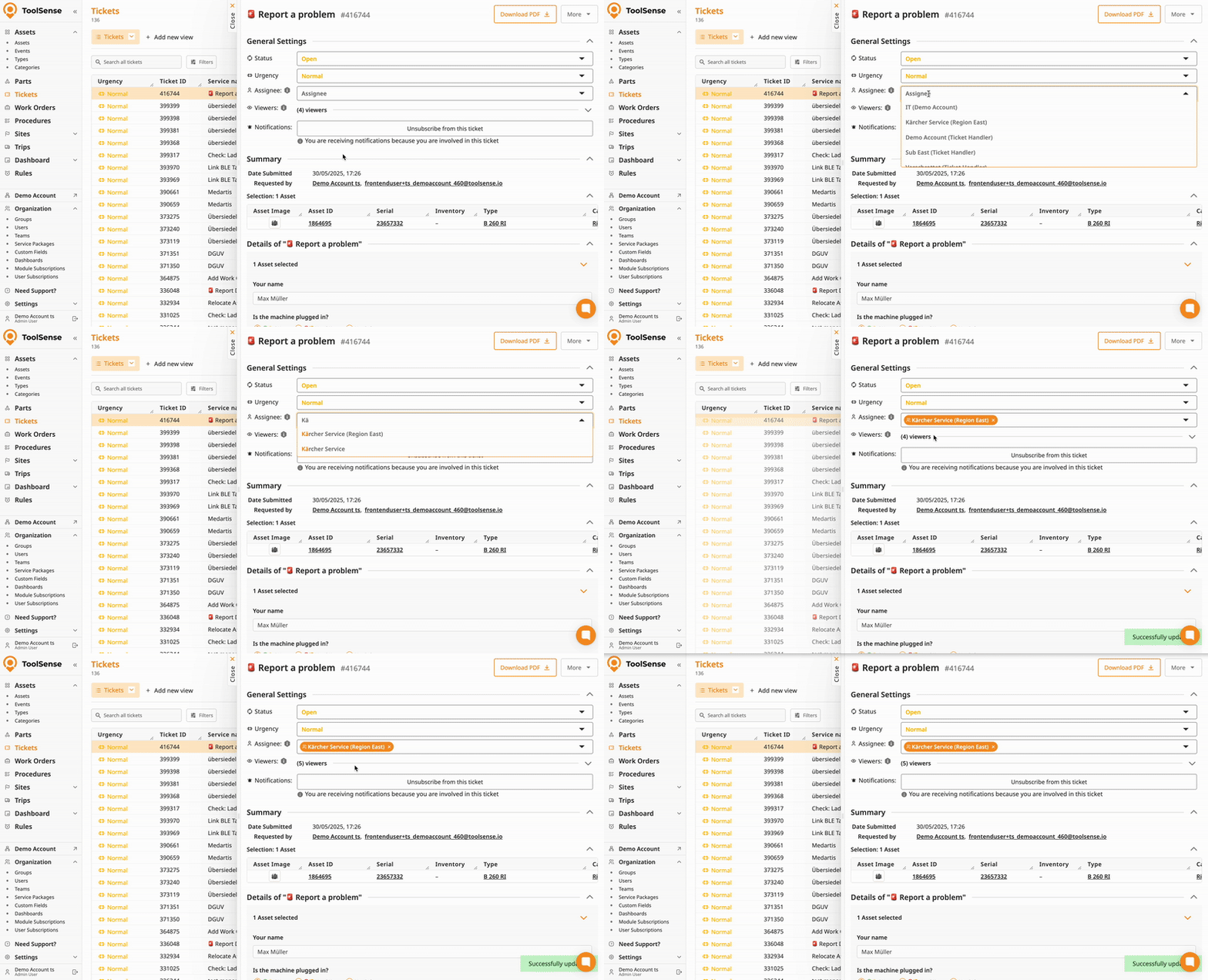
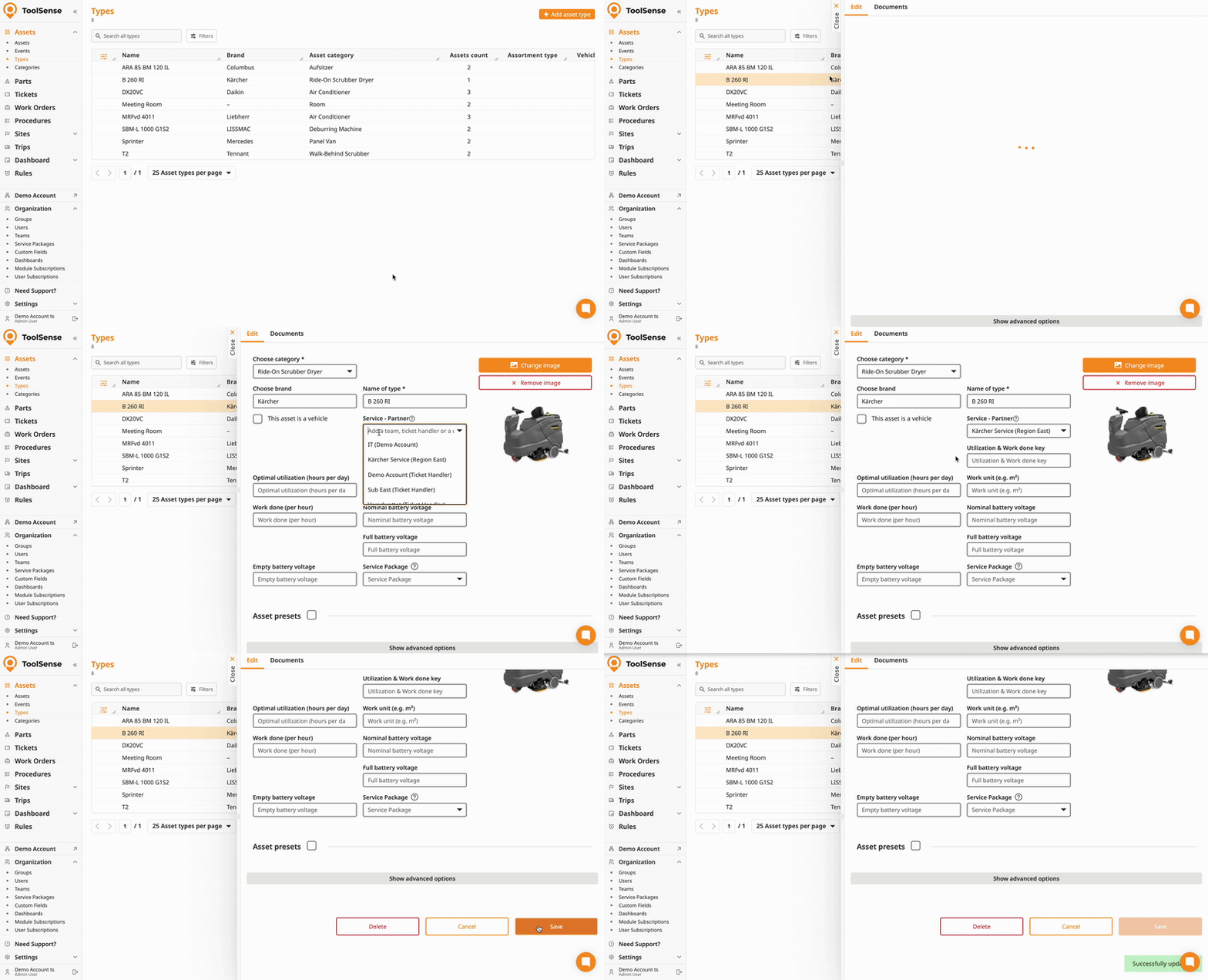
To automate ticket assignment, you can either add the service partner to their corresponding asset-types or to a specific service.
Automation per Asset Type
Navigate to your desired asset types and add your service partner in the corresponding input field.
Lastly, adjust the service assignee automation so they are notified automatically.
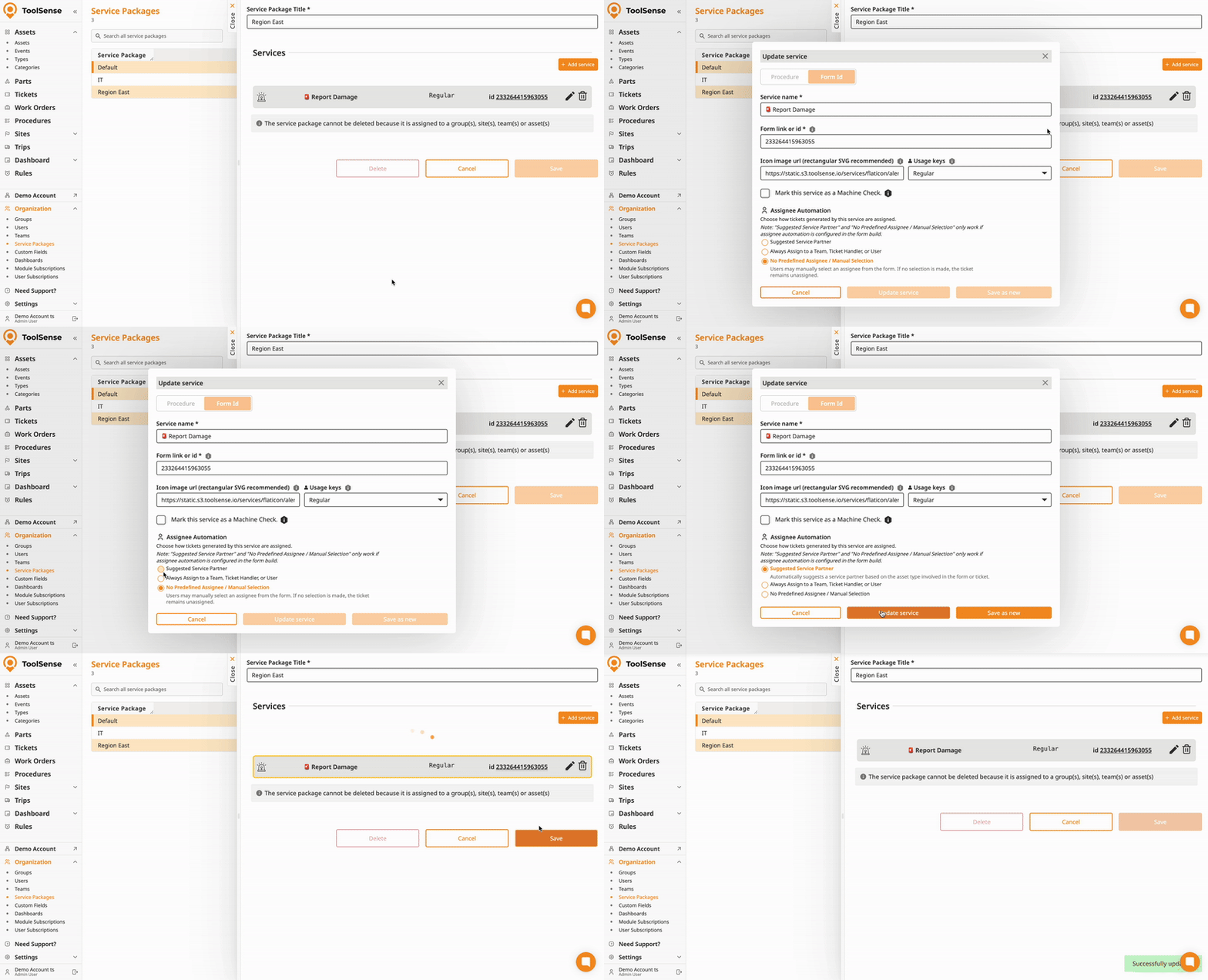
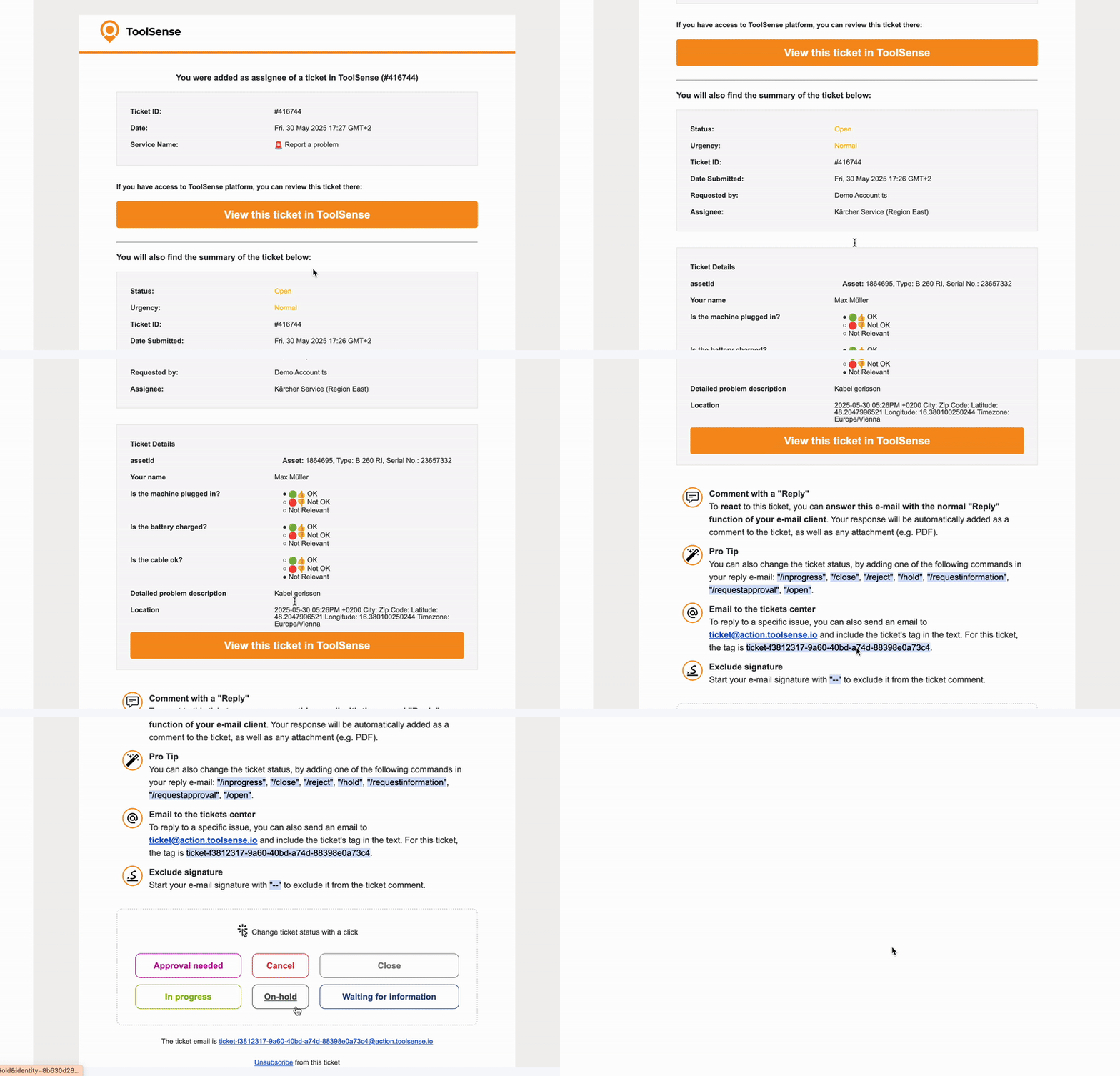
They’ll receive email notifications when tickets are created, including asset and issue details.
They can reply via email, and their messages will automatically appear in the ToolSense ticket thread (including attachments).
This is ideal for partners who prefer email workflows but still need visibility into the ticket process.
 Need Help?
Not sure which setup works best for your case? Or need brand-based access restrictions enabled?
Contact ToolSense Support or your Customer Success Manager - we’re here to help.
