To view trips, you first need to set up your account properly. Here’s what’s required:
IoT Unit: Your vehicle must have an IoT unit installed (e.g., Caladrius).
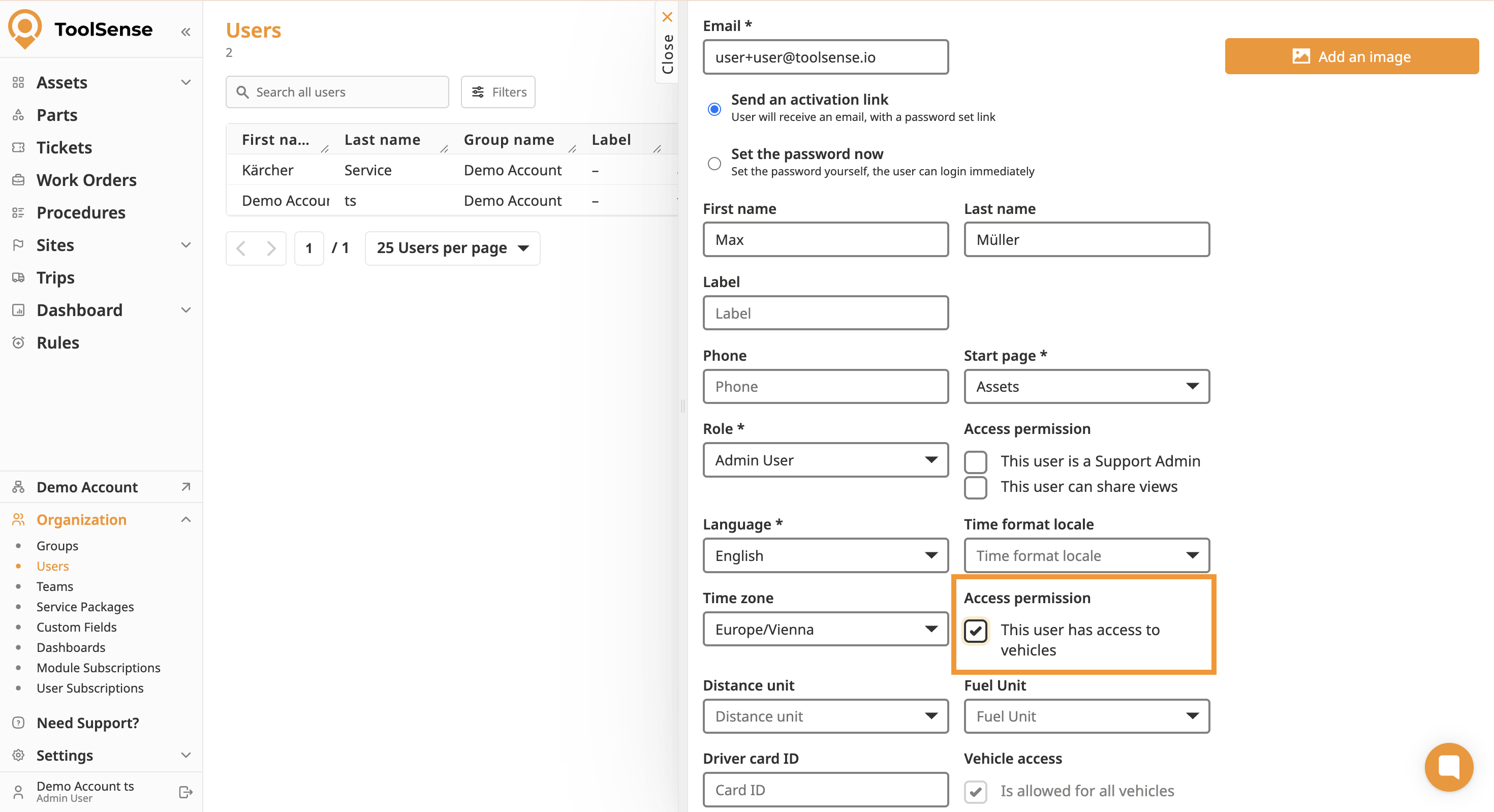
User Permissions: Users who should manage or view trips need the corresponding rights assigned in their user settings. Navigate to the user settings and select This user has access to vehicles.
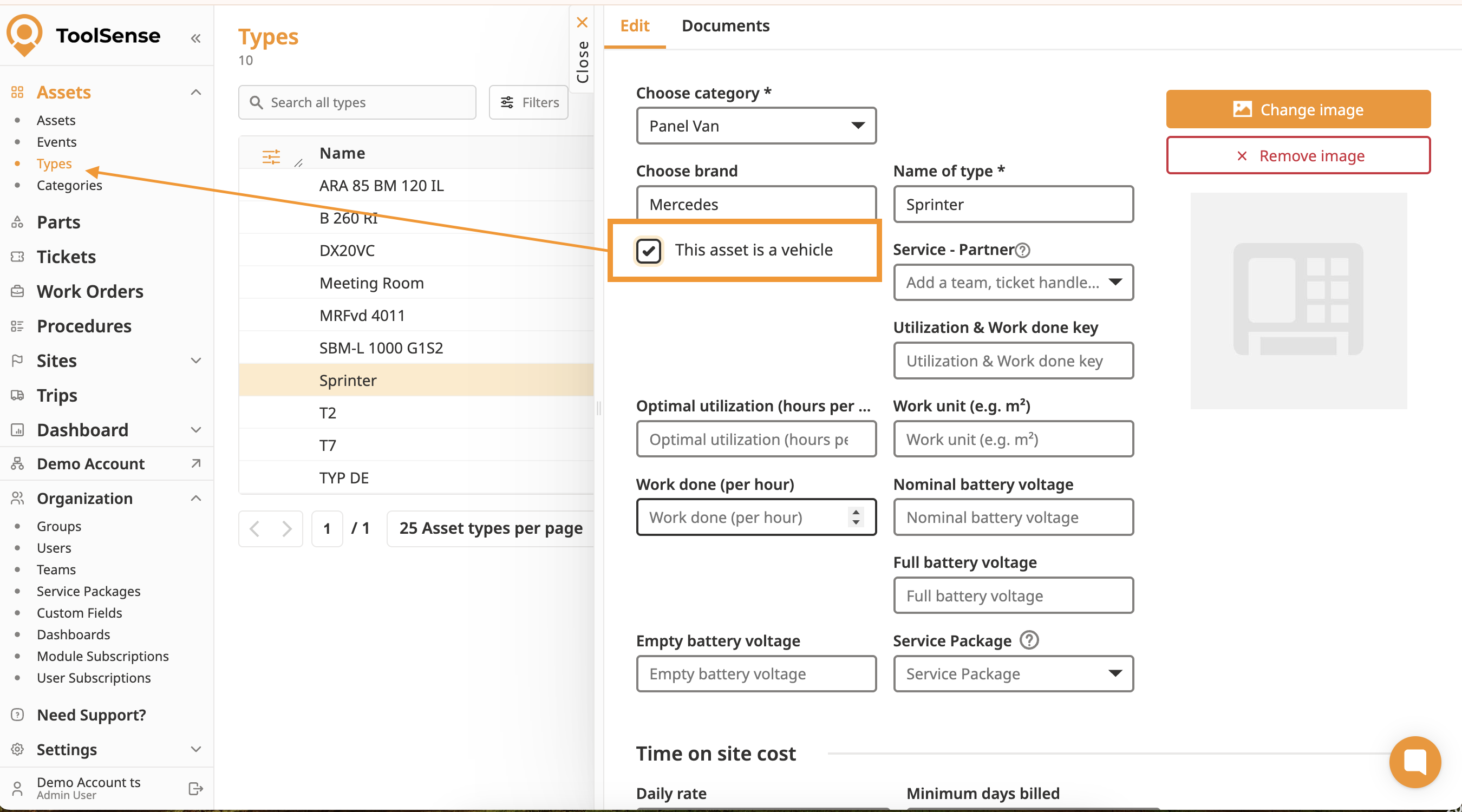
Asset Type Configuration: The asset type of your vehicle must have the checkbox "This asset is a vehicle" enabled. All assets with this type will automatically be recognized as vehicles.
Once your vehicles are set up, you can view trip data in three different modes:
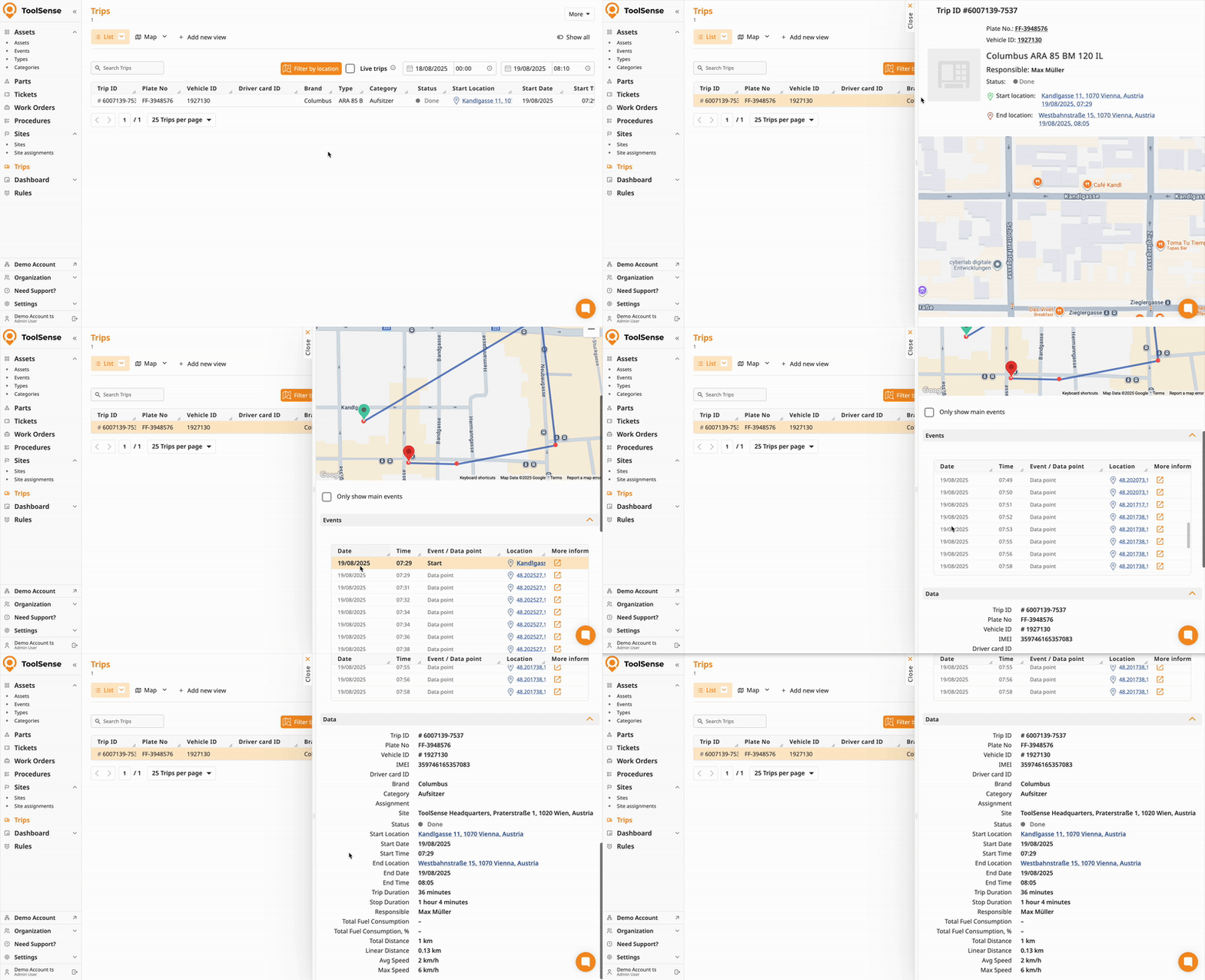
Quickly view, manage, and export trip data in a list format. Select an entry to see details and the trace. Check the Live trips checkbox to see active trips.
Monitor your fleet’s most recent or current locations using the map view.
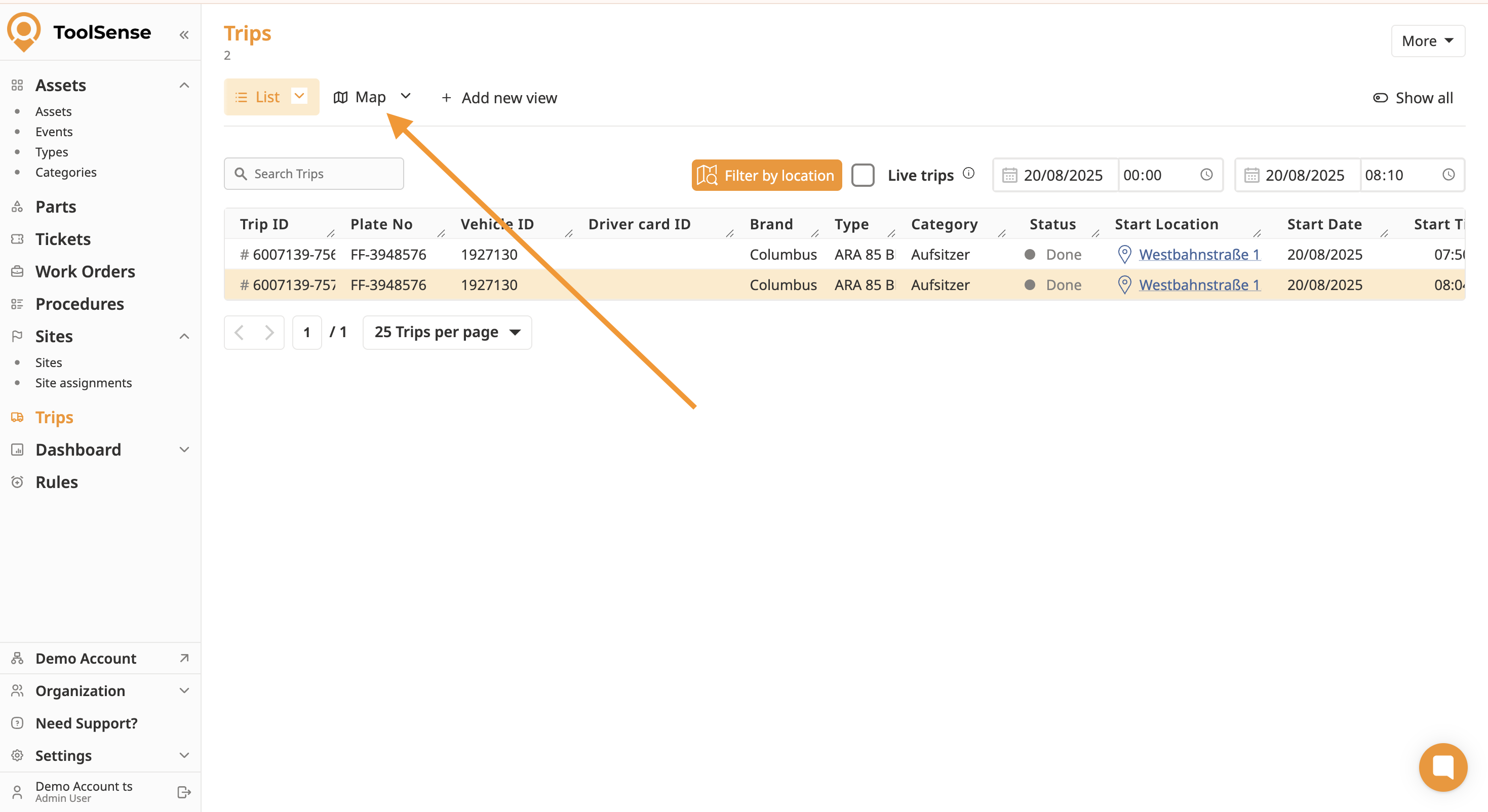
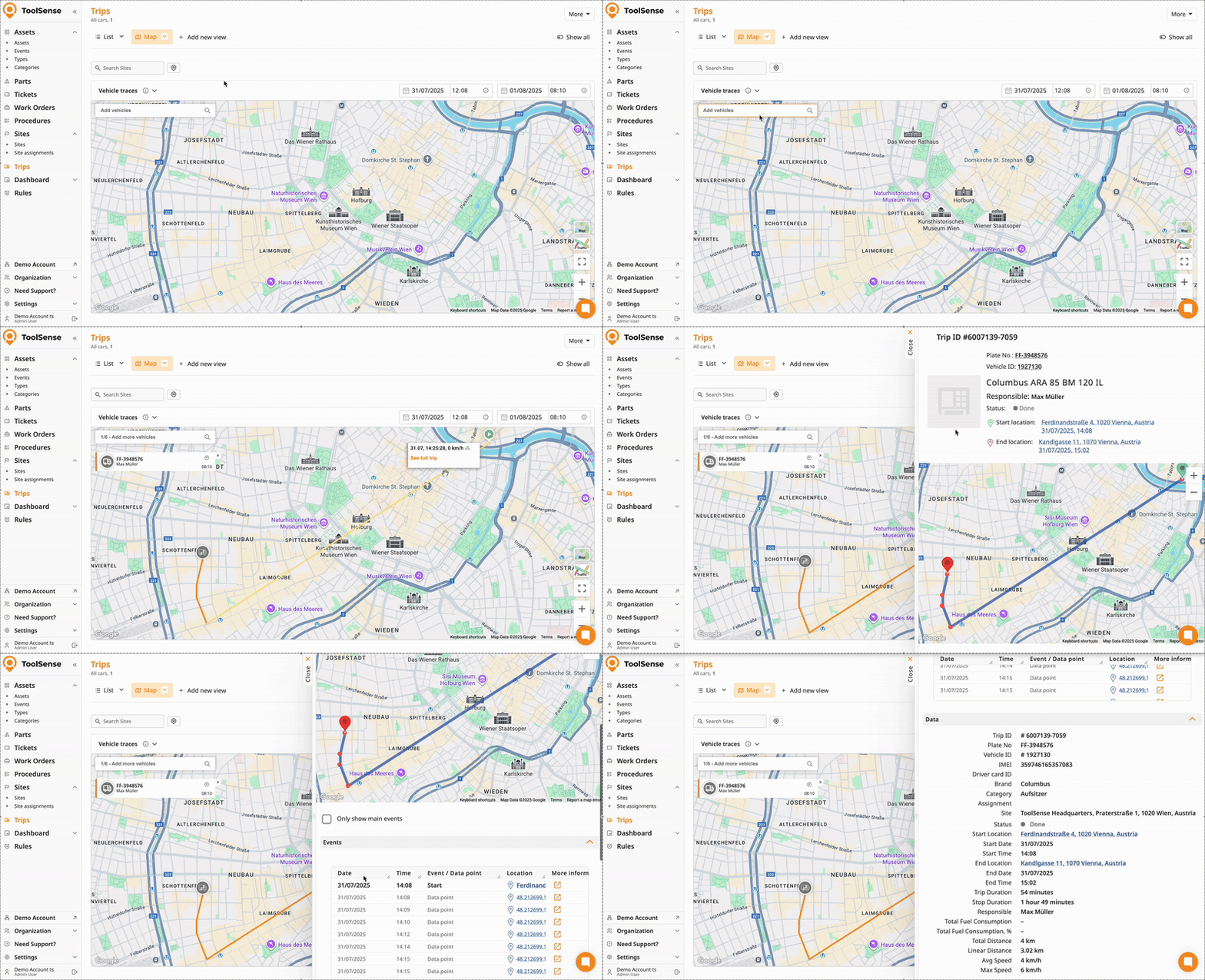
Select up to six vehicles and a timeframe to display detailed routes and trip data on the map.
Still don’t see your trips?
Your tracker might not be fully set up with the correct vehicle configuration. This often happens if the trip tracking option wasn’t selected during the order process. If you're unable to view any trips, please contact our support team - we’re happy to help!

