This guide provides step-by-step instructions on how to update site data in ToolSense. You will learn how to filter, export, update, and import your site data, along with best practices for a successful import and current limitations.
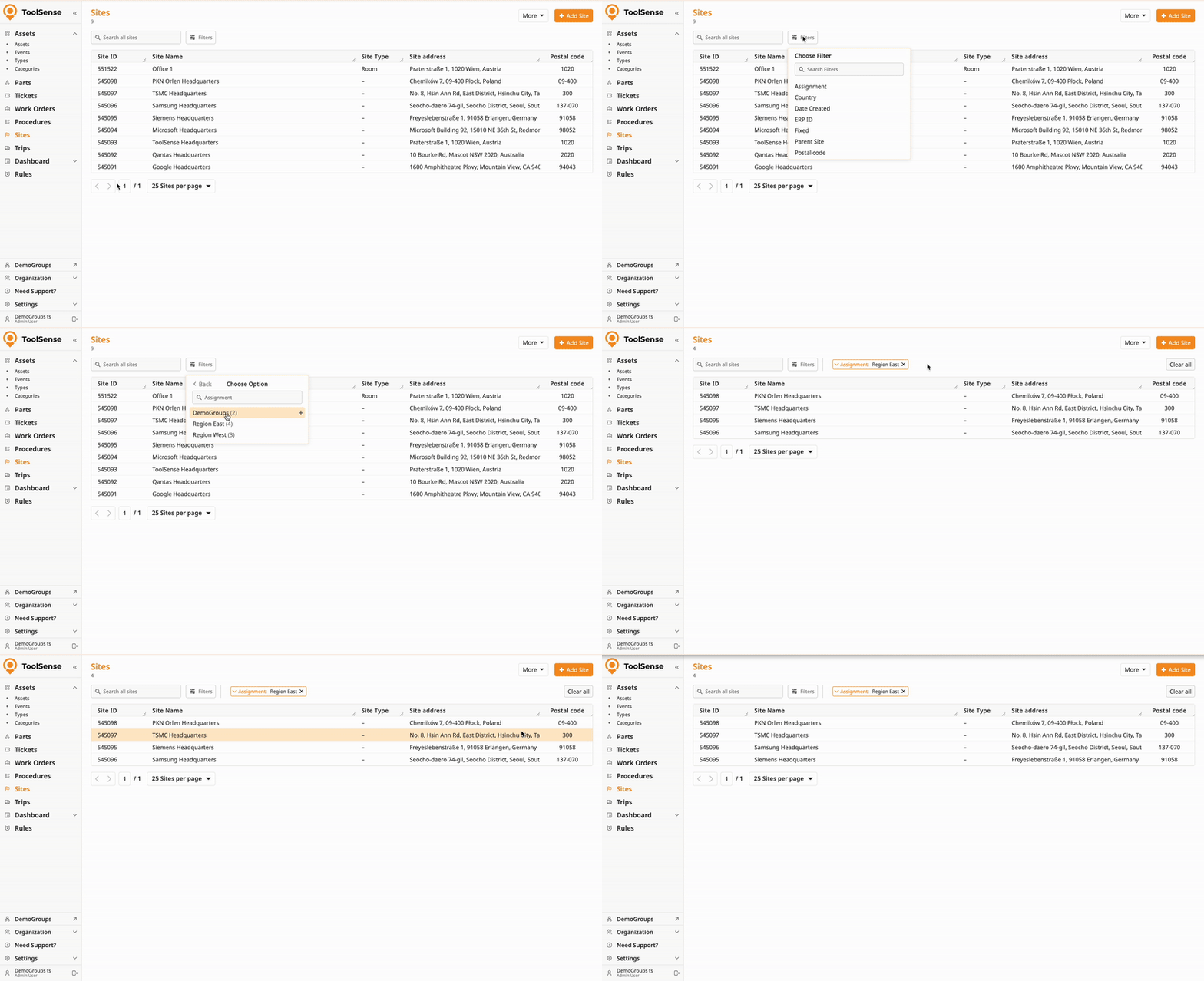
Export the Data: Start by exporting your existing site data from ToolSense to an Excel file. This can be done by navigating to the Sites tab in the left-hand navigation panel, then clicking on the More button and selecting Export Excel.
Tip: If only a partial update is needed, you can export a filtered list - simply set a filter before exporting the data.
Edit the Data: Once you have exported the data, open the file in Excel or any spreadsheet tool of your choice. Edit the required fields while maintaining the correct structure.
After editing your file, return to the Sites page in ToolSense.
Upload Your File: Drag and drop the edited file or select it manually using the Select file button.
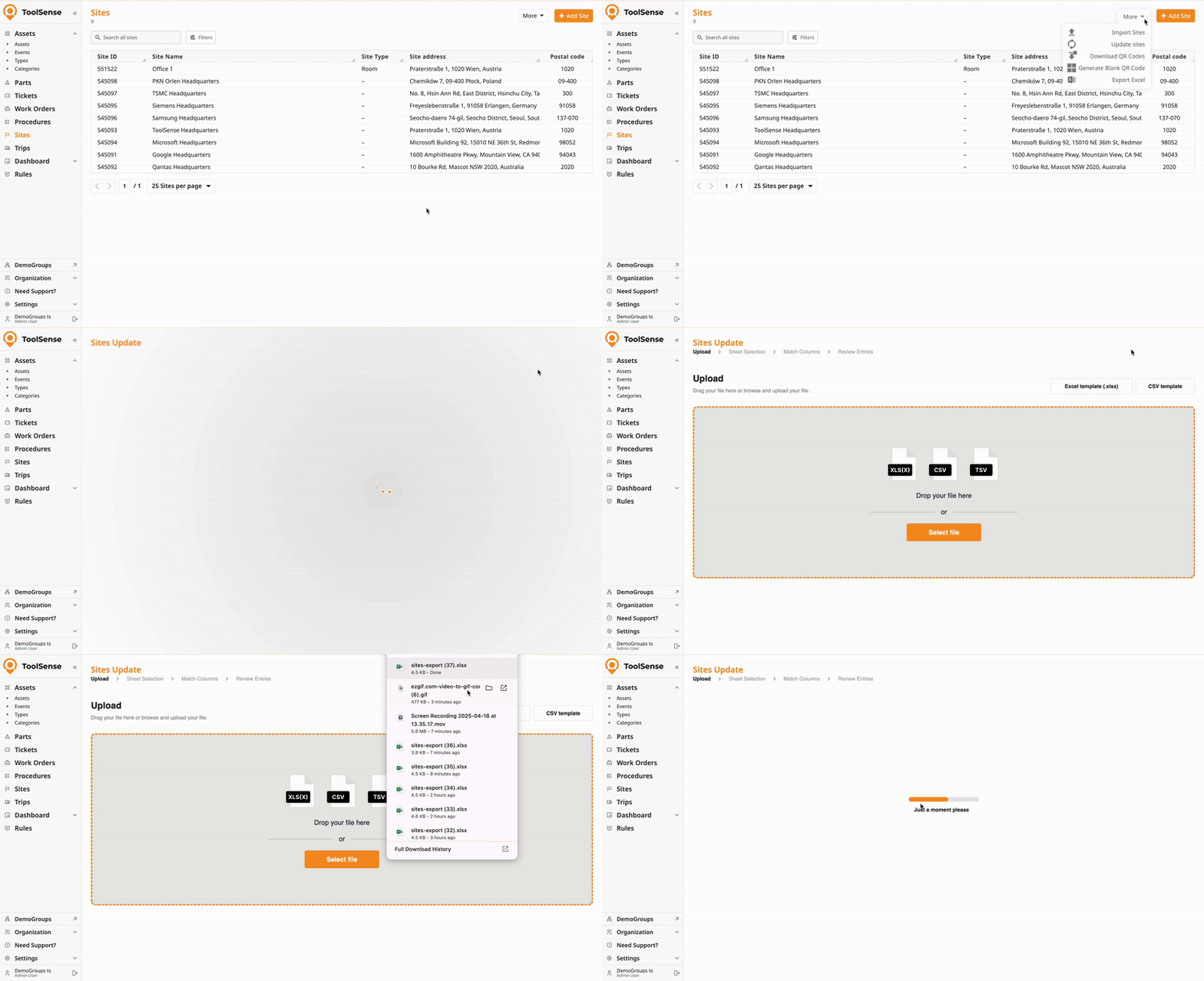
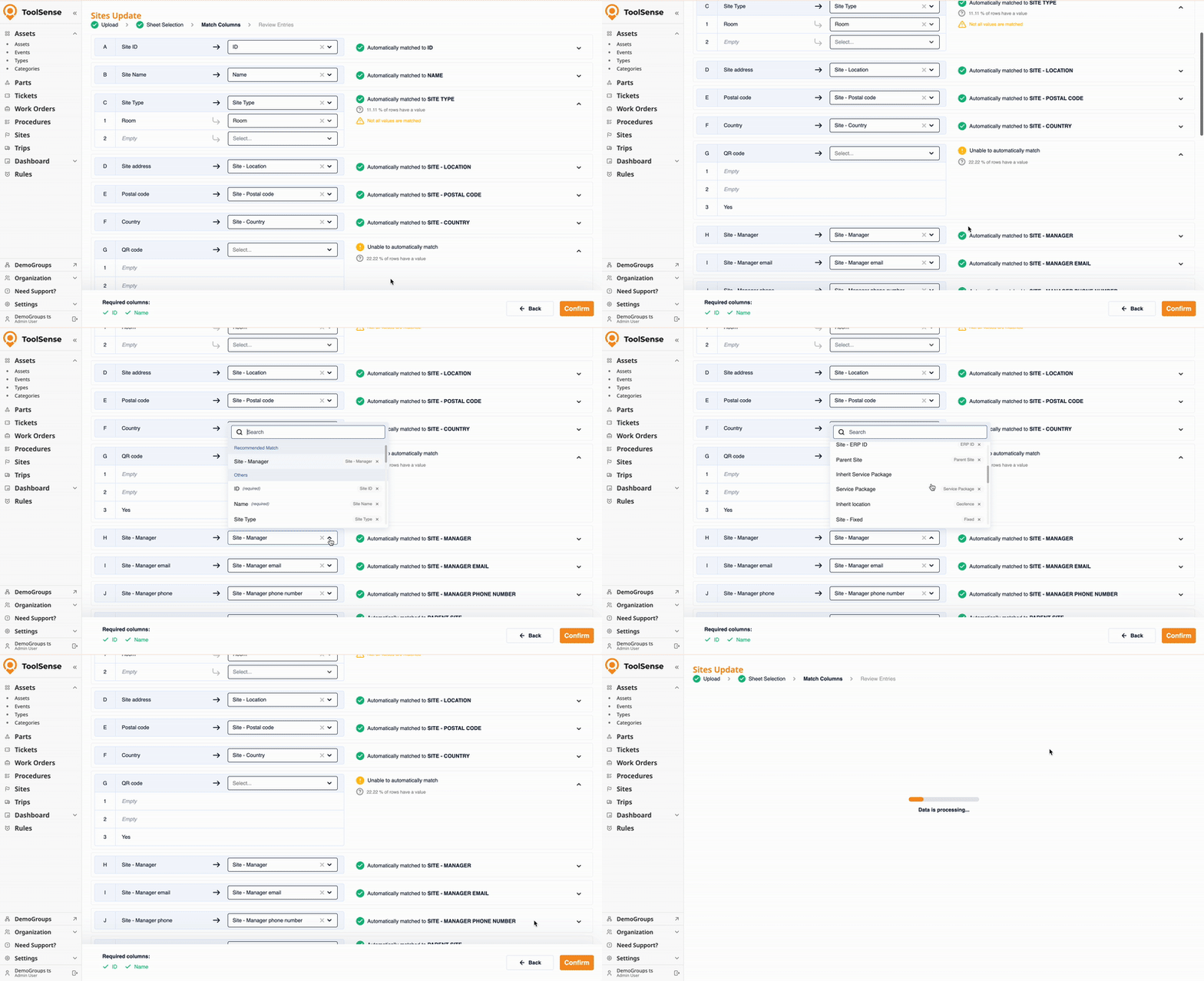
Mapping Columns: ToolSense will automatically attempt to map the columns from your file to the system’s fields. (To avoid needing to make changes, make sure to leave the headings of your columns unchanged.) Review the mapping and ensure the fields are correctly aligned.

Once the mapping is complete, ToolSense will show you a preview of the data. Here, you can review any errors or conflicts. Make sure to check if all required fields are correctly set.
Errors: If there are any errors, you can directly correct them in the preview.
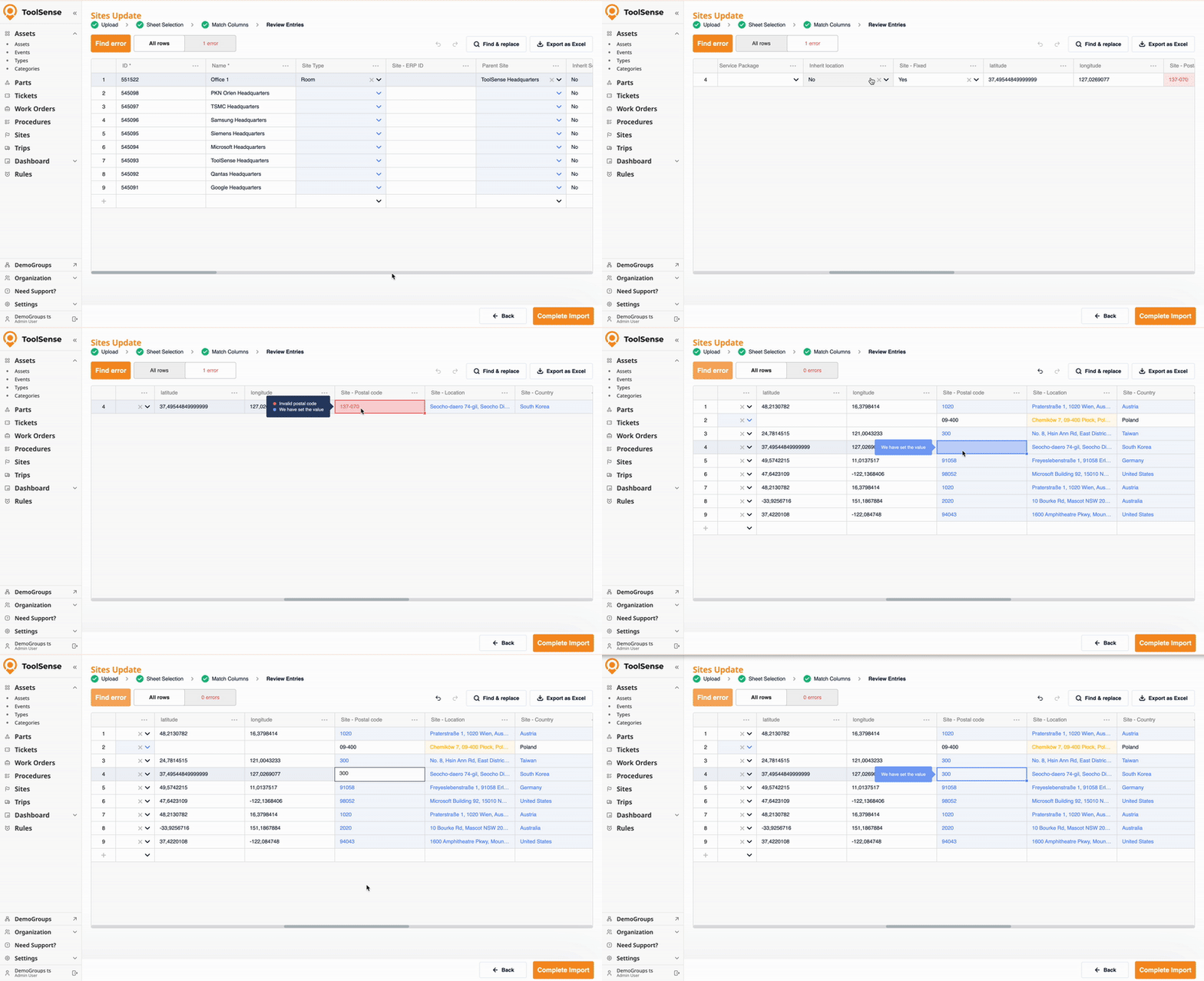
Once the import preview is clear, click Complete Import to finalize the process. The system will update the site data based on your changes.
When updating data in ToolSense, mapping a field means that the system will update that field’s data based on the value in your file. Not mapping a field means the field’s data will be dismissed form the update. However, this is not always the case, as some fields behave differently.
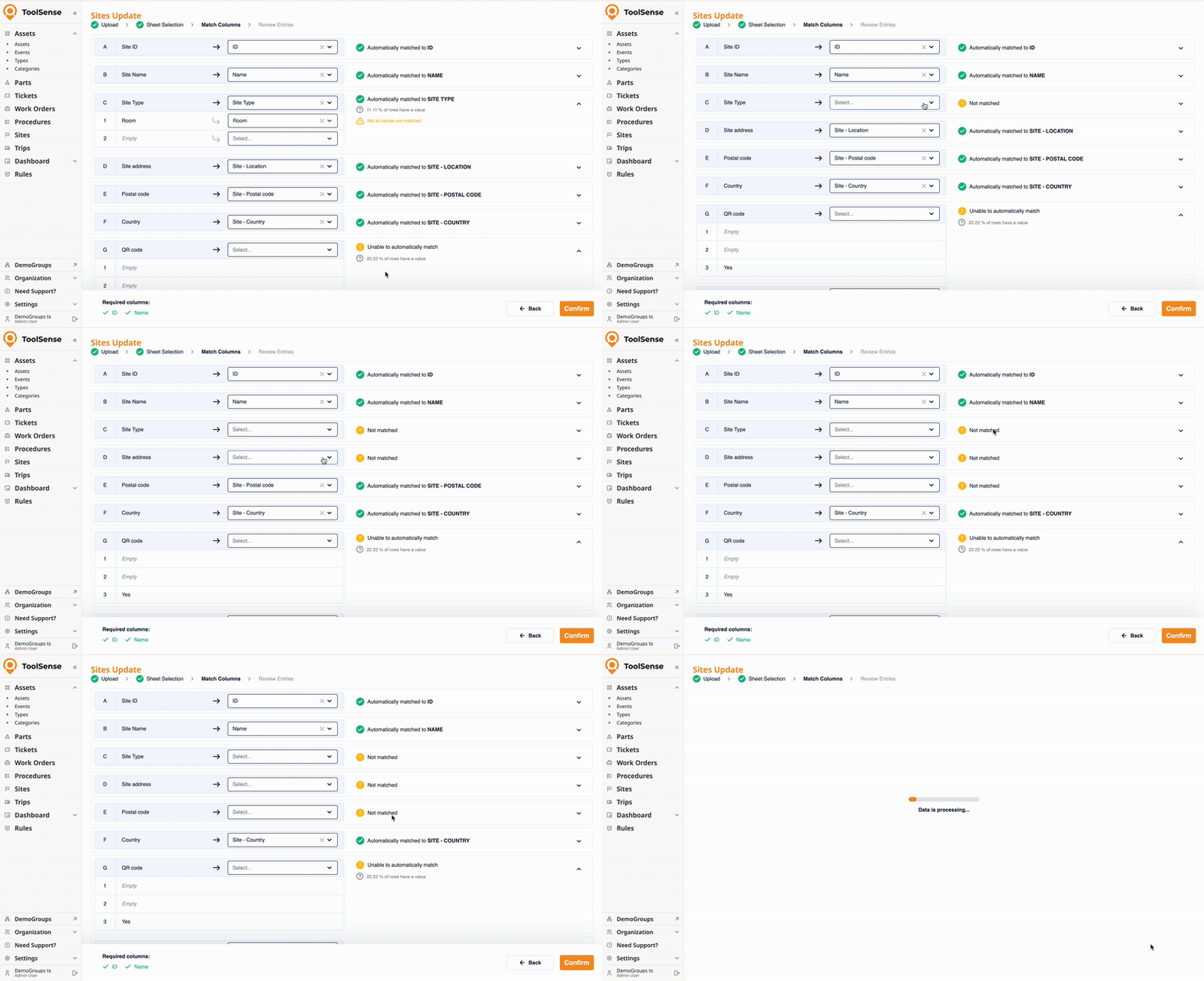
Important: If you delete a column in your Excel file, ToolSense will treat it as if you deselected the field in the mapping overview. As a result, it will not be updated, but the outcome may vary depending on the field.
Here’s a breakdown of how different fields behave when updated or left unmapped:
Site Address:
Updating: Can be updated during the import.
Deleting: Cannot be deleted via mass update. If left out or an empty value is provided, the address will remain unchanged.
Postal Code & Country:
Updating: Automatically filled based on the address provided if left unmapped.
Deleting: Cannot be deleted via mass update.
Site Type:
Updating: Can be updated by mapping it and providing a new value.
Deleting: Can be deleted by mapping the field and leaving it empty. If left unmapped, the existing value remains unchanged.
Service Package:
Updating: Can be updated by mapping it with a new value.
Deleting: Can be deleted by mapping the field and leaving it empty. If left unmapped, the current Service Package remains unchanged.
Parent Site:
Updating: Can be updated by mapping it with a new value.
Deleting: Can be deleted by mapping the field and leaving it empty. If left unmapped, the existing Parent Site remains unchanged.
Site Manager Name, Number, and Email:
Updating: Can be updated by mapping it with new values.
Deleting: Will be deleted if omitted or left empty
Important: If you are updating sites that have multiple site managers, please follow the instructions of the next section.
Group Assignment:
Updating: Should always be mapped to retain specific group assignments. If excluded, the site will be assigned to the root group by default.
Deleting: Cannot be excluded from the import if you want to retain a specific group assignment.

While sites can have multiple Site Managers, the Site list in ToolSense only has one field for “Site Manager.” As a result, when you export the site list, sites with multiple Site Managers will be duplicated.
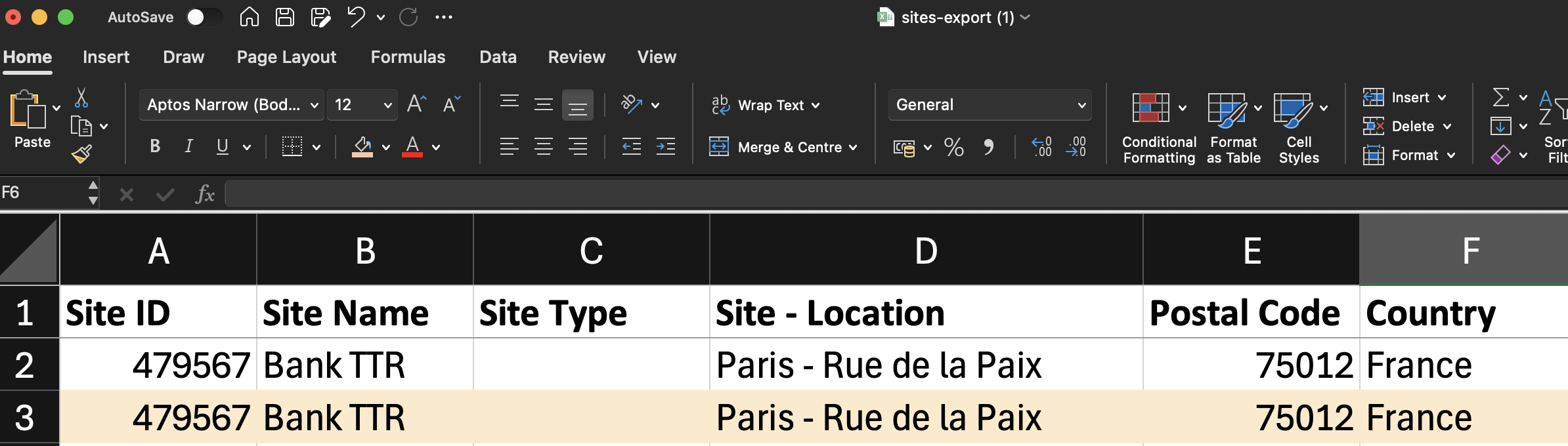
For a few sites: If you only need to edit a small number of sites, it’s best to make these edits manually to avoid any issues.
For many sites: If you need to update multiple sites with multiple Site Managers, we recommend contacting our Support team for assistance to ensure a smooth process.
By following this guide, you will be able to efficiently manage the import and update of sites in ToolSense, ensuring that your data is accurate and up to date. Make sure to carefully handle the limitations and warnings to avoid common pitfalls during the process.
