Your Asset is equipped with a BLE tag and you are certain that it was near a gateway, but the location is not updated on the platform.
Make sure to check the following.
The BLE tag ID is added to the asset

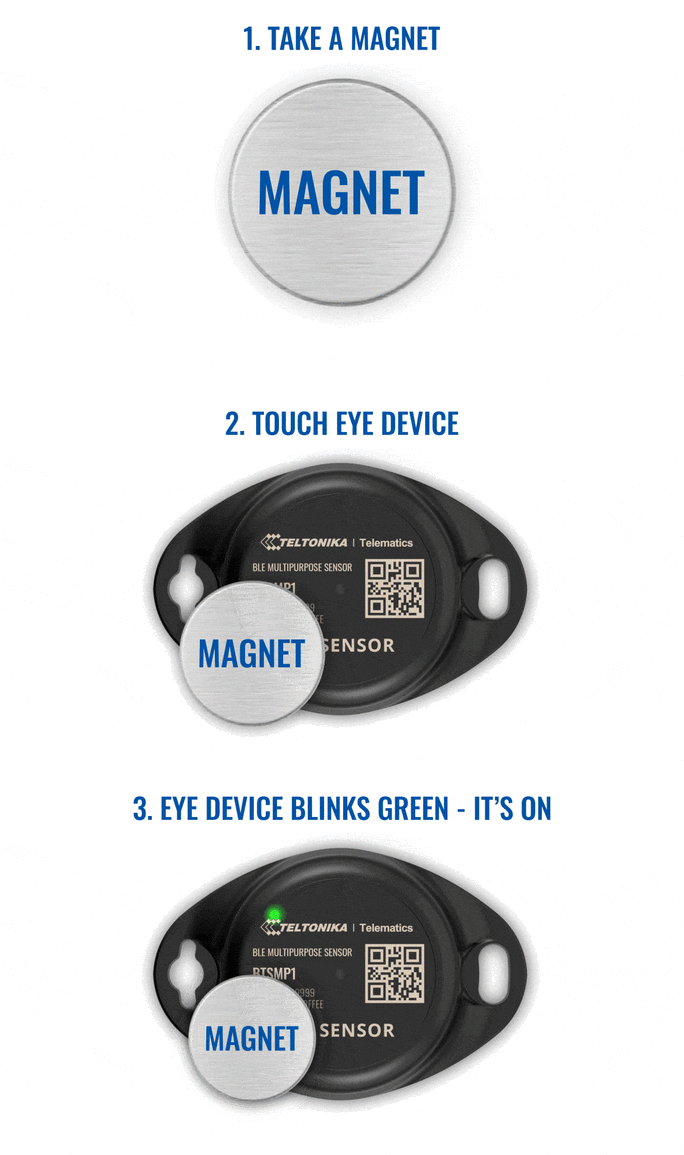
The tag is activated
BLE tags come out of the factory in deep sleep mode to maximise battery life.
Activating the tag is very simple.
If after following the steps above you still don't see a location update on the asset, please open a support request providing the IMEI of the gateway and the ID of the BLE tag.
The beacon is close to a gateway Asset with an IMEI / an Android phone with ToolSense mobile app
Here are the things you need to check:
For an Asset with a tracker:
This Asset should be created on ToolSense and have the IMEI number entered in its overview
This asset should be properly wired and receive data
For the mobile App on Android:
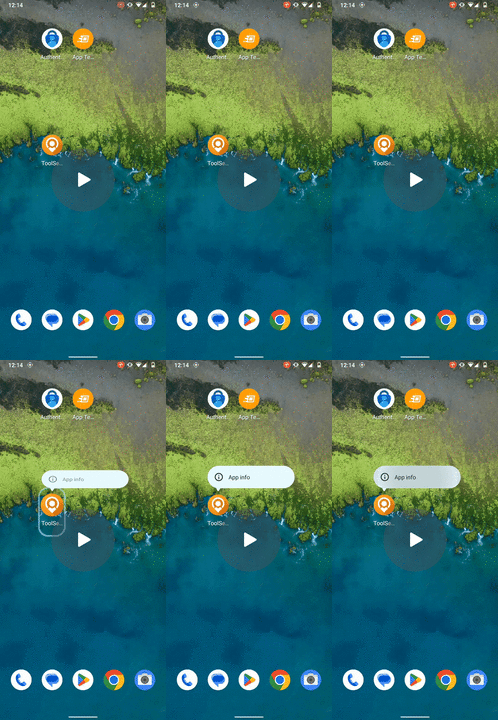
The mobile app should have the “Location” & “Devices Nearby” settings enabled (see video link below)
Enable BLE scanning on the Mobile App (Androïd only) - Watch Video
4. Firmware is up to date
Open the EyeApp (available on Google Play Store and App Store) to scan for nearby BLE tags.
In order to identify a tag you have two approaches:
Isolate the tag completely so that it is the only one showing up in the list
Put it very close to your phone, as the app will show an estimated distance.
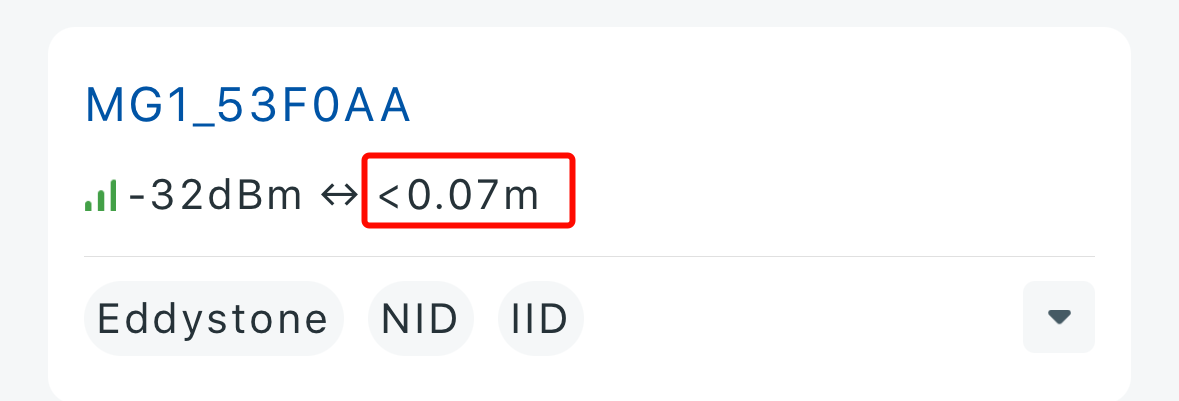
In order to connect to the tag, type in the PIN code, which is “123456” by default.

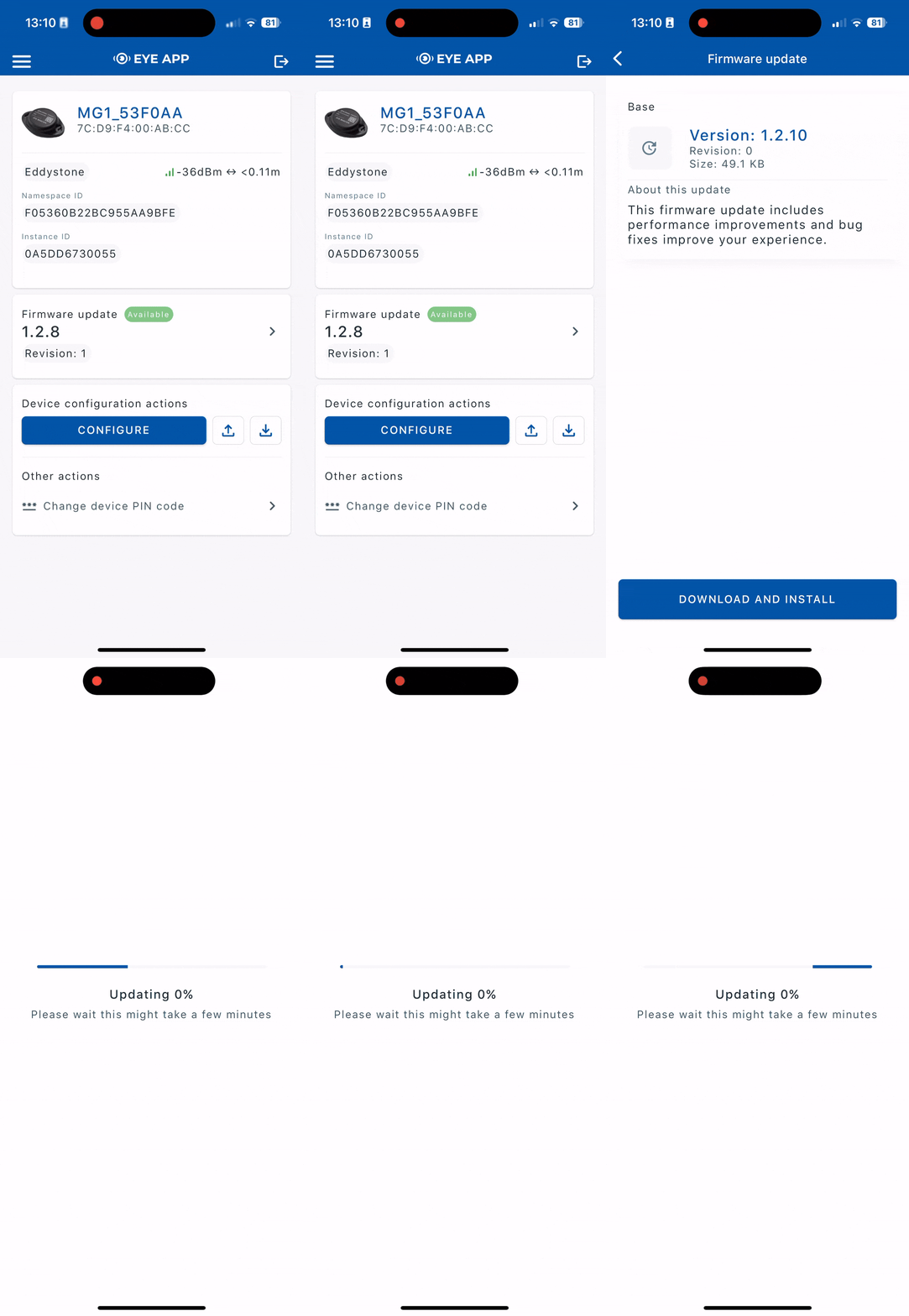
Text will indicate if a new version of the FW is available. Click and update the FW.
Keep the tag close to the phone during the update and don’t close the application.
If you can’t locate the tag in the App please contact us at support@toolsense.io
