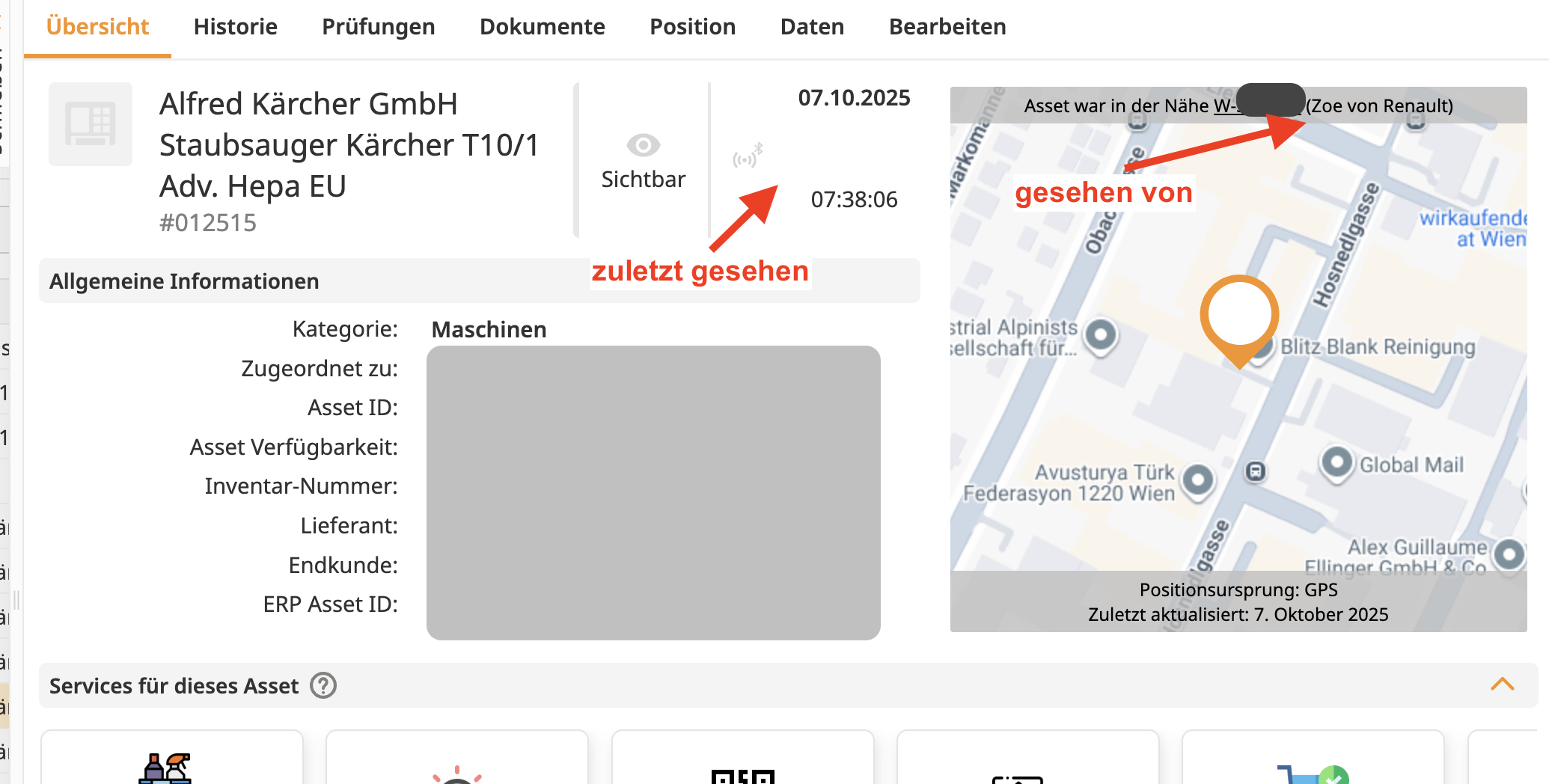
Our SIRIN Bluetooth (BLE) trackers are shipped in an inactive state to maximize battery life, especially when stored for extended periods. They must be activated to begin broadcasting signals.
Activating your trackers is a quick, one-time process.
To start using your SIRIN trackers, you will need a magnet for a one-time activation.
Obtain a Magnet: A standard whiteboard magnet might be strong enough, but be aware that some can be on the edge of the required strength.
Activate: Place the magnet directly on top of the SIRIN tracker where the serial or MAC number is visible.
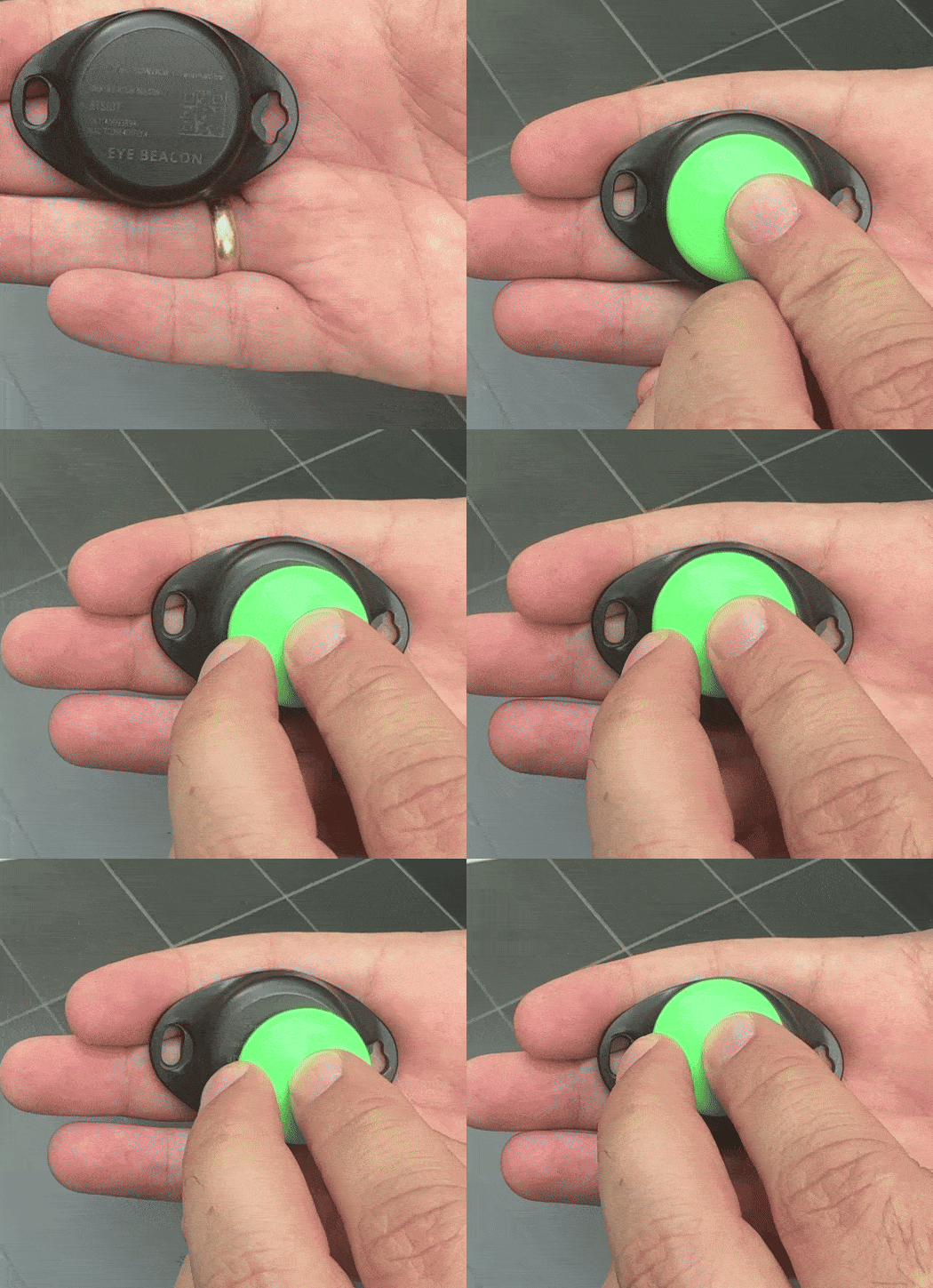
Check for Activation: If the activation is successful, a small LED on the top-left of the tracker will blink a couple of times. This blinking sequence is a one-time event for the entire lifespan of the tracker.
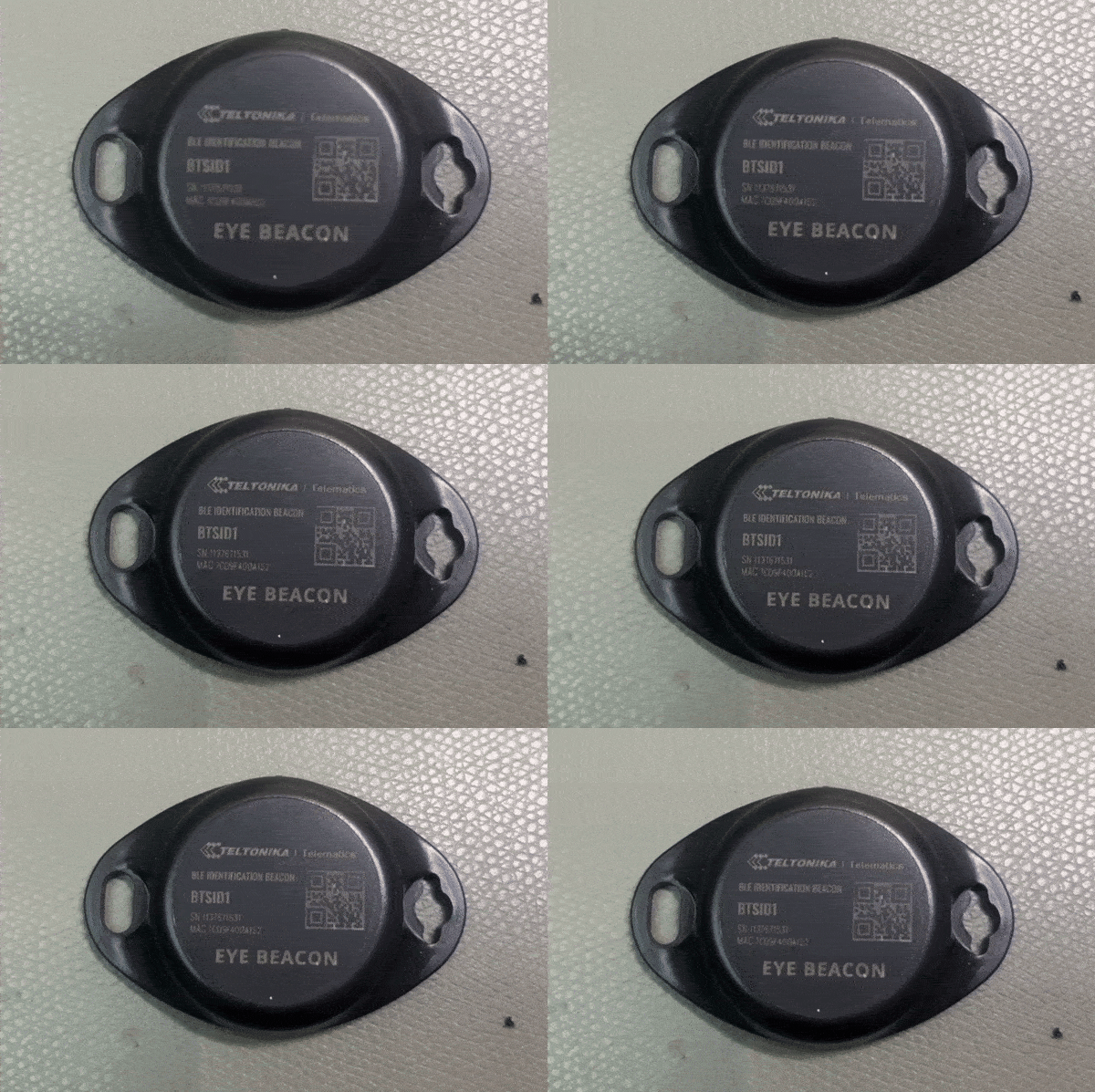
Once a SIRIN tracker is active, it will never blink again, even if you place a magnet on it. If you put a magnet on a tracker and it does not blink, there are two possibilities:
The easiest way to confirm this is by checking the tracking data on your ToolSense platform. Skip to Step 3 below on how to add the tracker to an asset. Once added, if the tracker is active and near a Gateway, you will see a timestamp and location update.
If this is the first time you've tried to activate a new tracker with this specific magnet, it is likely not strong enough.
Try a stronger magnet. You should continue testing magnets until you find one that successfully activates a tracker (i.e., makes the LED blink). Once you find a reliable magnet, you can use it confidently for the rest of your new batch.
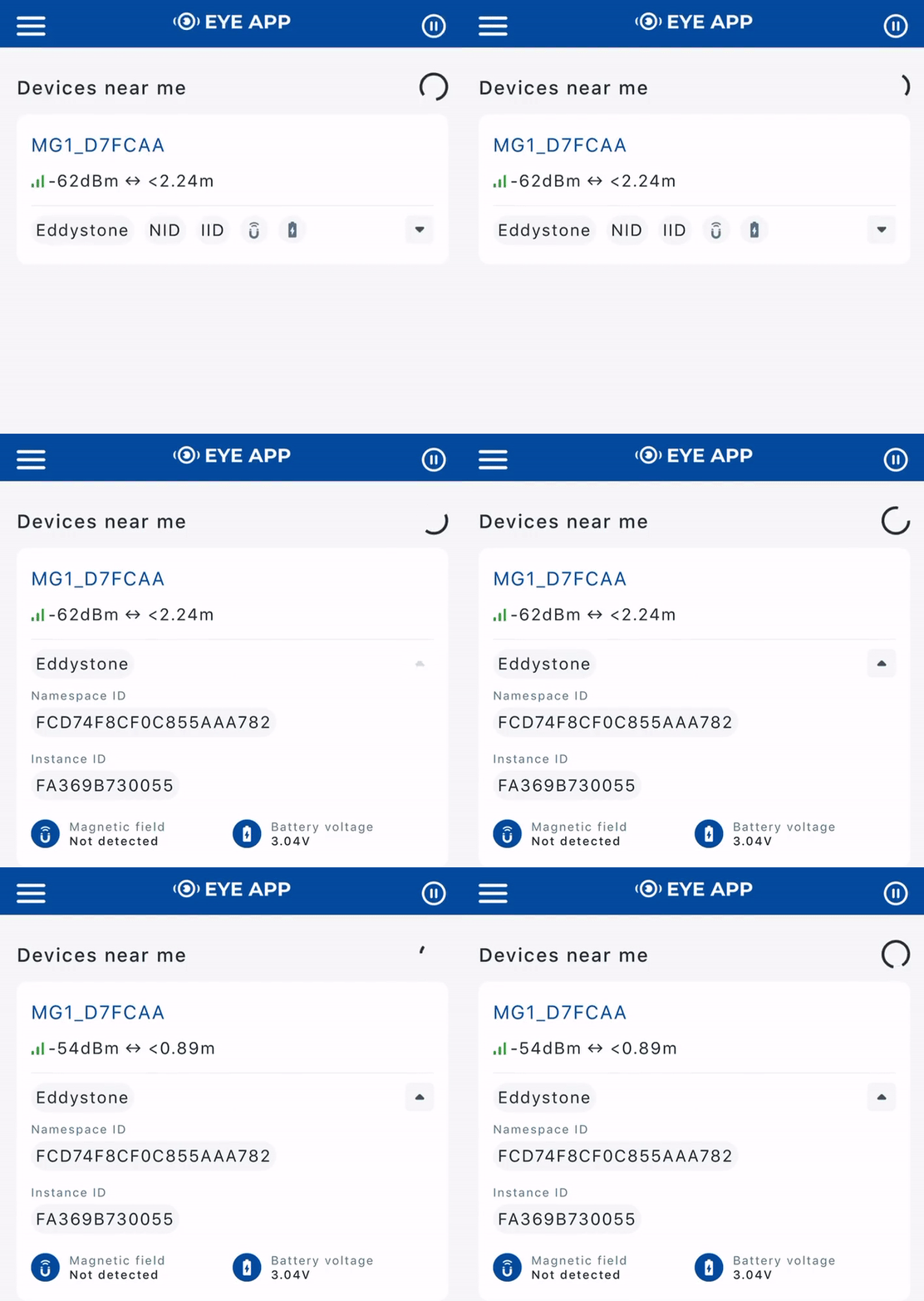
If you do not want to immediately add the Bluetooth tracker to the ToolSense platform and wait for an update, you can use the Teltonika EYE APP to confirm if the tracker is active and broadcasting a signal.
Android Users: Start the scanning process. Once tags are detected, you can search the list for the tracker's specific MAC number.
iOS Users: The MAC number is not searchable. To verify a specific tracker, you must physically isolate it. Make sure the tracker you are testing is the only one nearby and then check the app to see if a tracker was detected within your range (a few meters).
Once your SIRIN Bluetooth tracker is confirmed active, you must link it to an asset on your platform.
Navigate to the Asset: Go to the asset you want to link the Bluetooth tracker to.
Edit the Asset: Go to the asset's edit page.
Enter the MAC Number: Find the field labeled BLE and enter the MAC number of the Bluetooth tracker.
Save Changes.
For the platform to start displaying data, ensure the newly-added Bluetooth tracker is near a ToolSense tracker with Gateway functionality (such as a Rocbird 2, Blackbird, Caladrius, or Stationbird). The gateway device will detect the BLE signal and send an update to the ToolSense platform.
Once this update is received, the asset linked to the Bluetooth tag will receive a timestamp and location update.