The Service Package feature allows you to group services to meet specific needs for assets and users. You can limit a service's visibility based only on the following factors:
Type
Example: A Volkswagen Caddy requires maintenance processes unique to that model.
Category
Example: Cars, ladders, and excavators share the same preventive maintenance process.
Site
Example: Processes may differ between a power plant and a warehouse.
Group
Example: Regulatory differences between Denmark and China require tailored processes.
Team
Example: : A maintenance team specialized in electrical systems follows different safety checklists than a general maintenance team.
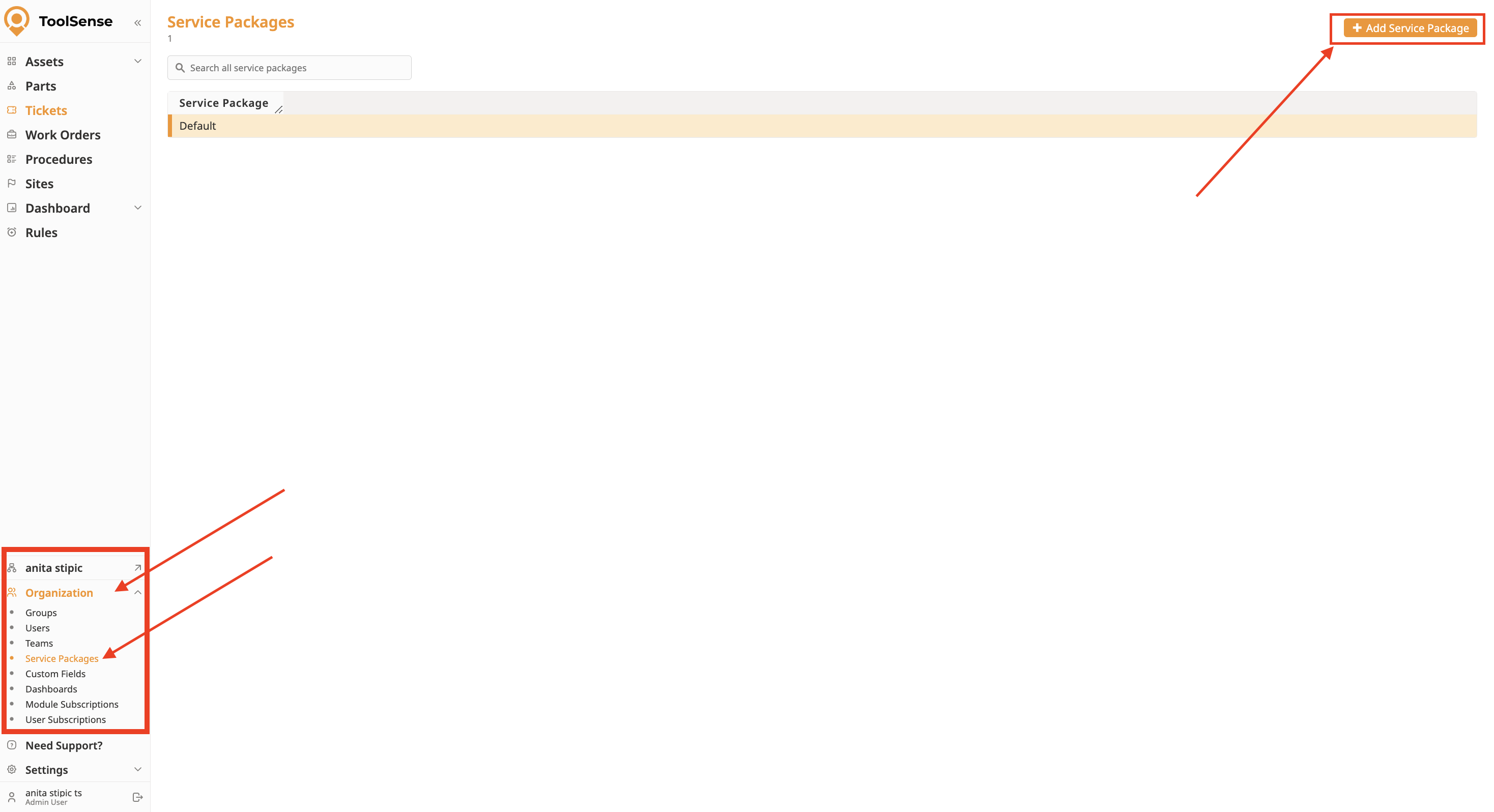
Navigate to Organization > Service Package in the left sidebar.
Click on Add Service Package.
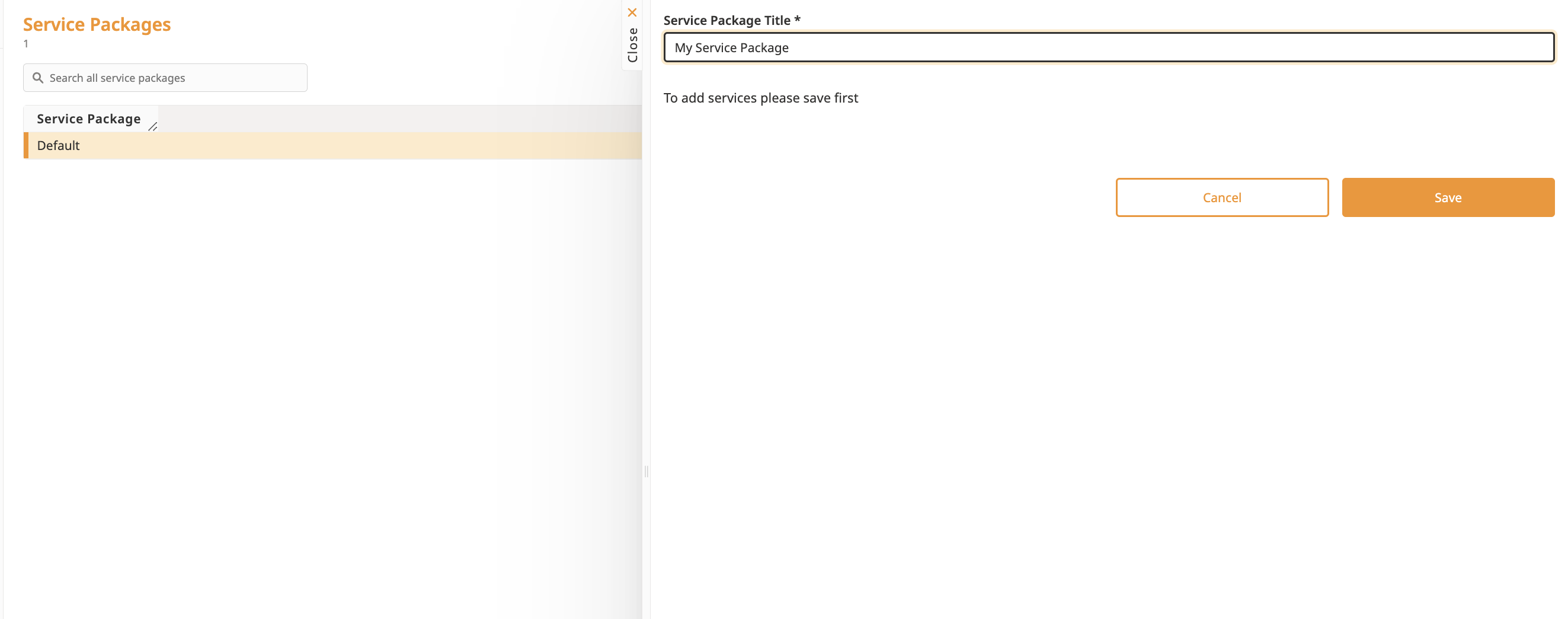
Add the Name of your Package.
Save.
Assign a Service Package to a Type, Category, Site, or Group. To do this:
Open the corresponding settings of your Type, Category, Site, or Group.
Click on Edit.
In the Service Package dropdown, select the desired Service Package.
Save.
To edit a Service Package, click the pen icon next to it.
To delete a Service Package, click the bin icon.

Your account includes a default Service Package containing Standard Services (e.g. Report a Problem, Asset Handover). To learn more about which Services are included form the beginning, please refer to the article below:
Default Services Included in Your Account
If you want to learn more about how to configure the Services of your Service Package, please refer to the following article:
How To Add and Configure Services
Manage Forms and Automations of your Services

