To configure a new Service, you will need a corresponding form. You have two options to create a form:
We recommend using our Procedure Builder as you can then create custom forms and adjust your form as needed, when needed.
Learn how to create a procedure by referring to the article below:
How to create a procedure via the procedure builder
A guide how to create your own procedure using the Procecure builder in ToolSense
If you cannot create the desired form using the Procedure Builder, please contact support or your designated Customer Success Manager (CSM).
We provide a collection of standard forms that you can add to your account. You can add them as described in the section “Create a New Service with A Form ID“. Our Standard Forms and their corresponding IDs are collected in the article below.
Standard Forms/Services
Default Services Included in Your Account

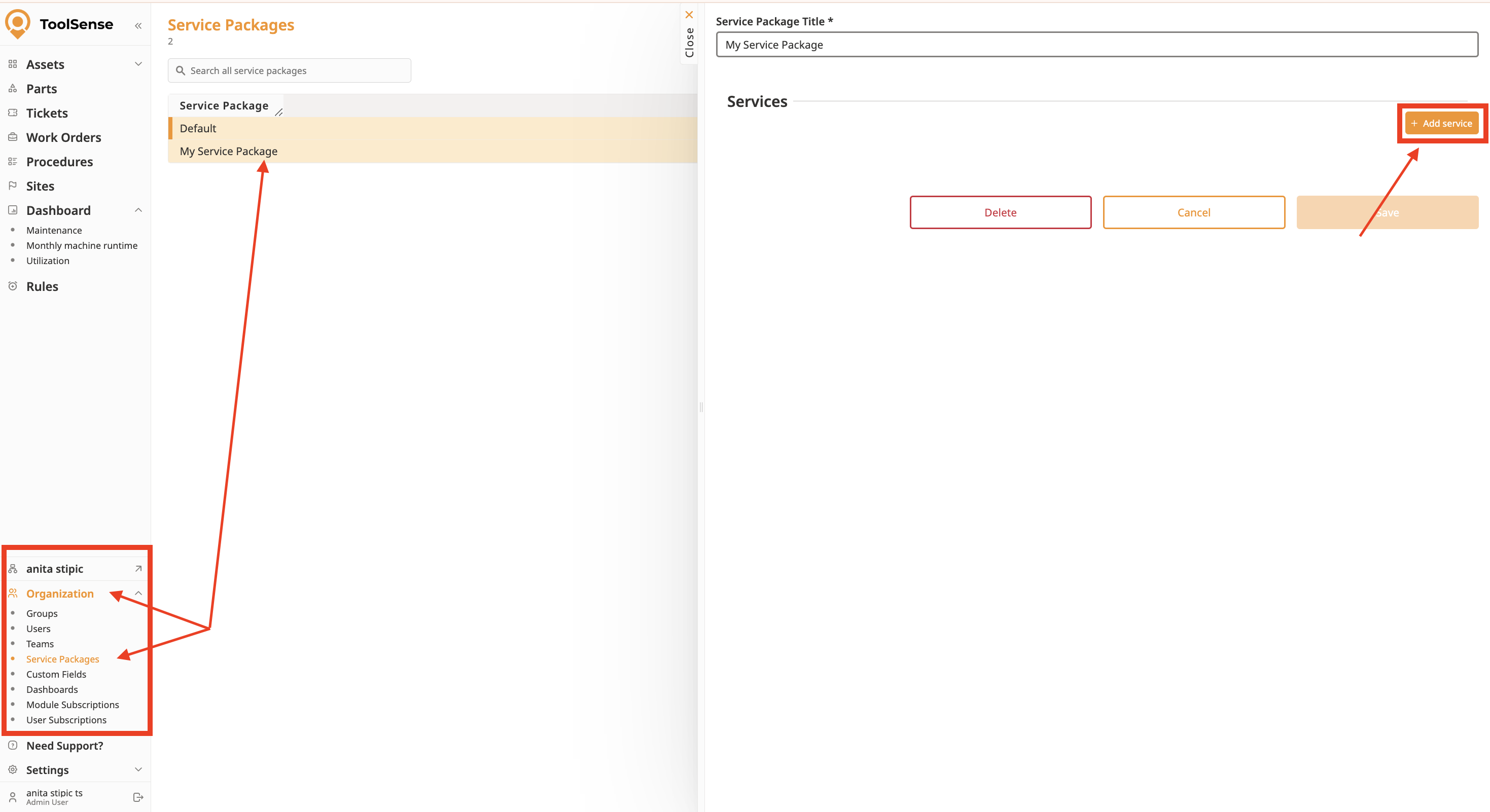
Navigate to your Service Packages.
Select your desired Package.
Click on Add Service.
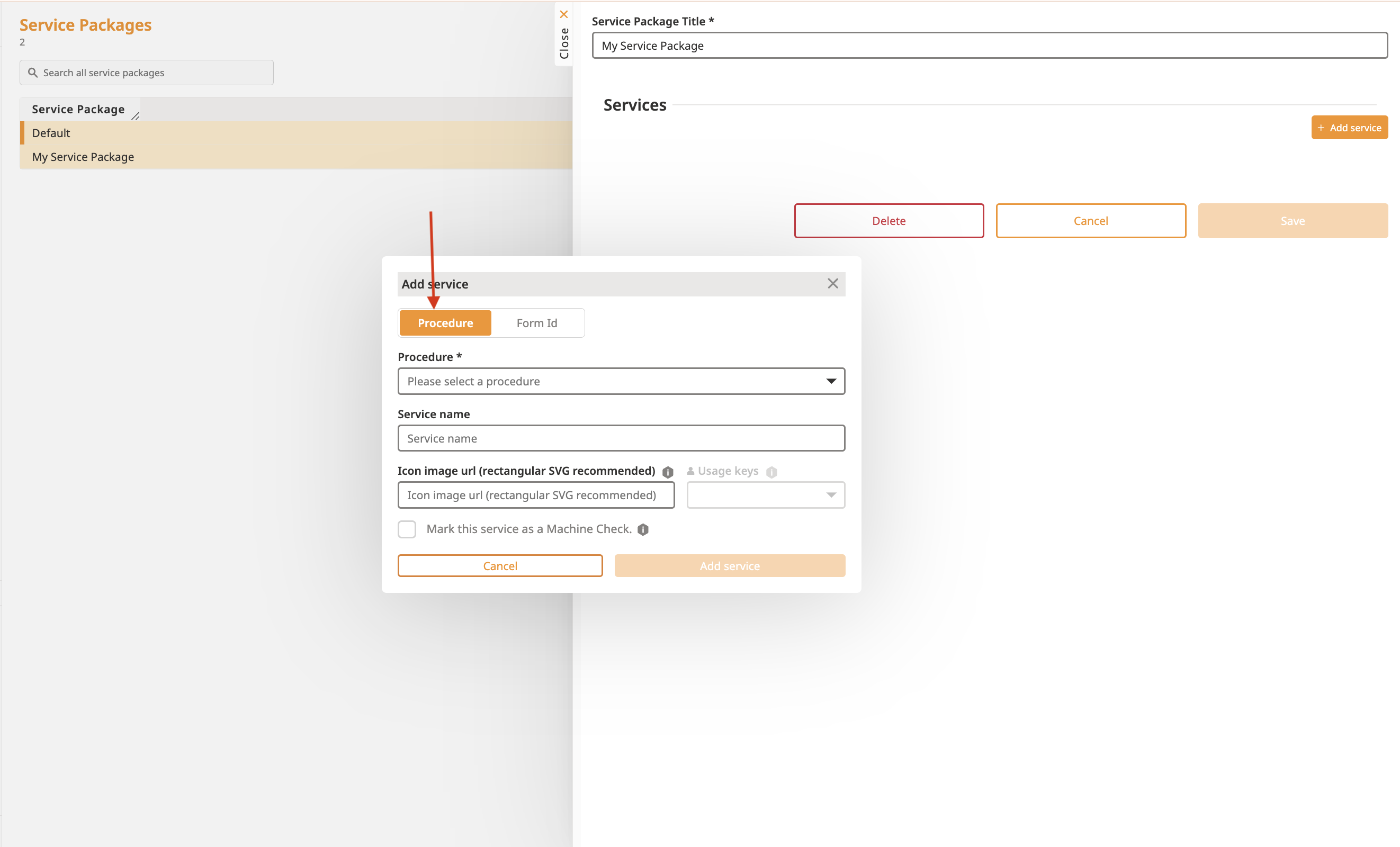
In the Pop-Up select Procedure.
Choose your procedure from the dropdown or start typing to search for it.
Enter a Name (this will be visible to your users).
Click on Create Service.
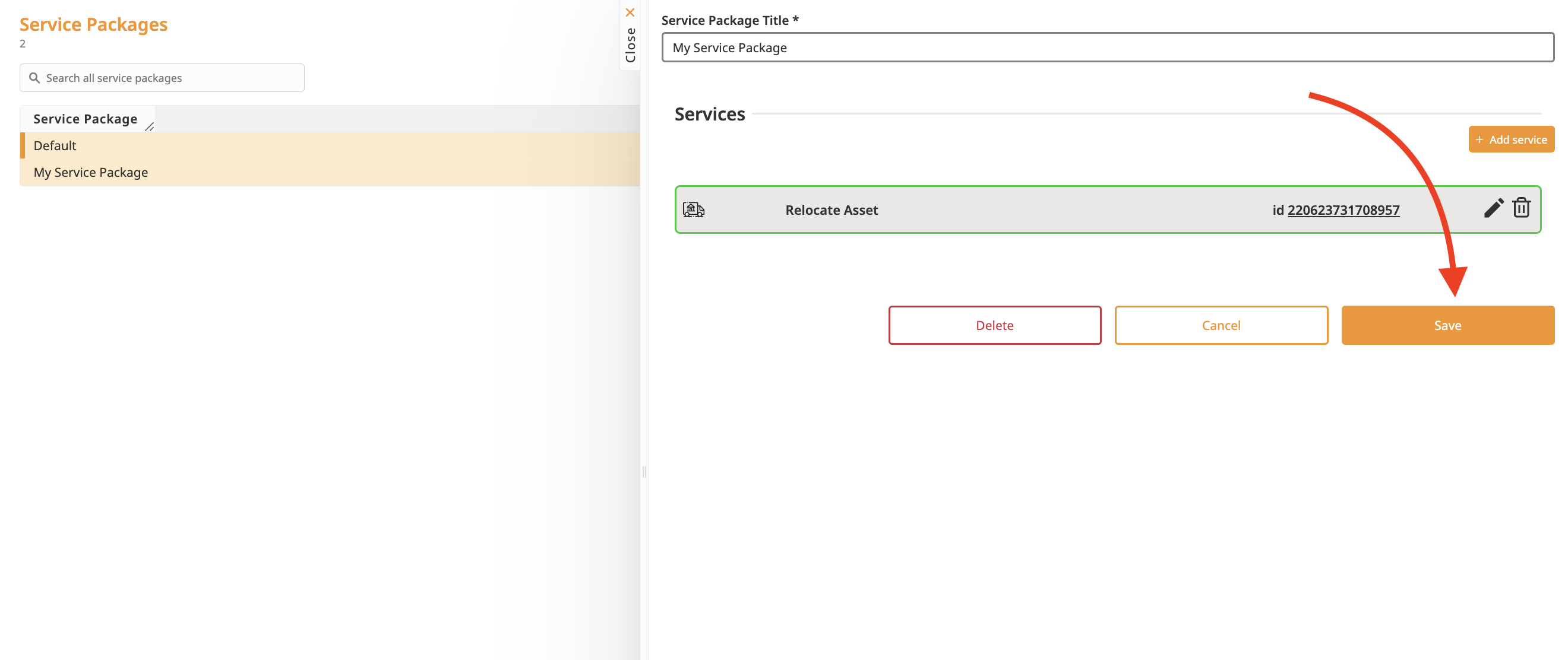
Confirm your changes by clicking Save in the Service Package overview.
Navigate to your Service Packages.
Select your desired Package.
Click on Add Service.
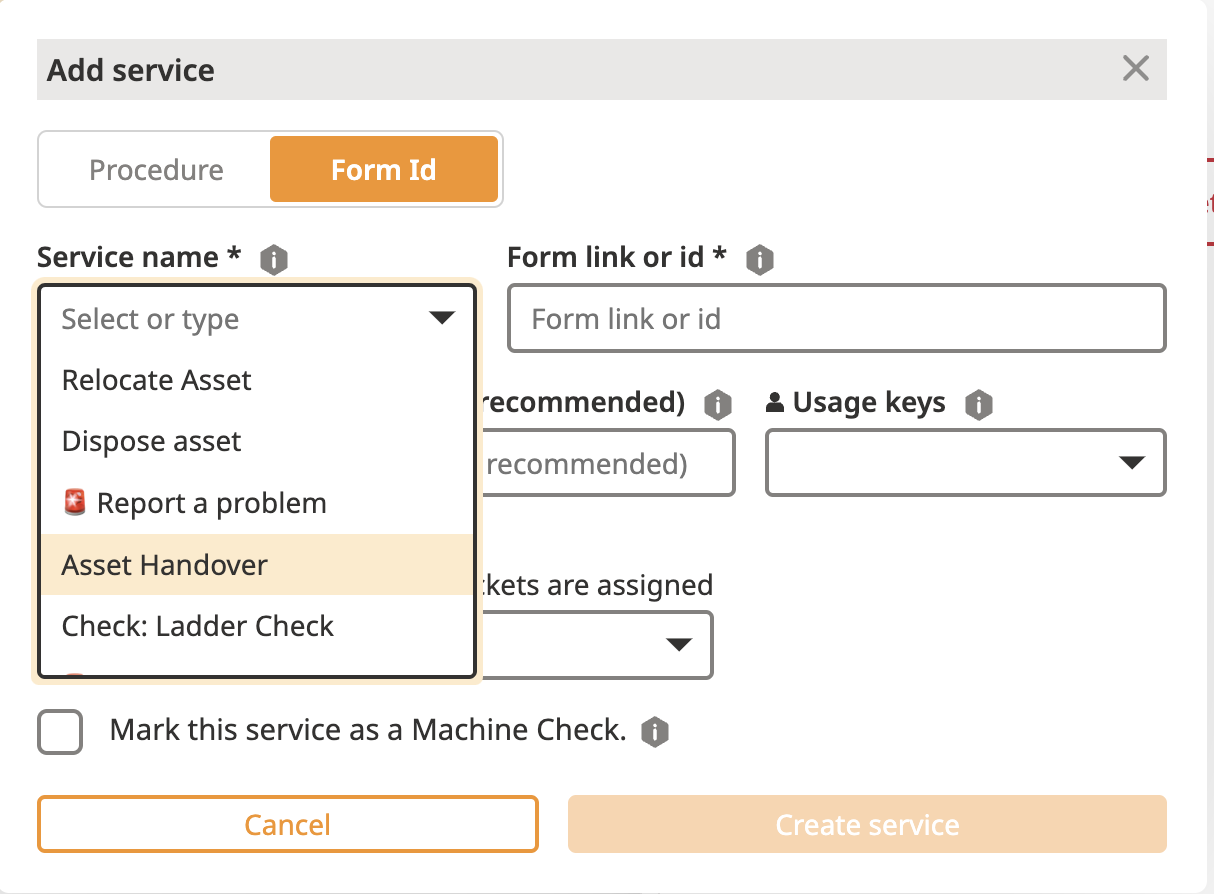
Select Form ID.
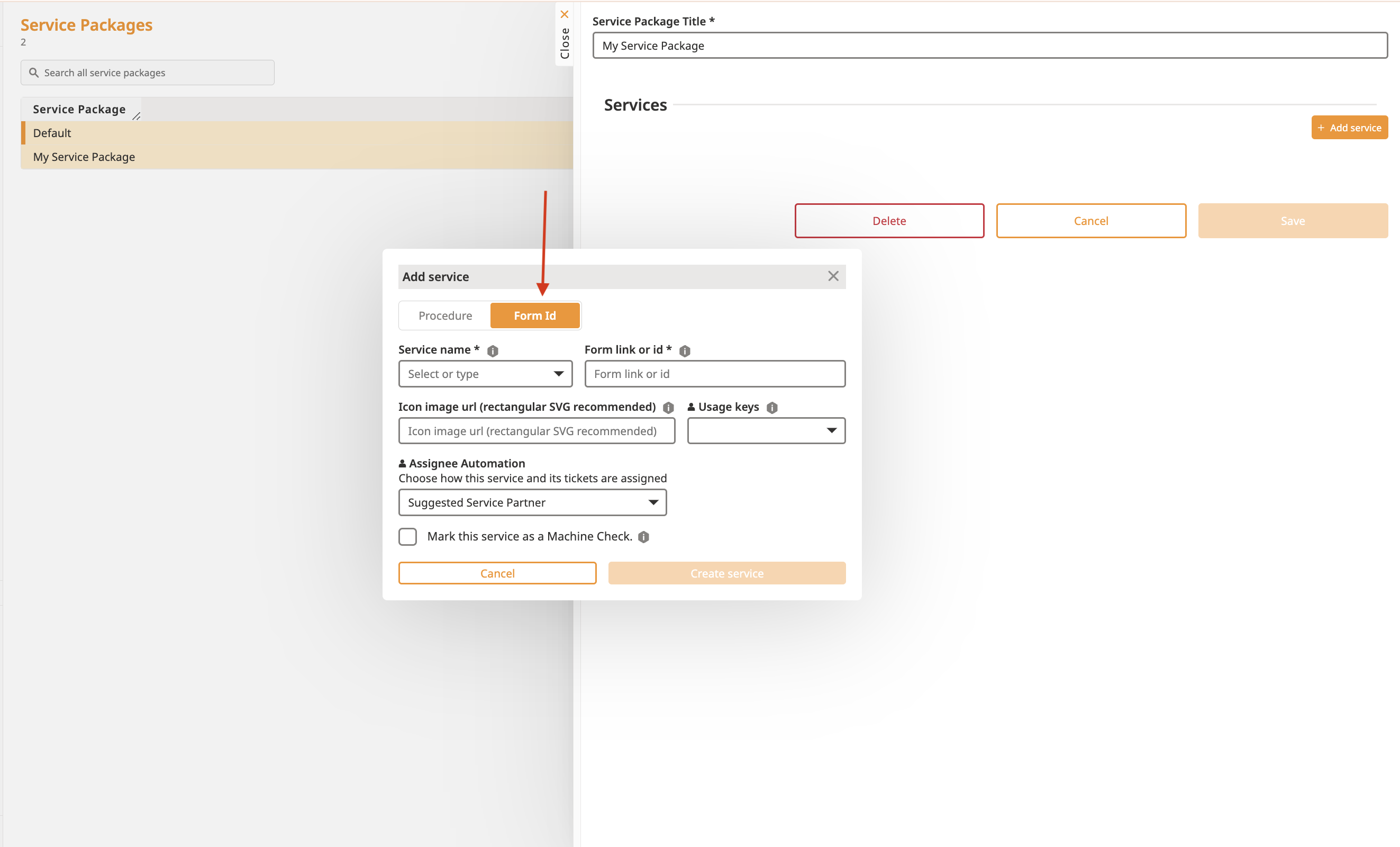
Fill out the settings:
Name: Enter the name visible to your users.
Form ID: Enter the ID provided by your CSM or Support.
Usage Key: Choose "QR Code Landing" to make the service accessible to non-logged users (e.g. Problem Reports).
If your service is a check, mark the checkbox: This service is a machine check.
Configure Assignee Automation:
You can choose from:
No Automation
Always Assign to a Team, Ticket Handler, or User:
When this option is selected, an additional field will appear.
Choose whether to assign the ticket to:
A user
A team
The Ticket Handler (managed through Groups)
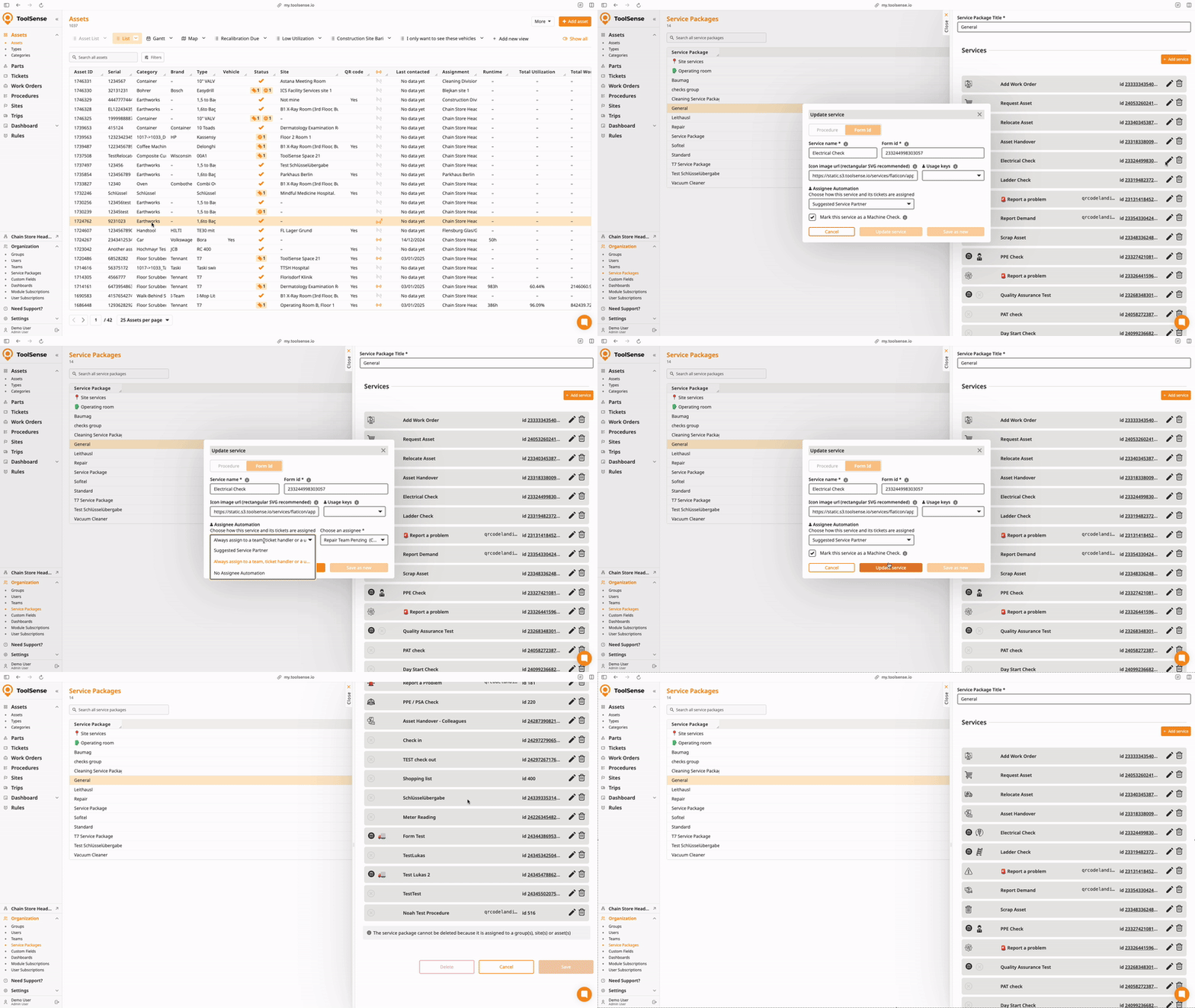
Select Create Service.
Confirm your changes by clicking on Save in the Service Package Overview.
Suggested Service Partner
Go to Assets > Asset Types.
Select the asset type you want to configure.
Locate the Suggested Service Partner field.
Choose a user or team to assign as the suggested service partner for this asset type.
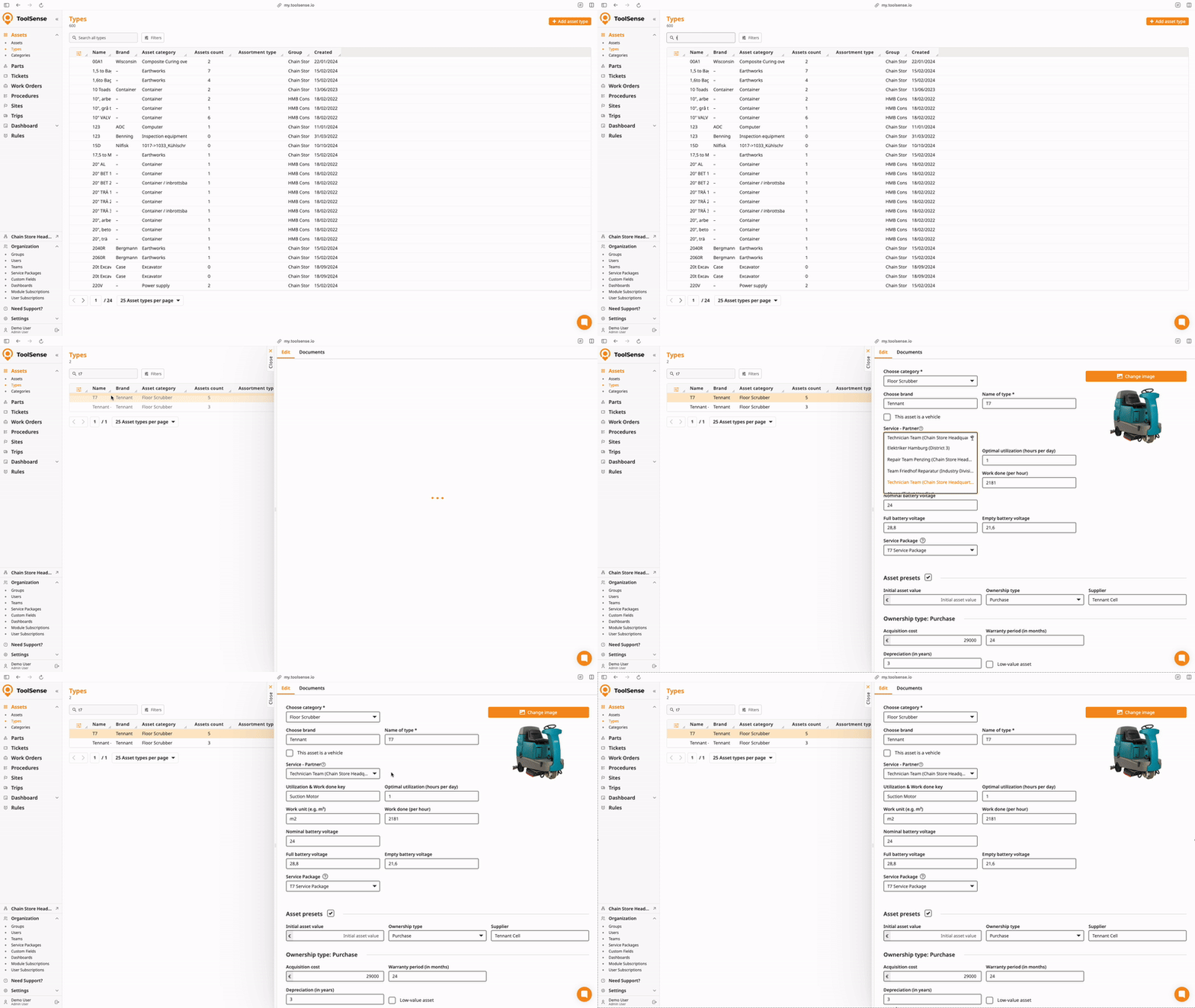
This setup ensures that any tickets involving this asset type will automatically suggest the selected service partner.

To duplicate or move a Service to another Service Package:
Click on Create Service in the new Package.
Choose the desired service in the Service Name input field.
The remaining inputs will auto-fill.