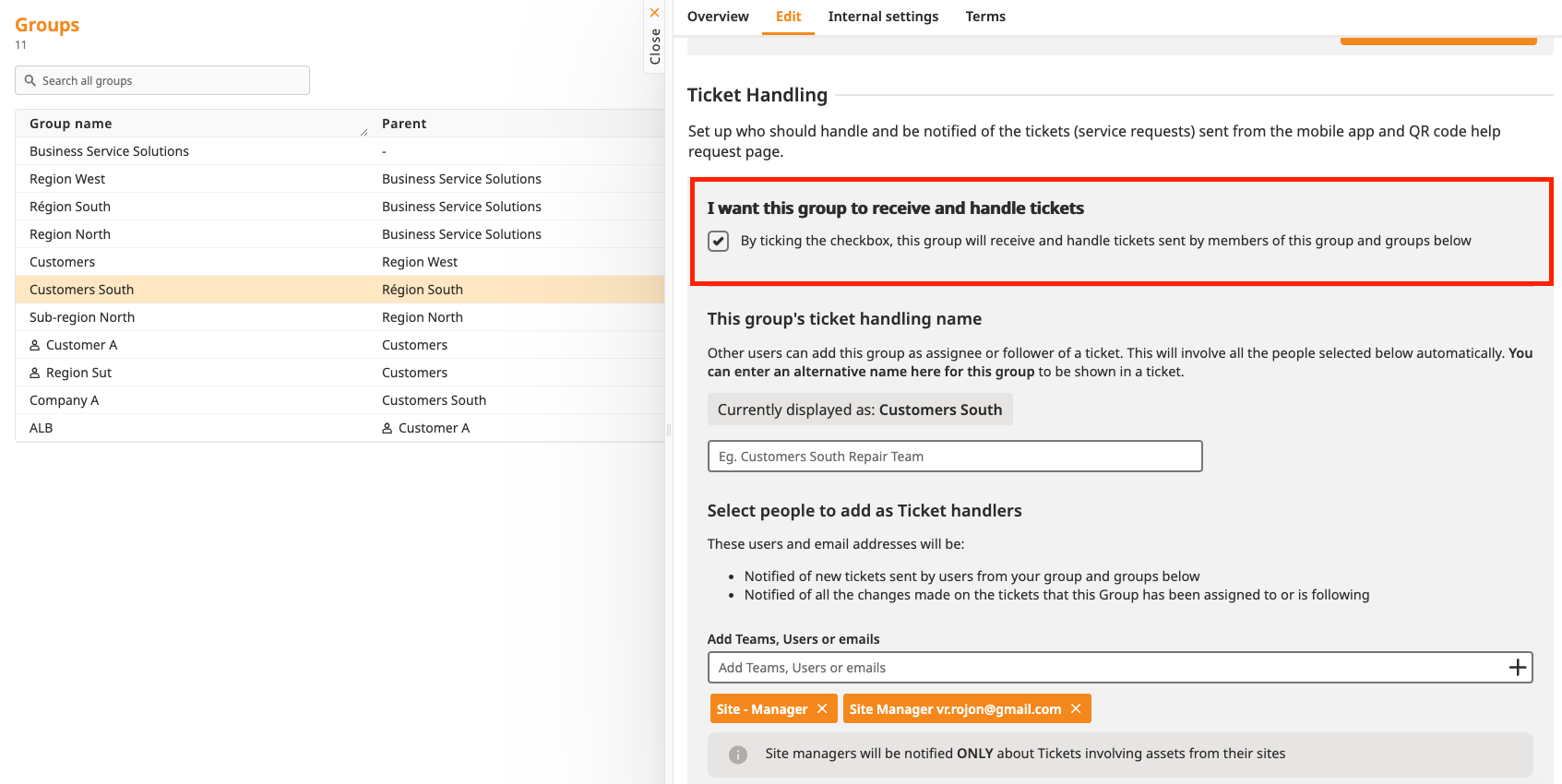
The Ticket Handler feature enables you to configure two key aspects of ticket management, ticket visibility and ticket notifications. Ticket assignment is not managed thorough the Ticket Handler, to learn more about ticket assignment, please refer to the article below.
Ticket Assignment: A Complete Guide
How to Manage and Automate Ticket Assignment via Services, Groups and Asset Types
The Ticket Handler determines whether a group can view and handle their own tickets associated with their assets and sites.
Example: If the group "Region East" does not have a Ticket Handler configured but the parent group "Region ToolSense" does, tickets will be created in the ticket view of "Region ToolSense." As a result, these tickets will not be visible to "Region East."
Even if the Ticket Handler for "Region ToolSense" is set to "Site Manager" and an asset in "Region East" has a site manager from "Region East" assigned, tickets will still not be visible to the user as he belongs to a non-ticket handling group. That being said, if a Ticket Handler is configured for a higher-level group, lower-level groups can only access tickets through assignment. To grant visibility in such cases, the ticket must be explicitly assigned to a user in "Region East" (either manually or through automation).

When setting up a Ticket Handler, you are required to specify who will be notified whenever a ticket is created. The selected user(s) or email addresse(s) will be added as followers to the ticket, ensuring they receive updates.

Here is how you can set up a group Ticket Handler:
Navigate to "Organization" and select "Groups" from the options displayed.
Choose an existing group to edit or add a new one.
If you want users from this group to handle their tickets, check the "I want this group to receive and handle tickets" checkbox.
Set who should "handle" the tickets for this group.
If a person is not registered on ToolSense, they can still be added to a group Ticket Handler using their email address.