ToolSense makes it easy to collaborate with external service partners by forwarding tickets to them. You can choose to forward tickets either via email only (as recipients) or directly within the ToolSense platform by adding them as users. Here's a step-by-step guide to help you set this up effectively:
Create a Team for the Service Partner
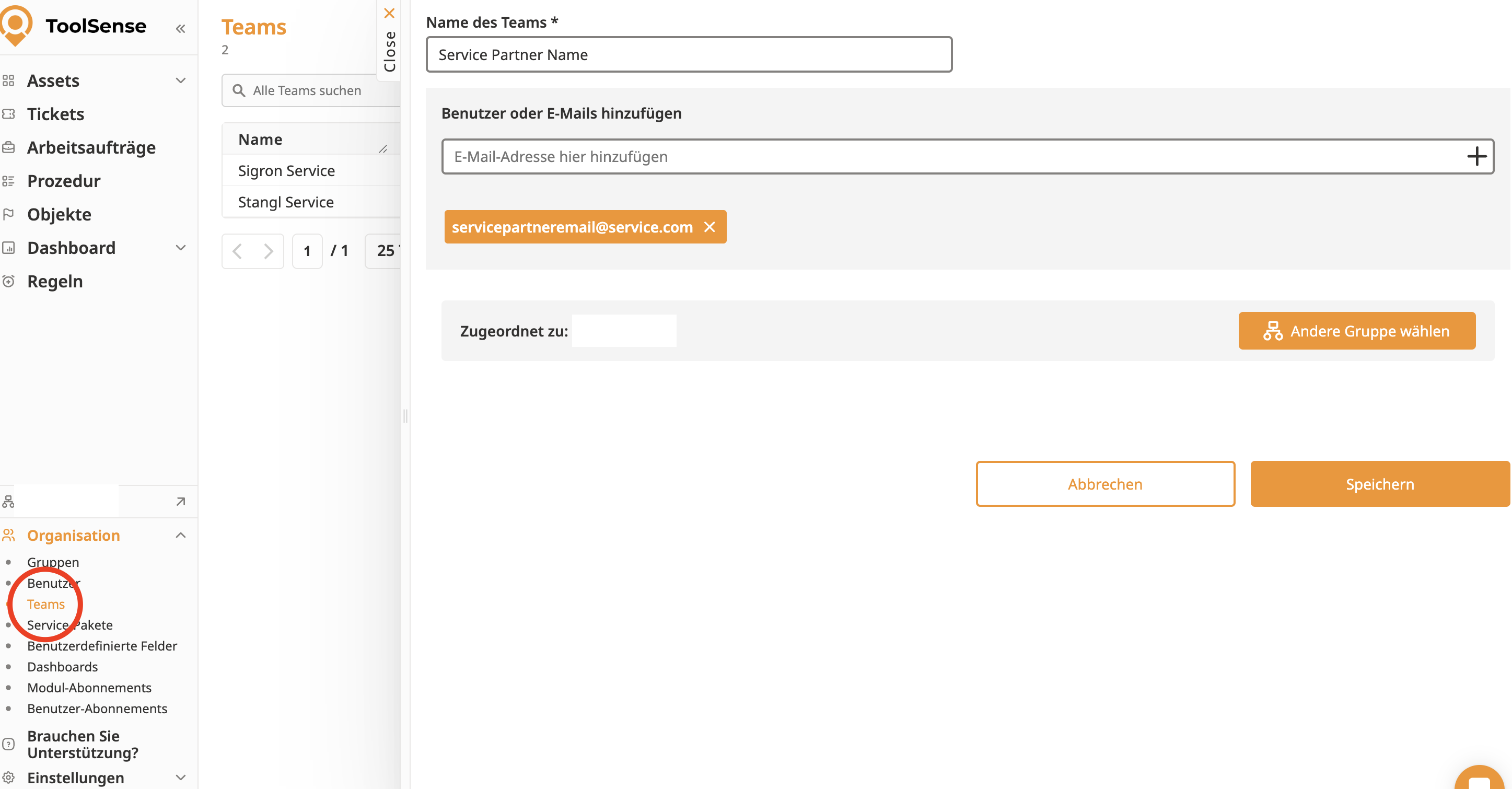
Navigate to the Teams menu in your ToolSense account.
Create a team with the name of the external service partner (e.g., "Diversey").
Add Email Addresses
Add all relevant email addresses to the team to ensure all necessary recipients will receive the ticket requests.
Forward Tickets
When creating or updating a ticket, select the service partner team as the recipient. The ticket details will be sent to the listed email addresses.
Service partners will interact with the system via email responses. Their responses will be automatically logged in the ticket history within ToolSense.
To enable external service partners to work directly in ToolSense, follow these steps:
Reach out to your assigned Customer Success Manager (CSM) with the following information:
The name of the service partner.
Relevant brand settings (see Step 2).
To ensure service partners can view the correct machines in ToolSense:
Review the brand names associated with the service partner's machines.
Provide the list of all necessary brand name variations to your CSM. For example, for "Diversey," the list might include:
TASKI
Taski
DIVERSEY
Diversey
Your CSM will configure the brand settings in ToolSense for the service partner group.
Once the group and settings are configured by your CSM:
Navigate to the Users section in your account.
Invite service partner team members as Editors to the newly created group. They will receive an email invitation to join ToolSense.
For more information on adding new Users to your account, please refer to the article below.
How to add a User
Invite your colleagues to ToolSense
After the group is active and users have been added:
Enable ticket handling for this group.
Set up the group to be selectable as a ticket receiver within the platform. This step can be done by you or your CSM.
When forwarding tickets via email, the service partner receives an email containing all ticket details. They can reply to the ticket email to update it or take necessary actions offline. Their responses will be logged in the ticket history within ToolSense.
Yes, you can track all updates made to the ticket directly in ToolSense. Any email replies from the service partner will be logged within the ticket history.
The brand settings in Step 2 allow you to filter machine visibility for specific groups. Ensure all relevant brand name variations are included and communicated to your CSM.

