This article provides an overview of how to view and manage asset data in ToolSense. For detailed step-by-step instructions on creating, editing, deleting, and bulk managing sites, please refer to the linked articles below.
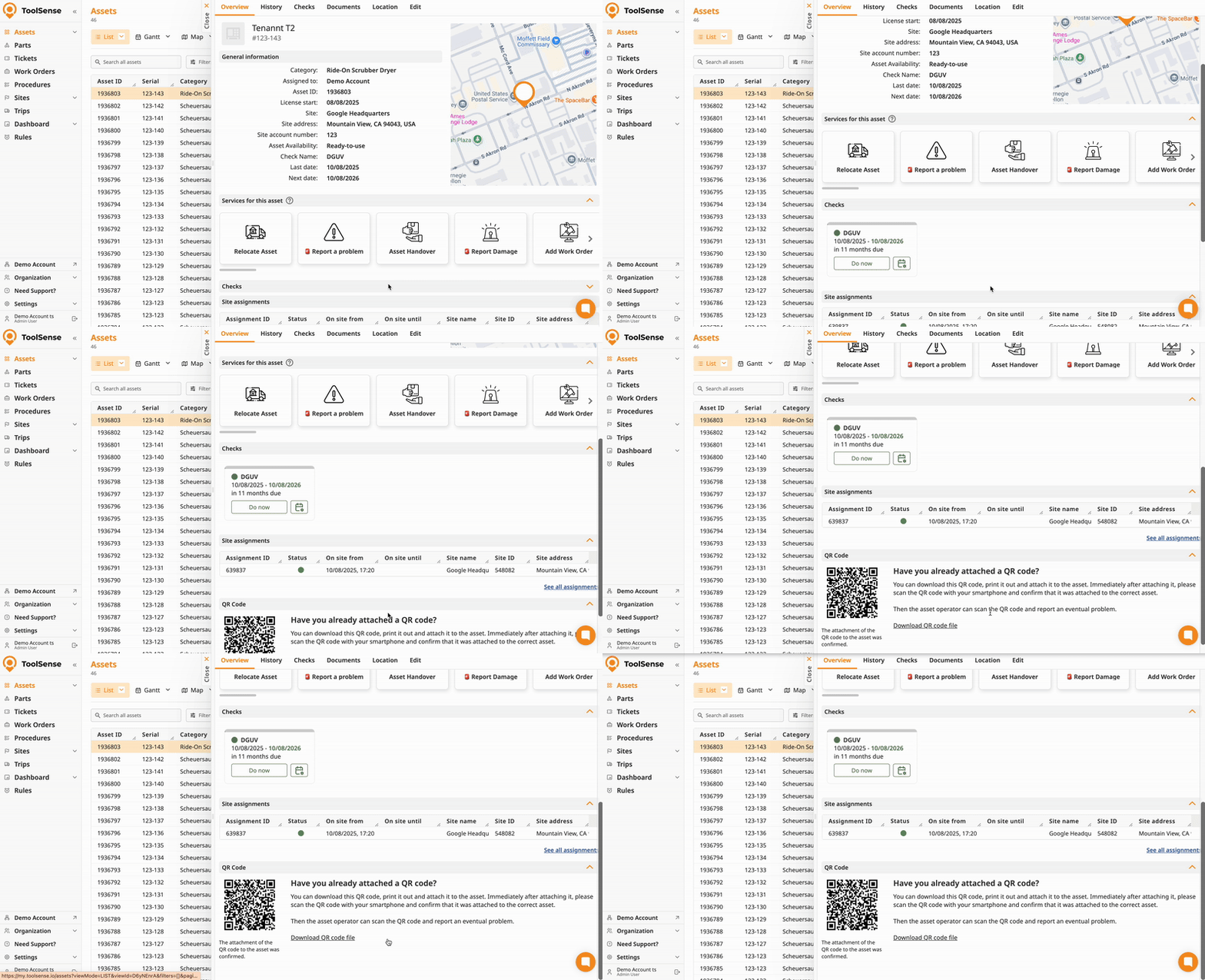
In the Asset Overview, you can quickly access essential details about each asset, such as type, category, site, and upcoming asset checks.
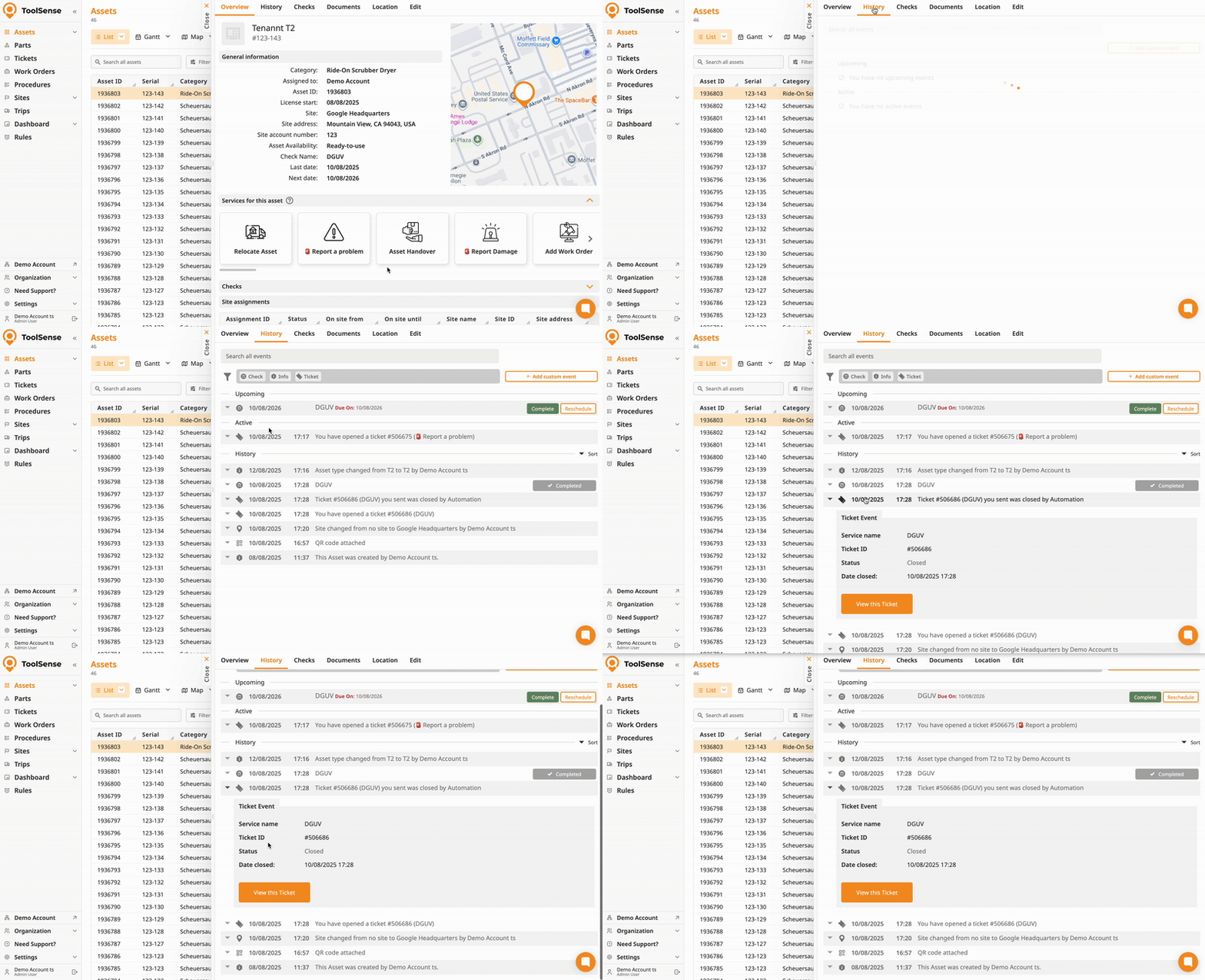
The Asset History tab logs all important changes, events and activities related to the asset, such as warning events, tickets and changes in information.
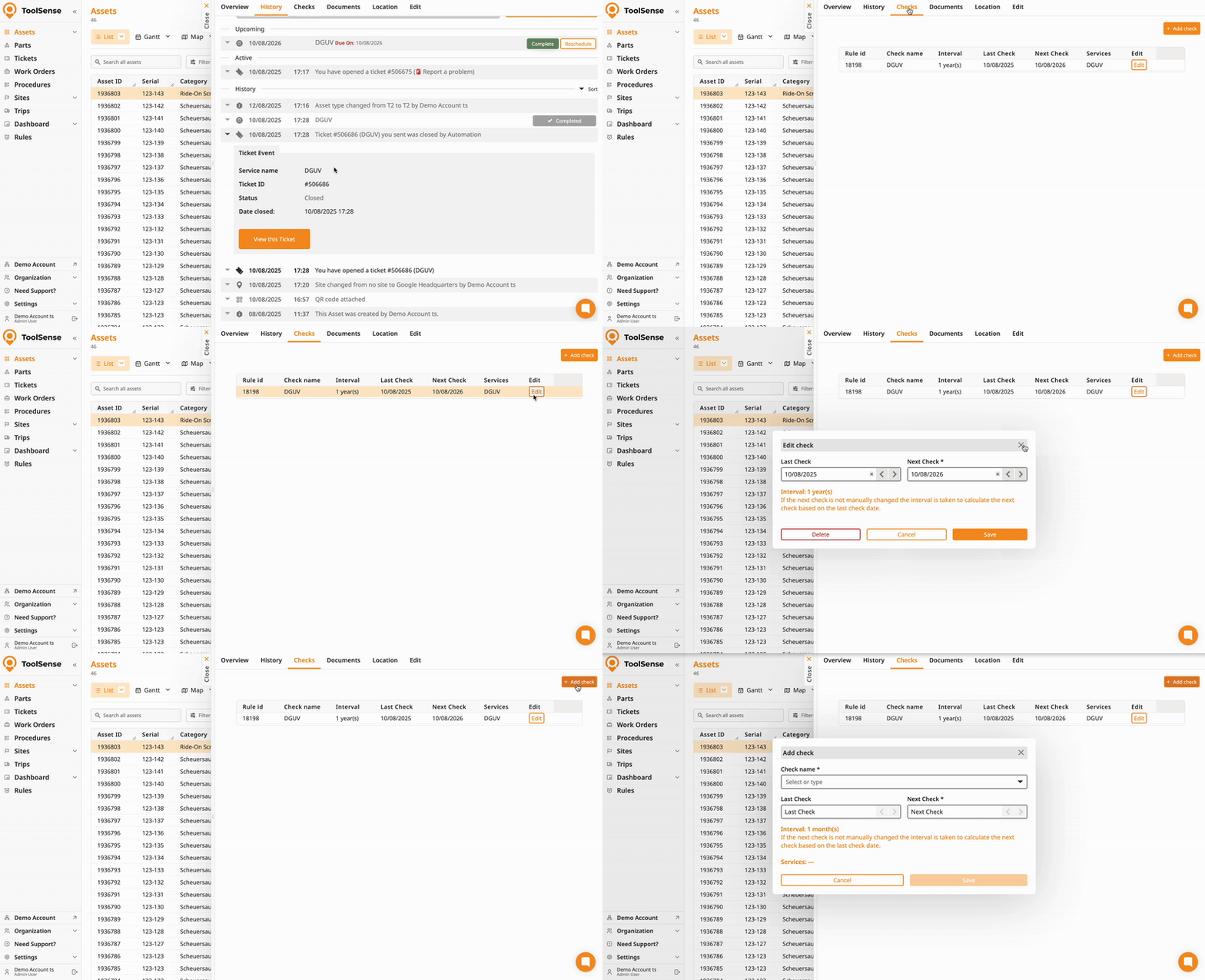
The Asset Checks tab allows you to view and manage the registered checks of your assets.
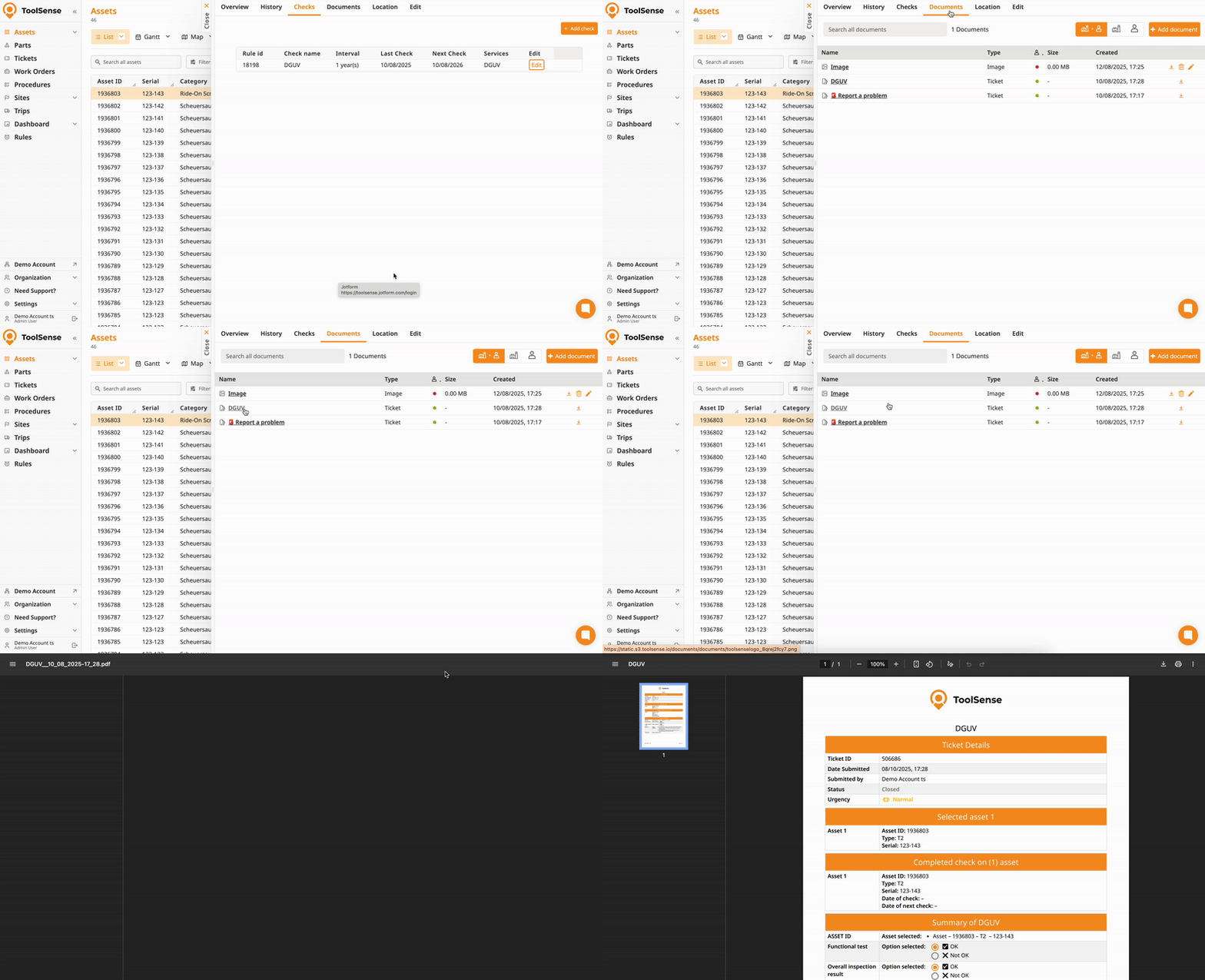
The Documents tab includes all auto-generated protocols (e.g. checks, relocations) and allows you to manage custom documents such as instruction manuals. Simply click on an item to download it.
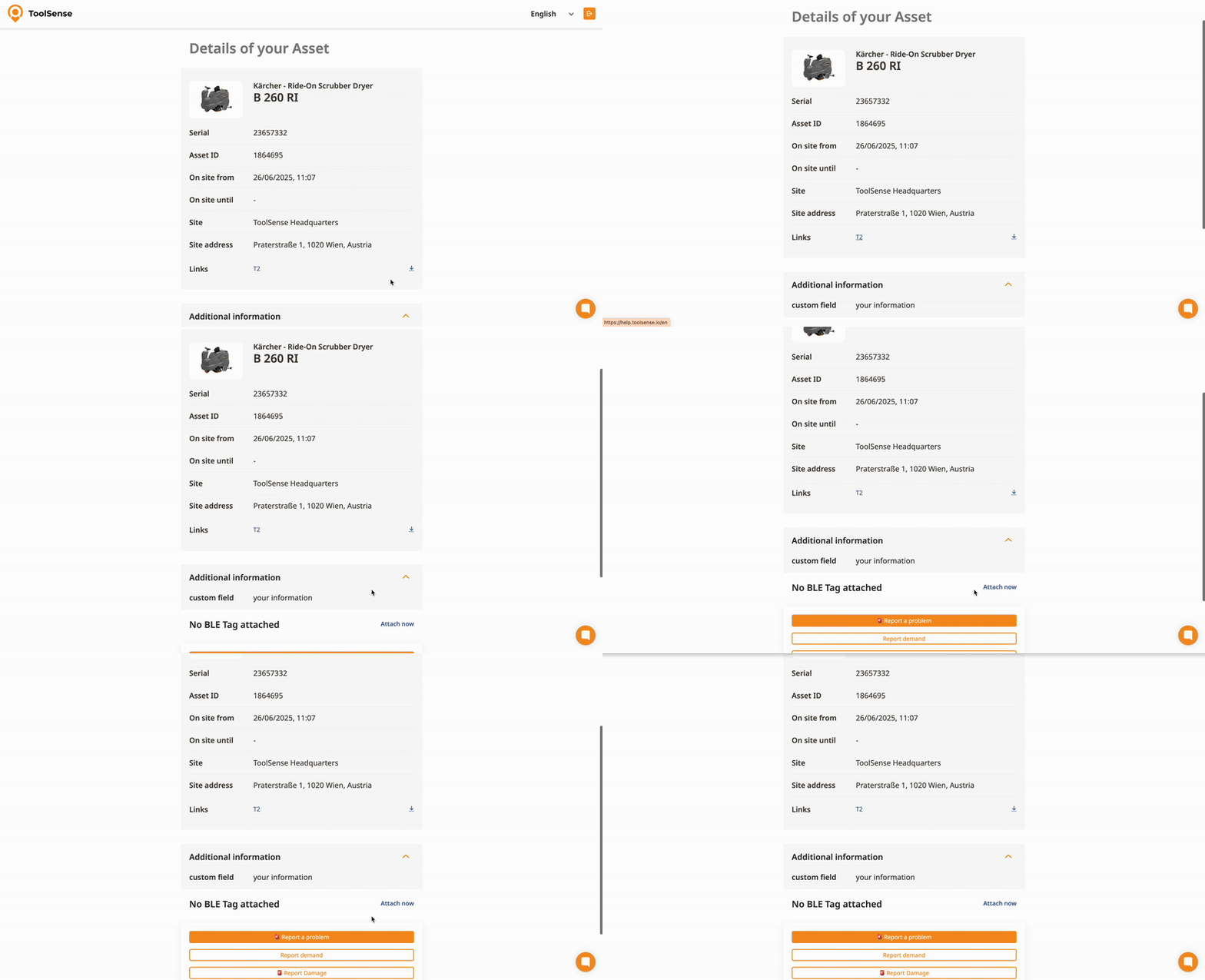
Each asset can be linked to a unique QR code that is physically attached at the machine. Scanning the QR code brings up the asset’s landing page with key information and options for reporting issues or accessing services.
To create, update, or delete asset data, you can manage assets either manually or via bulk operations. This article provides more information on all options:
How To Add, Edit and Delete Assets
Guide to manual asset management and the use of bulk tools for import, export, updates, and deletion.
