For more information on integrating and rolling out Asset Data and QR Codes, refer to the following article:
Get Started: How To Roll Out Assets and QR Codes
This article outlines different approaches for integrating your asset data into ToolSense.
The following fields are mandatory. On mobile, adding a photo may also be required depending on your account settings.
Serial Number:
A unique identifier for your asset.
Category:
The broad category your asset belongs to (e.g., Car, Scrubber, Forklift, Truck).
Type:
Includes Category, Brand, and Model/Type Name (e.g., Car, Volkswagen, Golf).
Serial Number:
A unique identifier for your asset.
Category:
The general category your asset belongs to (e.g., Car, Scrubber, Forklift, Truck).
Type:
This consists of three pieces of information:
Category: (e.g., Car)
Brand: (e.g., Volkswagen)
Model/Type Name: (e.g., Golf, Caddy, Polo)
Navigate to the Asset Page.
Click on Add Asset in the top right corner.
Fill out at least the required information (Serial, Type, Category).
Click on Save.
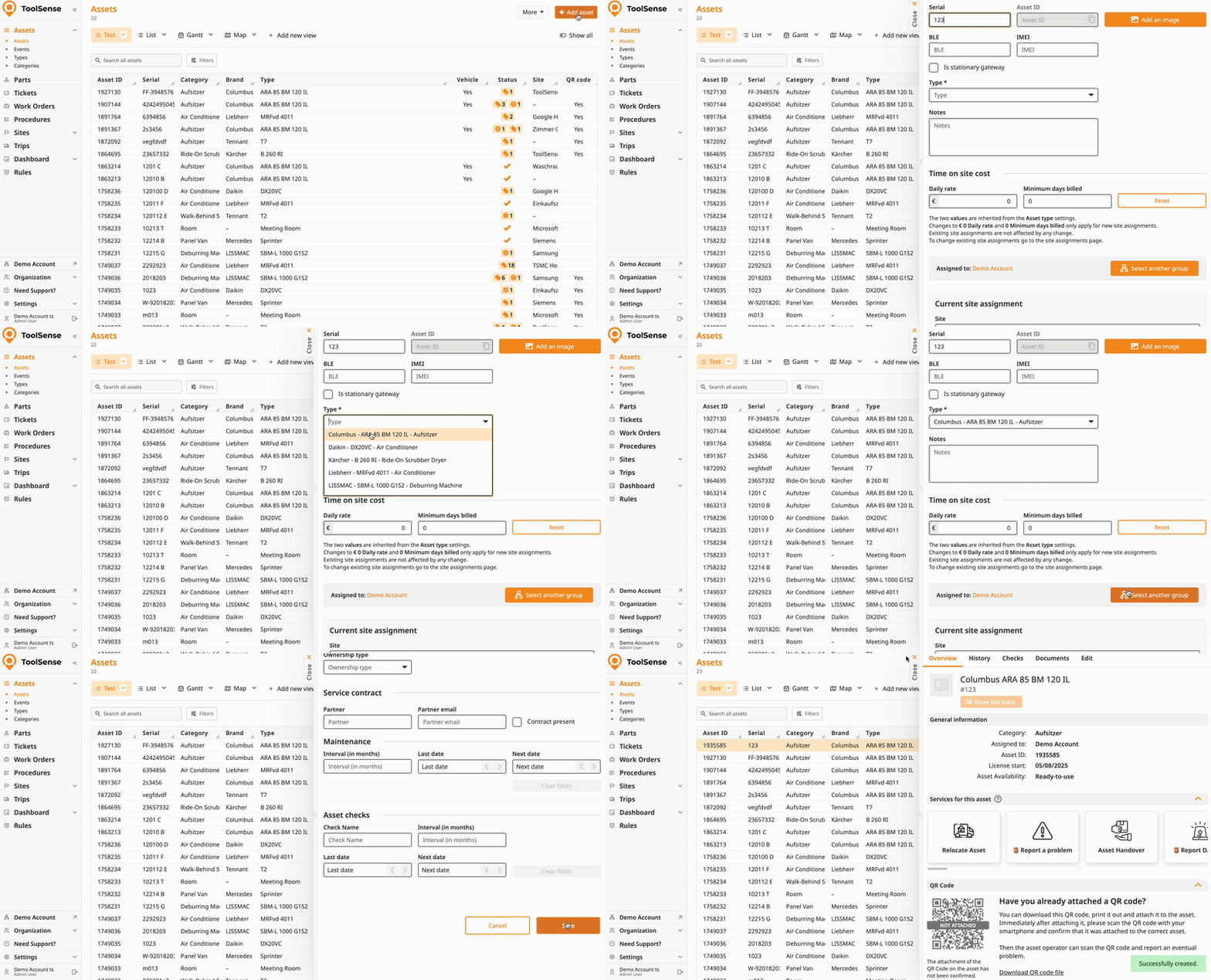
How To Add an Asset - ToolSense Mobile App
Create an Asset using your Smartphone and a Blank QR Code
Select an Asset.
Click on the Edit Tab above the asset overview.
Change the desired information.
Scroll down and click Save.
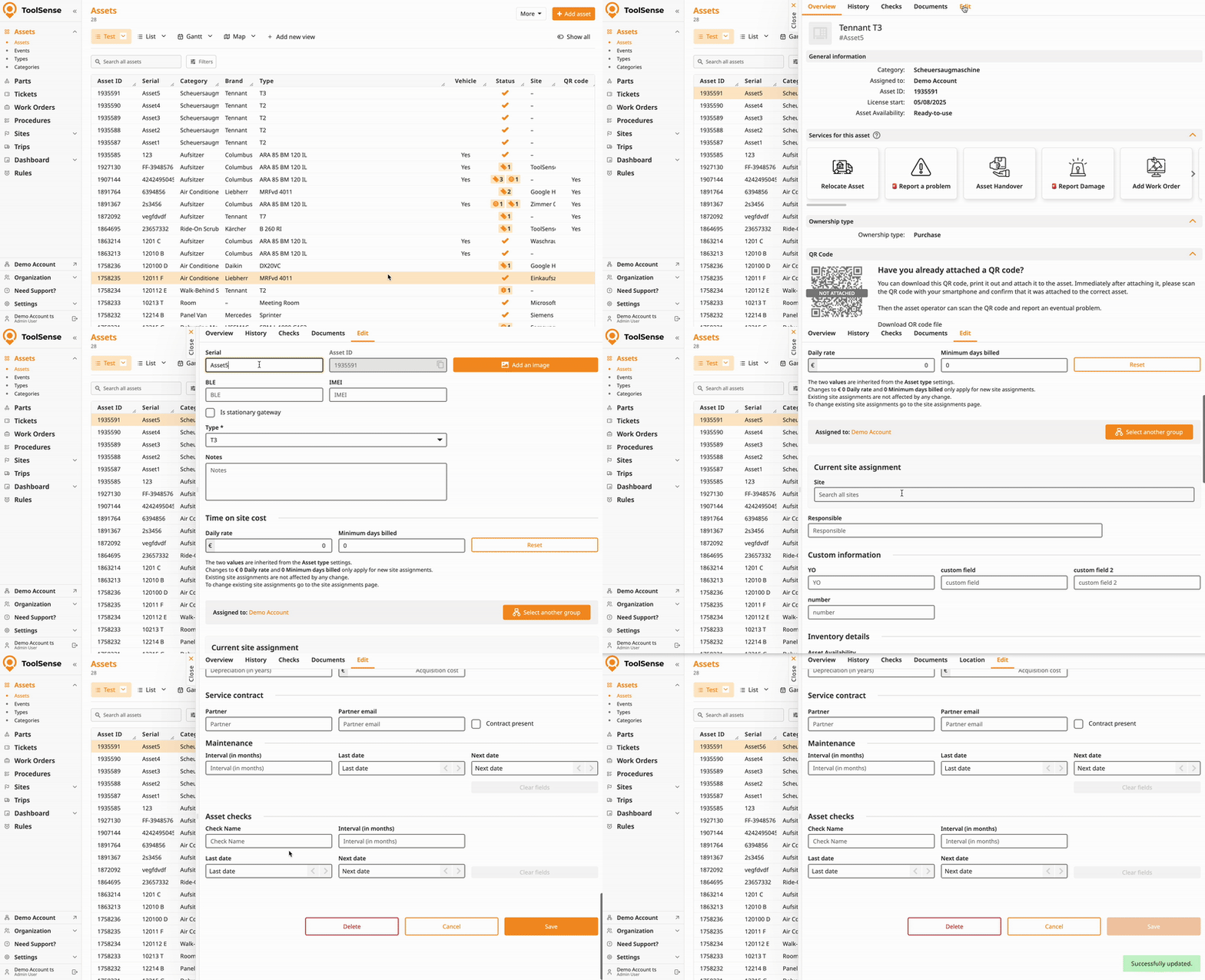
Select an Asset
Click on the Edit Tab above the asset overview
Scroll down.
Click Delete & Confirm.
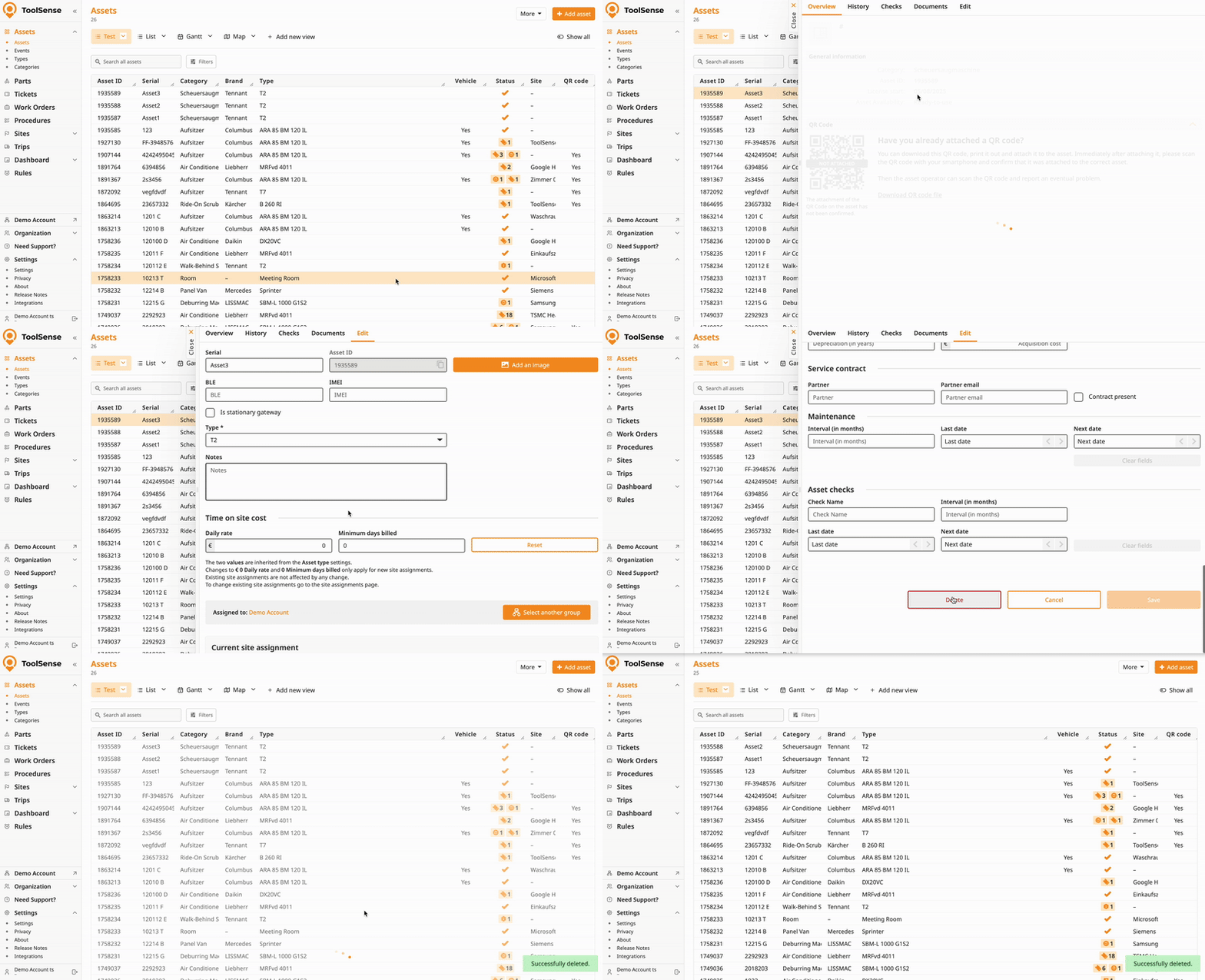
How To Import Assets with the ToolSense Excel Import Tool
Step-by-step guide to quickly upload your asset list
How to Update Multiple Assets with our Excel Import Tool
Bulk/Batch updating Asset information
How to Export Assets from ToolSense
How to export a filtered Excel-Asset-List
To bulk delete assets, please contact our support team with the list of site IDs you wish to remove.

