When you create or update assets in ToolSense, the system automatically manages asset pictures based on a defined hierarchy and image management features.
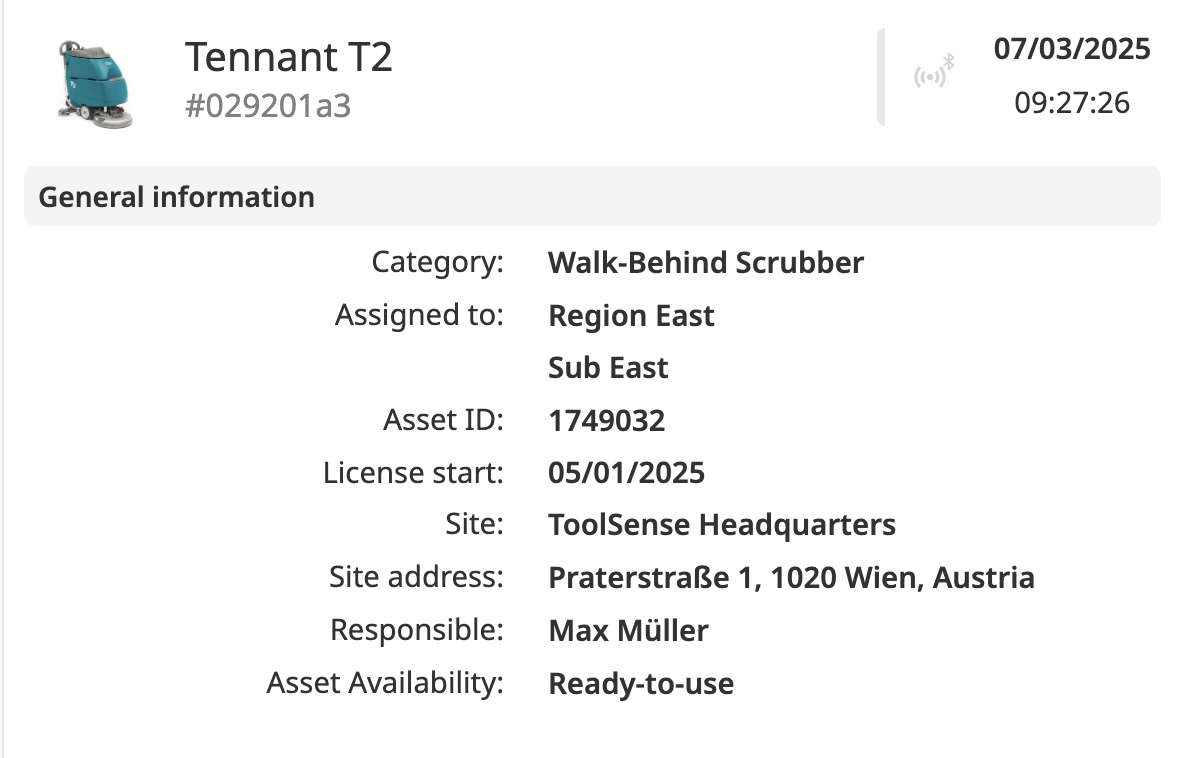
ToolSense determines the asset’s profile picture using the following order:
If a picture is set in the asset’s Edit tab, this image is used.
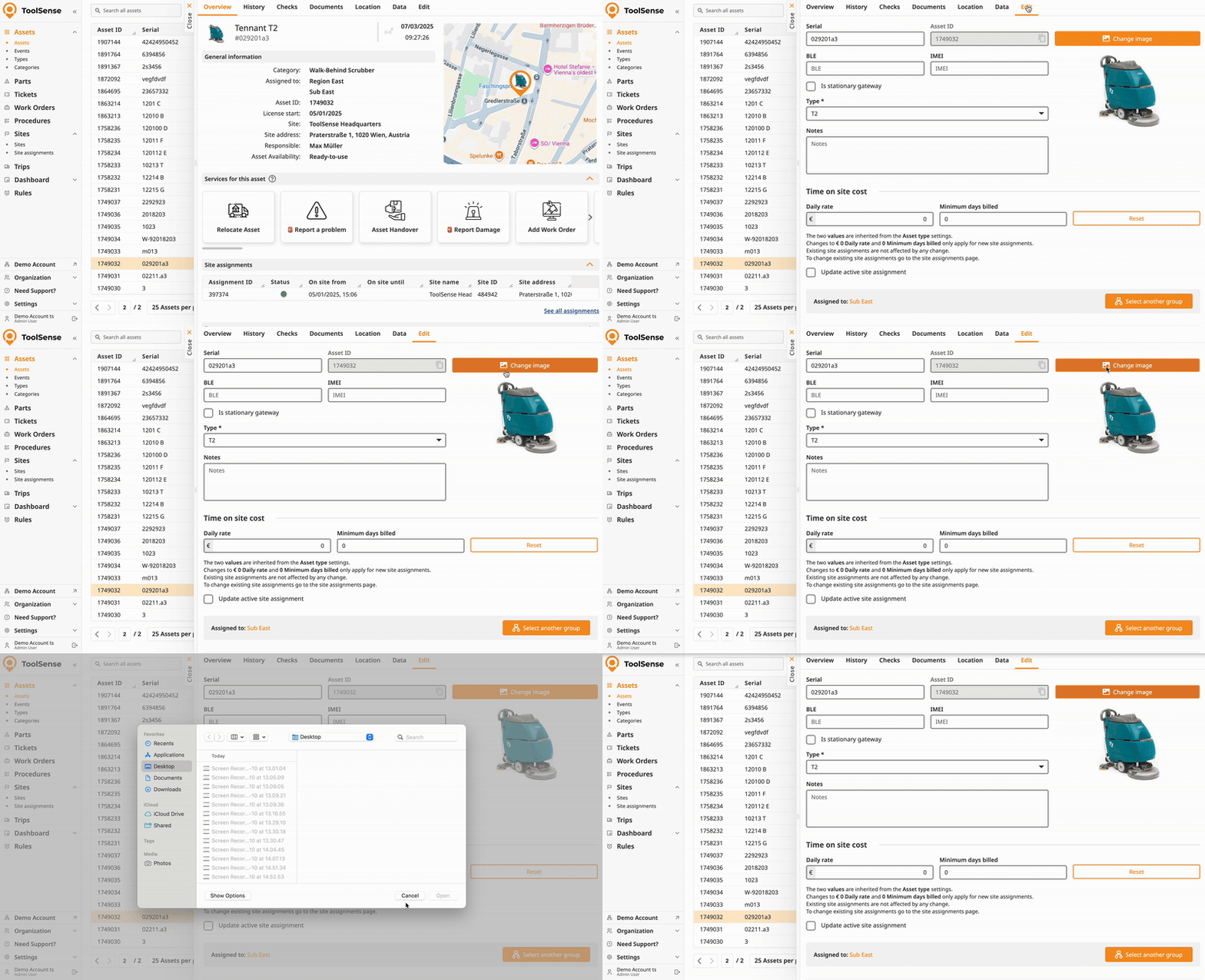
If no asset-level picture exists, the image from the asset’s type is used.
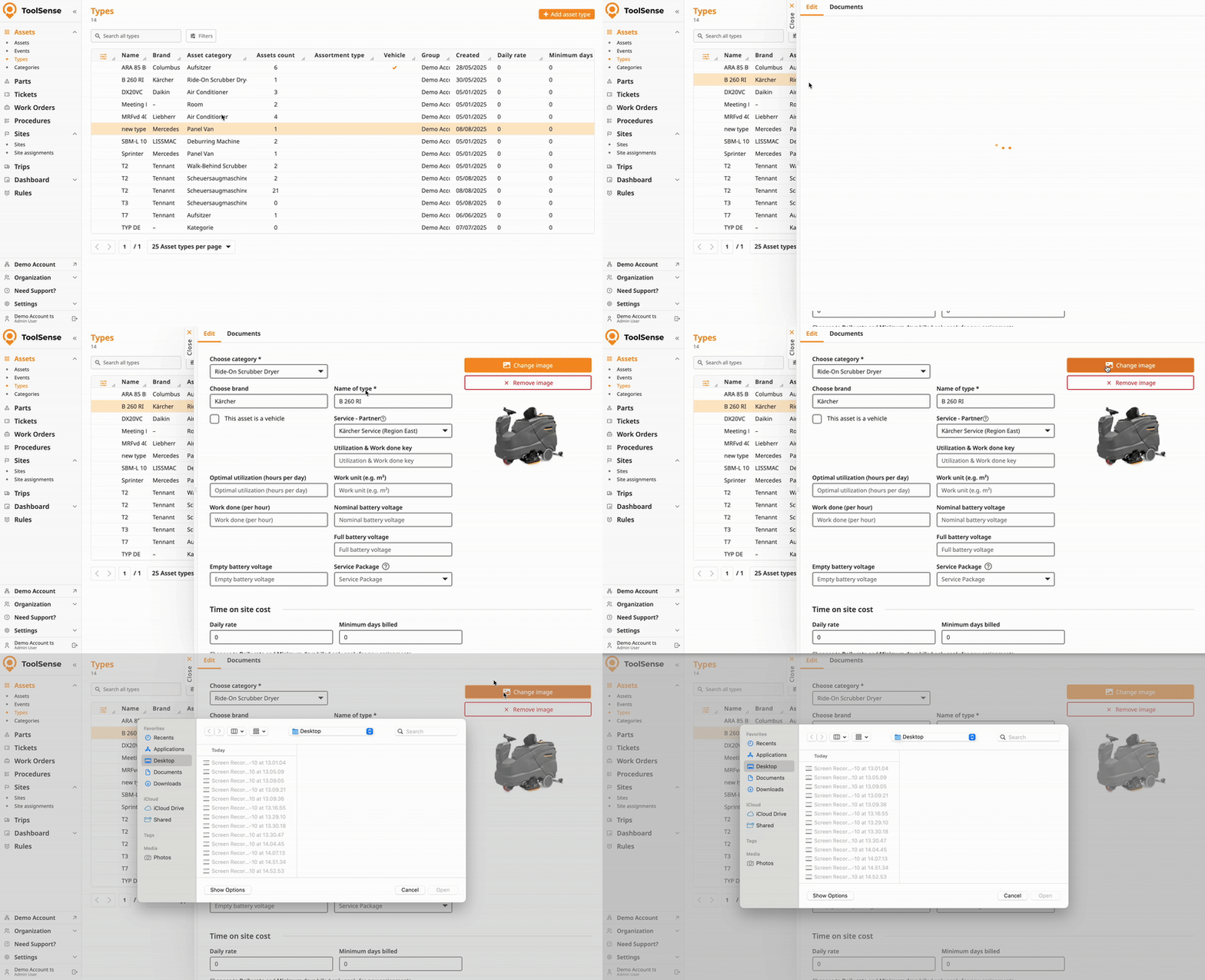
If neither the asset nor the type has an image, the image from the asset’s category is used.
If no other images exist, and an image was uploaded during asset creation via QR code scanning, that image is used as the asset picture.
How To Add an Asset - ToolSense Mobile App
Create an Asset using your Smartphone and a Blank QR Code
If none of the above images exist, a default blank icon will be shown.
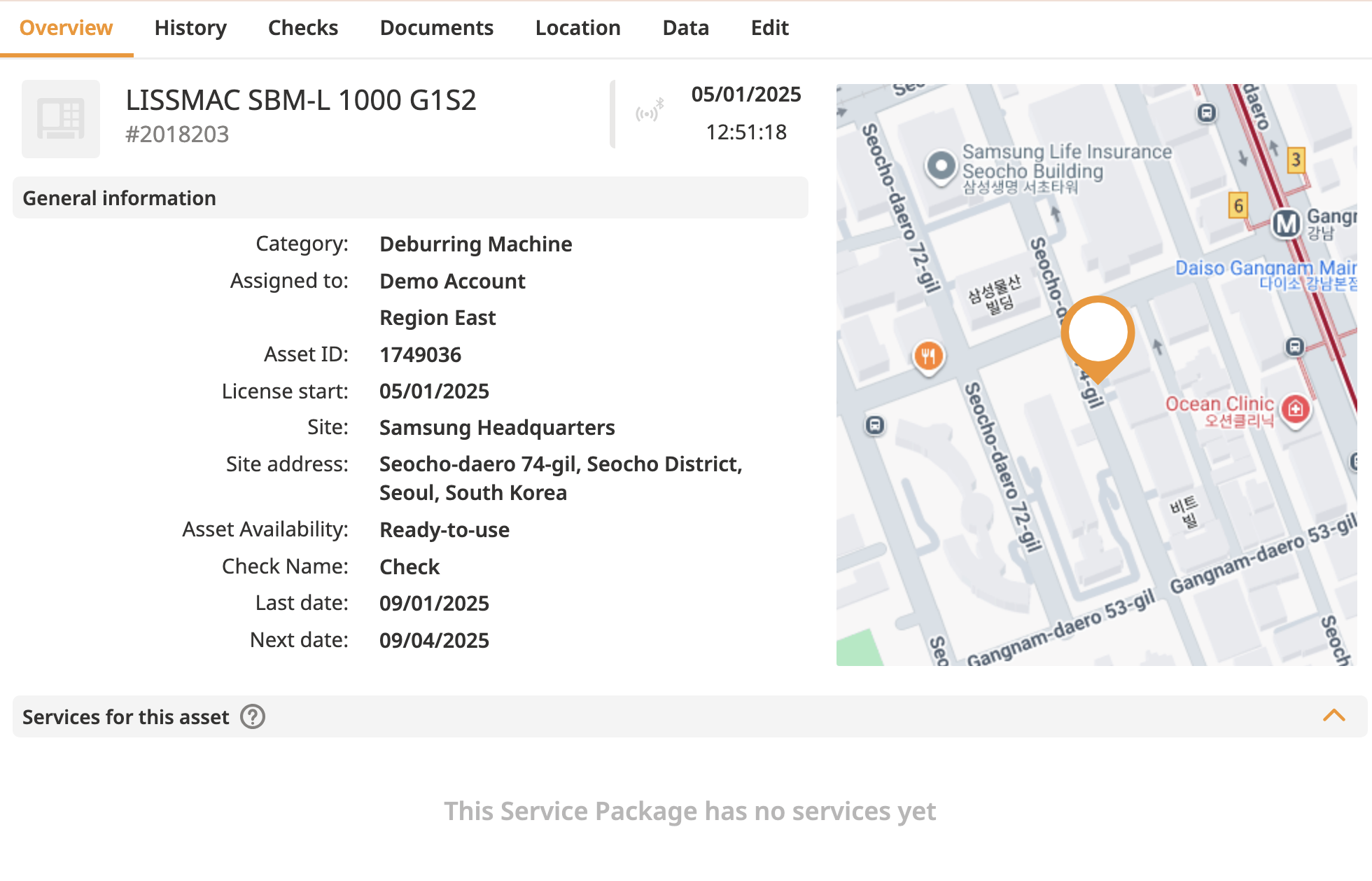
You can remove or replace images directly from the asset edit pane, the asset type, or the asset category.
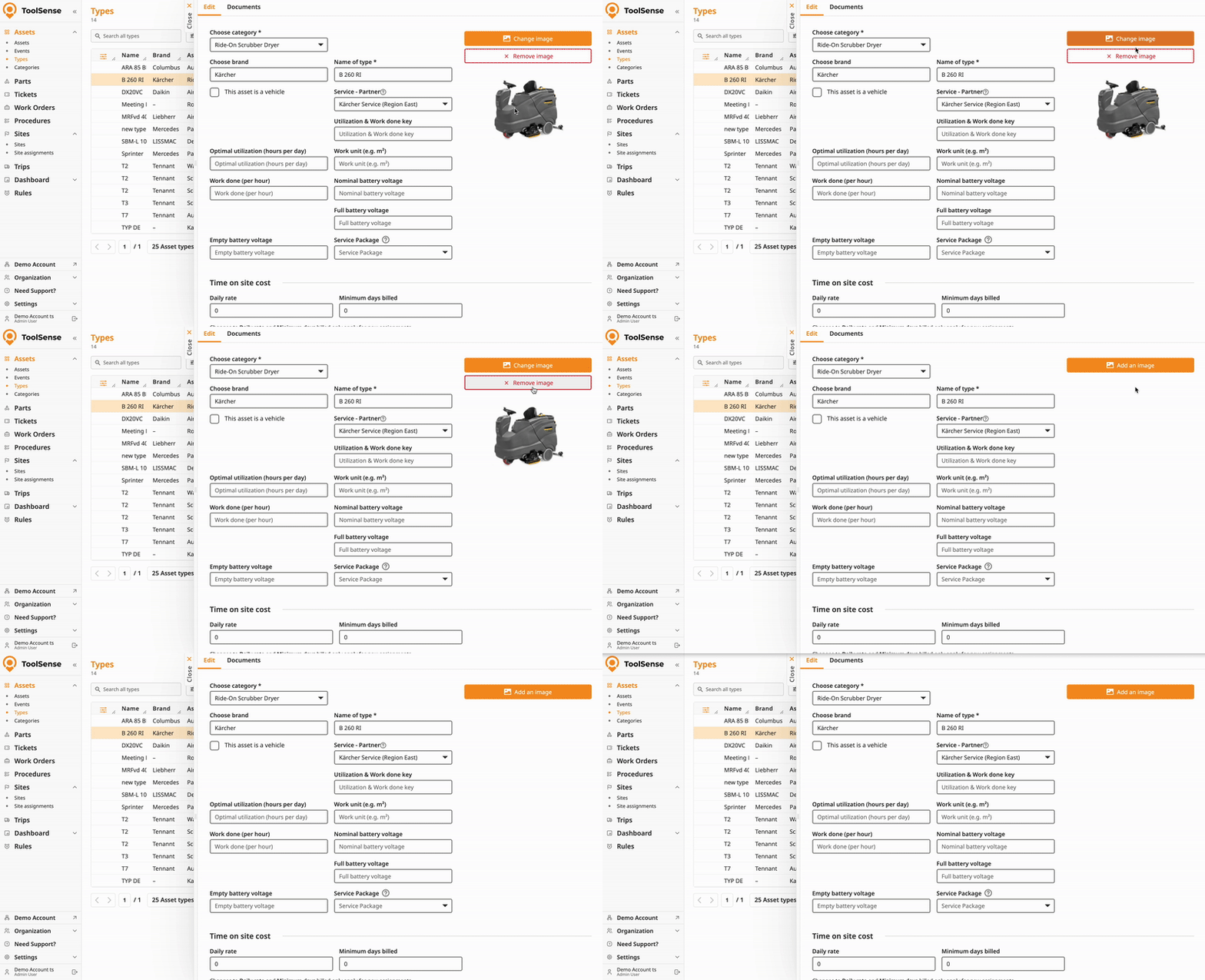
When an image is removed at one level, the asset automatically inherits the image from the next available level in the hierarchy (e.g., removing an asset-level image falls back to the asset type image).

New images added at the asset, asset type, or asset category level will overwrite any existing QR code-uploaded image set as the asset picture.
