For a general overview on Documents and Links, refer to the article below.
How To View and Manage Asset Documents and Links
An overview on asset documents and links.
 Tip: You can bulk upload links to your assets. Contact our Support team to arrange this.
You can add documents and links in two ways:
On the Asset Type level
The document/links will be automatically linked to all assets of that type.
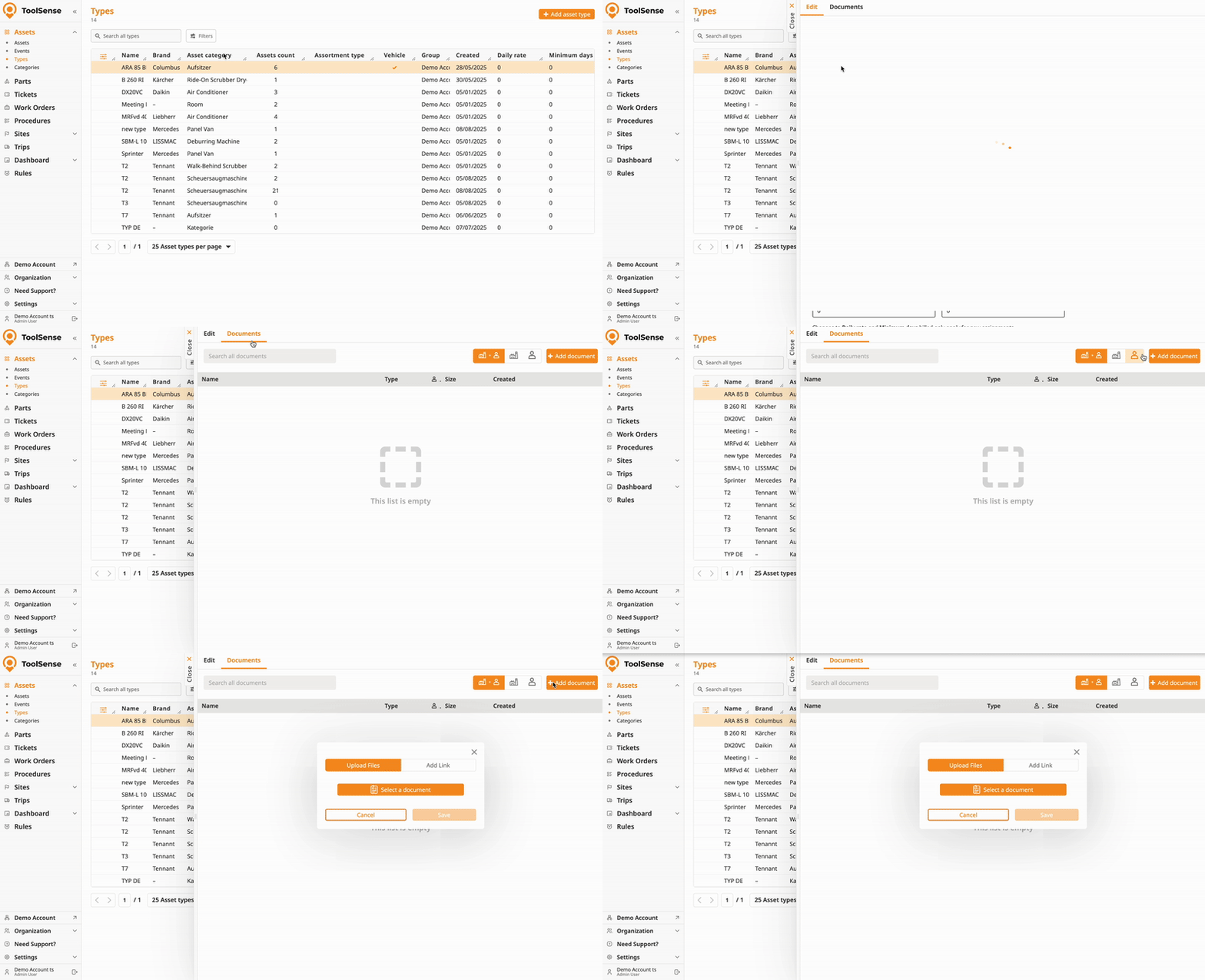
On the Asset level
Upload documents/links directly to the asset’s Documents tab.
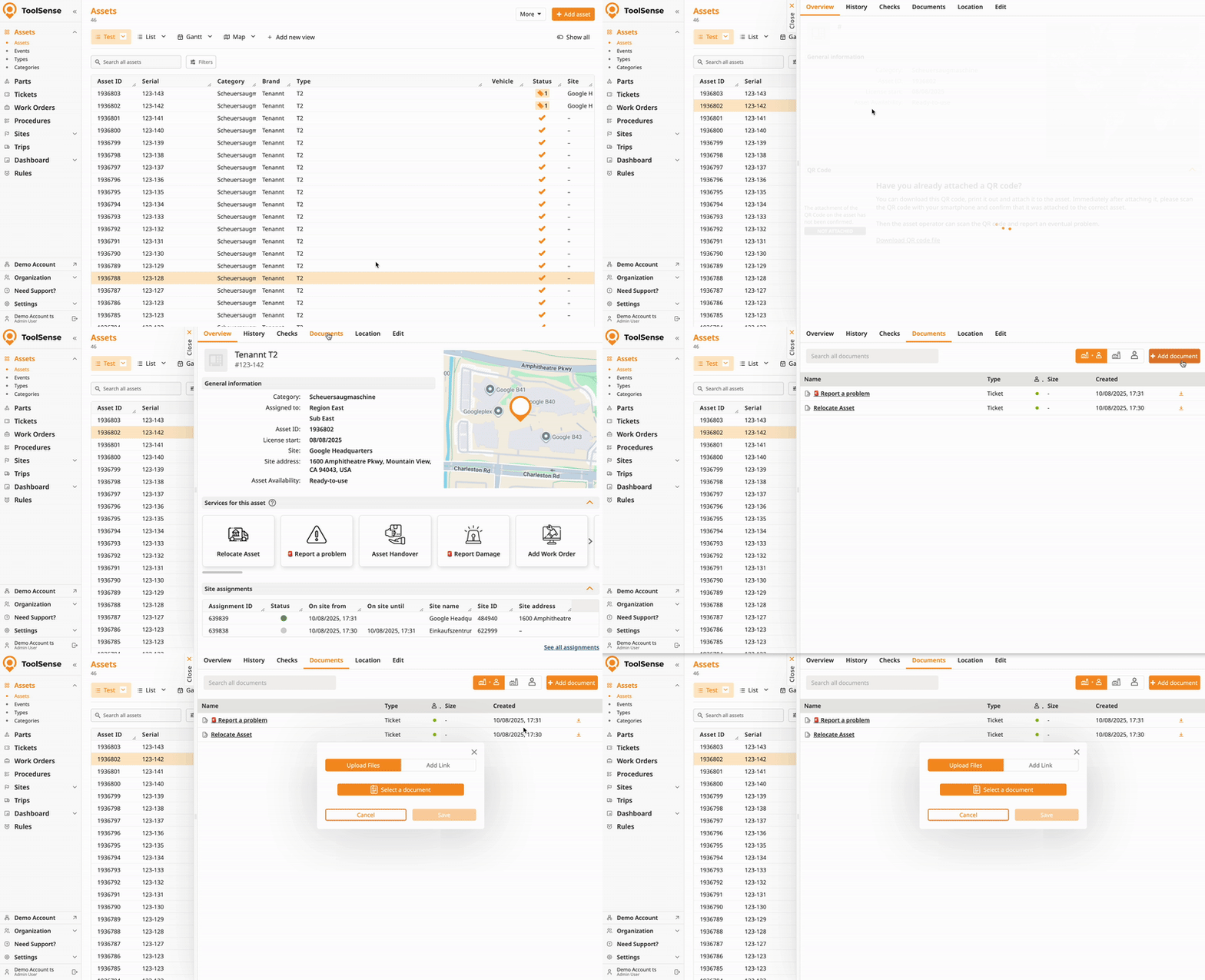
Open the Asset or Asset type and navigate to the documents section as seen above.
Click on Add Document.
Select either Document or Link.
Fill out the details.
Click on Save.
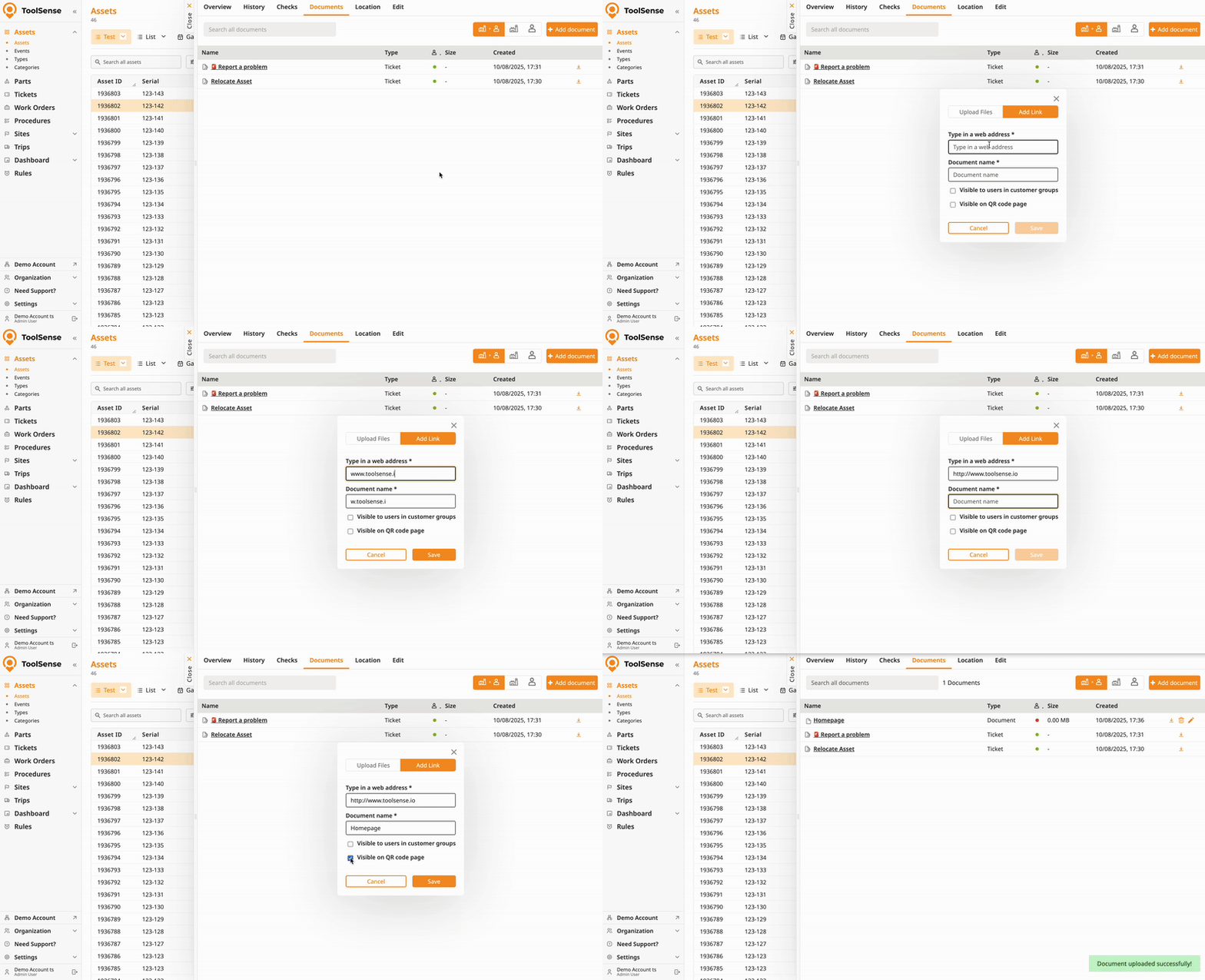
When adding a document, you can:
Upload files (e.g., images, PDFs, other supported formats).
Add links (URLs) instead of files.
Choose document visibility.
Toggle visibility on the QR Code Landing Page.
Restrict visibility to specific customer groups.
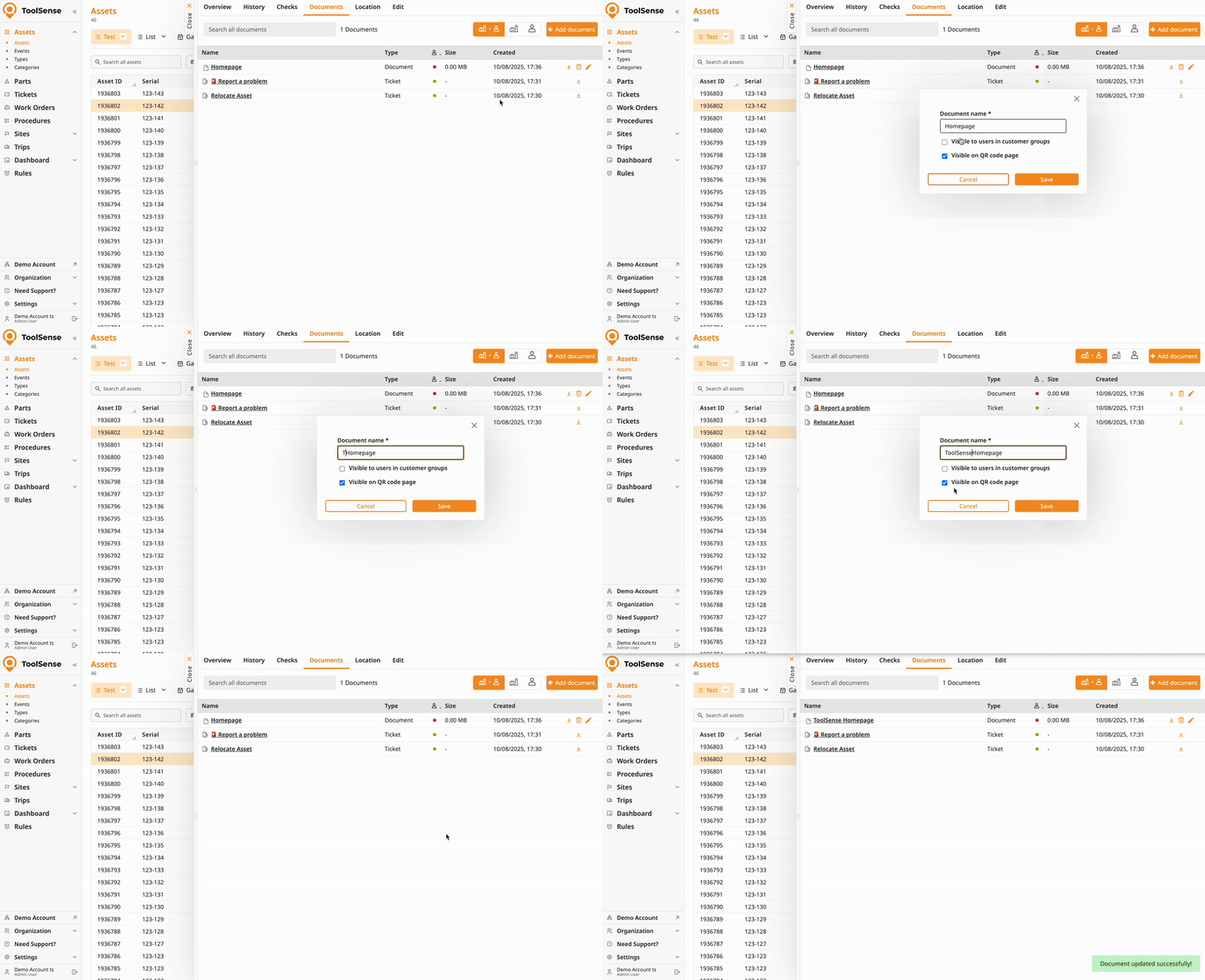
Change a document’s name or adjust visibility settings.
Open the Asset or Asset type and navigate to the documents section as seen above.
Select a document or link.
Click on the pen icon on the right side of the given document.
Edit.
Click on Save.
Note: Auto-generated documents cannot be edited.
Remove a document by clicking on the bin icon on the right side and confirm.
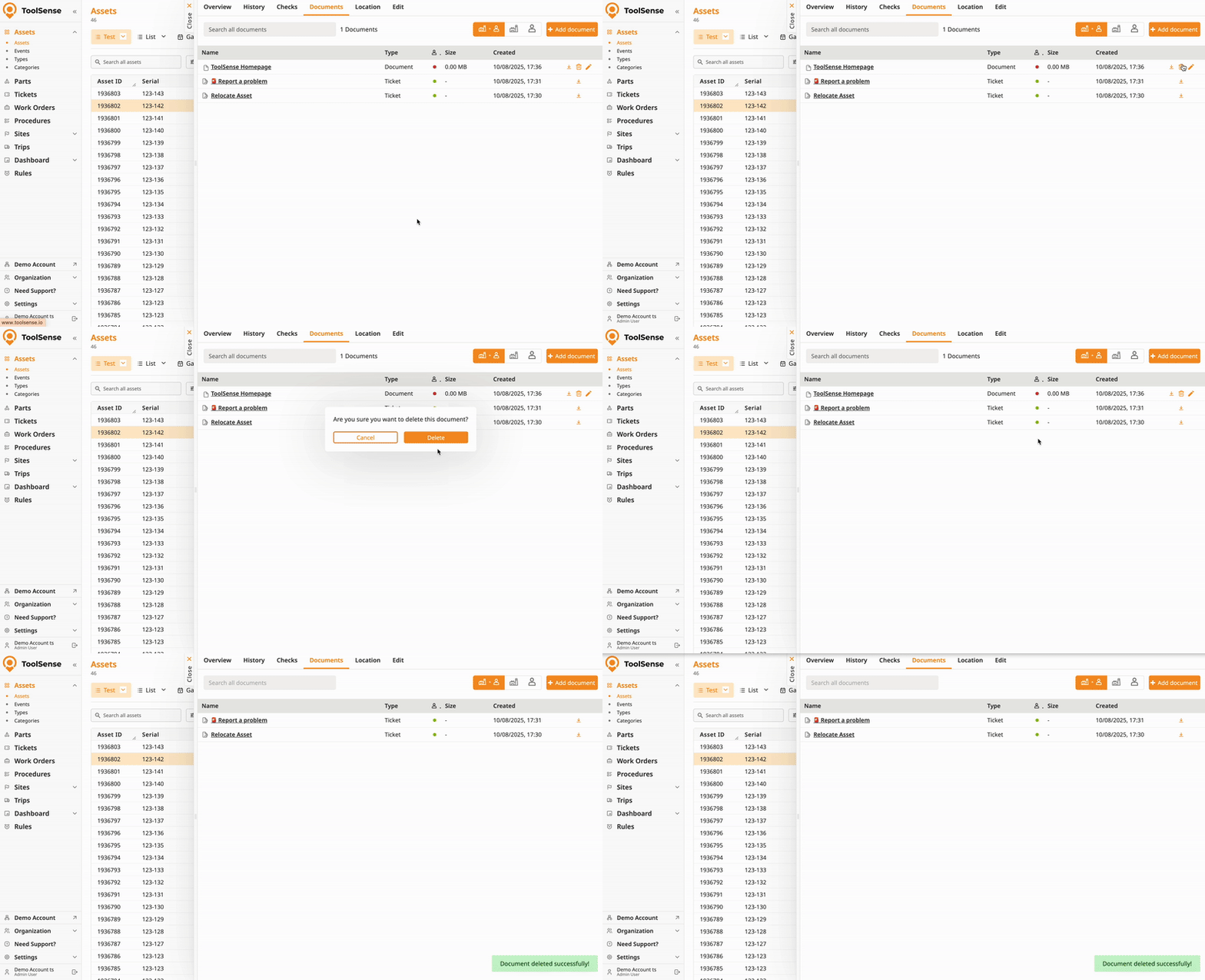
Note: Auto-generated documents cannot be deleted.

