As your data in ToolSense grows - more assets, more tickets, more events - finding the right information quickly becomes essential. Filters help you focus on what’s relevant right now, without scrolling through long lists or exporting data.
You can apply one or multiple filters to narrow down your data. Multiple filters are combined using AND logic, meaning each filter further restricts the results.
Filters are currently available for the following lists:
Assets
Sites
Parts
Tickets
Events
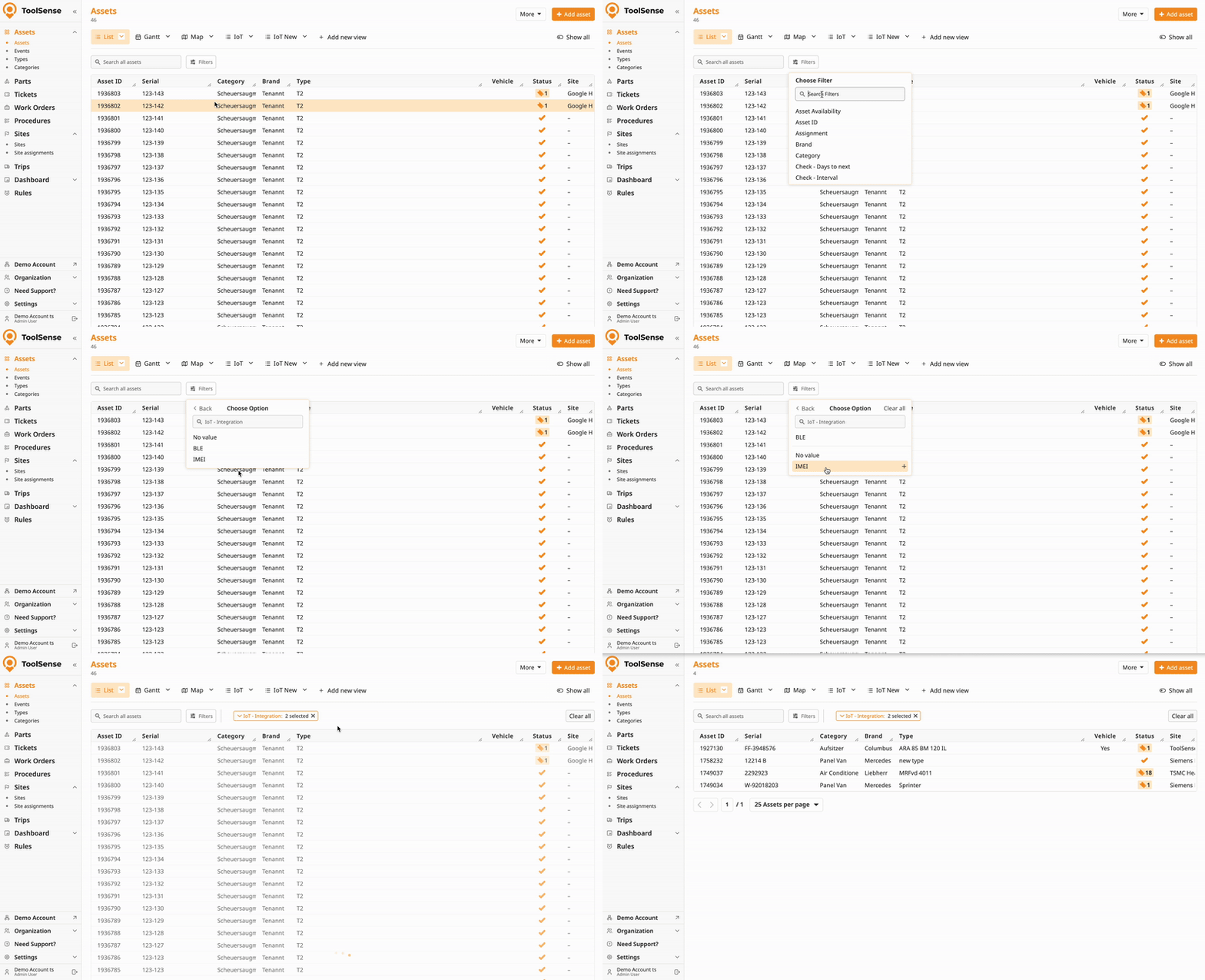
Navigate to a List view of your choice (e.g. Asset List).
Open the Filters panel in ToolSense.
Pick a filter category (e.g., IoT Integration, Type).
Specify your values.
Click anywhere on the screen (except on the filter pop-up) to enable the filter.
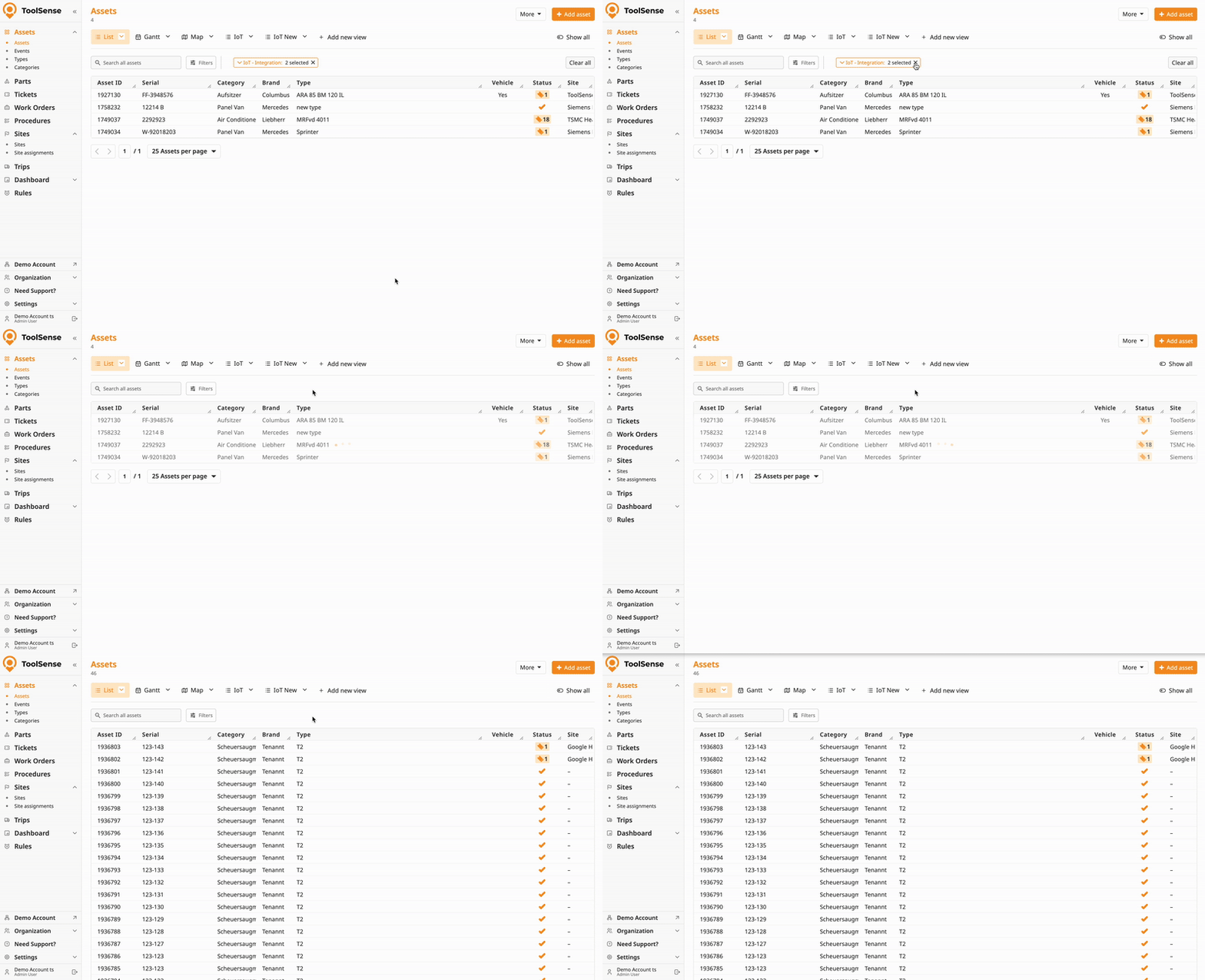
Remove a filter by clicking the × on that filter.
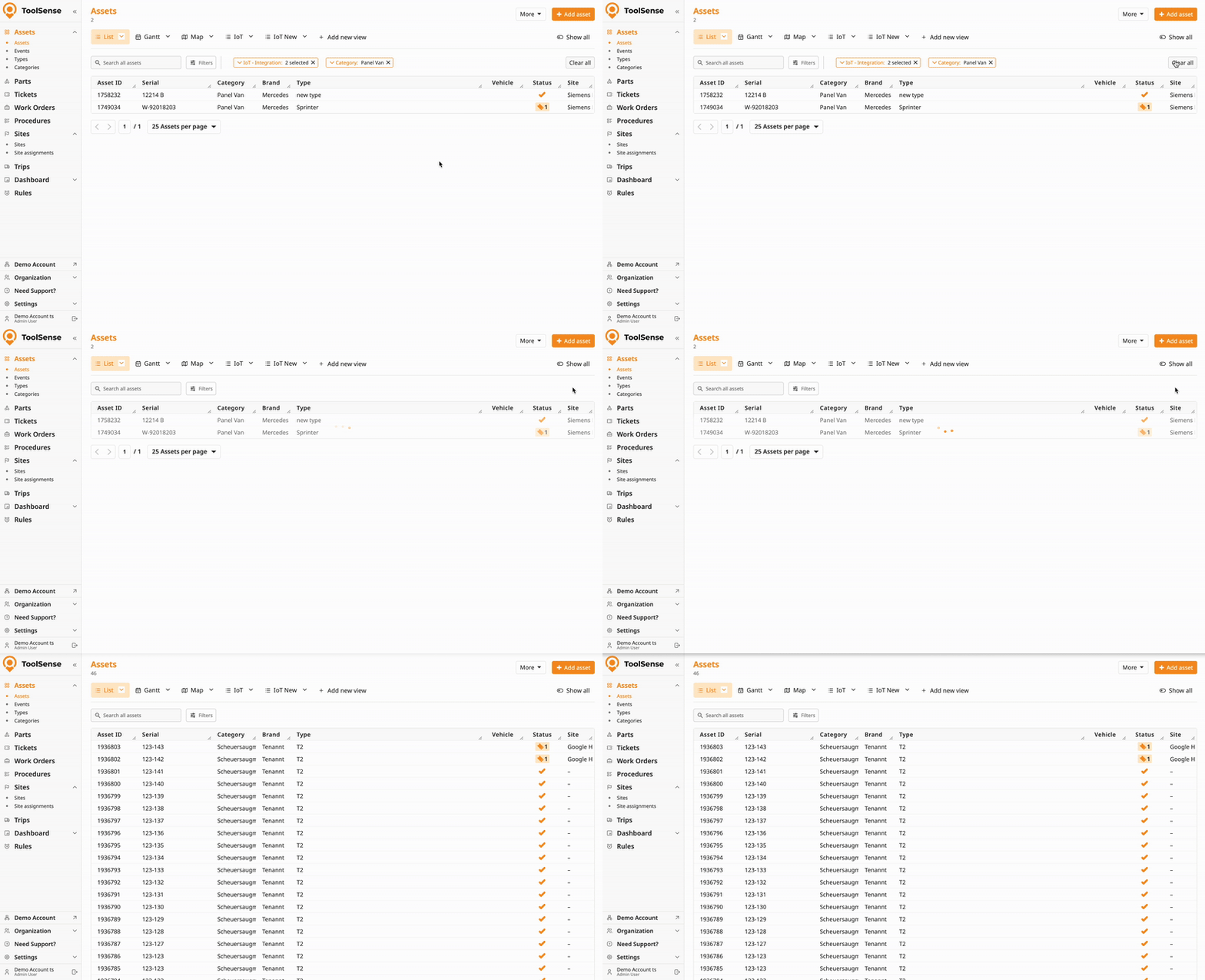
Clear all filters with the Clear or Reset button in the Filters panel.
Leaving the page will reset unsaved filters (unless you save them as a View - see below).
If you run the same filtered view frequently, save it as a View. Saved views persist filters and column settings and can be exported or shared.
How To Create and Manage Views in ToolSense
Create, update, and delete custom list views.
Examples
Recurring checklist: Relative Timeframe = Last 7 days + Type = “Check” → save as “This week’s checks” view.
Missing QR report: Filter where QR Code = empty AND Site = [customer] → export the filtered list for follow-up.
Date and Number Filters help you quickly narrow down assets, tickets, and costs based on timeframes or numeric values. They’re especially powerful when combined with views, allowing you to save filtered lists for recurring tasks like maintenance planning, renewals, or compliance checks.
 Date Filters
Date filters let you search using quick presets, relative timeframes, or exact dates.
Use predefined time ranges for fast filtering:
Today / Tomorrow
Next 7, 30, or 90 days
Has date specified / No date specified
Example:
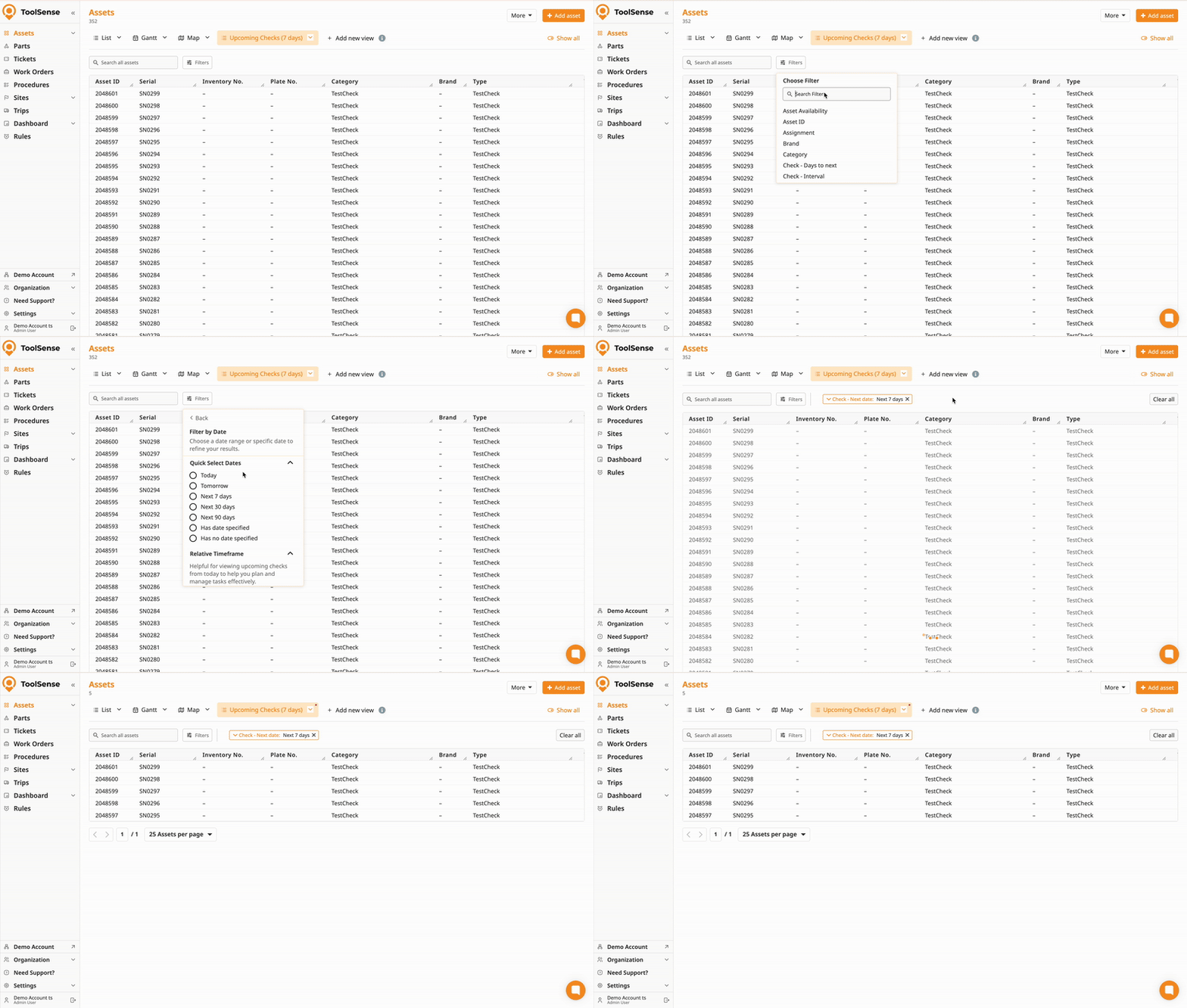
Check which assets need maintenance soon by using “Next 7 days” on Check – Next Date.
Filter dates relative to today using days, months, or years:
Exactly X days ago / from now
More than X days ago / from now
Less than X days ago / from now
In between X and Y days ago / from now
Examples:
Find tickets created over 30 days ago using “More than 30 days ago”.
Track upcoming inspections with “In between 15 and 45 days from now”.
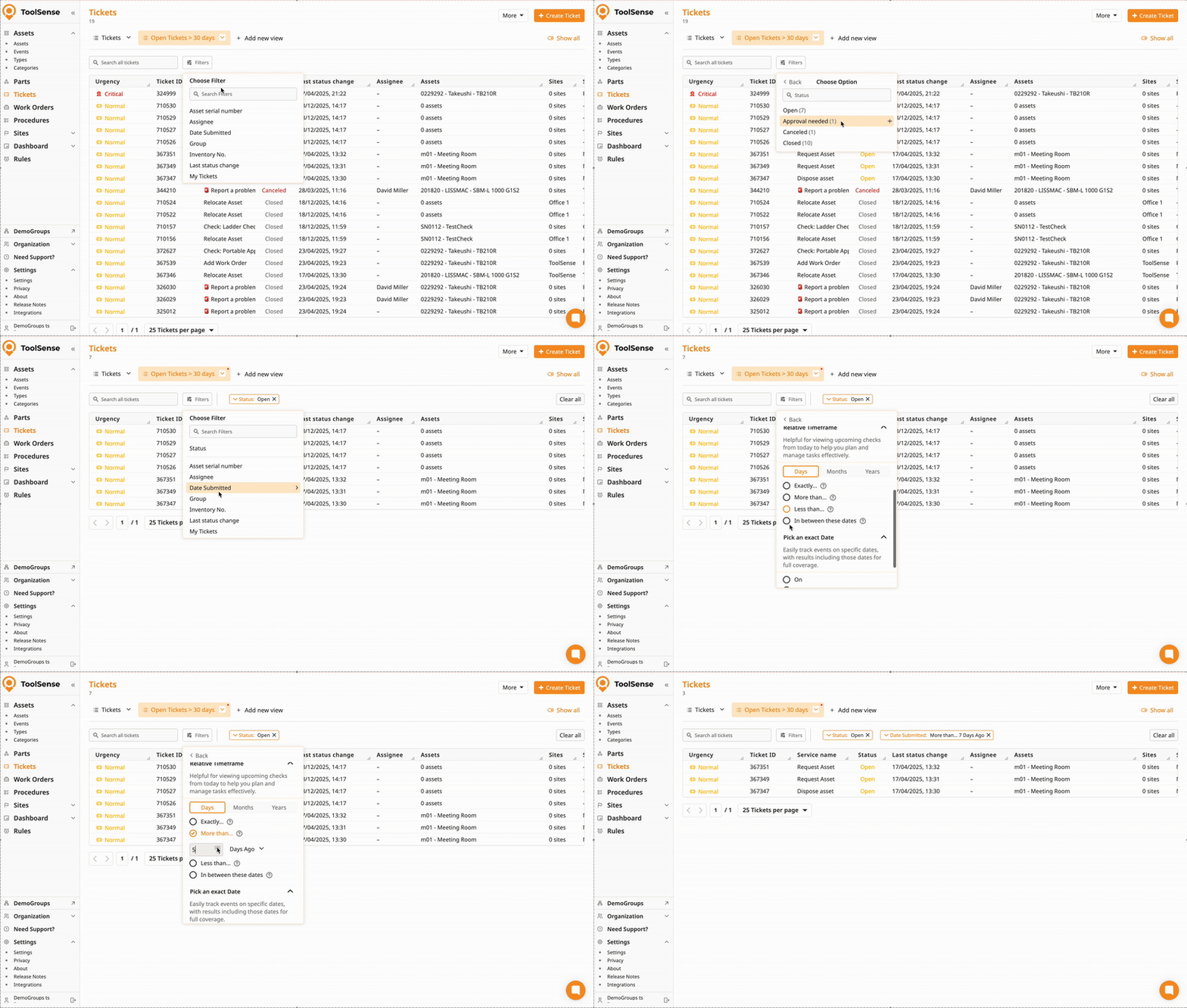
Filter using specific calendar dates:
On
Before
After
In between
Example:
See all tickets submitted on a specific day using Date Submitted → On.
 Number Filters
Number filters help you search by exact values or ranges.
Available options:
Exactly X
More than X
Less than X
Between X and Y
Has value / No value
Example:
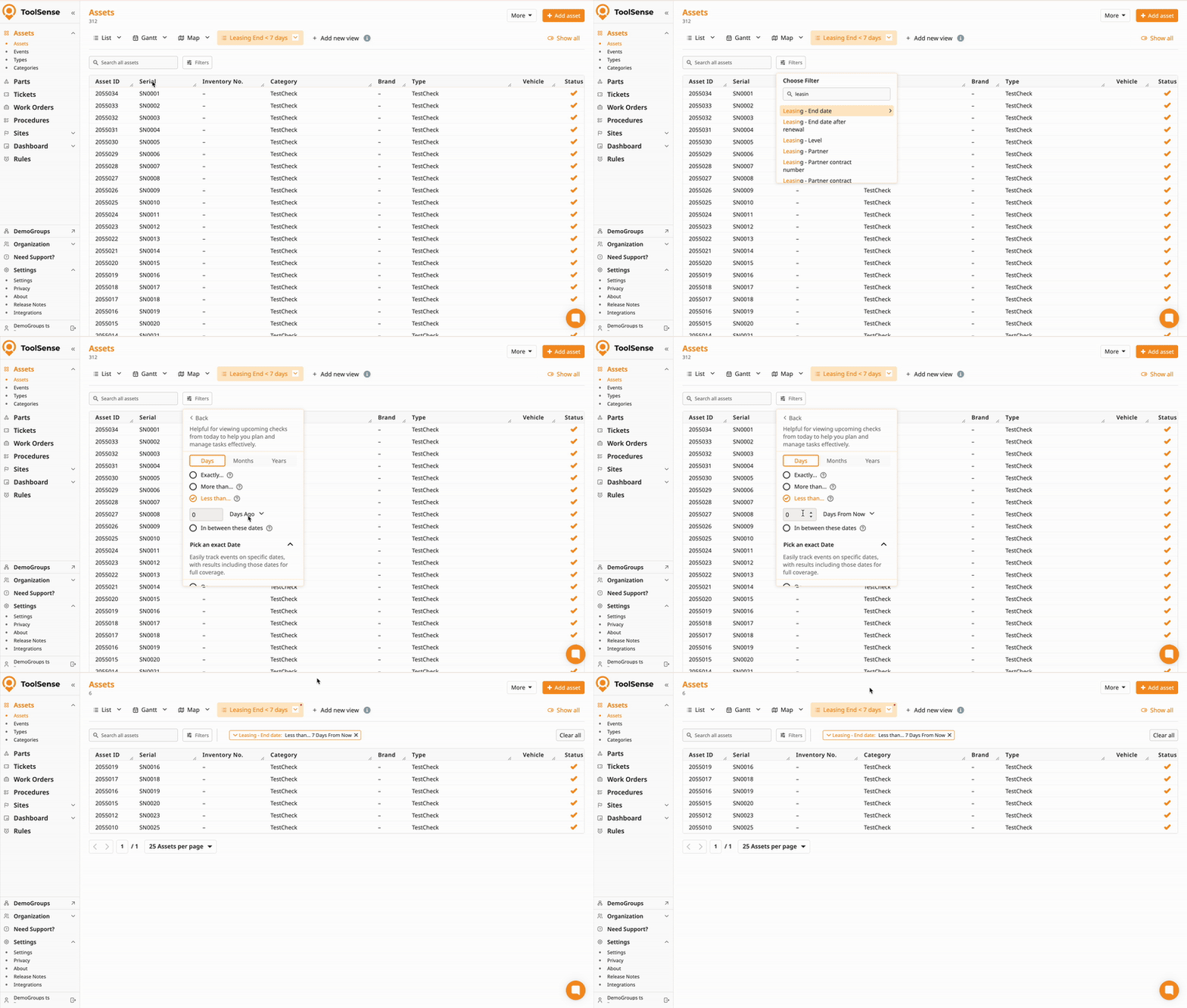
Find assets with leases ending soon by using the less than filter option.
 Pro Tips
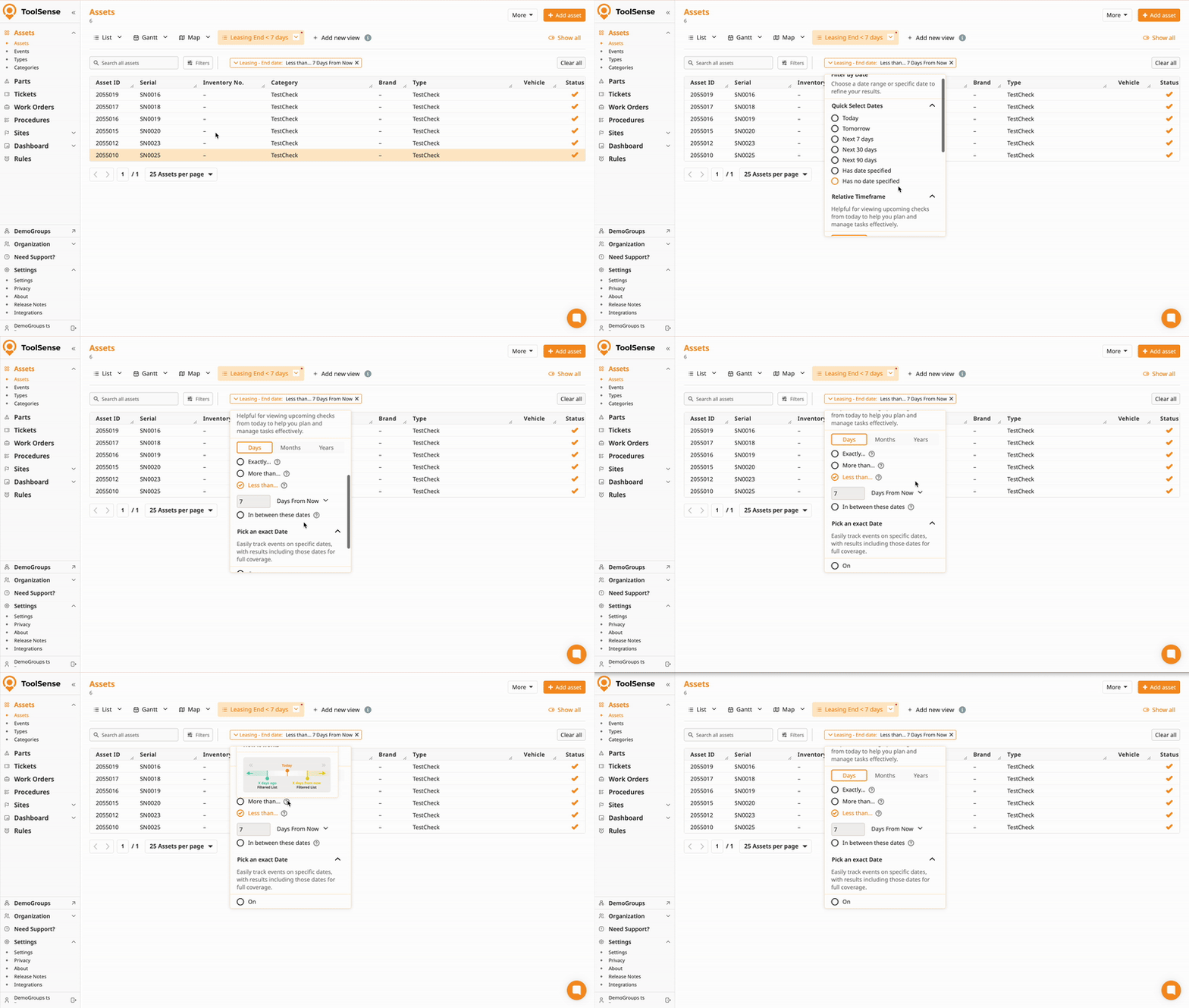
Not sure how a filter works? Use the tooltips to see a short visual preview of how the timeframe is applied.
Using the same filters often? Save them in a view to quickly access the same results again.
How To Create and Manage Views in ToolSense
Create, update, and delete custom list views.

