To create a new view you can either add a new one or duplicate an existing one.
Click on the Add New View button in the Views bar.
Enter a Name for the View, it is the only required field.
(Optional) Select the Display Mode and Columns for your view. For more information on changing the column visibility, consider the article below:
How To Manage Column Visibility in A View
Hide or Unhide Columns in one of your Views
Click on Save New View to save.

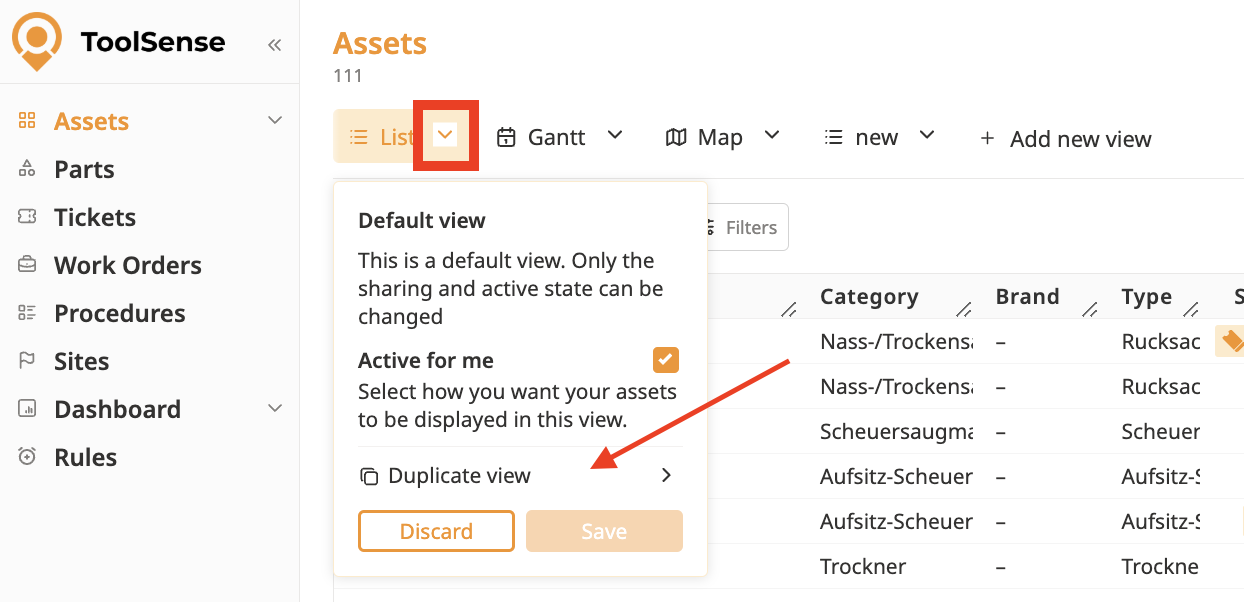
Instead of adding a new View, you can as well duplicate an existing View with all of its settings and filters.
Click the Arrow next to the view you want to duplicate.
Select Duplicate View.
Click on Save.

You can update the following aspects of a view:
View Name
Display Mode
Shared <-> Unshared
Active for me
Visible columns
Column order
Default sorting
Active filters
Search string
When you make changes to a view, a small red dot appears in the top-right corner of the View tab in the Views bar. This indicates that there are unsaved changes.
If you leave the current page, unsaved changes are automatically reset.
To manually discard changes, click the Discard button in the view pop-up.
If you do not have sharing rights, you can only delete views that you created yourself.
If you do have sharing rights, you can delete any views created within your group.
To delete a view you have to click the Delete button in the view pop-up.
