There are two ways to set up checks in ToolSense:
1. Via the “Rules” section – Configure a check and assign it to one or more assets. Recommended method: This approach allows you to assign assets to multiple checks and define intervals with more flexibility. To bulk add assets to a check, please send an Excel file with the serial numbers, IDs, and last check dates of your assets to our support team.
2. Via the Asset Edit Tab – Create a check directly in the Asset Edit tab or during asset creation/import. Not generally recommended: With this method, you can only add two checks per asset (Asset Check and Asset Maintenance). However, it may be useful if your team needs to add checks directly when creating an asset via mobile, or if you prefer to mass-import them yourself using our Excel import tool.
Please follow the instructions below for both methods.
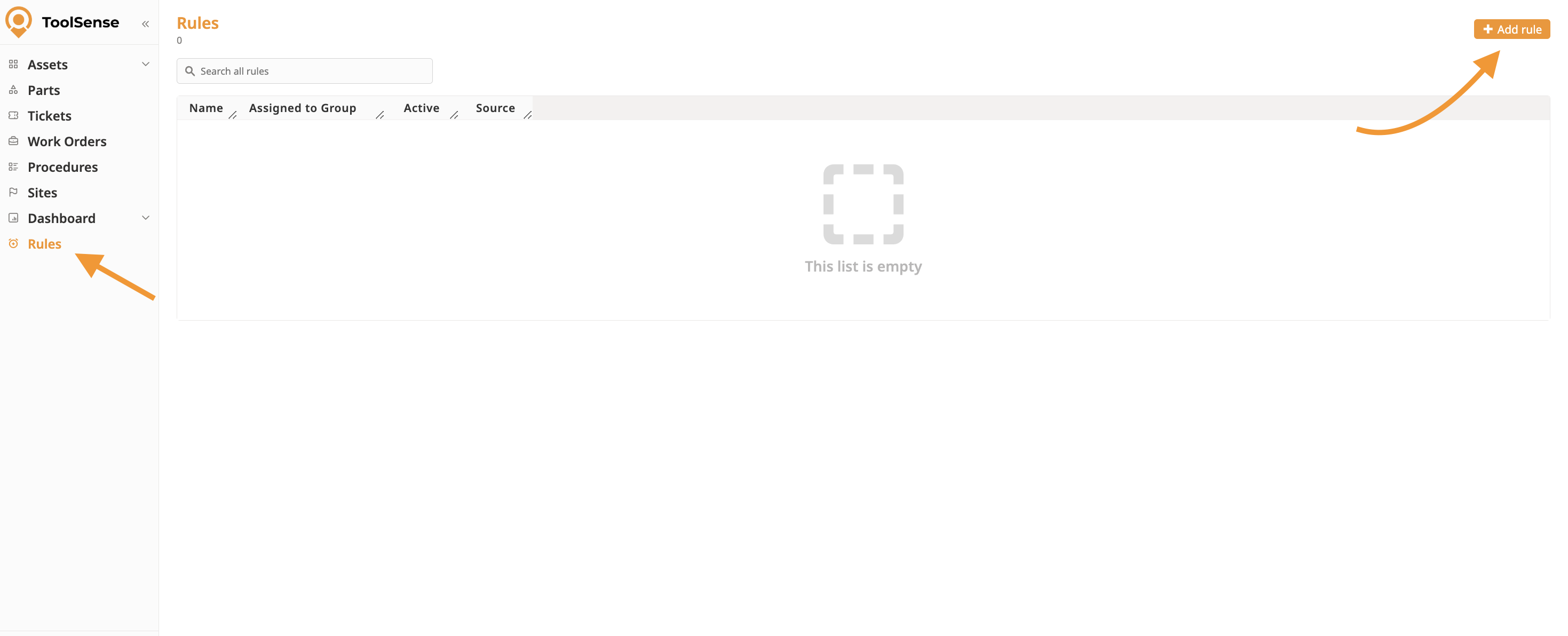
Go to the “Rules” section: Navigate to the Rules section in your ToolSense account and click Add Rule.
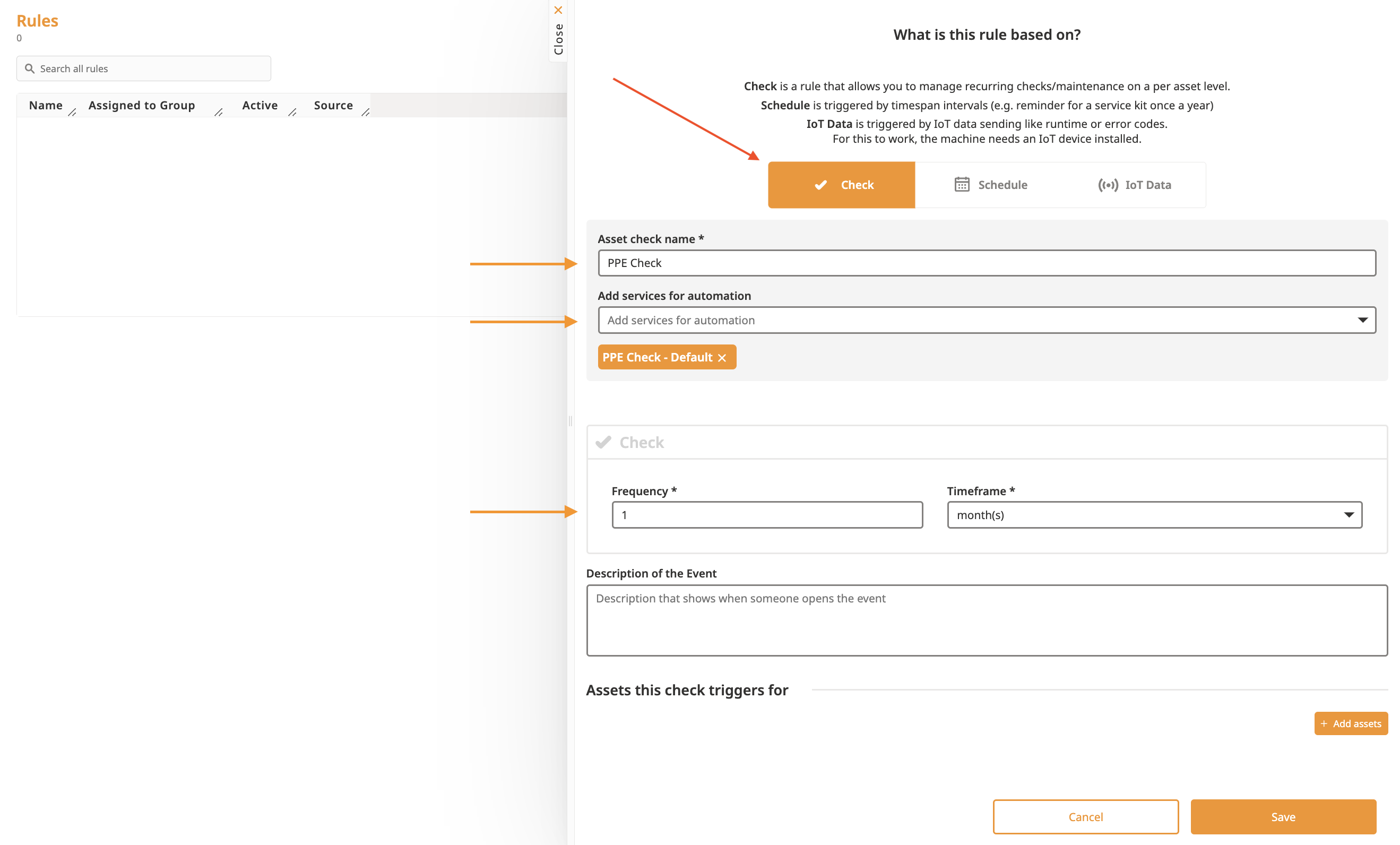
Fill in the rule details: Provide the necessary information for your check.
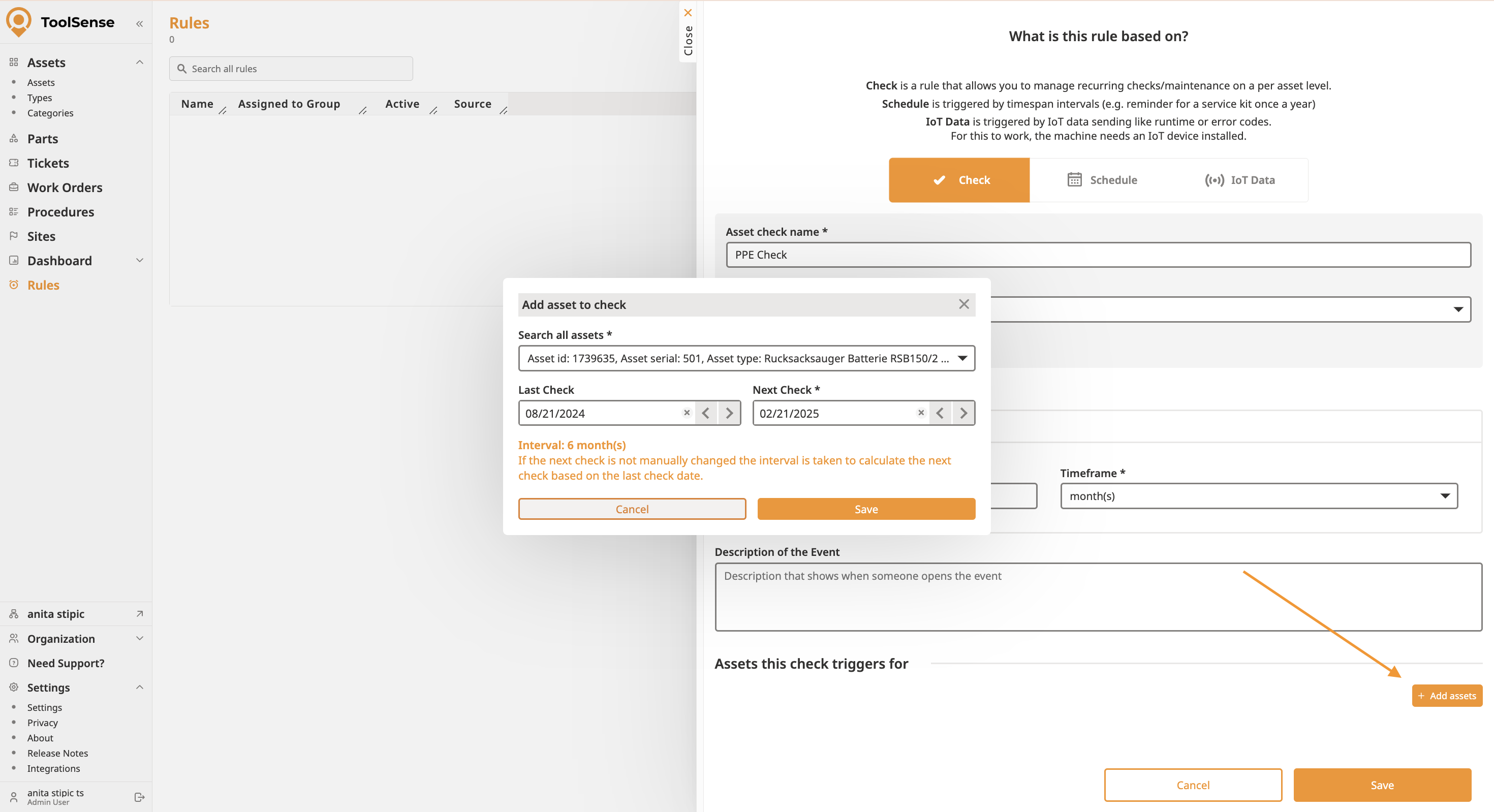
Add assets: Start typing in the Search all assets field to find and add the desired assets.
Save the rule: Click Save in the bottom-right corner.
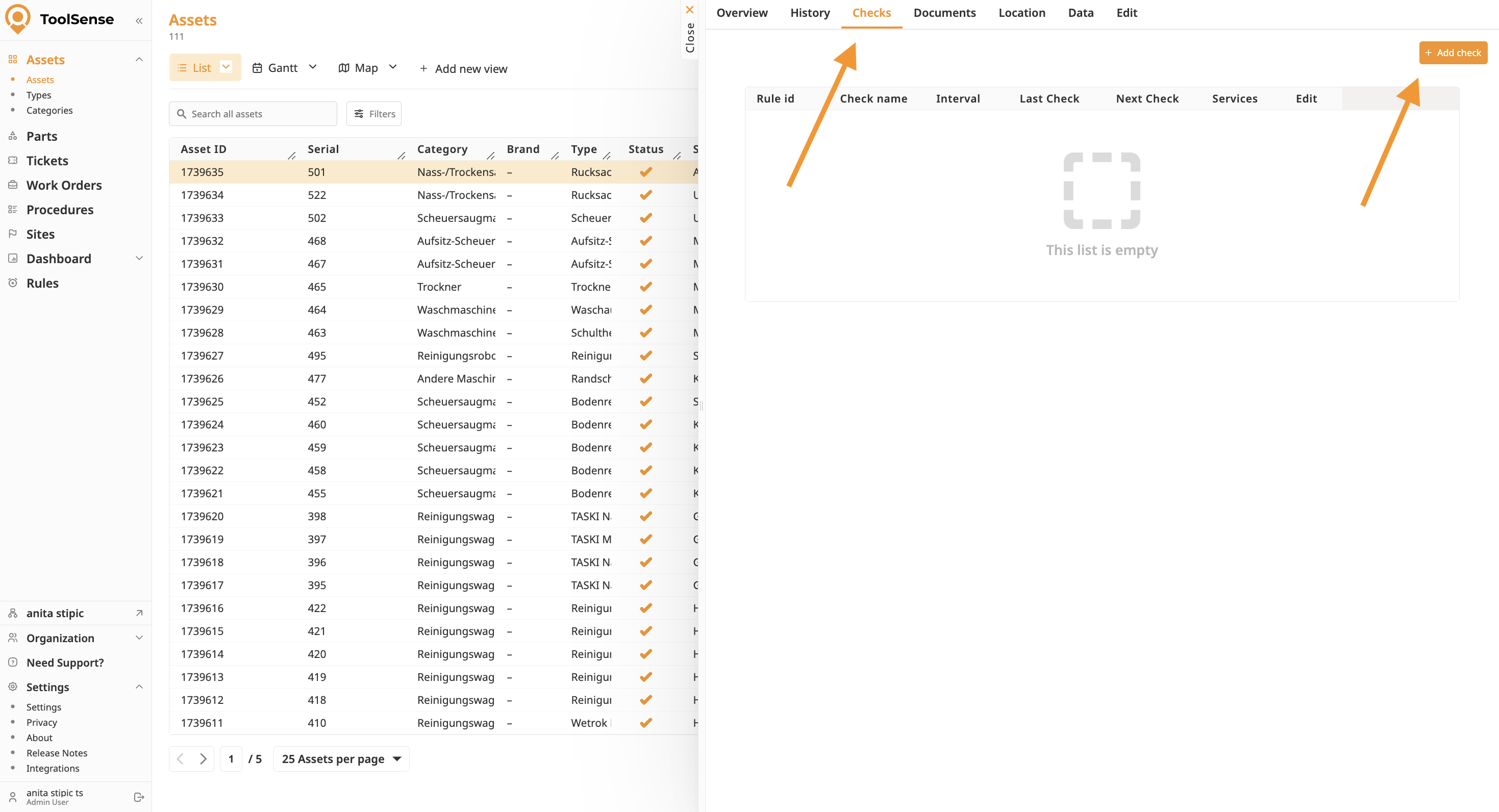
Select an asset: Open the asset you want to assign the check to.
Go to the “Check” tab: Click the Add Check button.
Fill in the check details: Enter the relevant information for your check.
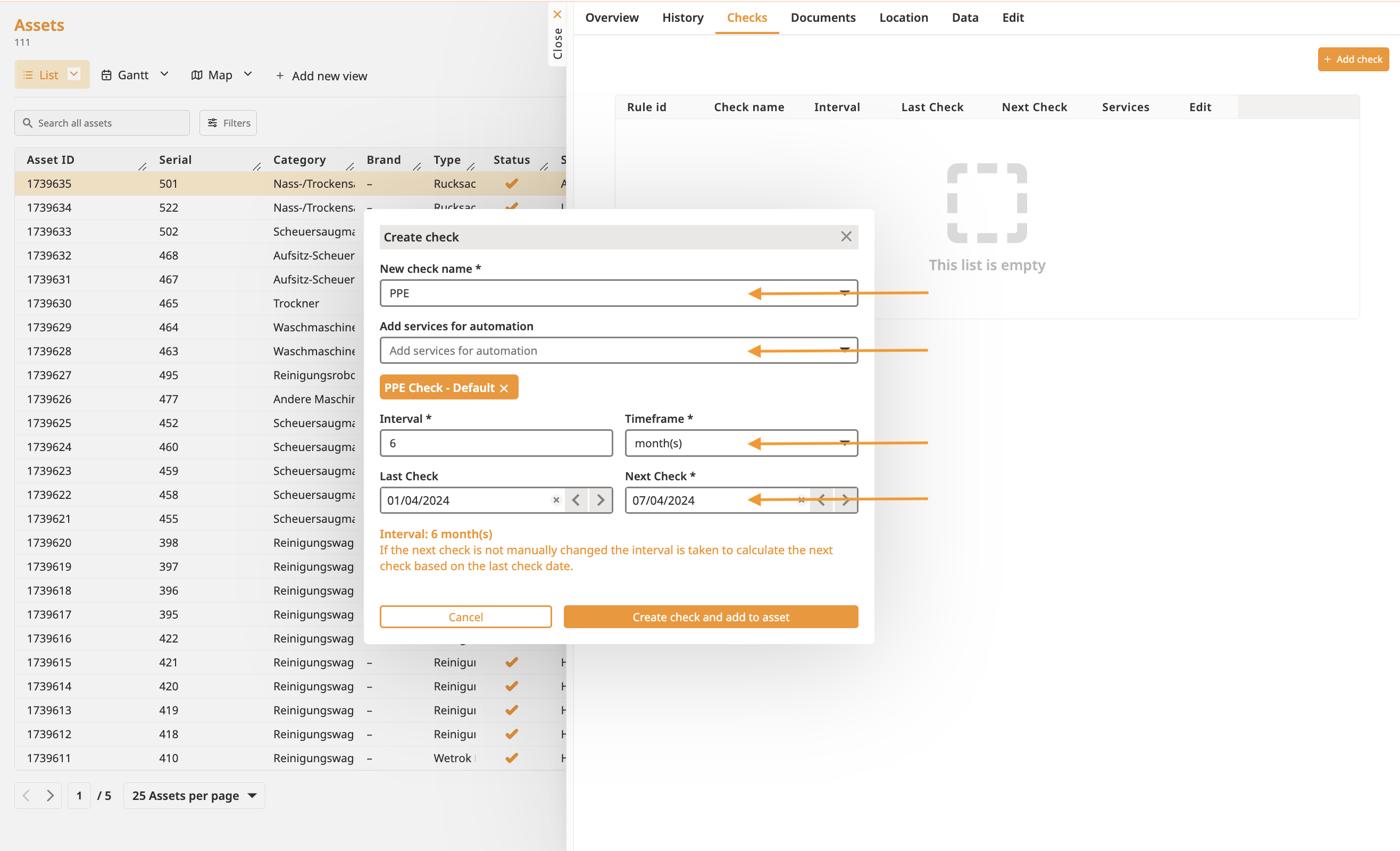
Save the check: Click Create Check and Add to Asset.
Note:
This process will create a new check rule in the Rules section. To assign additional assets later, go to Rules, select the relevant rule, and click Add Asset.
You can add a check when creating (Mobile & Web), editing, or importing an asset. Simply fill out the Maintenance or Check input fields.
If you choose this method, you don’t need to attach form or procedure directly to the check. Instead, just make it available via the Service Package settings.
How To Add and Configure Services
Manage Forms and Automations of your Services
If the service you’re trying to automate isn’t available, it may be due to visibility setting of the service or its package.
Check out this article for more details:
How To Add and Configure Services
Manage Forms and Automations of your Services
 Click here to watch the video on how to set up a check.
To learn how to perform checks you’ve set up, check out the following articles:
How to Perform a Check
A guide on how to perform Checks / Inspections via the ToolSense Web App

