In ToolSense, Sites are flexible containers for your assets. While standard use cases often include buildings, locations, and construction sites, you can think of a Site as anything that can hold assets.
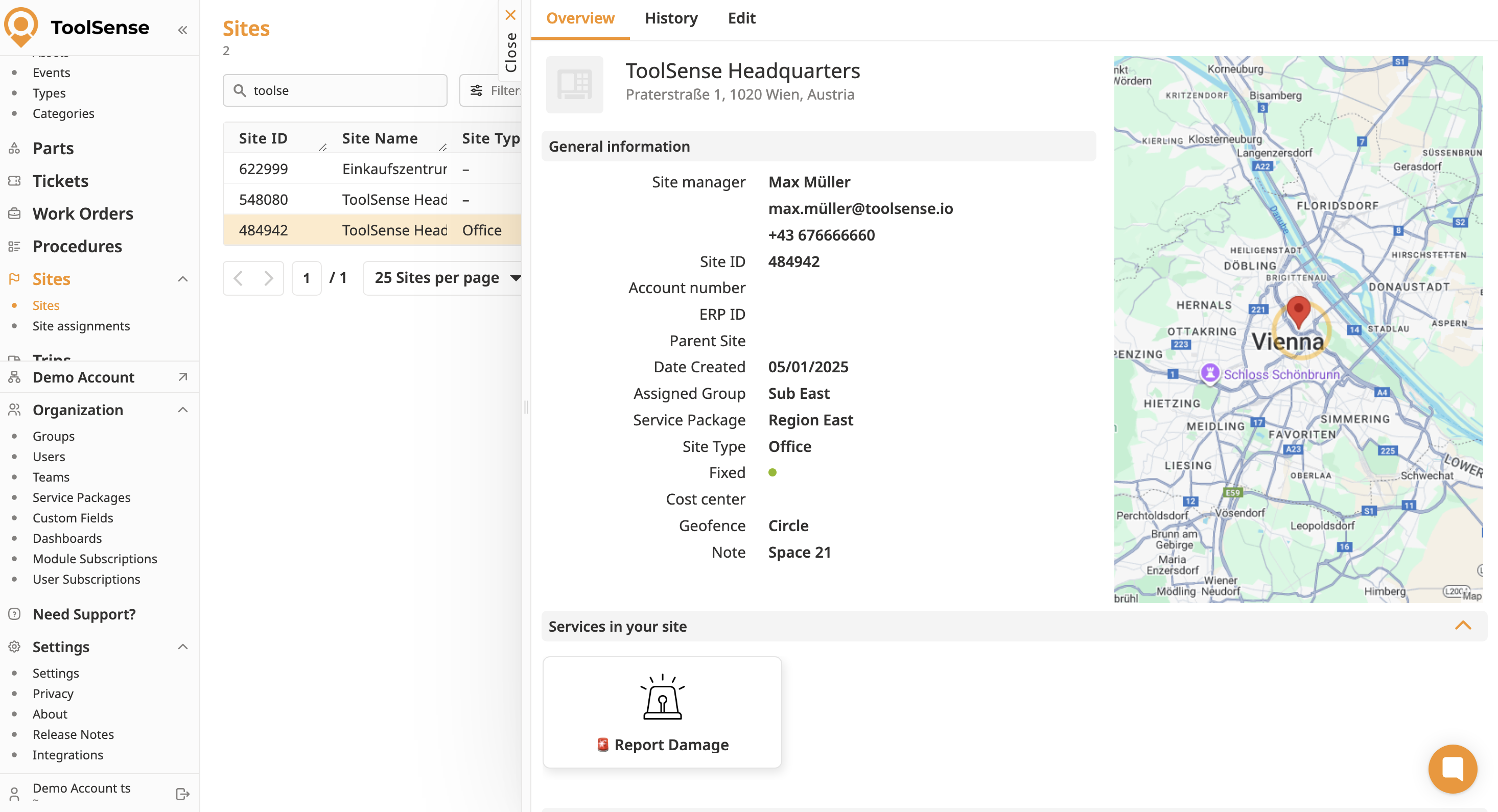
If Site Assignment is enabled (by your CSM or ToolSense Support), you can also track how long an asset has been assigned to a specific Site. This allows you to keep a history of asset movements between Sites - and, with an optional add-on, automatically calculate the costs for the assignment period. Contact your CSM or Support to activate this feature.
Although most companies use Sites for physical locations, others set them up for vehicles, people, or even process stages. This article explains the core functionalities of Sites and provides examples so you can adapt them to your own workflows.
You can nest Sites for more granular tracking - for example, linking rooms to buildings. For more information on subsites, refer to the article below.
Overview: Understanding Subsites in ToolSense
All about subsites and common use cases.
Just like assets, Sites can have QR Codes.
Placement ideas: On doors, gates, vehicles, or internal folders/documents at the Site.
Usage: Link services such as cleanliness reports or add safety guidelines directly to a Site.
Access control: Choose whether services are only available to ToolSense users or also to non-users via a QR code landing page.
How To Assign a QR-Code
Add a QR-Code to an existing Asset
Examples:
Cleaning: Attach QR codes to each floor entrance for quick cleanliness checks.
Construction: Place QR codes at site entry points for safety documentation access.
Assign one or multiple Site Managers to each Site to:
Control who gets notified about tickets for that Site or its assets.
Ensure managers receive a weekly Site Manager email summarizing events, asset updates, and upcoming asset checks.
Weekly Summary Emails for Site Managers
Get Detailed Reports on Your Asset Leasing, Maintenance, Warranty, and More Every Week
Track the duration an asset stays at a specific Site. This helps with:
Understanding asset utilization across locations.
Creating a movement history for auditing and operational planning.
 Add-on: With the Site Assignment Cost Calculation add-on, ToolSense can automatically calculate the costs for each assignment period. This is especially useful in scenarios such as construction projects for customer billing, internal cost allocation between departments, or rental businesses charging for usage time.
Contact your CSM or Support to enable this feature.
Assets can be moved between Sites using:
The Relocation Service in ToolSense
A Procedure automation
If you’re using ToolSense IoT, you can set up geofences for Sites. These automatically alert you when an asset arrives at or leaves the Site.
How To Set Up Geofencing
Step-By-Step Guide for adding Geofences to your site.
Overview: View & Manage Site Data
A comprehensive guide to viewing, creating, updating, and deleting site information in ToolSense.
You can also create and update Sites via integrations.
Check available integrations here:
ToolSense Software Integrations & OEM Partnerships
List of live and WIP 3rd party IoT integrations, software integrations and white-label OEM partnerships
Guide for rolling out new integrations:
Integrate ToolSense with 3rd - Party IoT Hardware / Systems
Integration with your system
Cleaning companies: Track each customer building or floor as a Site.
Construction companies: Manage construction sites and sub-locations for ongoing projects.
Assign assets to vehicle Sites and use the relocation form to track their transport and current load.
Example: A cleaning company van carrying multiple machines, tracked as a Site.
Use Sites to represent employees for tracking assigned equipment such as technical equipment.
Example: Assign a set of tools or devices to an employee’s Site, and document handovers with a form that automatically relocates the asset.
Represent stages in a process where assets are checked in/out or serviced, and move them using the relocation automation.
Example: For rental businesses, track each step from check-out to return inspection.
