This article provides an overview of how to view and manage site data in ToolSense. For detailed step-by-step instructions on creating, editing, deleting, and bulk managing sites, please refer to the linked articles below.
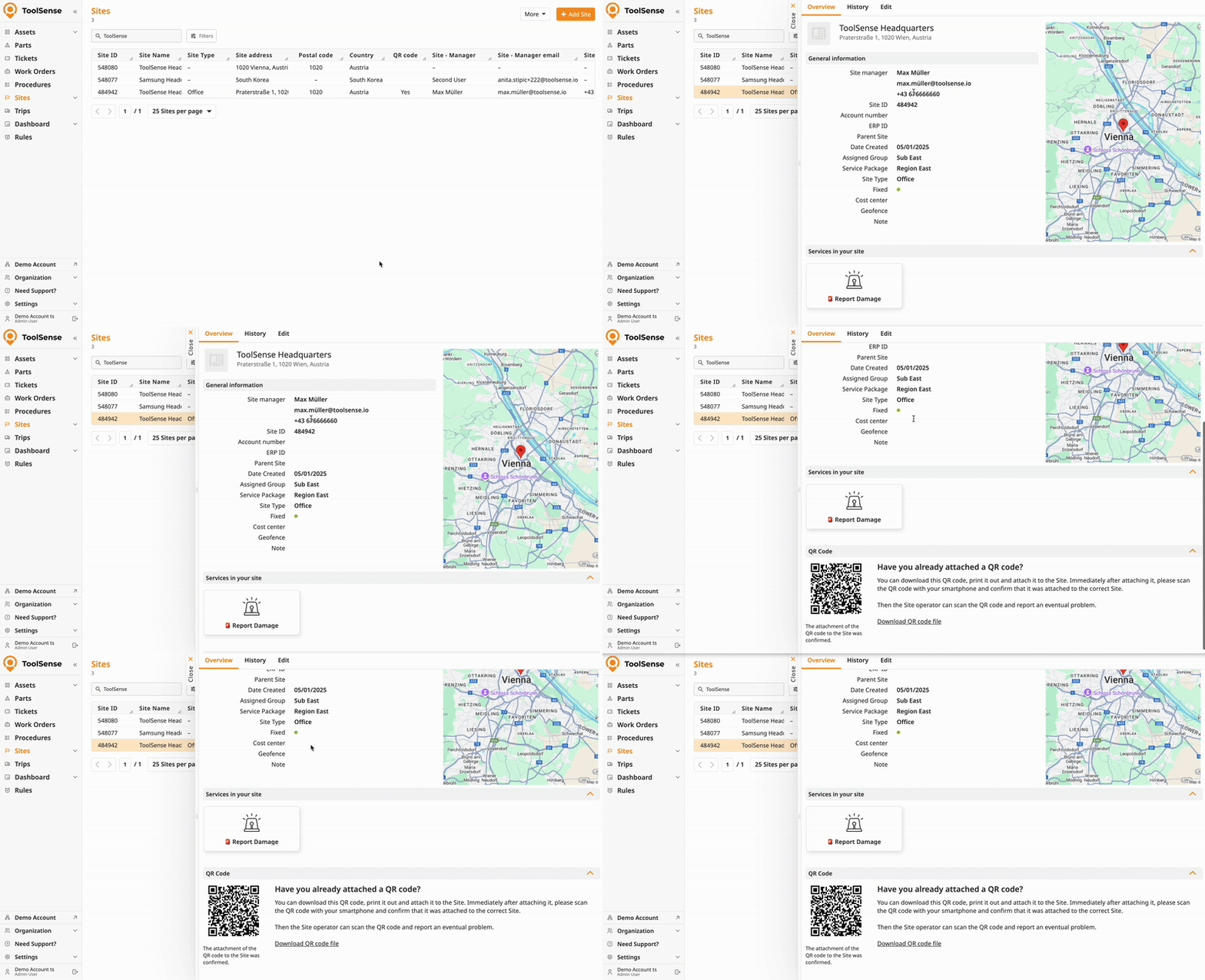
In the Site Overview, you can quickly access essential details about each site, including name, type, location, site manager, and related service packages.
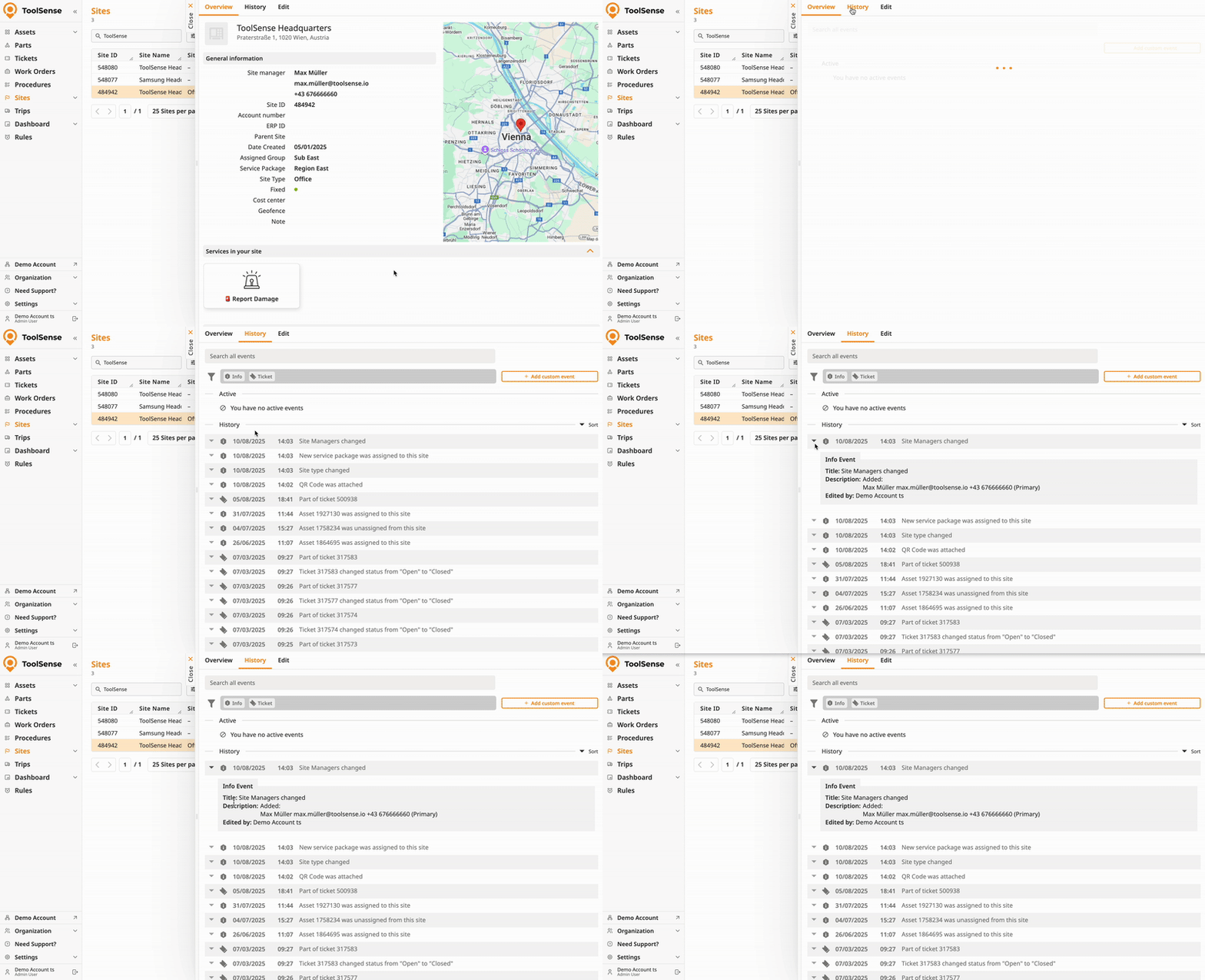
The Site History tab logs all important changes and activities related to the site, such as edits to site information, and site manager updates. This provides a transparent audit trail.
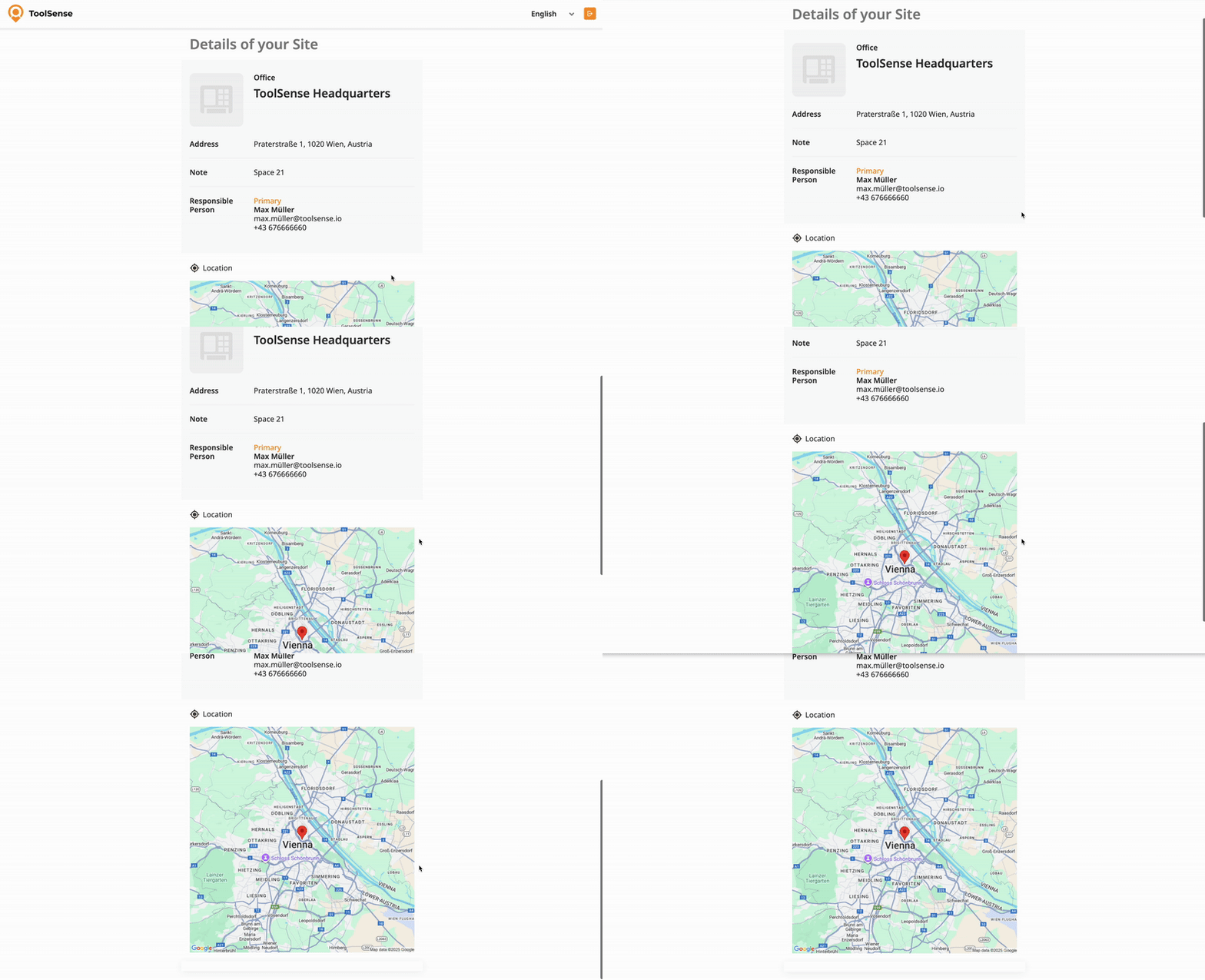
Each site can be linked to a unique QR code that is physically attached at the site location. Scanning the QR code brings up the site’s landing page with key information and options for reporting issues or accessing services.
To create, update, or delete site data, you can manage sites either manually or via bulk operations. For more information, refer to the article below.
How To Add, Edit and Delete Sites
Step-by-step instructions for manual site management and links to bulk import, export, update, and delete guides, plus detailed field explanations.
Site Name (required): The unique identifier for the site (e.g., "Main Office," "Site A," "Truck 7").
Address (recommended): Physical location of the site, important for mapping and location tracking. Assets without IoT devices inherit this address.
Site Type (optional): Classify the site (e.g., Room, Building, Construction Site, Vehicle, Employee) for better organization and filtering.
ERP ID (optional): External system reference to connect site data with ERP or other platforms.
Site Account Number (optional): Internal reference number for accounting or administrative use.
Service Package (optional): Assign service plans or packages relevant to the site (e.g., cleaning, maintenance).
Parent Site (optional): Link a site as a subsite to a parent site (e.g., a room under a building).
Site Managers (optional): Assign one or more responsible managers who receive notifications and weekly reports.
Geofencing (optional): Set geographical boundaries to receive alerts when IoT assets enter or exit the site area.
Fixed / Not fixed (with a Red or green dot): This provides the information if the Site has a proper address (Kaiserstrasse 87, Wien) or if the Site is a “moving” Site (a Car / a person, etc….)
How To Set Up Geofencing
Step-By-Step Guide for adding Geofences to your site.
