For more information on sites and site rollout, refer to the following article:
Overview: View & Manage Site Data
A comprehensive guide to viewing, creating, updating, and deleting site information in ToolSense.
Navigate to the Sites page in the left navigation bar.
Click Add Site in the top right corner.
Fill out the necessary details - at minimum, the Site Name is required.
Click Save.
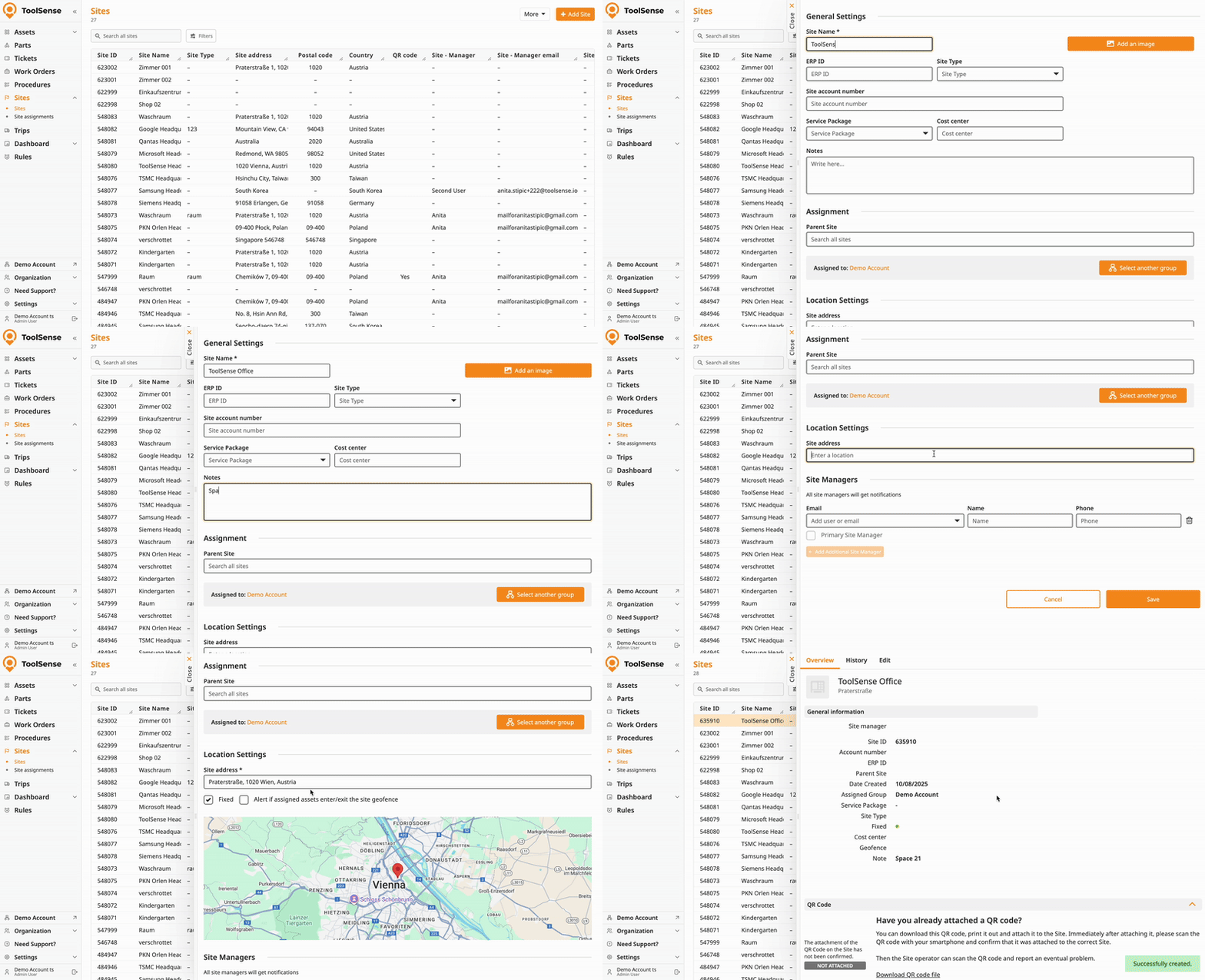
Navigate to the Sites page in the left navigation bar.
Select the site you want to edit.
Add or change any information as needed.
Click Save.
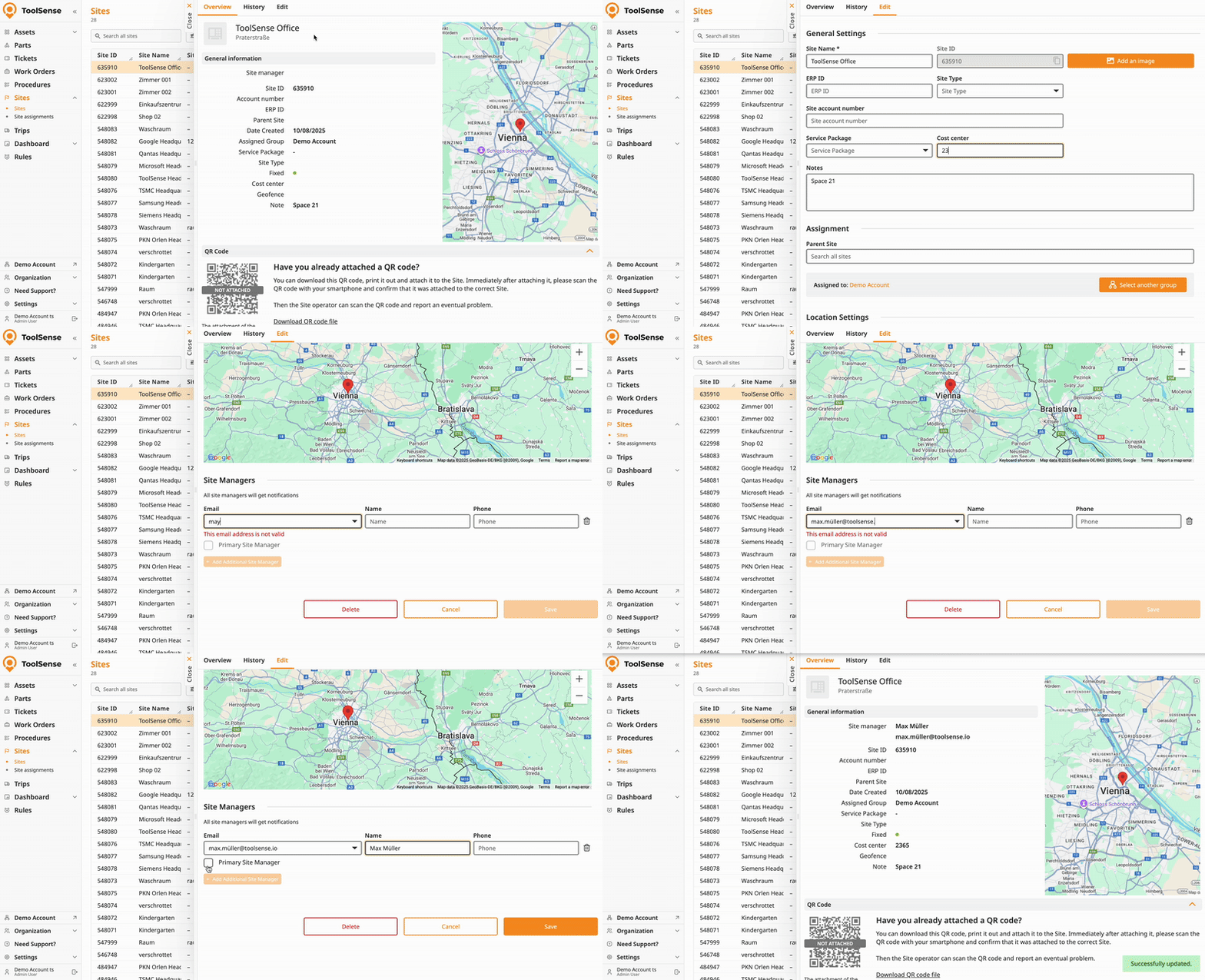
Navigate to the Sites page in the left navigation bar.
Select the site you want to delete.
Click Delete and confirm.
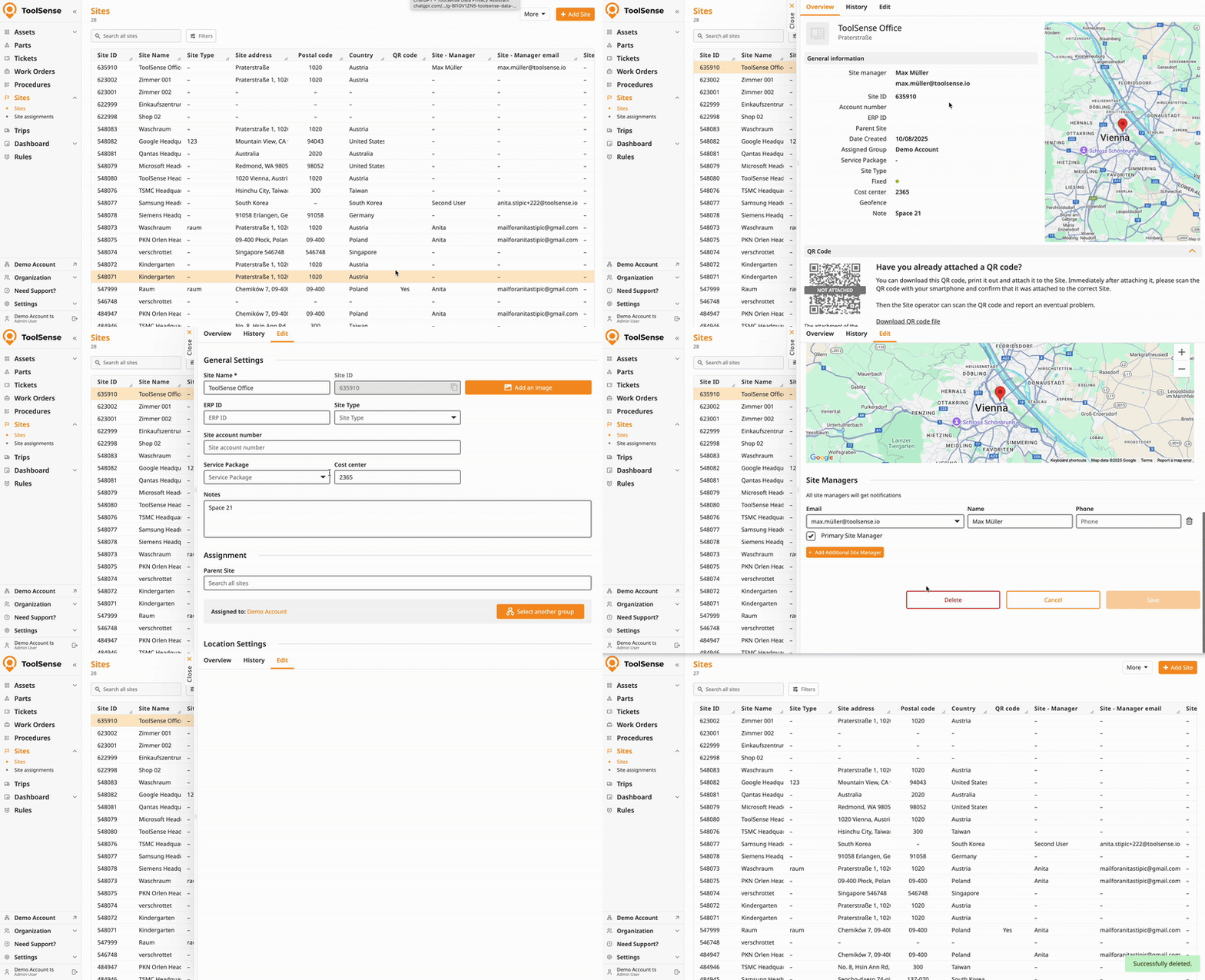
To learn all you need to know about bulk site management, check out our articles on:
Bulk Importing
How To Import Sites with the ToolSense Excel Import Tool
Step-by-step guide to quickly upload your site list
Bulk Exporting
How To Export Sites from ToolSense
Step-by-Step Guide for exporting site lists
Bulk Updating Sites
How to Update Sites in ToolSense
Step-by-Step Guide for Mass Updating Site Data in ToolSense
Bulk Deleting Sites
To bulk delete sites, please contact our support team with the list of site IDs you wish to remove.
Site Name (required): The unique name for the site, e.g., "Main Office," "Construction Site Alpha," or "Delivery Van 12."
Address (recommended): Physical address of the site. Important for map views and location tracking. If an asset has no IoT device, it inherits this location.
Site Type (optional): Categorize your site, e.g., Room, Building, Construction Site, Vehicle, or Employee. Helps organize and filter your sites.
ERP ID (optional): Reference ID from your ERP or external system to sync data more easily.
Site Account Number (optional): Internal account number if applicable.
Service Package (optional): Assign services to the site, like cleaning requests for easier service management.
Parent Site (optional): Assign this site as a subsite under a parent site, e.g., a room under a building.
Site Managers (optional): Assign one or multiple managers responsible for this site. They will receive notifications and weekly summaries about site events and asset status.
Geofencing (optional): Define geofence boundaries for the site to get alerts when IoT-enabled assets enter or leave the area.
How To Set Up Geofencing
Step-By-Step Guide for adding Geofences to your site.
