A Procedure in ToolSense is a structured workflow or form that standardizes processes such as inspections, problem reports, cleanings, or relocations. Procedures are the foundation of Tickets in ToolSense.
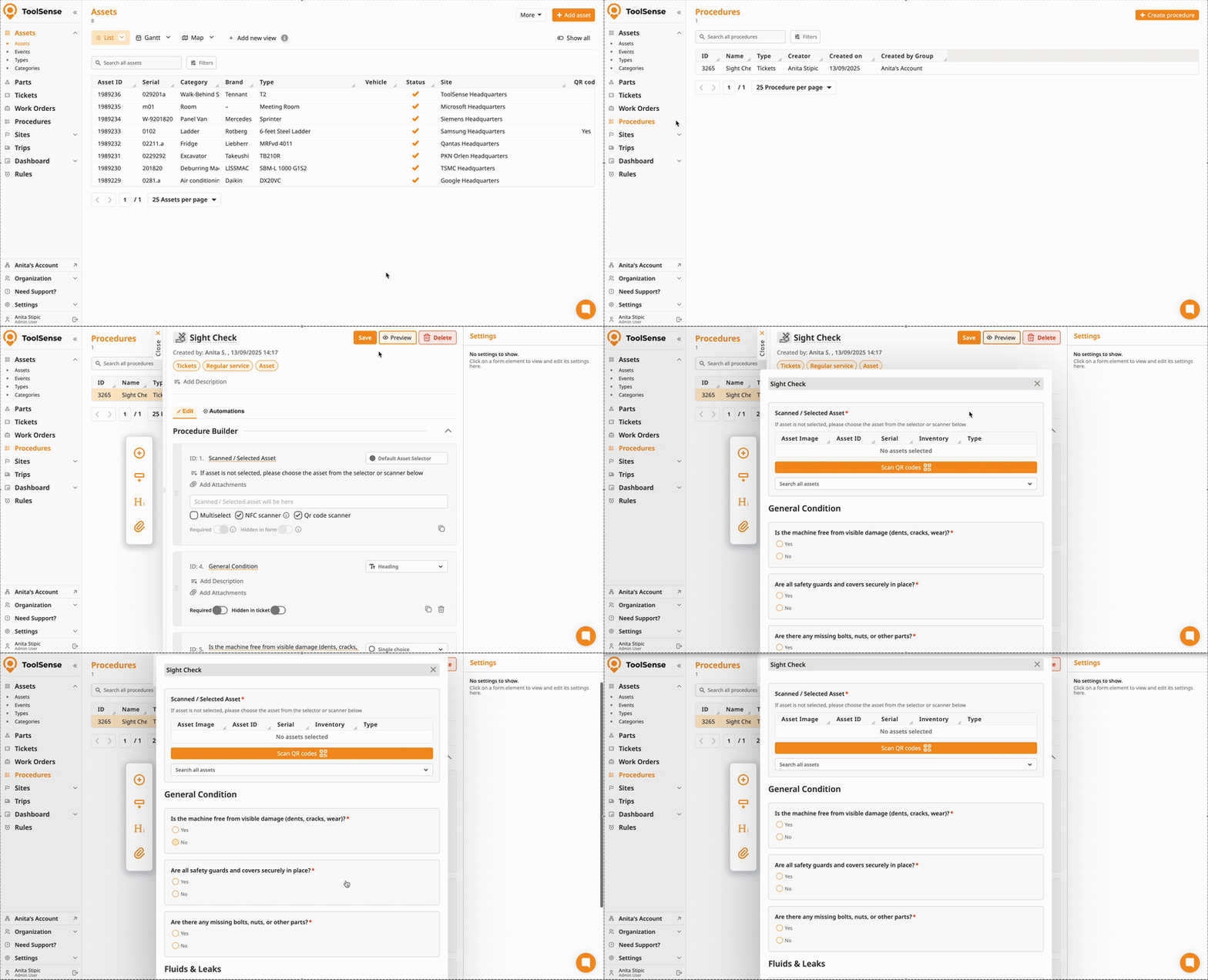
To create, edit, and view procedures, navigate to Procedures in the left-hand navigation bar.
If Procedures are not visible in your navigation, please contact our Support Team or your Customer Success Manager.
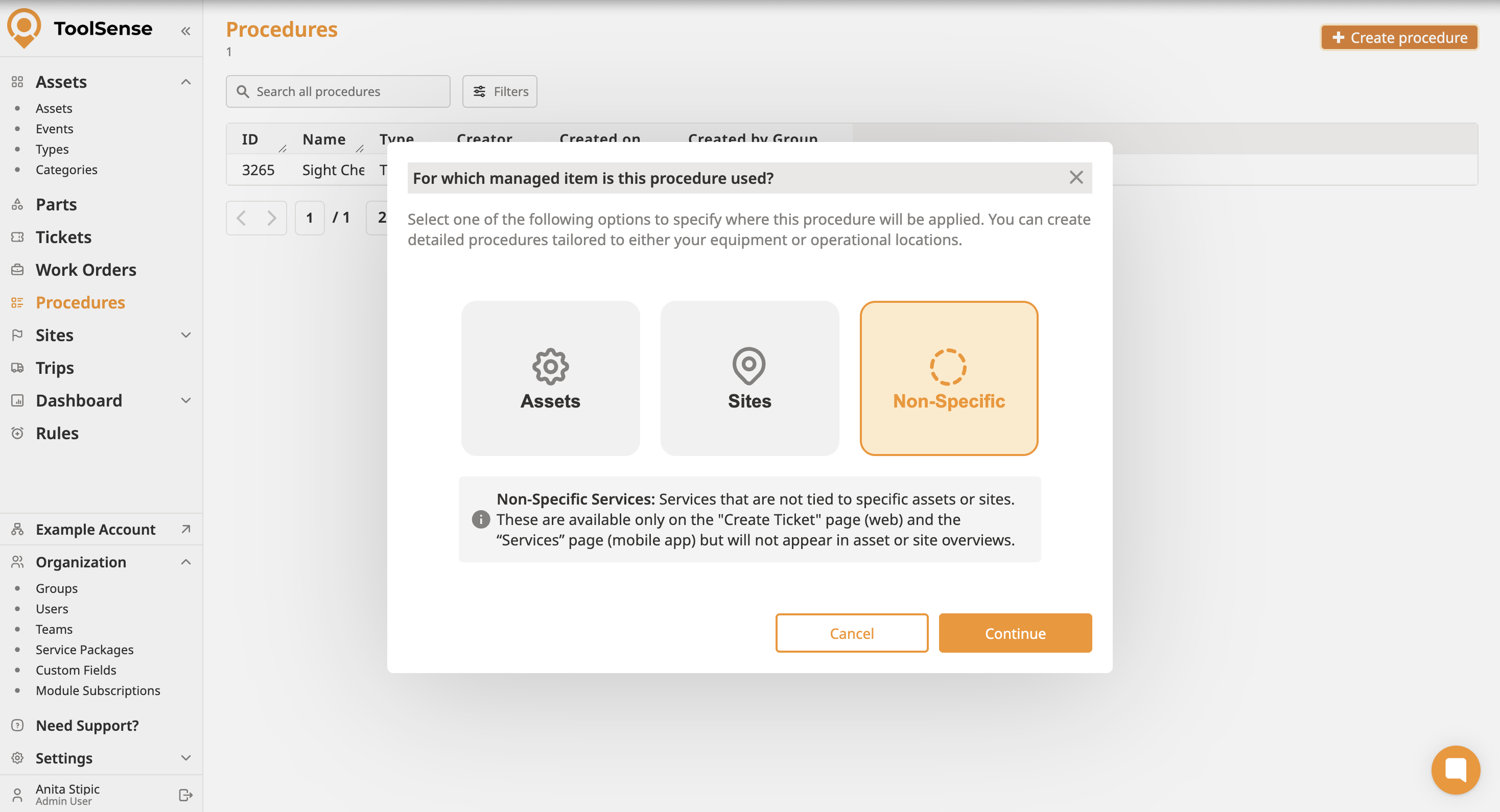
 Asset Procedures
Tied to an asset’s lifecycle (e.g., problem reports, relocations, checks). Includes an asset selector by default.
Regular Service → Standard procedures (e.g., relocation, handover, disposal).
Can be created via the Asset overview (Services tab) or the Tickets page.
QR Code Landing Service → Accessible to non-users via the asset’s QR Code Landing Page (e.g., problem reports).
Check Service → Used for scheduled asset checks.
Appears only in the Checks tab of the asset once configured via the Rules page.
Site Procedures
For site-related workflows (e.g., cleanliness checks, site reports). Includes a site selector by default.
Regular Service → Standard procedures (e.g., cleanliness check).
Can be created via the Site overview (Services tab) or the Tickets page.
QR Code Landing Service → Accessible to non-users via the site’s QR Code Landing Page (e.g., issue reports, service requests).
General Procedures
Flexible forms with no default settings.
Can only be created via the Tickets page or the Services page on mobile.
Examples: visitor logs, incident reports, or a training checklist not tied to a site or asset.
1. Navigate to the Procedures page and click + Create Procedure.
2. Select a preset as described above.
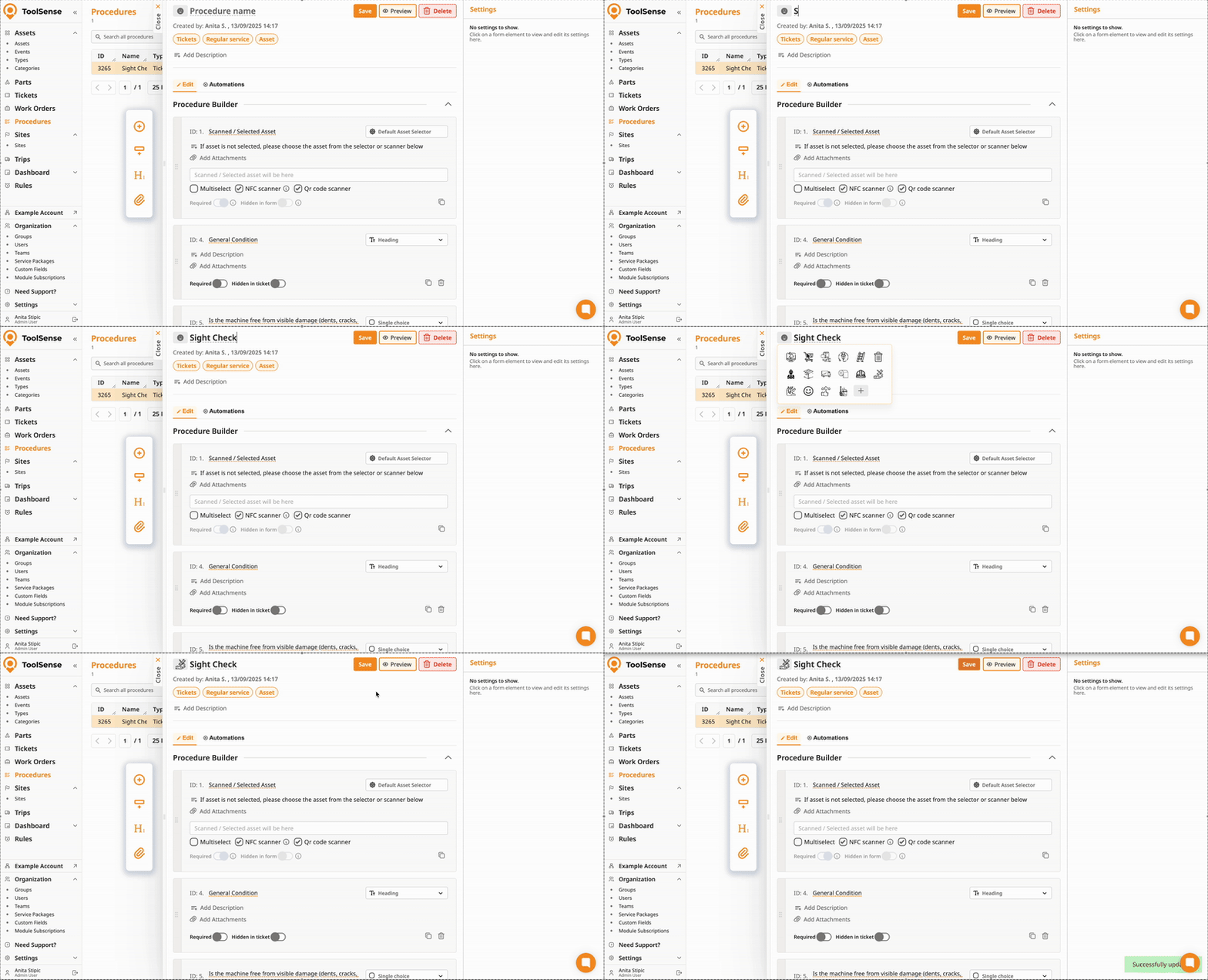
3. Add a name, icon and description
4. Add Form Elements
Click on the plus symbol in the left navigation bar to add a form element. Then use the dropdown in the top right corner of a from element to change it’s format. This is where you define the action a user should take - single choice, attachments, signature, and so on. You can simply try them out or reference this guide for a full overview:
How to create a procedure via the procedure builder
A guide how to create your own procedure using the Procecure builder in ToolSense
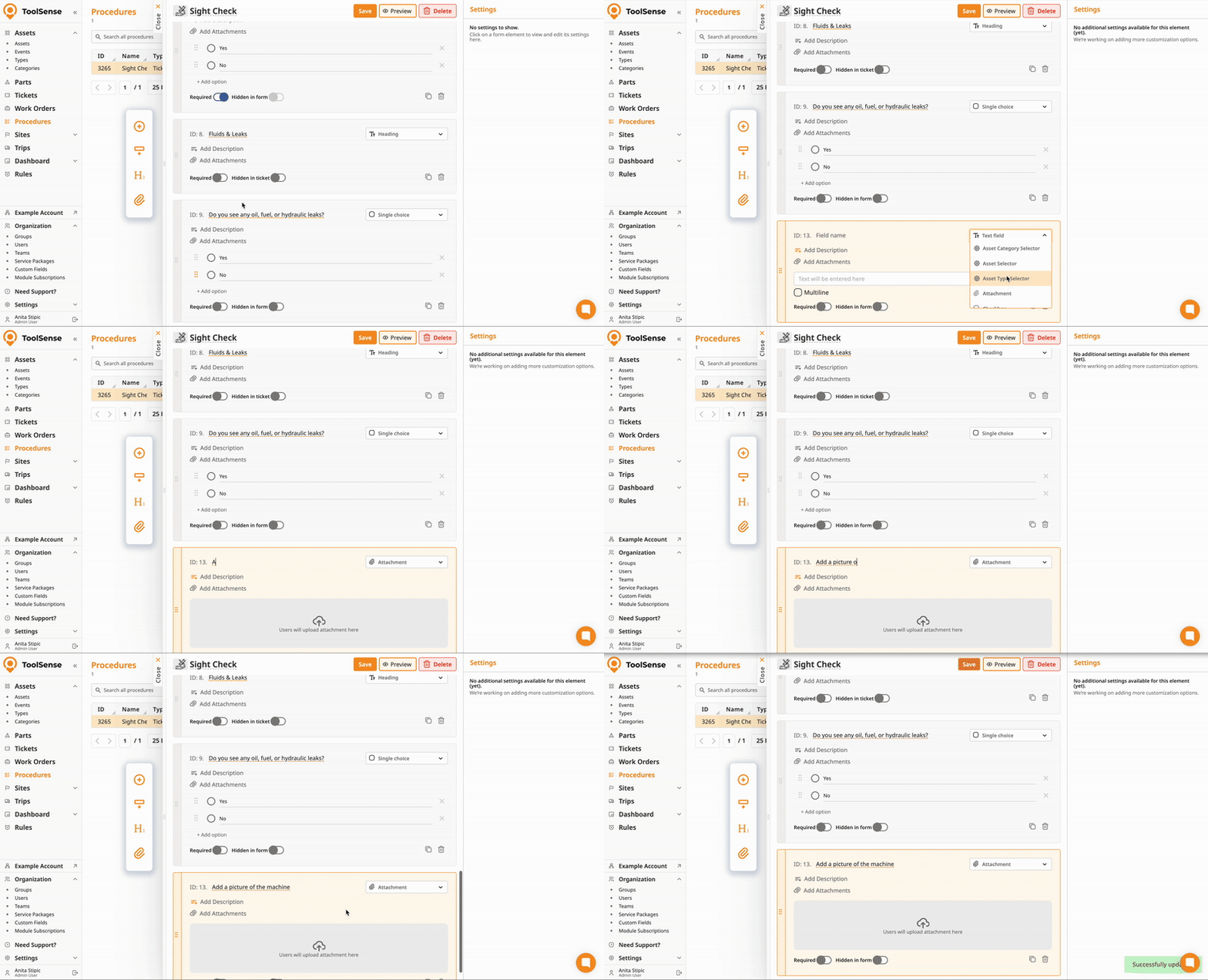
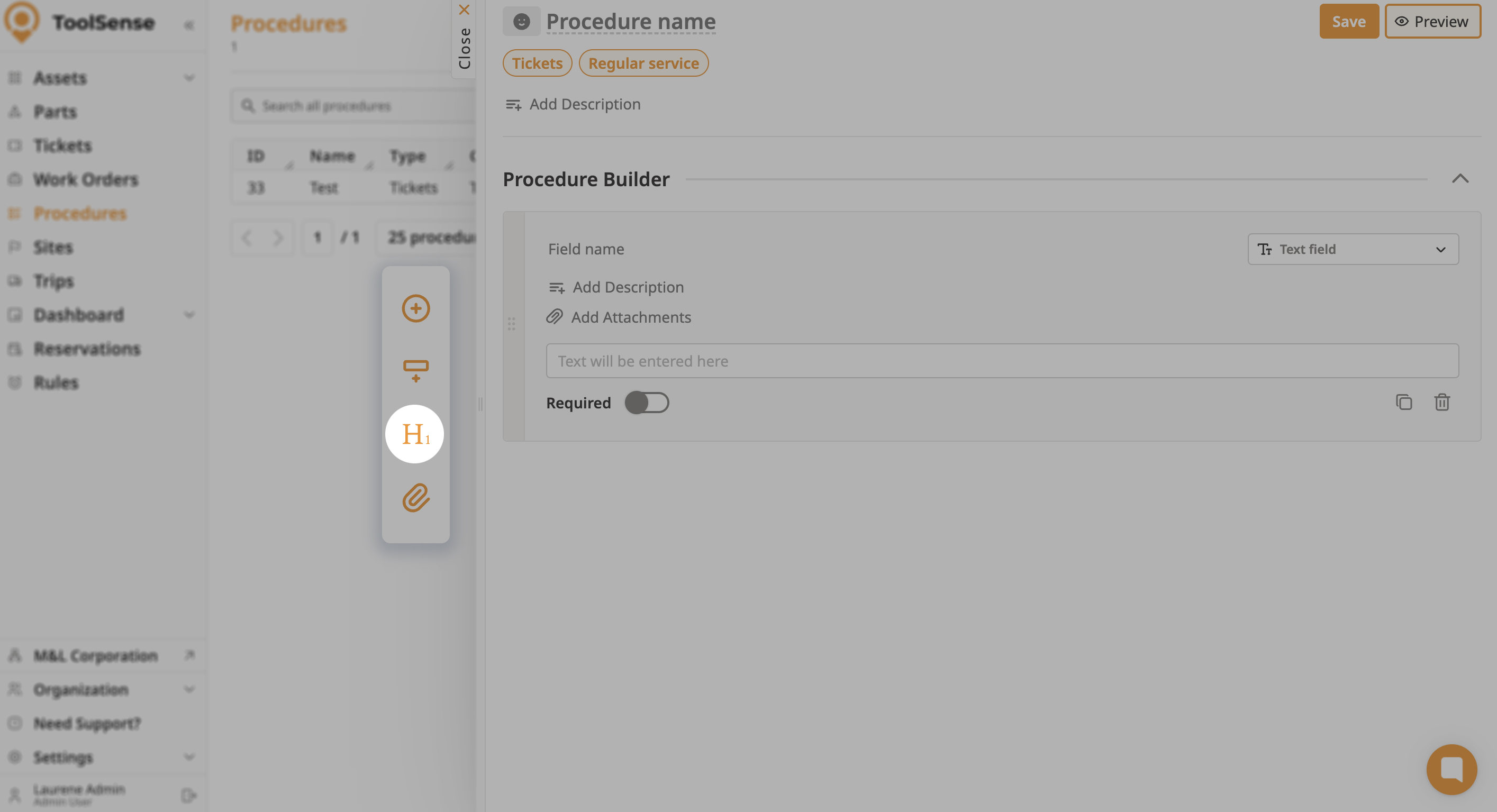
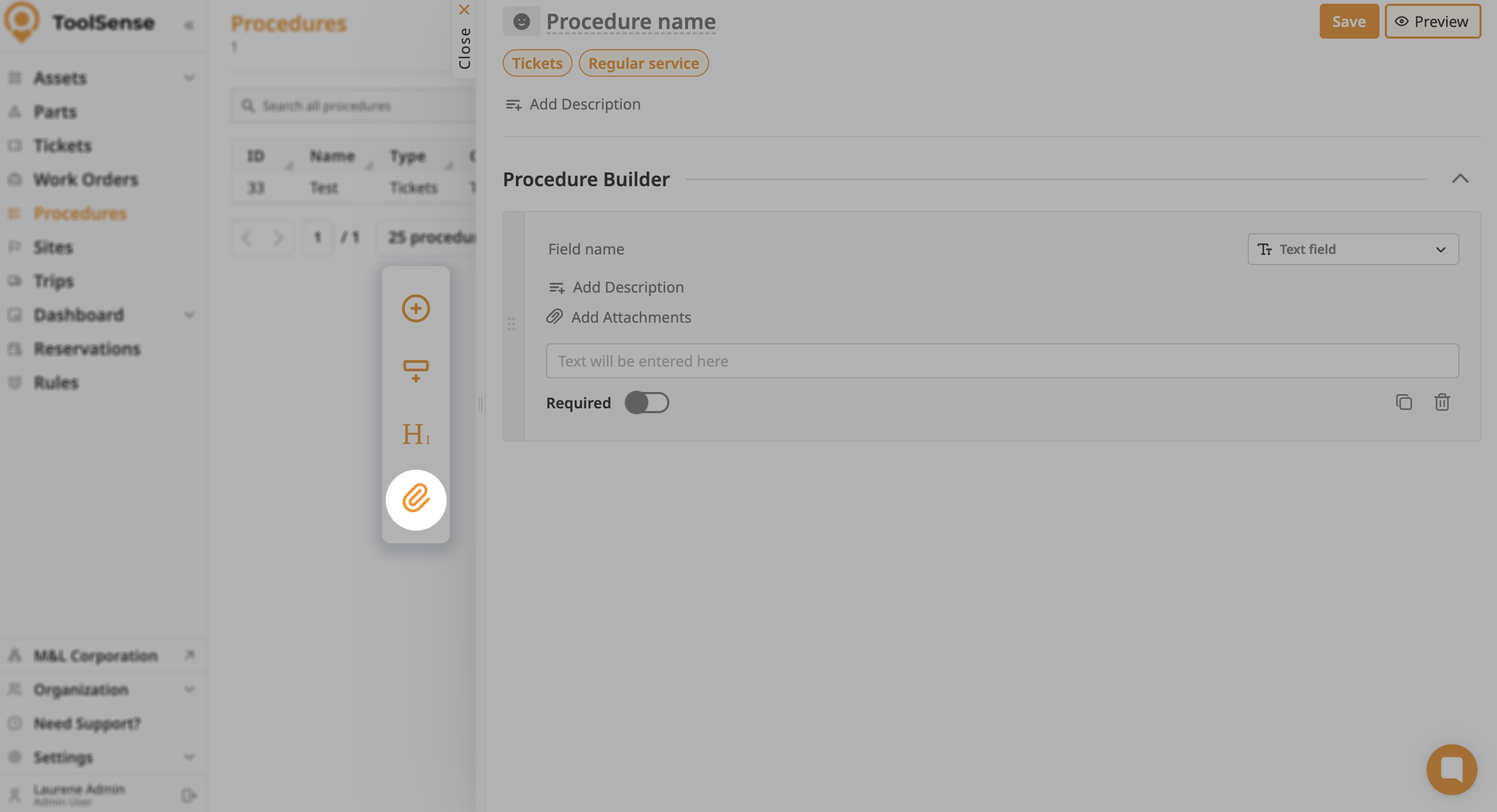
Use the left hand navigation bar to quickly add frequently used form elements:
Section: Add a new section to the procedure.
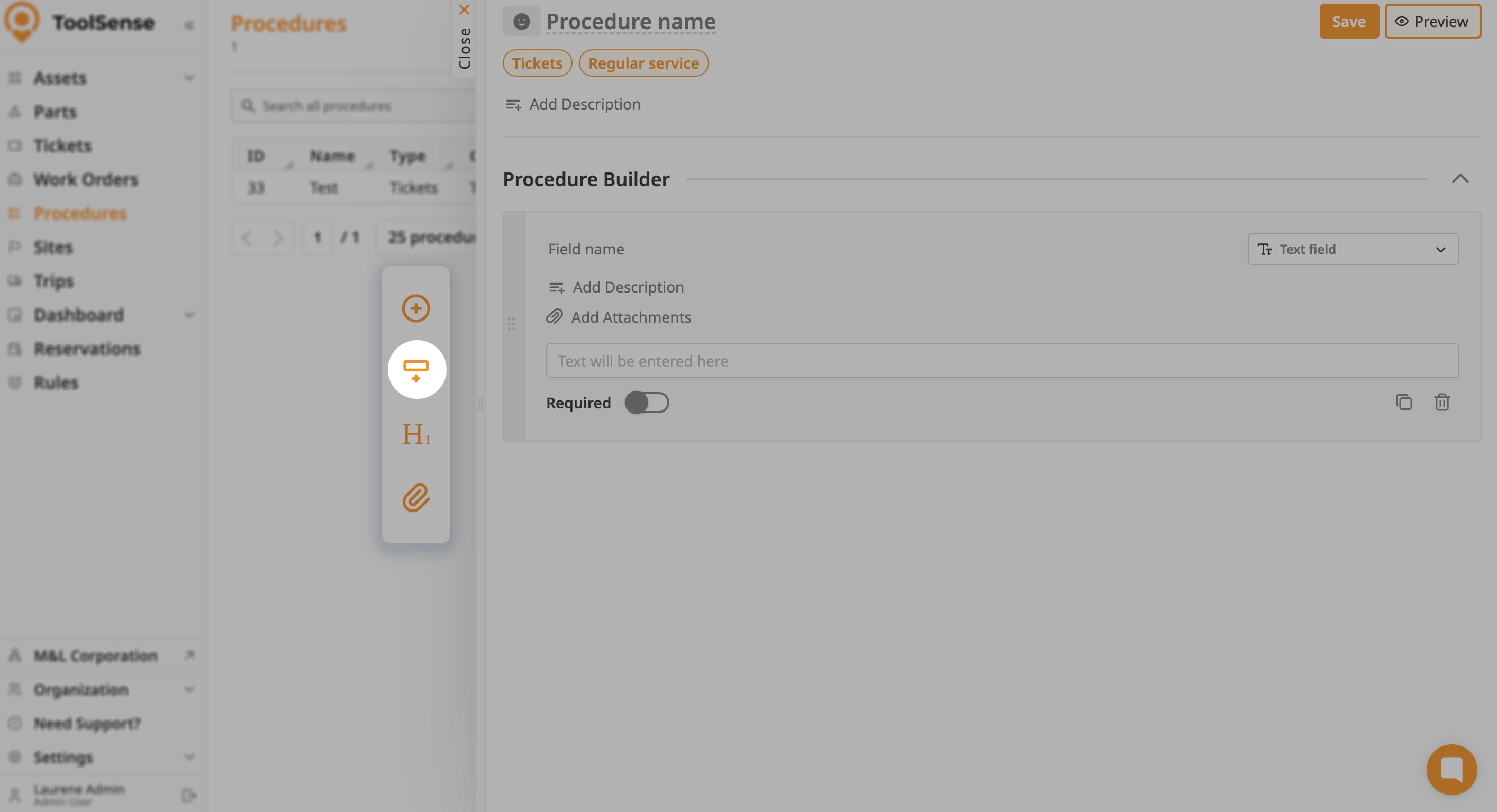
Header: A header element that can be used to provide a title or heading within the procedure.
Attachment: Add an attachment form element to the procedure
6. Edit Fields
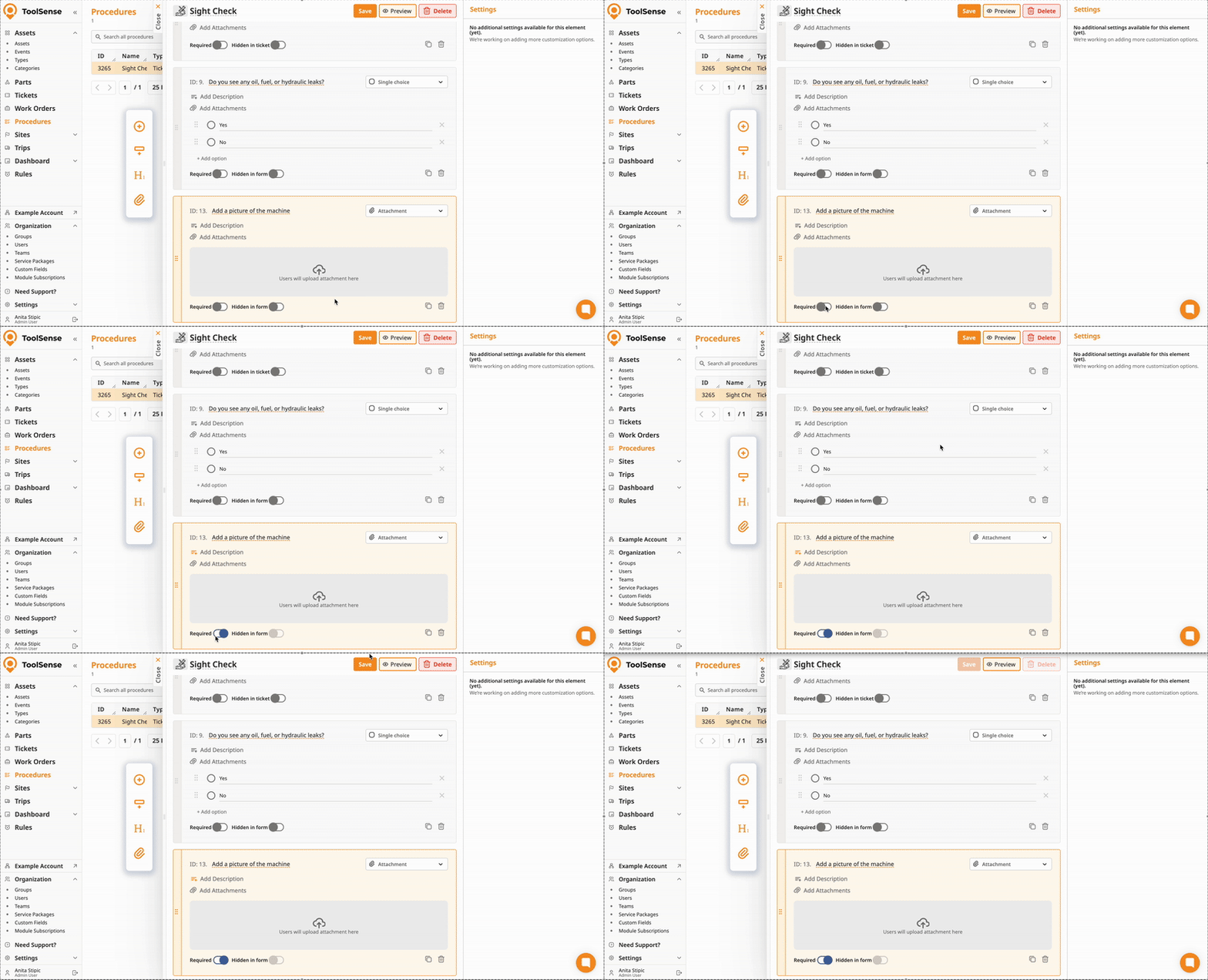
Duplicate and delete fields in the bottom right corner of each form element.
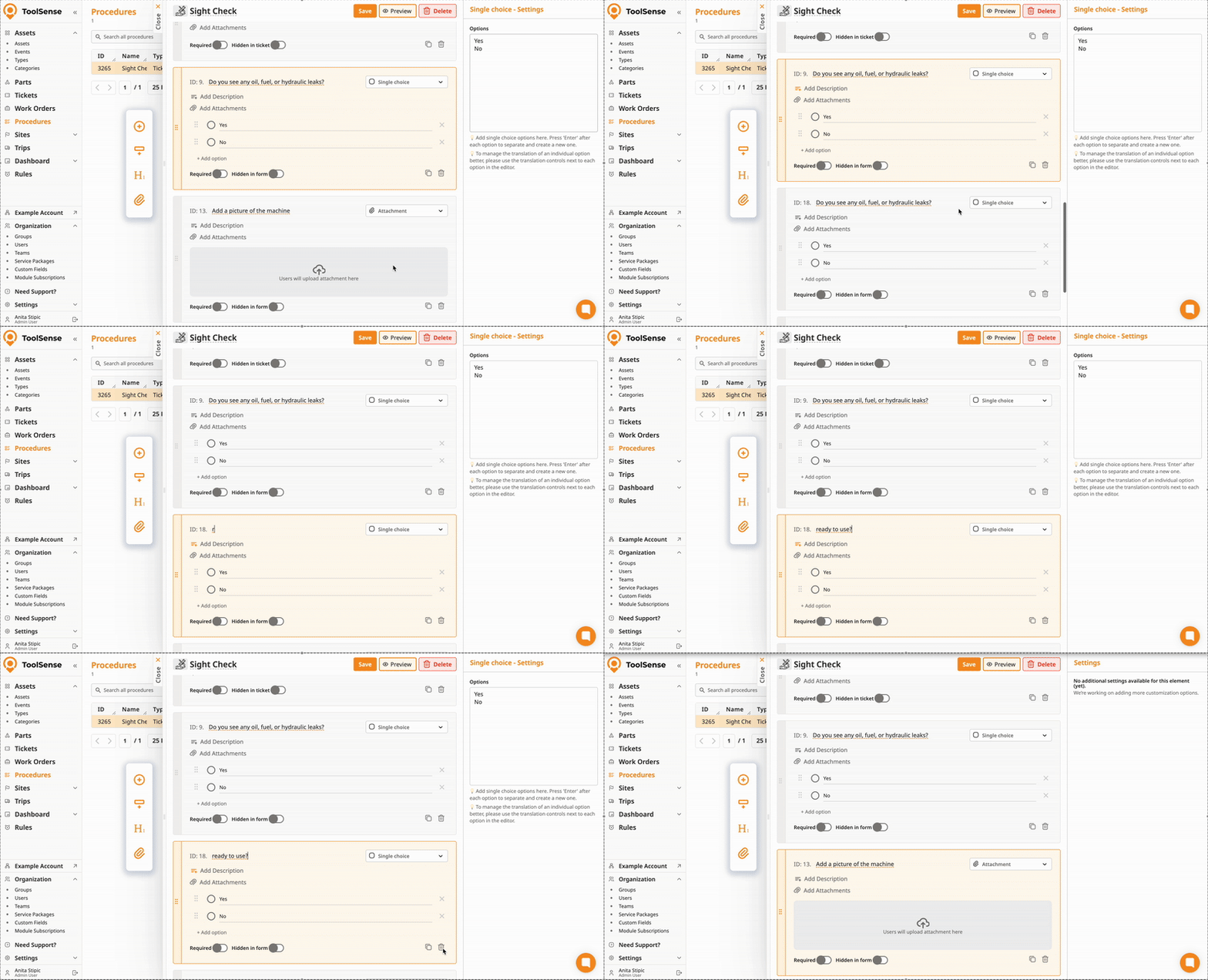
Mark fields as required
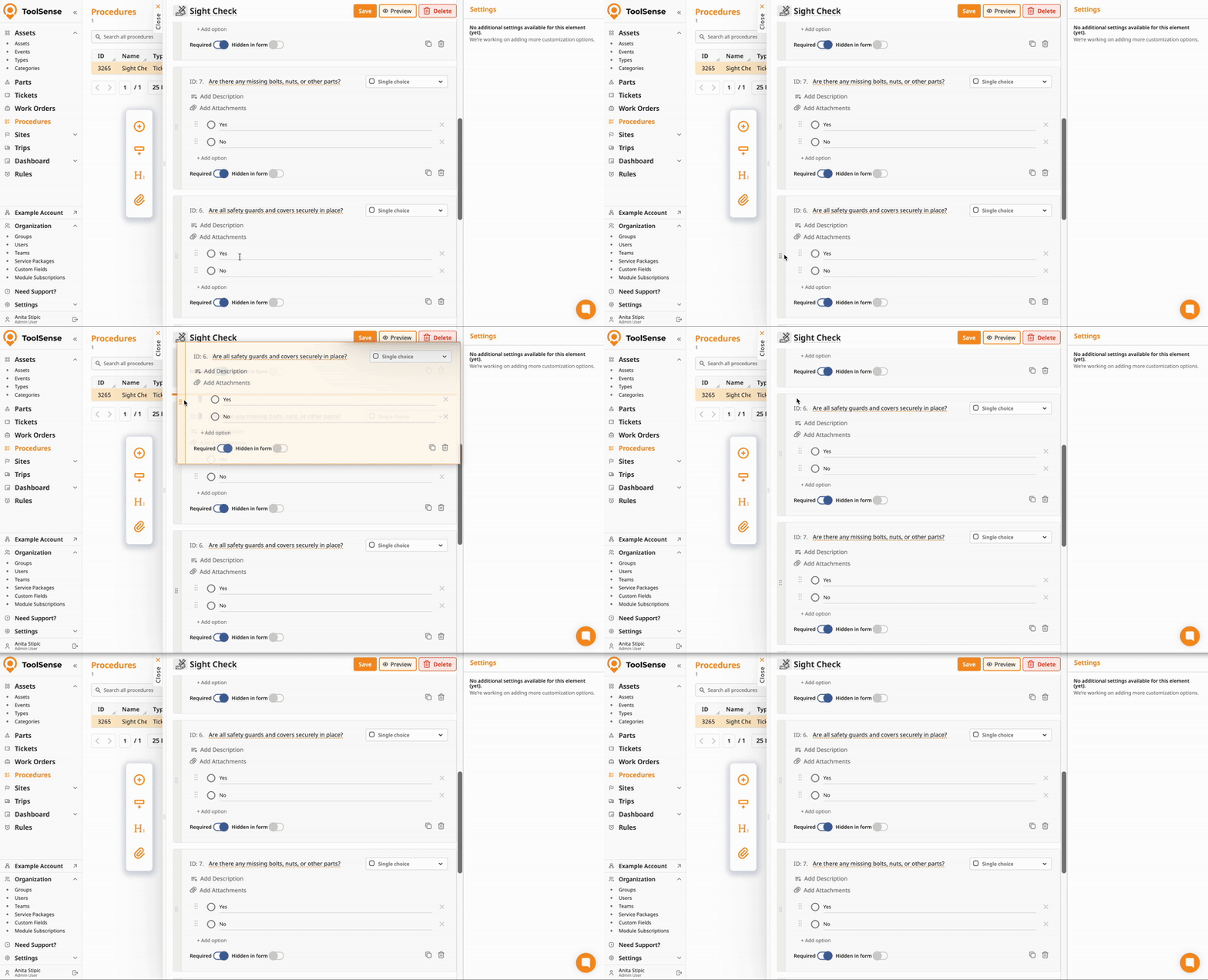
Drag and Drop fields to adjust their order
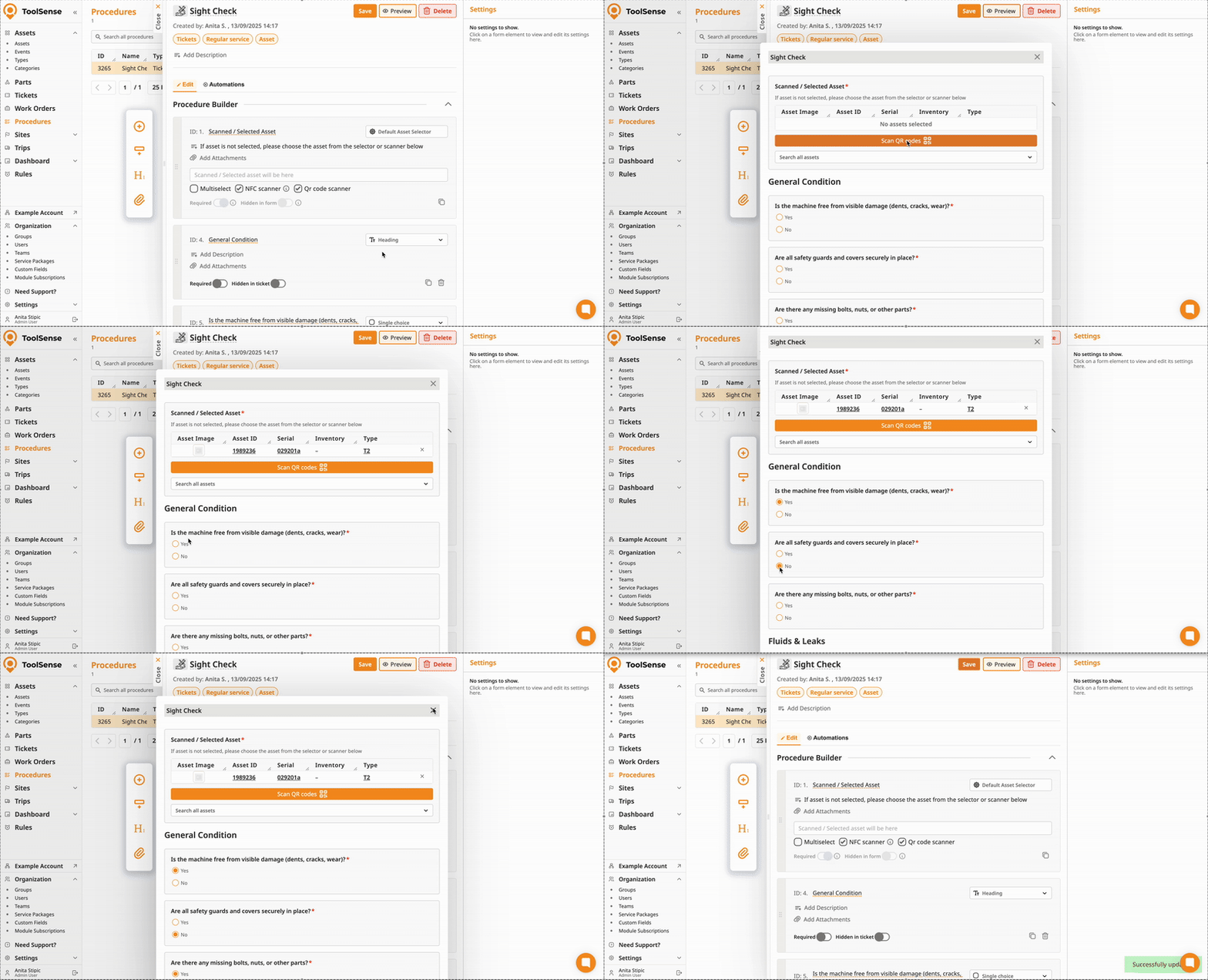
5. Preview & Save
Click Preview to test the flow.
Hit Save.
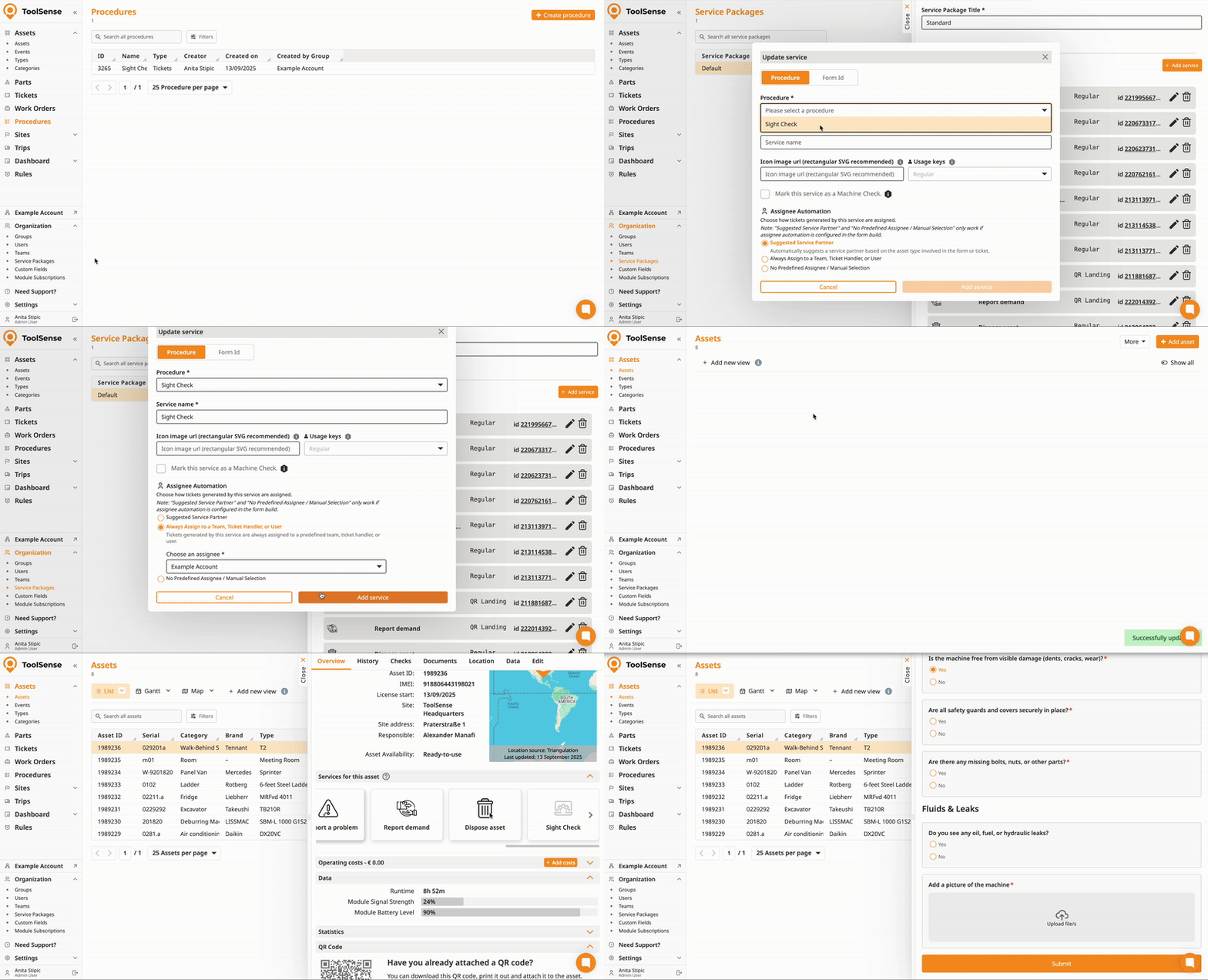
6. Use your Procedure
Navigate to your service packages.
Create a new service and select your procedure.
For a full overview on input elements, refer to the article below
How to create a procedure via the procedure builder
A guide how to create your own procedure using the Procecure builder in ToolSense
Discover useful procedure automations in the following article
⚙️ Ticket Automations (via Procedure builder)
This guide explains how to use ticket automations in ToolSense to streamline ticket management, including automatically updating asset statuses and ticket properties directly through procedure forms.

