Depending on your organizational structure, resources, and current setup, there are several ways to roll out asset creation for your existing assets.
If you’re working with ToolSense QR Codes, there are two main tasks to cover:
Asset creation
QR Code assignment
Tracking progress
The best approach for your rollout will depend on factors such as:
Who has frequent access to your assets? For example, site managers, workshop manager, etc. These people will need to physically attach the QR Codes to your assets.
How clean is your current asset database?
If it’s already clean and complete, you can import your assets directly (see Option 2).
If it’s incomplete or outdated, we recommend starting with Option 1.
Prepare your QR Codes
Order or print your ToolSense QR Codes.
Keep them in a convenient format (rolls, sheets, or pre-cut labels) for fieldwork.
How To Generate Blank QR Codes
How To Download New QR Codes
1. Sites/Locations
If you operate across multiple locations, start by importing your sites first. This way, you won’t need to update each asset later just to assign it to the correct site.
2. Understanding the Basic Data Structure
In ToolSense, asset data is organized as follows:
Category: Broad classification (e.g., scrubber dryer)
Type: Specific model (e.g., T2)
Brand: Manufacturer (e.g., Tennant)
3. Serial Numbers
Some assets may not have serial numbers, or you may have duplicates.
Duplicates: These are not an issue if the assets differ in type — they can still be added to your account.
Missing serial numbers: We recommend creating your own numbering system or using another unique identifier, such as an inventory number.
If you can’t avoid duplicates within the same type or missing numbers: We can adjust your account settings to make serial numbers optional. To request this, please contact your CSM or our support team.
4. Types & Categories
Types and Categories allow you to automate specific tasks - for example, adding manuals to assets based on type or contacting your service partner depending on the asset type.
Keep this data clean to maintain smooth automation.
When using Option 1, set internal standards for these fields or consider restricting type creation for editor users.
If you’d like to enable restrictions, reach out to your CSM or our support team.
5. Mandatory Fields
By default, the following fields are required when creating an asset:
Serial number (can be toggled off as described above)
Type (cannot be optional)
Category (cannot be optional)
Picture (mobile app only - can be made optional by CSM or support)
6. Additional Data
Define which asset data should be added and communicate it clearly to your team.
This approach works best if you don’t have reliable or up-to-date asset data. It allows you to create each asset directly in ToolSense at the moment you attach its QR Code.
1. Define when and who will add the Assets and attach QR Codes
Frequent approaches are:
- each site manager
- warehouse managers
- in cycles when assets come in for servicing or checks
2. Assign on the spot
Scan the QR Code with the ToolSense mobile app.
Create the asset in the app, at least entering essential details such as name, category, location, and any other required fields.
For a complete walk through, refer to the following article:
How To Add an Asset - ToolSense Mobile App
Create an Asset using your Smartphone and a Blank QR Code
No risk of importing outdated data.
Simple process.
Physical verification ensures each asset is accounted for.
This approach is ideal if your existing asset database is accurate and complete. You’ll import the data first, then attach QR Codes in the field.
1. Prepare your asset list
Export your asset data from your current system (Excel, ERP, etc.). Make sure each asset has a unique identifier and key information such as type, category and location. (For more information refer to the article linked under the second point.)
2. Import into ToolSense
Use the Excel Import Feature to upload your asset list into ToolSense. For more information, refer to the article below.
How to Update Multiple Assets with our Excel Import Tool
Bulk/Batch updating Asset information
3. Define when and who will attach QR Codes
Frequent approaches are:
- each site manager
- warehouse managers
- in cycles when assets come in for servicing or checks
4. Attach QR Codes in the field
Scan each asset’s QR Code with the ToolSense mobile app and assign it to the correct asset. For more information, refer to the article below.
How To Assign a QR-Code
Add a QR-Code to an existing Asset
Faster rollout if data is already well-maintained.
Minimal manual data entry in the field.
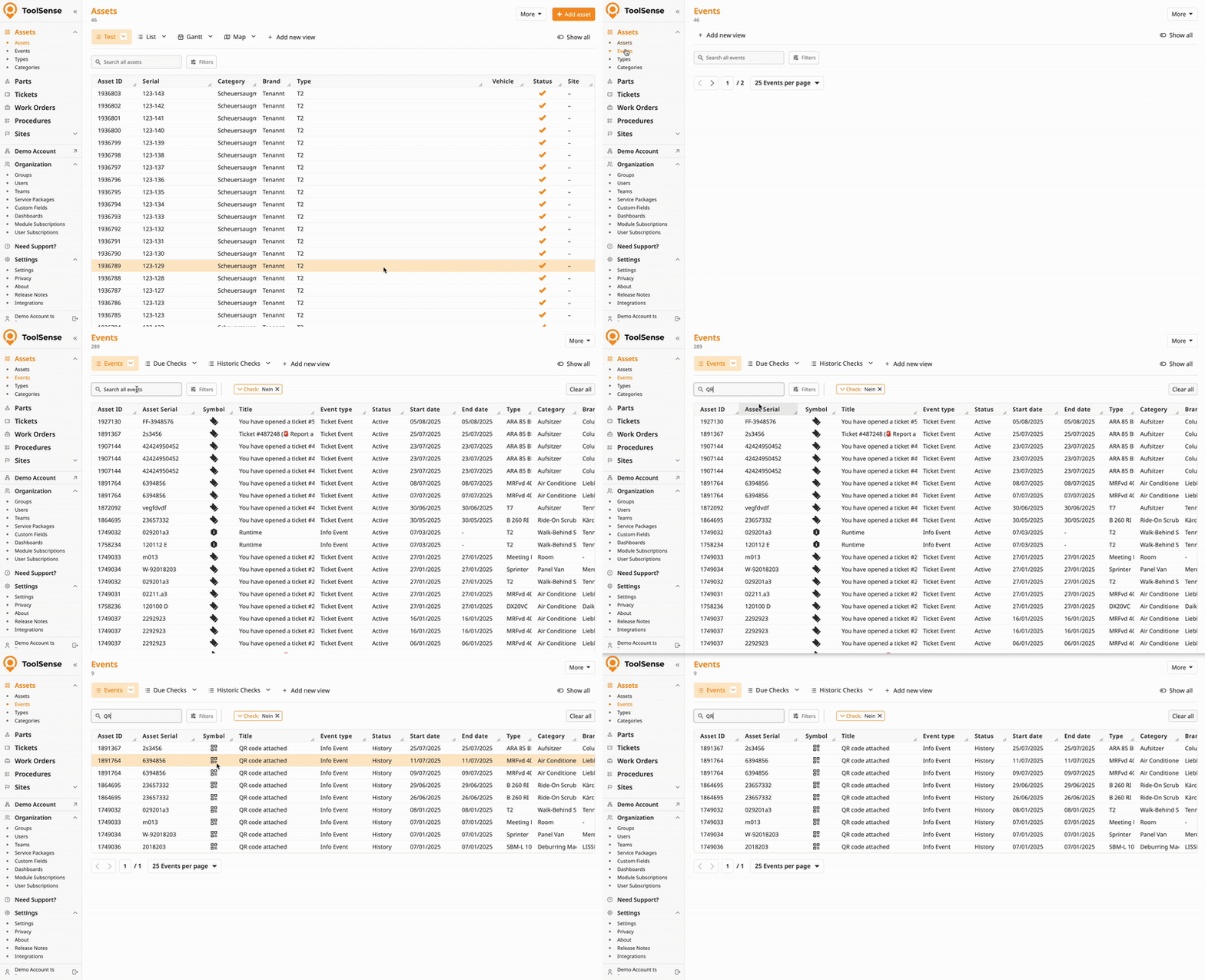
You can track progress in you Events Page by simply entering “QR“ or “This asset was created“ into the search bar. This will show you how many Assets & QR Codes have been added in the past.
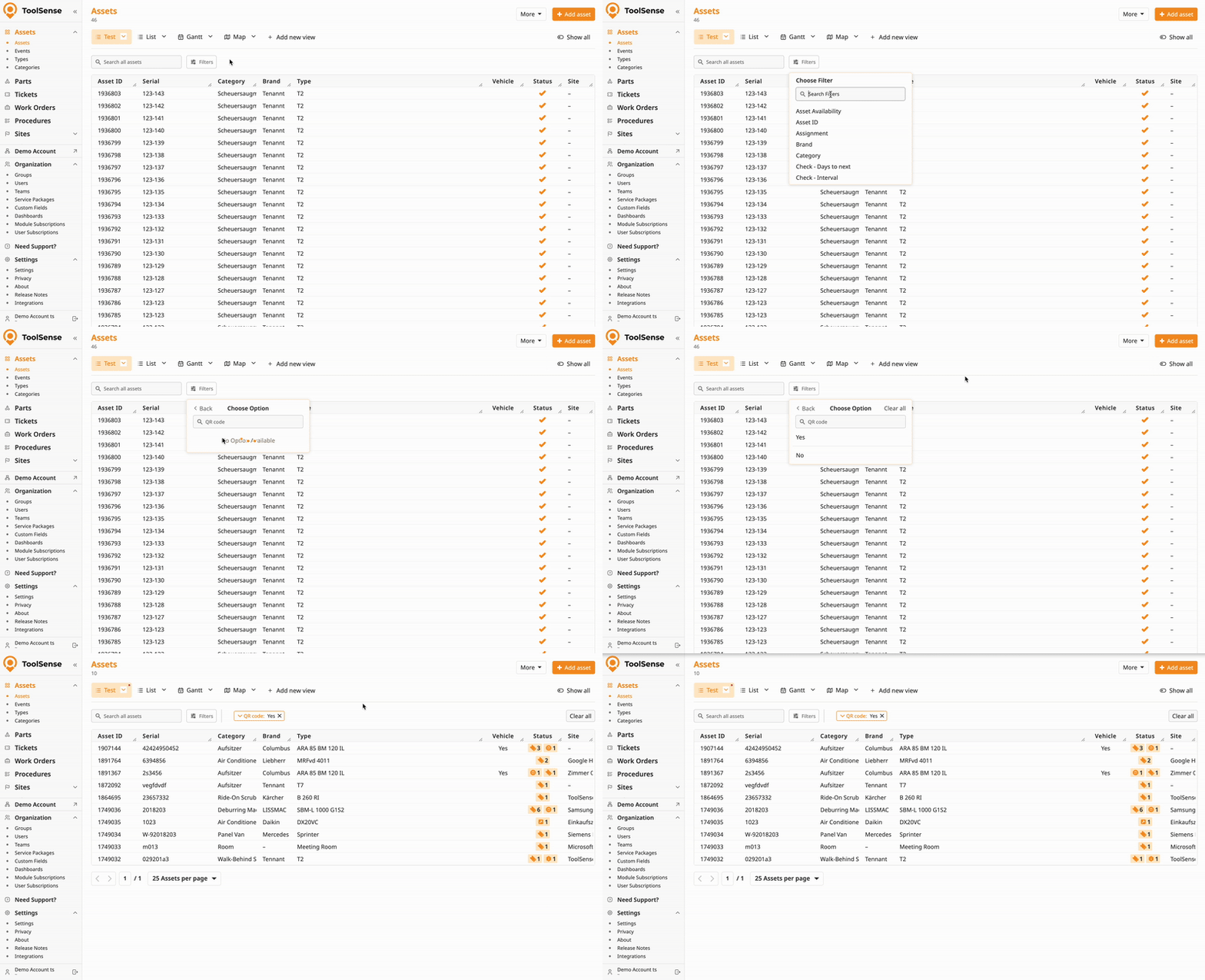
You can filter for assets that have a QR Code assigned and create a custom view if needed.
How To Create, Update & Delete views
Manage and Use Views for your Assets & Tickets