ToolSense Service Management helps you digitalize and standardize service-related processes across your organization. Whether you're managing the lifecycle of assets, submitting maintenance requests, or documenting recurring tasks, ToolSense provides a clear and consistent structure through services, forms, procedures, and tickets.
This article gives you an overview of how the key components - Tickets, Services, Service Packages, and Procedures - work together to streamline your operations, automate workflows, and ensure a consistent service experience for your users.
Forms are the digital representation of your paper forms or manual processes. They ensure a structured collection of information and guide users through the request process.
There are two ways to create forms:
Procedures are an internal tool within ToolSense that allow you to create custom forms. They offer flexibility in structuring tasks, enabling you to define specific steps, collect data, and ensure tasks are executed consistently - and even automatically.
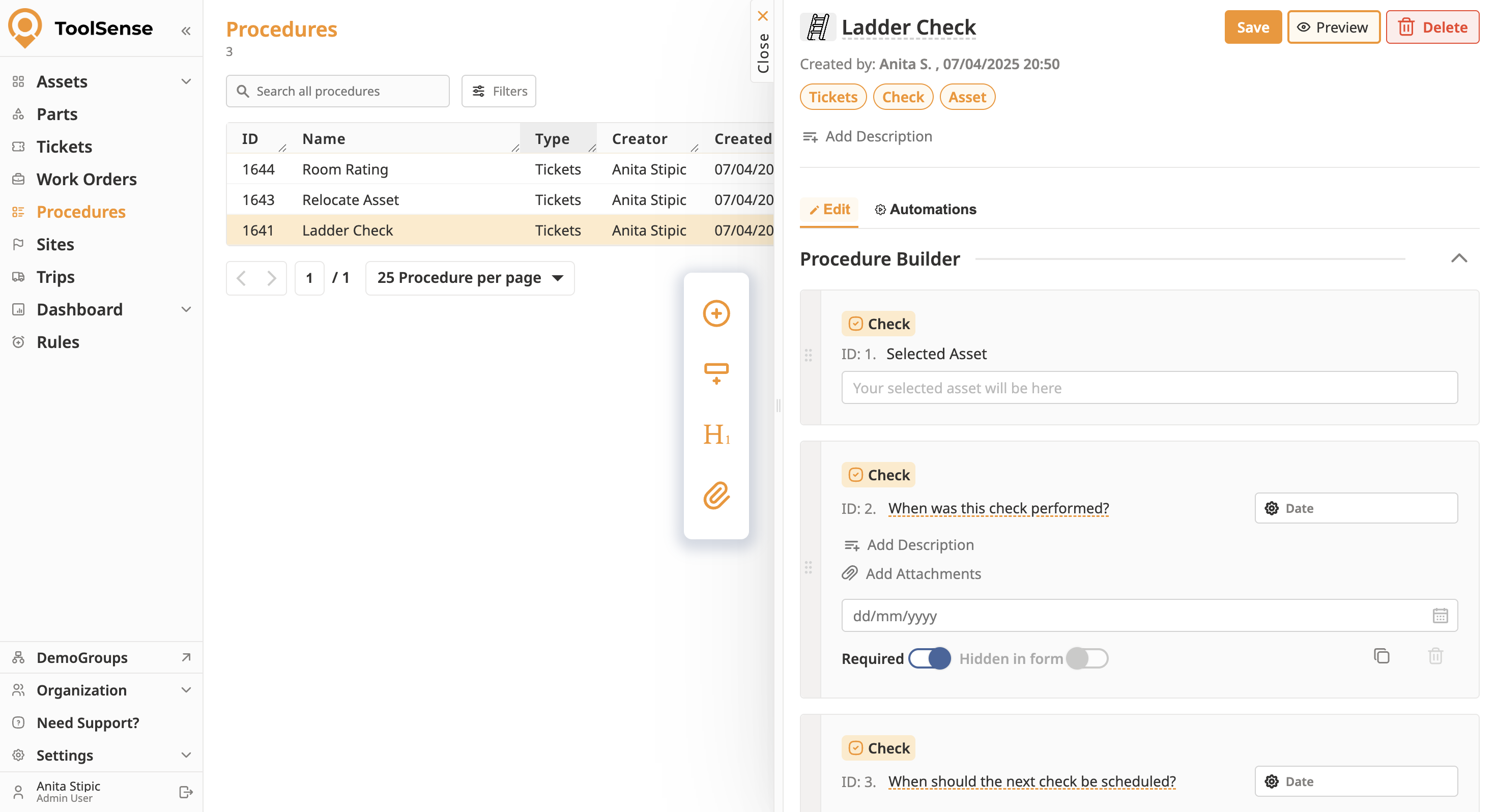
You can create Procedures for different purposes:
Non-Specific Services
Not tied to specific assets or sites. These are only available via the "Create Ticket" page (web) and the "Services" page (mobile app). They will not appear in asset or site overviews.
Asset Checks
Can be connected to a check via rule settings to create structured inspection or verification workflows.
Services for Assets
- Regular: These services (e.g. Asset Relocation) will appear in the asset overview as well as on the "Create Ticket" (web) and "Services" (mobile) pages.
- QR Landing: These services are available to non-logged-in users via a public QR code link. Common use cases include Report a Problem or Request Asset.
Services for Sites
- Regular: These services will appear on the "Create Ticket" (web) and "Services" (mobile) pages. To make it accessible via the Site overview, please assign the Service Package to a Site via the Site Edit Pane.

To learn more about creating Procedures, refer to the articles below.
How to create a procedure via the procedure builder
A guide how to create your own procedure using the Procecure builder in ToolSense
⚙️ Ticket Automations (via Procedure builder)
This guide explains how to use ticket automations in ToolSense to streamline ticket management, including automatically updating asset statuses and ticket properties directly through procedure forms.
To learn how to add a Procedure to a Service Package and assign them to Types, Categories, Groups, or Teams, refer to the article below.
How To Add and Configure Services
Manage Forms and Automations of your Services
Jotforms are pre-configured forms provided by ToolSense. These standard forms come with your account setup and are ideal for common service requests. If you require a form that cannot be created via Procedures, you can request one from your Customer Success Manager (CSM) or our support team.
In essence, both Jotforms and Procedures serve the same purpose of gathering user input for services, but Procedures provide more customization and flexibility for those looking for tailored solutions directly within the ToolSense platform.
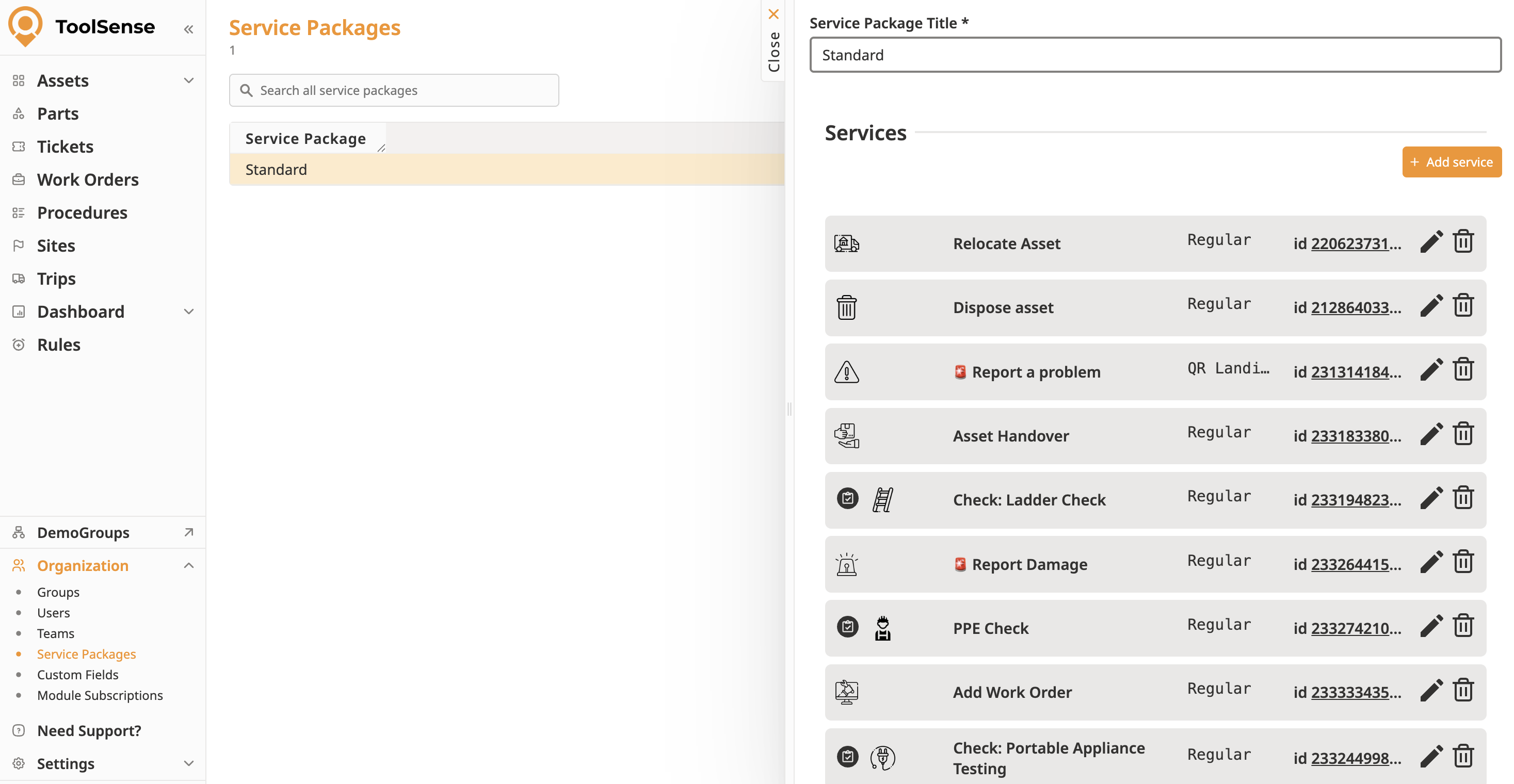
Services represent the different types of actions or tasks that users request, such as asset handovers, problem reports, maintenance checks, etc. Each service corresponds to a specific type of request or ticket. A service is always tied to a form, for example, a service like "Asset Maintenance Check" might have a form that collects details about the asset, its condition, and any issues that need addressing. Services also allow you to manage assignee automations that help streamline workflows, such as automatically assigning tasks to specific team members and triggering notifications when certain conditions are met.
To learn more about creating Services and their Assignee Automations, refer to the articles below:
How To Add and Configure Services
Manage Forms and Automations of your Services
Service Packages are groups of related services that are bundled together to address specific needs. Instead of listing each service individually, a service package lets you manage multiple services under one collection. For instance, a "Maintenance Package" might include services for routine checks, troubleshooting, and repairs for various asset types. Service Packages help control visibility and ensure that only relevant services appear to users based on criteria like asset type or user group.
To learn more about configuring Service Packages, refer to the article below.
How To Configure Service Packages
Manage the Visibility of your Services by Creating and Assigning Service Packages

Tickets represent the actual service requests submitted by users and track the lifecycle of a request from creation to completion. Each ticket is tied to a specific service and serves as the documentation for the request, including the actions taken during the resolution process. Tickets are visible in their own dedicated view, providing a clear overview of all active and completed requests.
Common use cases for Tickets include:
Repair requests - Logging an issue if a machine is malfunctioning or needs inspection.
Preventive maintenance - Scheduling regular service checks to prevent breakdowns.
Compliance tasks - Tracking audits, safety inspections, or certification renewals.
Work coordination - Assigning tasks to technicians or other team members and monitoring
progress.|
Tickets track the entire service request, from the initial form submission to resolution.
Forms are tied to Services and ensure users submit the necessary information to create a ticket.
Services are the actions or tasks users request, and service packages group related services to simplify and automate workflows.
Understanding how Tickets, Services, Service Packages, and Procedures work together is essential for effective service request management. By using these tools, you can streamline the way you handle requests, automate workflows, and ensure users have the right services at the right time.
